How to Download Latest Windows 11 ISO with UUP Dump

UUP Dump downloads Windows installation files directly from Microsoft’s servers and packages them into a bootable ISO. An ISO is a single disc image file that you can use to install an operating system. This guide walks through the whole process, from picking a build to finding the finished ISO on your drive.
UUP Dump lets you get the newest Windows 11 preview builds. These are test versions released to Windows Insiders before the general public gets them. You see new features and security changes earlier this way. The trade-off is that preview builds can be unstable, so use them on a test PC or a virtual machine, not on the computer you depend on for work.
Building your own installation media also helps you stay current with features like those in Windows 11 version 23H2. You choose the build, the language and the edition yourself instead of taking whatever a standard download gives you.
Download the latest Windows 11 ISO using UUP Dump by visiting their website, selecting your desired build, language, and edition. Run the downloaded package as administrator to compile the ISO.
Official Microsoft 🪟 Windows 11 ISO Download
Downloading the official Windows 11 ISO directly from Microsoft is the safest and most reliable method. Your files are genuine and unmodified, and nothing needs to be converted or built on your PC.
If you only need the current public release of Windows 11, start there. Use UUP Dump only when you need something Microsoft’s download page does not offer, such as a specific preview build or an Arm64 image.
System Requirements and Compatibility
Before you go further, check system requirements and compatibility. Make sure your computer meets the minimum requirements for Windows 11:
- A compatible 64-bit processor
- 4GB of RAM
- 64GB of storage
Windows 11 also needs a PC with UEFI firmware, Secure Boot capability and TPM 2.0. If your PC does not meet these, the installer may refuse to continue. Leave some extra free space on the drive where you build the ISO as well. The download and conversion use several gigabytes of temporary files, and 20GB or more free is a safe margin.
How to Create a Bootable USB for 🪟 Windows 11
After you download the Windows 11 ISO file, you need to put it on a bootable USB drive to install it on another PC. Rufus is the usual choice here. You select your ISO in Rufus, pick the USB drive, and it writes the installer for you. Back up anything on the USB drive first, because the process erases it.
Microsoft's Media Creation Tool also makes bootable USB drives, but it downloads the current public release from Microsoft. It does not use the ISO you built with UUP Dump. If you want a specific preview build, use Rufus with your own ISO. If you only want the standard release, the Media Creation Tool works fine.
Advanced Method: Downloading with UUP Dump
UUP Dump lets you build custom ISO files for specific Windows 11 preview builds or Arm64 versions directly from Microsoft's servers. UUP stands for Unified Update Platform, the system Microsoft uses to deliver Windows updates. UUP Dump collects the update files from that system and a script on your PC assembles them into an ISO.
UUP Dump is a third-party site and is not run by Microsoft. The files do come from Microsoft's servers, but the conversion script runs on your own PC. That is why Windows may show security warnings later in this process.
Steps to Download via UUP Dump
To get a Windows 11 ISO using UUP Dump, you go to the UUP Dump website, pick your preferred Insider Preview build, select your language, choose your edition such as Home or Pro, and then run the download package to create your installation file. The steps below cover each part in order.
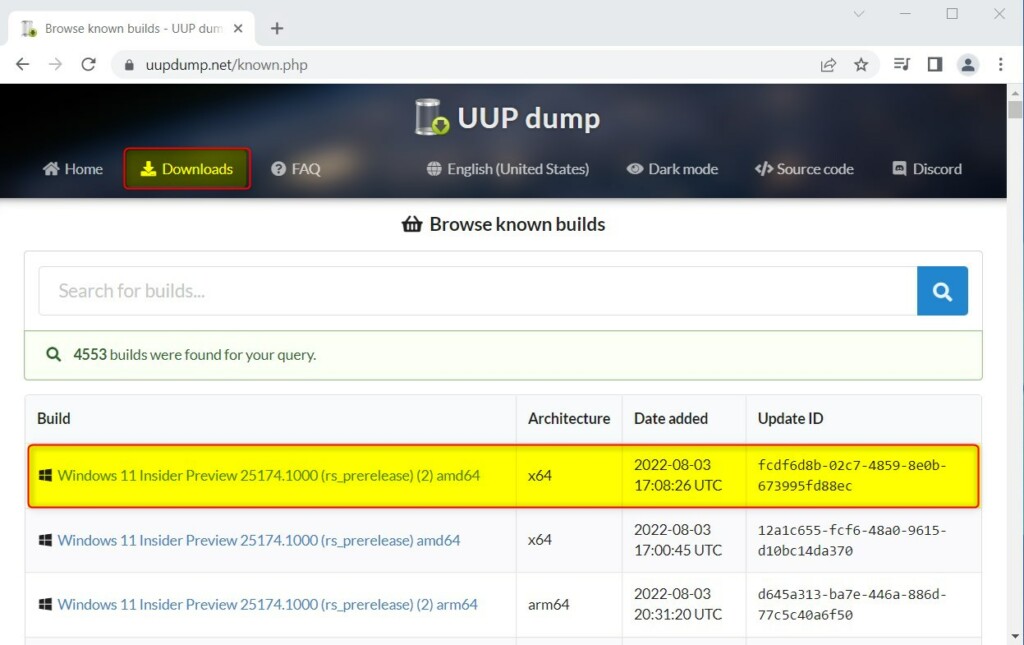
Start with step 1: open the UUP Dump website in your browser. You should see a list of available Windows builds and a menu along the top.
- Click the Downloads tab and select your desired Windows 11 Insider Preview build. You should see a list of builds with their version numbers and release dates. Pick the newest one for the latest features, or an older one if you need a specific build. Make sure the architecture matches your PC (x64 for most PCs, Arm64 for Arm devices).
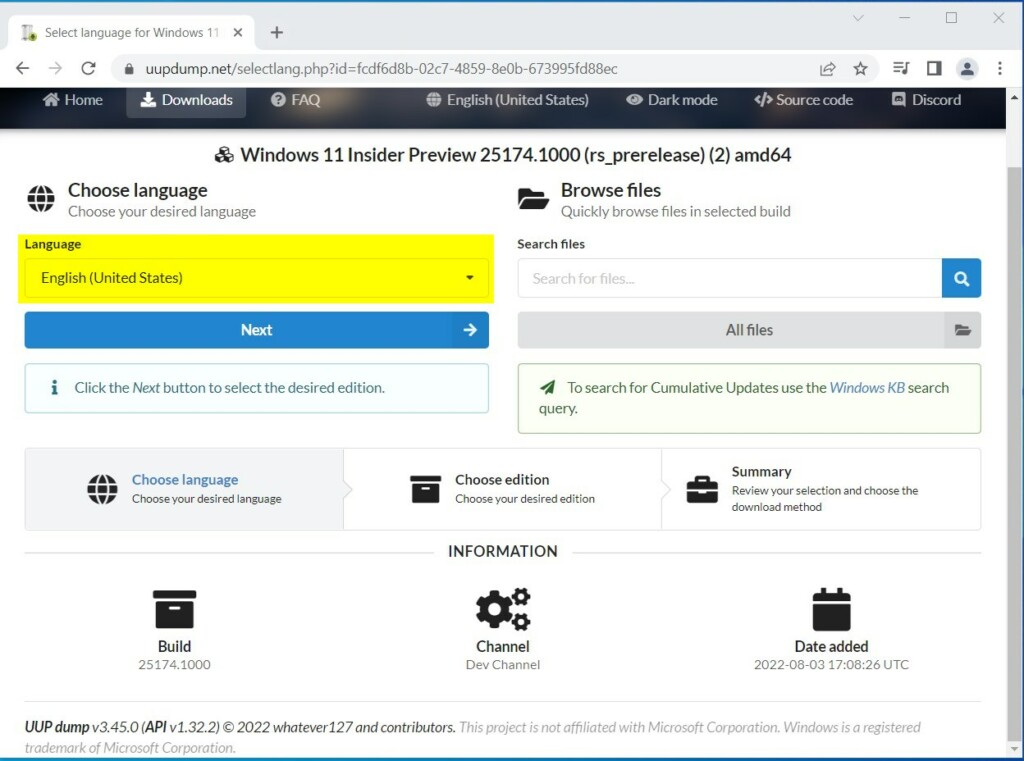
- Choose your language and click Next. You should now see a list of editions for that language. The language is built into the ISO, so pick the one you want to install.
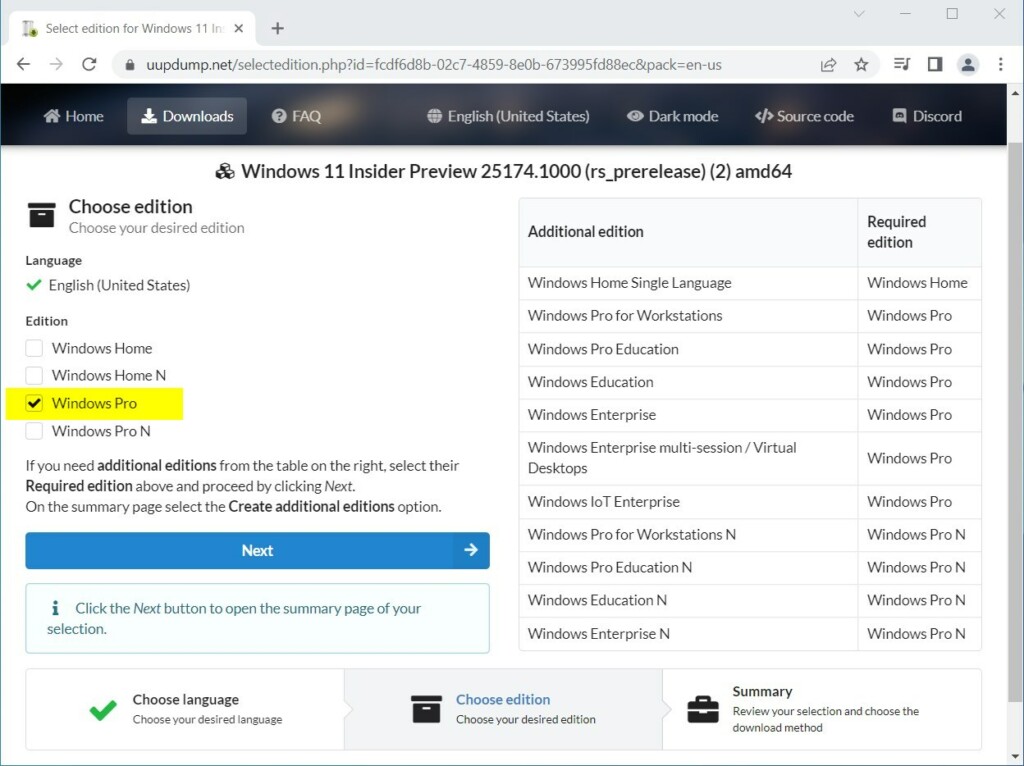
- Select your edition (Home, Pro, or Enterprise) and click Next. The edition list you see can vary by build. If you are not sure, choose the edition that matches your license key. Home and Pro are the most common choices for personal PCs. You should now see the download options page.
- Choose Download and convert to ISO and click Create download package. Your browser should download a small zip file. It does not contain Windows itself. It contains the script that fetches the files and builds the ISO. If your browser warns about the file, confirm that you want to keep it.
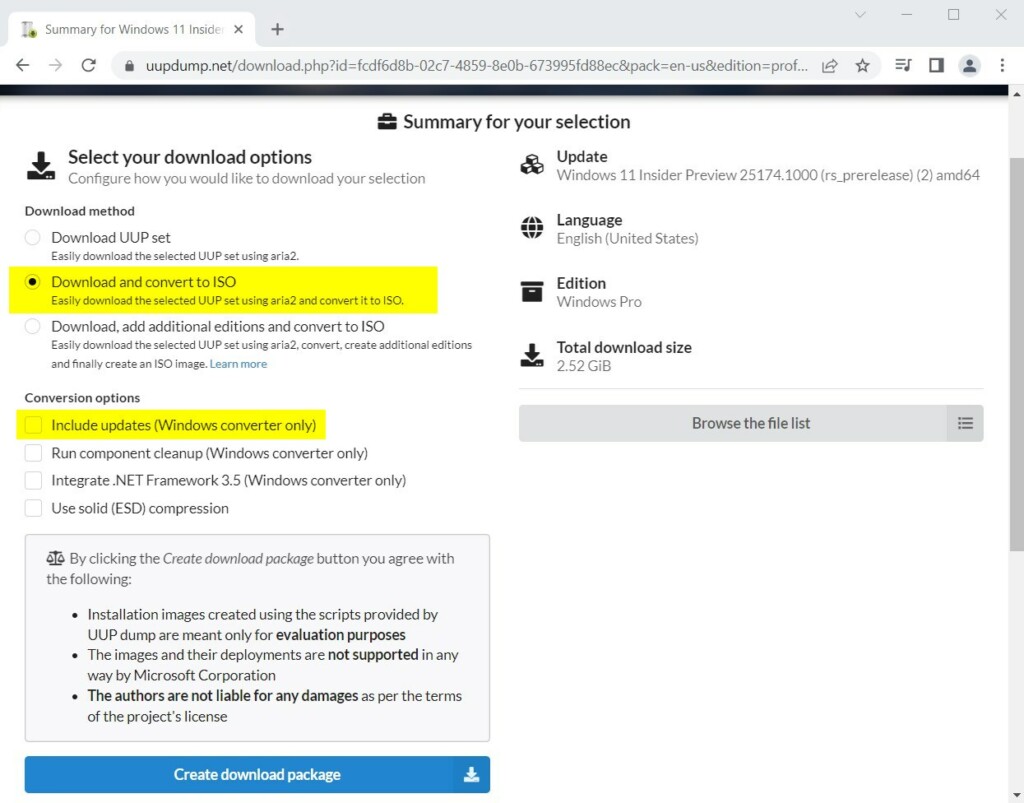
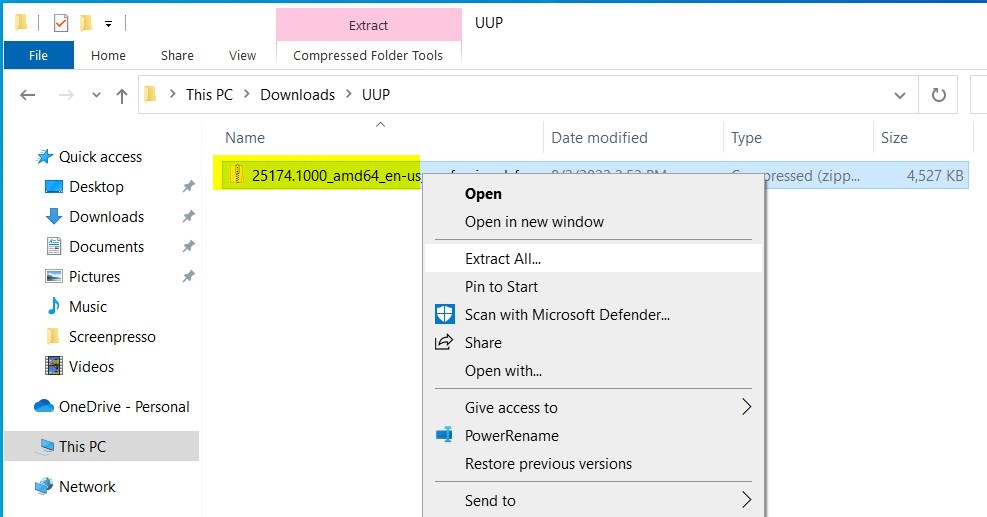
- Extract the downloaded zip file to a folder on your drive, for example, C:\Users\User\Downloads\UUP. Right-click the zip file and choose Extract All, then pick the folder. Do not run the script from inside the zip, because it will fail. Keep the folder path short and free of unusual characters, and make sure the drive has enough free space.
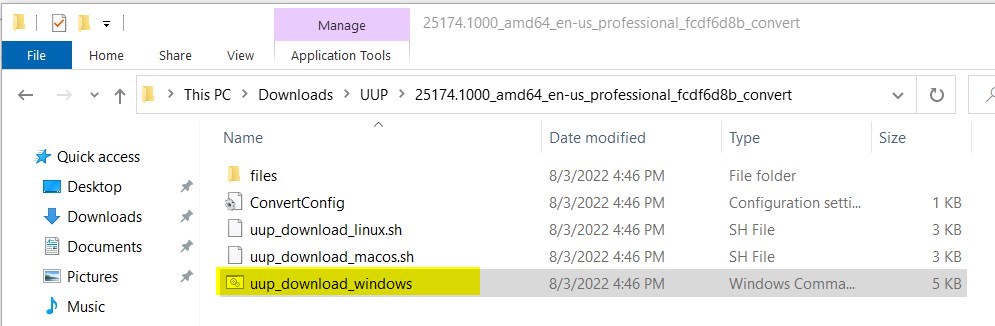
- Open the extracted folder and locate the file named
uup_download_windows.cmd. This file is usually a batch script, indicated by a .bat or .cmd extension. If you do not see file extensions, open File Explorer, click View Show and turn on File name extensions.
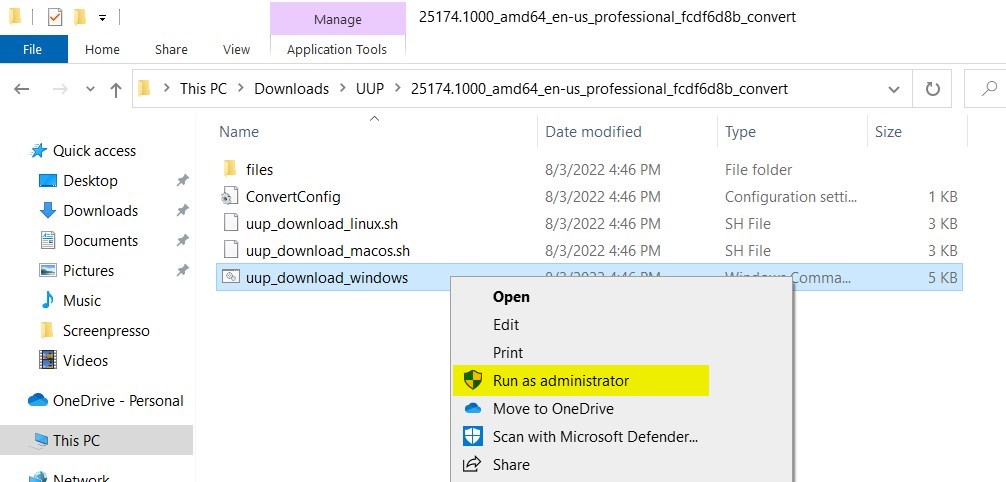
- Right-click the file and select Run as administrator. You need administrator privileges for this. On Windows 11, if you do not see that option in the short menu, click Show more options first. If User Account Control asks for permission, click Yes.
- If a security prompt appears, click More info and then Run anyway. This is the Microsoft Defender SmartScreen warning, which appears because the script was downloaded from the internet and is not signed. Only continue if you downloaded the package yourself from the UUP Dump site.
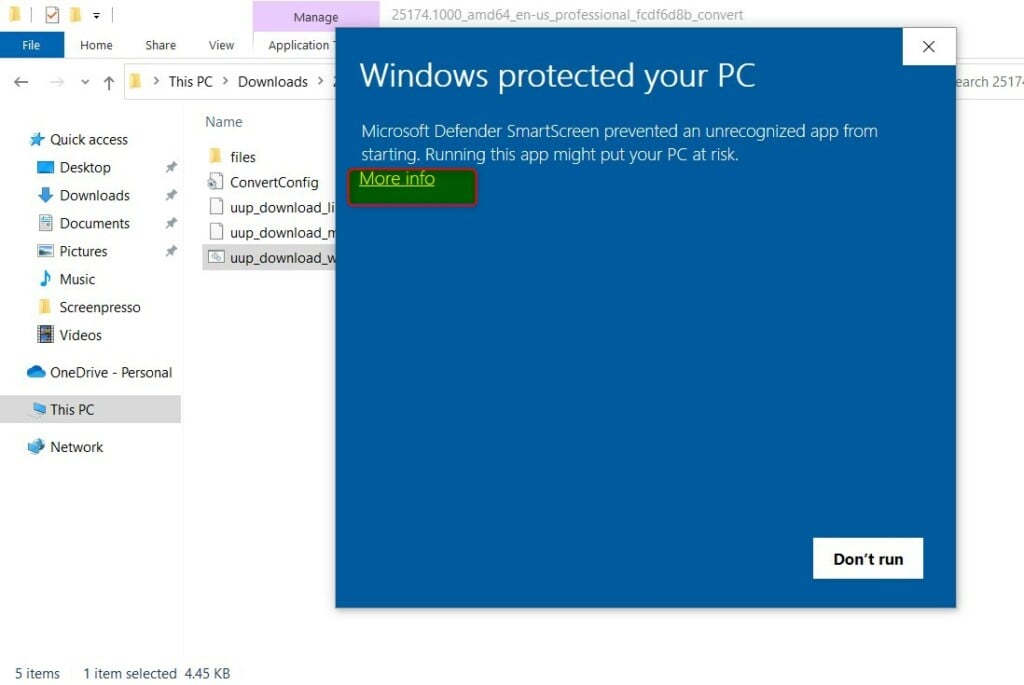
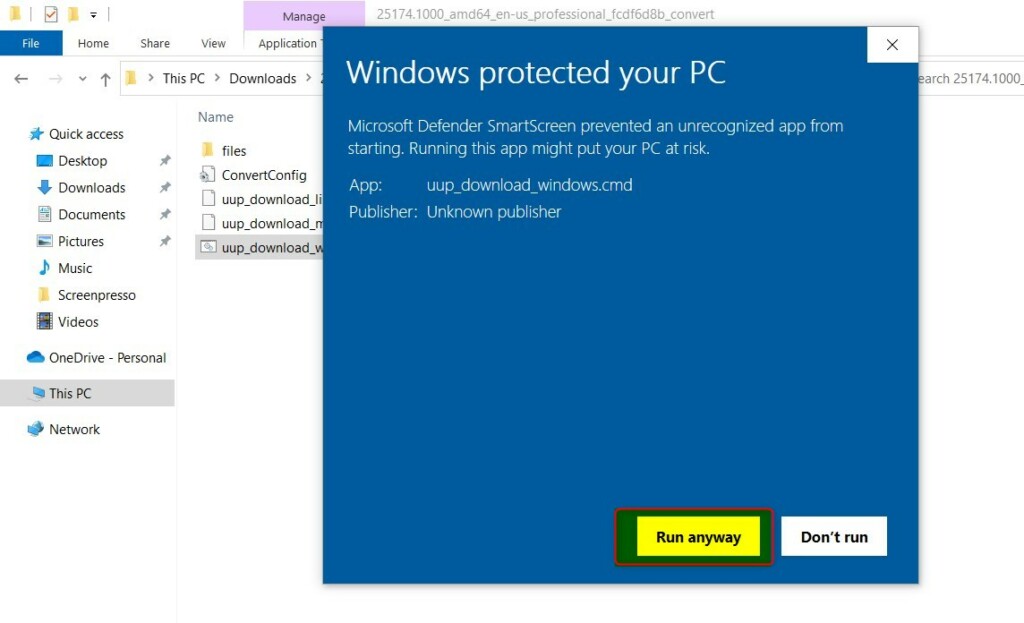
- Watch the command prompt window that opens to process the files. It downloads the update files, then converts them into an ISO. This can take a while, depending on your internet speed and your drive, so do not close the window. Once it has finished, press 0 to exit. Your ISO will be in the same folder as the script.
If the window closes early or shows an error, check that you have enough free disk space and a working internet connection, then run the script again. To undo everything, delete the extracted folder. Nothing is installed on your PC by this process.
Summary
For a secure and stable Windows 11 download, use the official Microsoft website. Alternatively, choose UUP Dump for specific preview builds, but always check system requirements first. Test preview builds on a spare PC or a virtual machine before you put them on a computer you rely on.
Was this guide helpful?

About the Author
Richard
Tech Writer, IT Professional
Richard is a writer at Geek Rewind who turns complex IT tasks into clear, step-by-step guides. He draws on years of hands-on experience in system administration and enterprise IT operations, focusing on Windows, Linux and WordPress: the problems people actually run into, and the fixes that work. His server and WordPress guides come from systems he runs himself. Richard builds and maintains the platform behind Geek Rewind, from its Ubuntu servers and Nginx configuration to its custom WordPress plugins. Many new tutorials start with readers' questions, and he's always glad to answer them in the comments.




[…] How to Download Latest Windows 11 ISO with UUP Dump […]