How to Mount and Unmount ISO Files in Windows 11

To mount an ISO file in Windows 11, right-click the file in File Explorer and select Mount. Windows turns the ISO (a digital copy of a disc) into a virtual drive, so you can open its contents without burning a DVD or CD. File Explorer does this itself, so you don’t need extra apps or downloads.
Unmounting removes the virtual drive again when you finish. You can mount and unmount the same ISO as many times as you like, and the original file is never changed.
To mount an ISO file in Windows 11, right-click the file in File Explorer and select Mount. Windows adds a new virtual drive under This PC with its own drive letter, so you can open the disc contents without burning a DVD. Unmount it by right-clicking the drive and selecting Eject. Your ISO file stays where it is.
What happens when you mount an ISO?
It looks and behaves like a disc in a CD or DVD drive. A mounted ISO is read-only, so you can browse it and run or copy files from it, but you can’t save changes into it.
How to mount ISO files 🪟 Windows 11 using File Explorer
File Explorer has everything you need to mount an ISO file, and there is nothing to install. You can use the right-click menu or the toolbar at the top of the window. Both give the same result.
- Open File Explorer . Press the Win plus E if you want a shortcut.
- Go to the folder that holds your ISO file. Downloads is the usual place.
- Click the ISO file once to select it. Look at the toolbar or ribbon at the top of the window.
- Click the Mount button. You may need to open the disk image tools in the ribbon first, depending on your build.

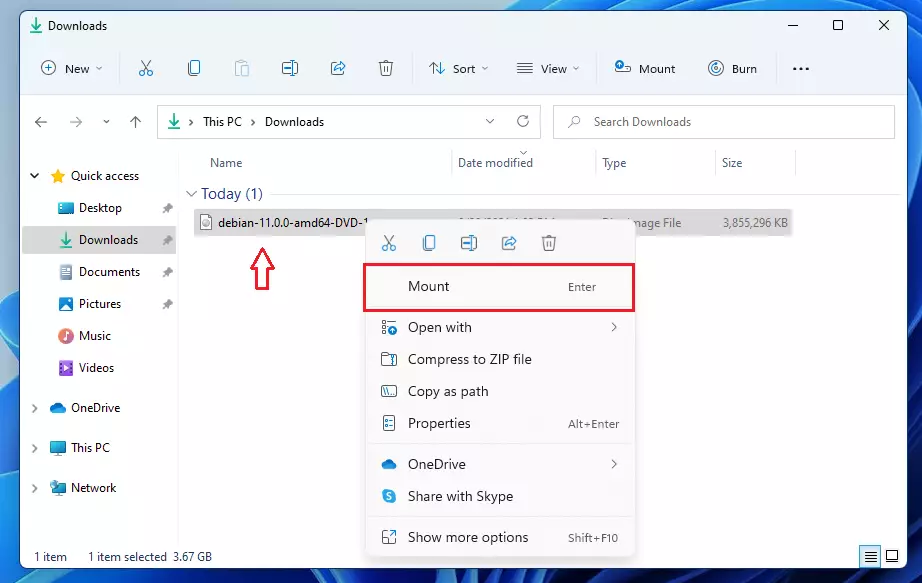
The right-click method is usually quicker. Right-click the ISO file and choose Mount from the context menu . If you don’t see it in the short menu, click Show more options to open the full classic menu.
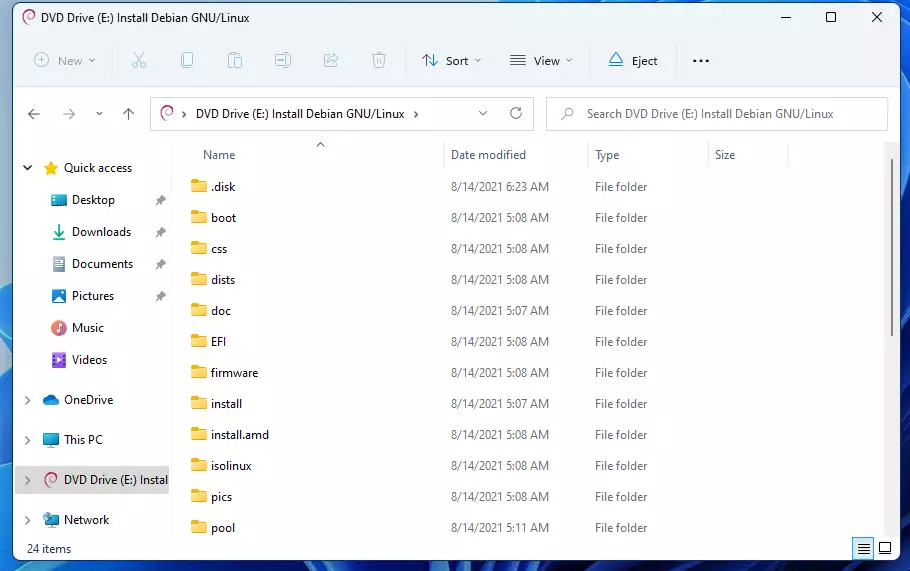
A new virtual drive now appears under This PC in the left pane. A File Explorer window may also open on the drive's contents. If it doesn't, click the new drive to browse the files.
How to unmount a virtual drive
You can unmount a virtual drive in Windows 11 from File Explorer. Eject it the same way you would a real disc. This removes the virtual drive but leaves your ISO file where it was, so you can mount it again later.
- Open File Explorer and click This PC in the left pane.
- Find the virtual drive. It shows a disc icon and the drive letter Windows gave it. If you aren't sure which one it is, check that its contents match your ISO.
- Right-click the drive and select Eject.
If you get an error saying the drive is in use, close any window or program that has files open from it, then try again.
The drive disappears from This PC immediately. The ISO file itself is untouched.
Advanced: Mounting via PowerShell
You can also mount ISO files in Windows 11 with PowerShell, a command-line shell for system tasks. This is handy if you prefer typing commands, or if you want to script the job. The command takes the path to your ISO file and attaches it as a virtual drive.
- Right-click the Start button and select Terminal (Admin). Click Yes if the User Account Control prompt appears. A terminal window opens, usually on a PowerShell tab.
- Type the following command and press Enter:
Mount-DiskImage -ImagePath "C:\path\to\your\file.iso"Make sure the path in the command points to your own ISO file. The drive then appears in File Explorer under This PC. - To unmount, run this command and press Enter:
Dismount-DiskImage -ImagePath "C:\path\to\your\file.iso"The virtual drive disappears from This PC.
If the command reports that it can't find the file, check the path for typos. A path that contains spaces usually needs to be wrapped in quotation marks.
Troubleshooting: Missing Mount option
Sometimes the Mount option is missing from the right-click menu. This usually happens because another program, such as an archive tool or a disc-burning app, has taken over the .iso file type. You can fix it by making File Explorer the default app for ISO files again.
- Right-click your ISO file and select Open with Choose another app.
- Select Windows Explorer from the list. If you don't see it, scroll down or click More apps.
- Check the box that says Always use this app to open .iso files.
- Click OK.
Right-click the ISO file again. Mount should now be in the menu. If it still isn't, check Settings Apps Default apps, search for .iso, and make sure Windows Explorer is the app chosen for it.
Summary
To sum up: Windows 11 mounts and unmounts ISO files with its built-in tools, File Explorer or PowerShell. If the Mount option goes missing, resetting the default app for .iso files fixes it in most cases.
Have a question about this guide?
Answered by AI from this guide. Good questions may be added to this page — please don't include personal details.
Did this guide fix your problem?

About the Author
Richard
Tech Writer, IT Professional
Richard is a writer at Geek Rewind who turns complex IT tasks into clear, step-by-step guides. He draws on years of hands-on experience in system administration and enterprise IT operations, focusing on Windows, Linux and WordPress: the problems people actually run into, and the fixes that work. His server and WordPress guides come from systems he runs himself. Richard builds and maintains the platform behind Geek Rewind, from its Ubuntu servers and Nginx configuration to its custom WordPress plugins. Many new tutorials start with readers' questions, and he's always glad to answer them in the comments.
No comments yet — be the first to share your thoughts!