How to Display Full Path in Windows 11 File Explorer

Displaying the full path in Windows 11 File Explorer shows the exact folder location of your files, such as 📁C:\
Seeing the exact storage location helps you avoid confusion when you have several folders with similar names, and it lets you copy the complete address faster. This guide covers three ways to turn it on: the Folder Options dialog, the Settings app, and the Registry Editor. The Folder Options method works on every edition, so start there. Windows Home and Pro behave the same for all three.
One thing to know up front: this setting adds the path to the window’s title area. In Windows 11, File Explorer uses tabs, so a tab may still show only the folder name. You can hover over a tab to see the path in a popup. You can also click an empty spot in the address bar, and it will switch to the full path as editable text.
To display the full path in Windows 11 File Explorer , open File Explorer, click See more (the three dots) > Options, select the View tab, and check “Display the full path in the title bar” under Advanced settings, then click OK. The full path appears in the title bar of folders you open next, with no restart needed.
How to Show Full Path in File Explorer
Method 1Using Folder Options
- Open File Explorer Folder Options. A File Explorer window opens on your default location, such as Home.
- Click the See more button (the three dots) in the toolbar, then click Options. The Folder Options dialog opens.
- Click the View tab. You will see a list called Advanced settings.
- Scroll down the list and check the box next to “Display the full path in the title bar.”
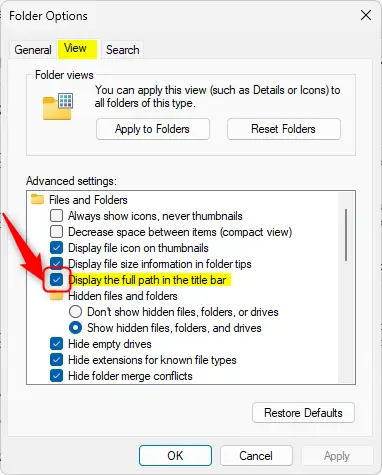
Click OK to save your changes. The dialog closes, and the full path now shows for the folders you open. If it doesn’t appear in an existing window, close that window and open a new one. To undo the change, go back to the same dialog, clear the box, and click OK again.
Method 2Using the Settings App
You can display the full path in Windows 11 from the Settings app by using the developer options. This built-in option adds the complete folder address to the top window bar without any third-party tools. Open Settings, select System, click For developers, and turn on the switch for showing full paths in File Explorer .
If you don’t see it, install the latest Windows updates or use the Folder Options method above. You don’t need to turn on Developer Mode to use these switches.
- Open the Developer feature in Windows 11.
- Go to Start menu > Settings System For developers The For developers page opens with a list of options.
- Find the File Explorer section and click to open it. The File Explorer options expand below it.
- Toggle the button for the full path to On. Set it to Off if you want to hide the path again.
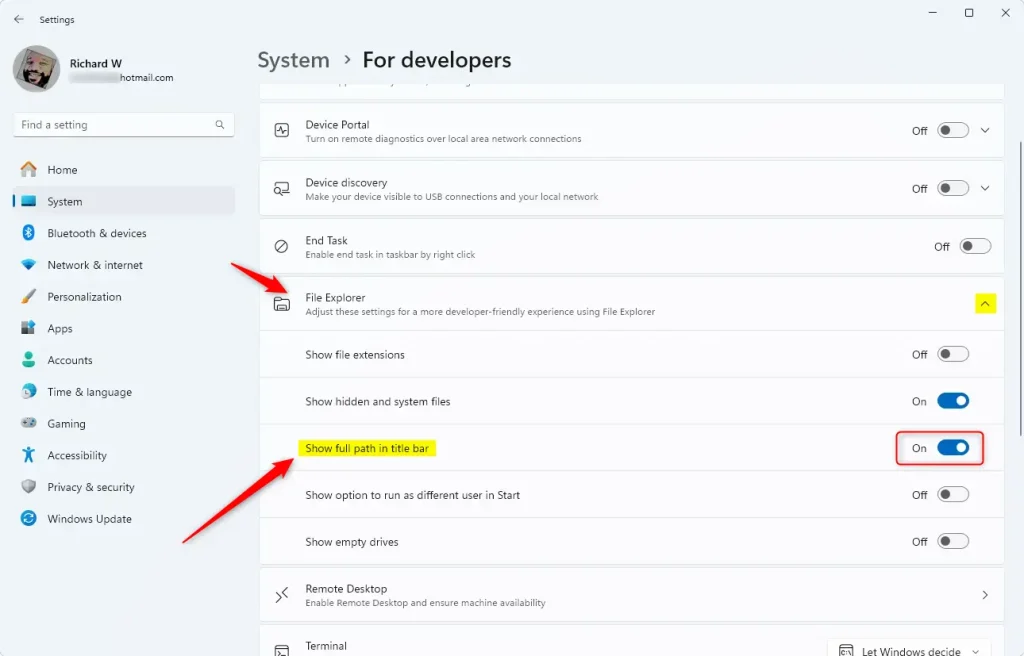
Close the Settings app when you are finished. The change applies as soon as you flip the switch, so you don't need to restart. This switch and the checkbox in Folder Options control the same setting, so changing one changes the other.
Method 3Using the Windows Registry
You can display the full path in Windows 11 by editing the CabinetState key inside Registry Editor (a tool that lets you view and change system settings). Open Registry Editor, go to Computer\HKEY_CURRENT_USER\Software\Microsoft\Windows\CurrentVersion\Explorer\CabinetState, and update the values to force File Explorer to show the complete address bar route.
Editing the Registry can break things if you change the wrong value. Before you start, back up the key: right-click CabinetState in the left pane, choose Export, and save the .reg file somewhere safe.
This setting can also be adjusted using the Windows Registry Editor.
- Open the Windows Registry and go to this path:
Computer\HKEY_CURRENT_USER\Software\Microsoft\Windows\CurrentVersion\Explorer\CabinetState- Click the CabinetState key in the left pane. Its values appear in the right pane.
- Right-click CabinetState New DWORD (32-bit) Value and name it
FullPath. If a value with that name is already in the right pane, skip this step and edit the existing one. - Double-click
FullPathand change the value to 1 to show the path. Click OK. - To hide the path again, double-click the same value, enter 0, and click OK.
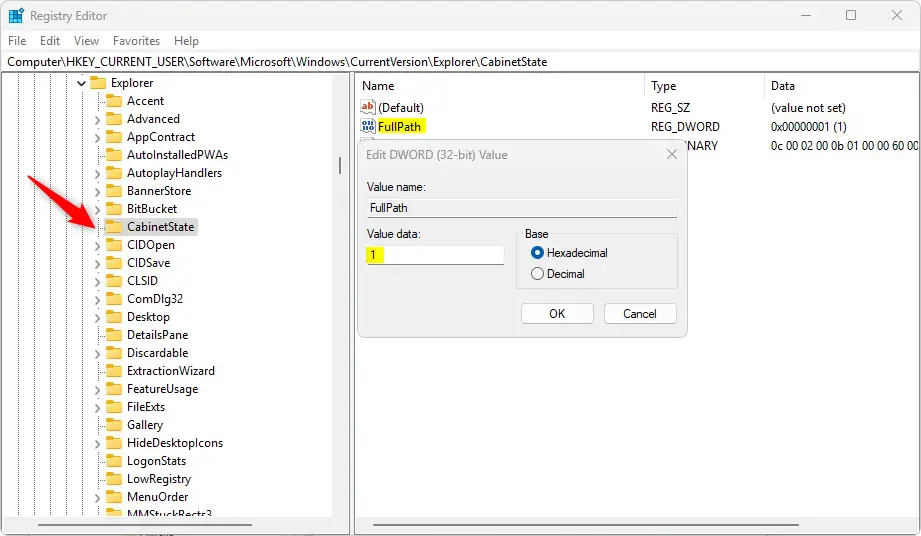
You might need to restart your computer for these changes to take effect. Before you do, close all File Explorer windows and open a new one, because that is often enough. If the path still doesn't show, sign out and back in, or restart the computer.
Summary
You can display the full path in Windows 11 using Folder Options, the Settings app, or the Windows Registry, depending on your preference. Each method makes File Explorer show the exact folder route at the top of the window. That helps you track down files quickly and manage your storage more efficiently.
- Three Ways to Enable: You can use Folder Options, the Settings app, or the Windows Registry. Folder Options works on every edition of Windows 11.
- Easy to Toggle: You can turn the feature on or off whenever you like, using the same method you used to turn it on.
- Better Navigation: Seeing the full path helps you understand exactly where you are in your files, especially when folder names repeat.
- Quick Preview: If you don't want the path visible always, you can hover your mouse over a tab to see it in a popup.
- Restart May Be Needed: If you use the Registry method, restart your computer to apply the changes if reopening File Explorer isn't enough.
Have a question about this guide?
Answered by AI from this guide. Good questions may be added to this page — please don't include personal details.
Did this guide fix your problem?

About the Author
Richard
Tech Writer, IT Professional
Richard is a writer at Geek Rewind who turns complex IT tasks into clear, step-by-step guides. He draws on years of hands-on experience in system administration and enterprise IT operations, focusing on Windows, Linux and WordPress: the problems people actually run into, and the fixes that work. His server and WordPress guides come from systems he runs himself. Richard builds and maintains the platform behind Geek Rewind, from its Ubuntu servers and Nginx configuration to its custom WordPress plugins. Many new tutorials start with readers' questions, and he's always glad to answer them in the comments.
No comments yet — be the first to share your thoughts!