How to Show Full Folder Path in Windows 11 File Explorer

Showing the full folder path in Windows 11 File Explorer puts the exact file location, such as 📁C:\
This setting helps you copy precise file locations and understand the full directory structure of your PC. It is useful when you write scripts, fill in file dialogs, or tell a colleague where a file lives.
Open File Explorer , click the three dots at the top right, select Options, go to the View tab, check “Display the full path in the title bar”, and click OK. The full path now appears in the File Explorer title bar.
What is File Explorer?
File Explorer is the built-in Windows tool for managing your files and folders. You use it to browse drives, open and move files, and organize everything on your computer. In Windows 11 it opens in tabs, so you can keep several folders open in one window.
Why See the Full Folder Path?
- It shows you exactly where you are on your computer, including the drive letter and every parent folder, not just the last folder name.
- It helps avoid confusion when you work with many folders, especially when several of them share the same name, such as multiple folders called “Reports”.
- It makes it easier to share or remember folder locations. You can copy the full path and paste it into an email, a chat, a support ticket or a script.
How to Always Show Full Folder Path in File Explorer
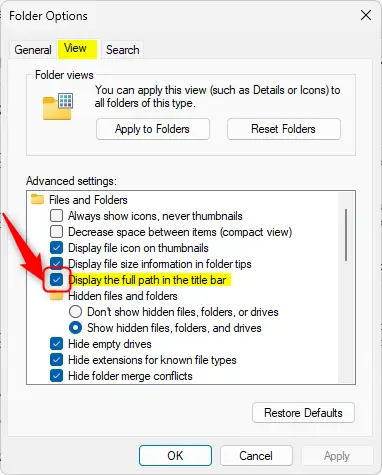
This is the easiest method and works on both Windows 11 Home and Pro. Open File Explorer , click the three dots at the top of the window, and choose Options. Go to the View tab in the Folder Options window, check the box next to “Display the full path in the title bar”, and click Apply to save your changes. No restart is needed.
- Open File Explorer . Click the folder icon on the taskbar , or press
Windows + Eon your keyboard. A File Explorer window should open. - Click the three dots (
…) at the top right of the window, then selectOptions. A small window called Folder Options should appear. - In the Folder Options window, click the
Viewtab. You will see a list of advanced settings with check boxes. - Look for
Display the full path in the title barin the list and check the box next to it. You may need to scroll down a little to find it. To undo the change later, come back here and clear the box. - Click
OKto save your changes. The full path should now show in the title bar of the File Explorer window. In Windows 11 you can also see it when you hover over the File Explorer icon on the taskbar . If the option is greyed out or has no effect, your PC may be managed by an organization that controls this setting.
Here is what it looks like:
Turn On or Off Full Path Using Windows Settings
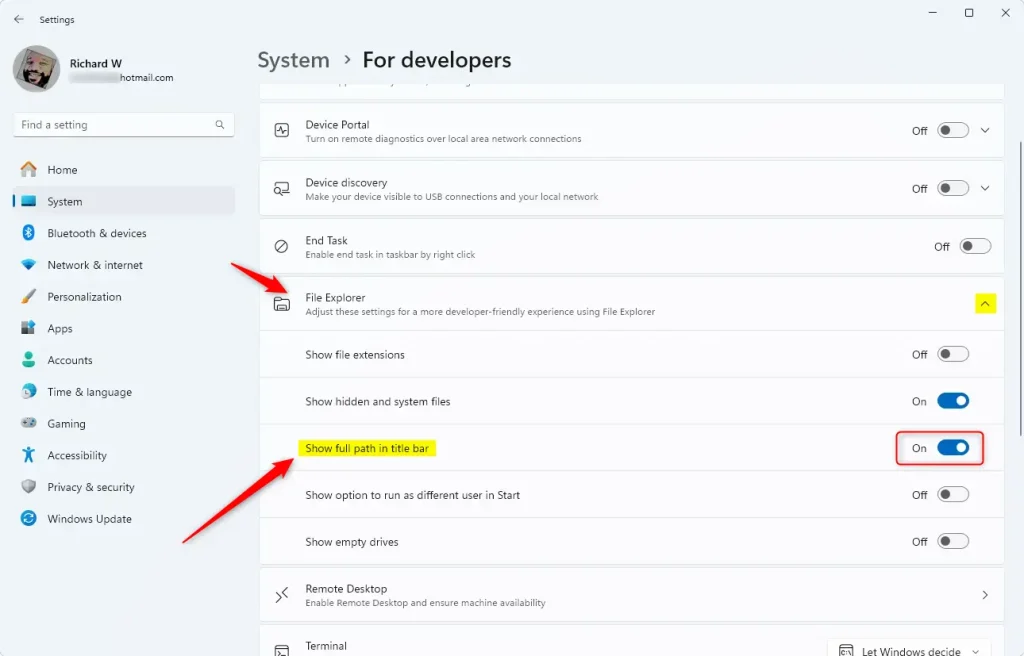
This feature can also be turned on or off from the Settings app. The option sits in the developer settings, and it may not appear on older builds of Windows 11. If you cannot find it, install the latest Windows updates or use the Folder Options method above.
- Click the Start menu, then select
Settings. The Settings window should open. - Go to
System > For developers > File Explorer section: Show full path in title bar. Look for it in the left-hand list or on the main page. - Find the
File Explorersection on the page. You may need to scroll down. - Turn the switch for
Display the full path in the title baron or off. Turn it on to show the full path, or off to go back to the default.
- Close Settings when finished. Open a new File Explorer window and check that the full path appears. The change normally takes effect without a restart.
Show or Hide Full Path Using Windows Registry (Advanced)
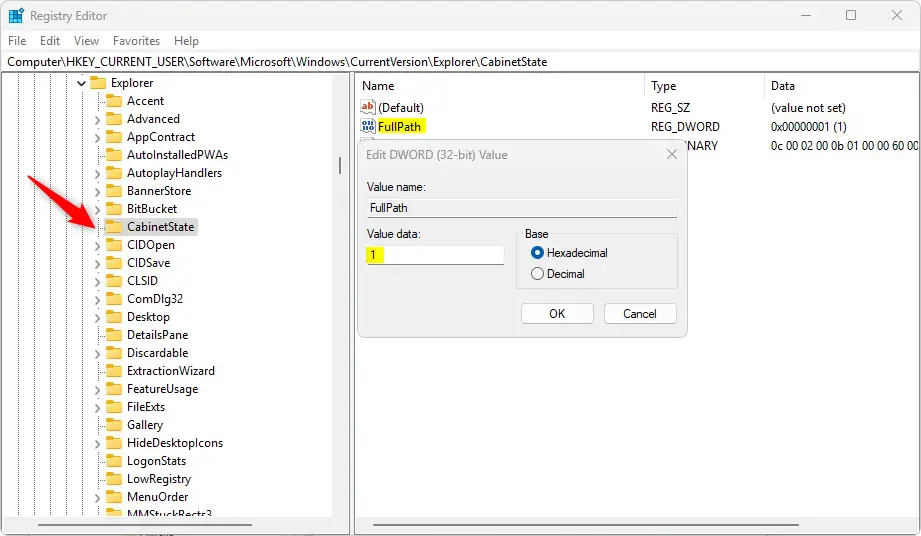
You do this by changing one registry value. Open Registry Editor, go to HKEY_CURRENT_USER\SOFTWARE\Microsoft\Windows\CurrentVersion\Explorer\CabinetState, and change the FullPath value to show or hide the complete address in File Explorer. The setting is stored under HKEY_CURRENT_USER, so it applies only to your user account. This works on both Home and Pro.
Changes made in the Windows Registry allow displaying the full folder path in File Explorer. This advanced method requires some comfort with the Registry Editor, a tool for system-level adjustments. The path display helps you identify your exact location within the file system. For example, you see the full path "C:\Users\USERNAME\Documents\Reports" instead of just "Reports".
Follow these steps carefully. Ask someone for help if you are not sure. Before you start, it is a good idea to back up the key you are about to change. In Registry Editor, select it and use File, then Export. You can also create a restore point first.
- Press
Windows + Rto open the Run box. Typeregedit, then pressEnterto open the Registry Editor. If Windows asks for permission, click Yes. - Navigate to this folder (key):
HKEY_CURRENT_USER\Software\Microsoft\Windows\CurrentVersion\Explorer\CabinetState. Expand each key in the left pane, or paste the path into the address bar at the top of the Registry Editor. - Right-click on
CabinetStateand chooseNew > DWORD (32-bit) Value. If a value called FullPath already exists in the right pane, skip to step 5 and edit that one instead. - Name the new value
FullPath. Check the spelling, because Windows ignores a value with the wrong name. - Double-click
FullPath. Set the value to:1to show the full path0to hide the full path
- Click
OK, then close the Registry Editor. - Restart your computer to apply the change. After you sign back in, open File Explorer and check the path. To undo the change, set the value back to the hide setting listed above, or import the backup you exported earlier.
Summary
Showing the full folder path in Windows 11 File Explorer helps you keep track of your exact file locations by displaying the complete address at the top of the window. You can turn this setting on using Folder Options, the Settings app, or the Windows Registry, depending on which method you prefer. All three can be reversed at any time.
- Folder Options (easy and quick, no restart needed)
- Settings app (in developer options, may not be on older builds)
- Windows Registry (for advanced users, restart needed)
Pick the way that works best for you. If you are unsure, start with Folder Options. Then enjoy clearer navigation in File Explorer.
Windows 11 File Explorer offers additional help through a dedicated guide. This guide explains all File Explorer features, so you can understand and use the program more effectively.
Have a question about this guide?
Answered by AI from this guide. Good questions may be added to this page — please don't include personal details.
Did this guide fix your problem?

About the Author
Richard
Tech Writer, IT Professional
Richard is a writer at Geek Rewind who turns complex IT tasks into clear, step-by-step guides. He draws on years of hands-on experience in system administration and enterprise IT operations, focusing on Windows, Linux and WordPress: the problems people actually run into, and the fixes that work. His server and WordPress guides come from systems he runs himself. Richard builds and maintains the platform behind Geek Rewind, from its Ubuntu servers and Nginx configuration to its custom WordPress plugins. Many new tutorials start with readers' questions, and he's always glad to answer them in the comments.
No comments yet — be the first to share your thoughts!