How to Turn Use Cellular Whenever Wi-Fi Is Poor on or off in Windows 11

- 5 steps
- Includes a restart or sign-out
Cellular backup in Windows 11 moves your PC to a mobile data plan automatically when your Wi-Fi signal drops or gets too slow. The feature works on both Windows 11 Home and Pro, but only on a PC that has cellular hardware, such as a built-in modem with a SIM or eSIM, or a connected cellular device. A regular Wi-Fi-only laptop will not show the setting.
Poor Wi-Fi can ruin a video call or stop a download halfway through. With this setting on, your PC uses mobile data as a safety net, so you stay online without having to switch connections by hand. No restart is needed to turn it on or off.
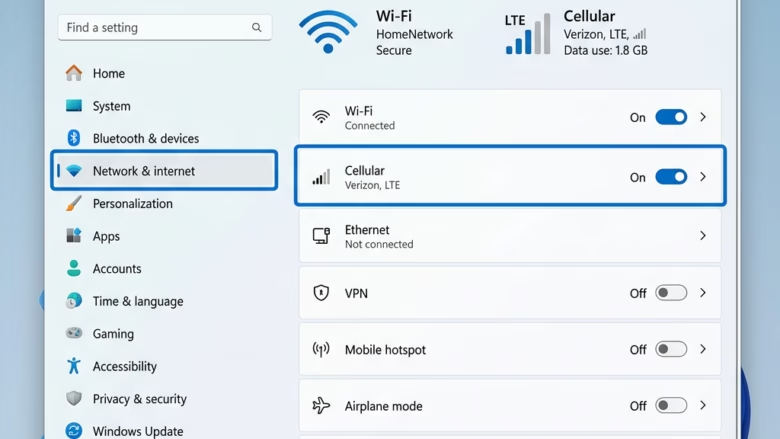
To turn on “Use cellular whenever Wi-Fi is poor” in Windows 11, press Win+I to open Settings, then go to Network & internet Cellular. Switch “Use cellular whenever Wi-Fi is poor” to On. The change takes effect immediately, with no restart needed. The option only appears on PCs with active cellular hardware and a SIM or eSIM.
Step 1Go to Your Cellular Settings
The cellular settings are where you manage how your PC connects to mobile data networks. You can reach them with the keyboard shortcut or through the Start menu. Both routes end at the same page.
- Press
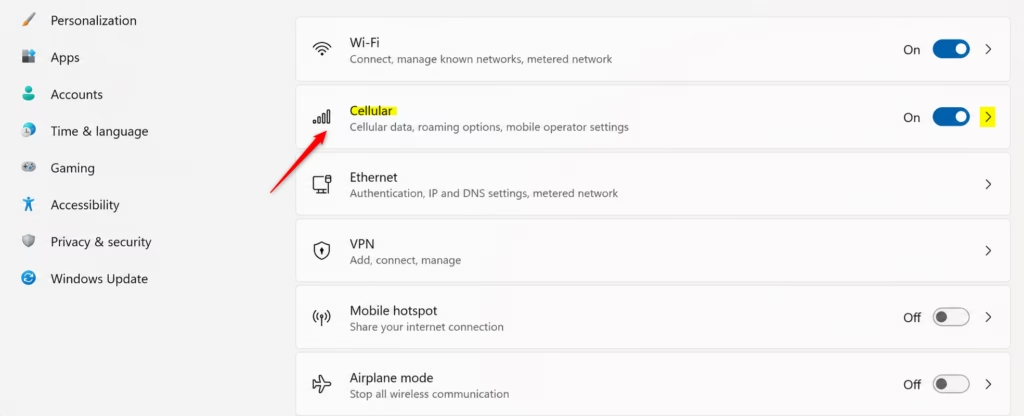
Windows key + Ito open the Settings app directly. If you prefer the mouse, click the Start button in the bottom-left corner of the screen (or the center, if your taskbar is centered), type “Settings” in the search box, and click the Settings app when it appears. - In the Settings window, click Network & internet in the left sidebar. The network options appear on the right.
- Click Cellular. You should now see the options for your PC’s mobile data connection.
An external cellular modem (sometimes called a mobile broadband device) fills that gap. Plug it in, make sure it is connected properly, and check that Windows recognizes it. If the SIM was just inserted, it can also help to restart the PC once so the modem is detected.
Step 2Turn on “Use cellular whenever Wi-Fi is poor”
This is the setting that lets your computer use mobile data automatically when the wireless network is weak. It sits on the Cellular settings page.
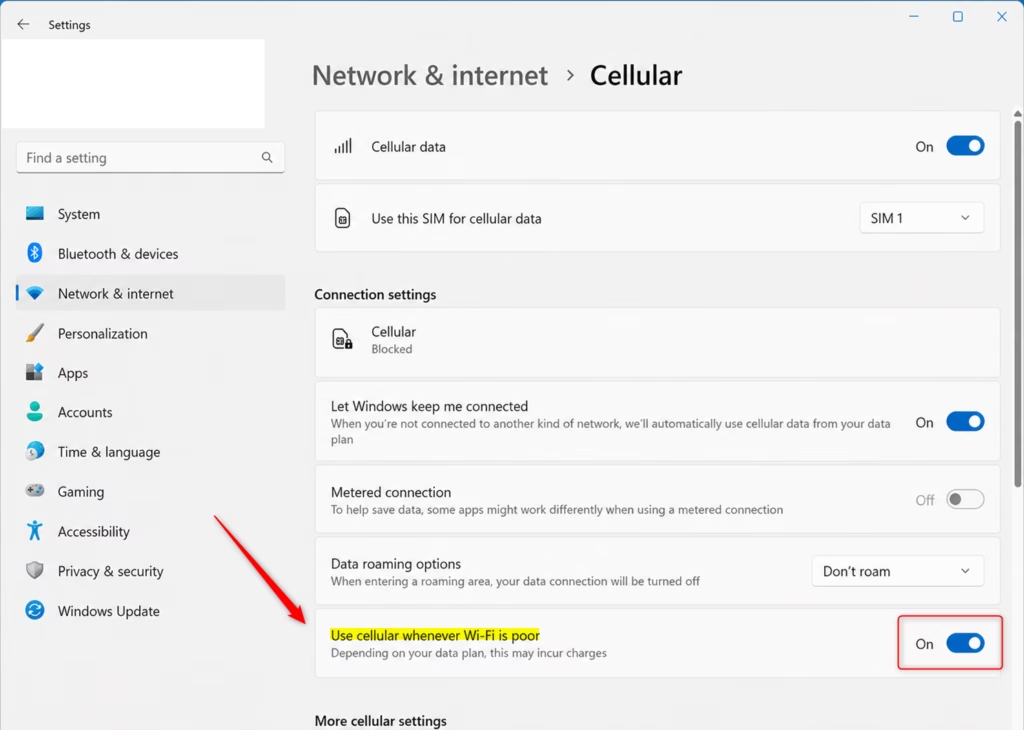
- On the Cellular settings page, find the toggle labeled Use cellular whenever Wi-Fi is poor.
- Click the switch so it reads On. The switch should change position and show the new state.
To undo the change, come back to the same page and set the switch to Off. Windows will then stay on Wi-Fi even when it is slow.
If the switch is greyed out or missing, the usual cause is a missing SIM card or hardware that Windows doesn’t recognize. Windows needs active cellular hardware before this toggle becomes available. Check that the SIM is seated, the plan is active, and the modem shows up on the Cellular page.
- Check your usage now and then in Settings Network & internet Data usage, and compare it with your carrier’s monthly allowance.
- If your plan is small, leave the switch off and turn it on only when you really need the backup.
Watching how this affects your monthly usage protects you from surprise carrier fees.
Step 3Understand What “Poor Wi-Fi” Means
Windows 11 does not judge your Wi-Fi by signal bars alone. It checks network speed and reliability. In the background, it measures data delays and overall bandwidth to work out when your current wireless network is too slow for normal tasks. These are the conditions that count as “poor”:
- High latencyThis is the delay as data travels between your computer and the internet. High latency makes things feel sluggish, especially video calls and online games that need a quick response.
- Low bandwidthThis is how fast data can be sent or received. If your Wi-Fi can’t download or upload data quickly enough, it counts as poor.
- Packet lossData travels in small packets, and some get lost on the way. If too many are lost, the connection becomes unreliable and apps may stop working properly.
- Intermittent connectivityIf your Wi-Fi signal keeps dropping and reconnecting, Windows may decide a stable cellular connection is the better choice.
Turning on this option tells Windows to prefer a stable connection over a frustrating wireless one.
Reference:
Summary
Once the switch is on, Windows 11 handles the backup for you by watching network quality in the background. When your wireless internet slows down, the system shifts your connection to your mobile data plan, so active downloads and video calls are less likely to drop. You don’t have to do anything at the moment of the switch.
Letting the operating system handle these handoffs keeps connections steadier during poor Wi-Fi periods. That means fewer dropped packets and fewer aborted file transfers. If you notice unexpected data use, turn the switch off on the Cellular page.
Have a question about this guide?
Answered by AI from this guide. Good questions may be added to this page — please don't include personal details.
Did this guide fix your problem?

About the Author
Richard
Tech Writer, IT Professional
Richard is a writer at Geek Rewind who turns complex IT tasks into clear, step-by-step guides. He draws on years of hands-on experience in system administration and enterprise IT operations, focusing on Windows, Linux and WordPress: the problems people actually run into, and the fixes that work. His server and WordPress guides come from systems he runs himself. Richard builds and maintains the platform behind Geek Rewind, from its Ubuntu servers and Nginx configuration to its custom WordPress plugins. Many new tutorials start with readers' questions, and he's always glad to answer them in the comments.
No comments yet — be the first to share your thoughts!