How to Turn On or off Let Windows Keep Me Connected with Cellular Connection in Windows 11

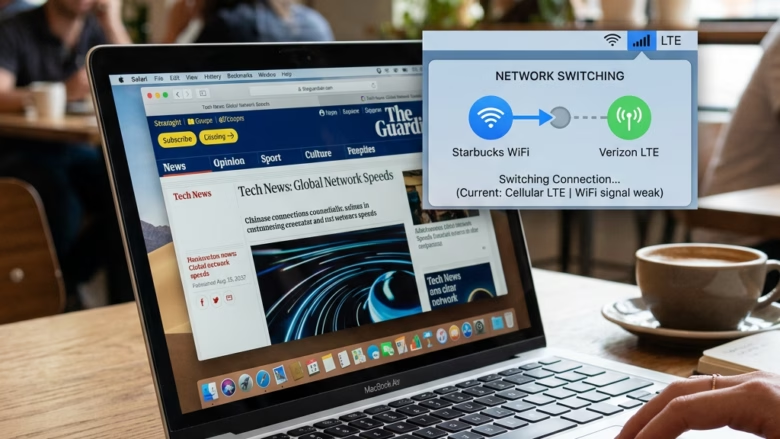
Let Windows Keep Me Connected is a Windows 11 feature that automatically switches your PC to mobile data when your Wi-Fi drops out, so you stay online without reconnecting by hand.
You need a laptop or tablet with a built-in cellular modem and an active SIM card or eSIM. Without a modem, the Cellular section never appears. If you have a modem but no active plan, the option may appear but do nothing. You can find and change this option under Network & internet settings in Windows 11. The setting is the same on Home and Pro, and changing it does not need a restart.
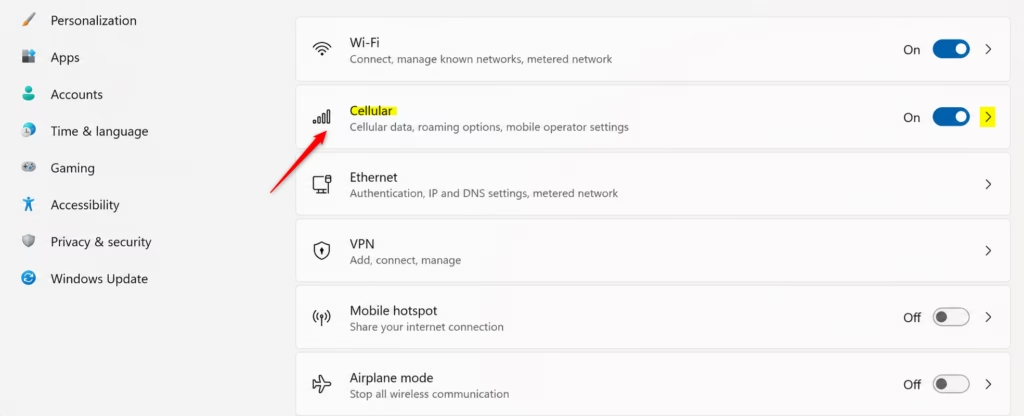
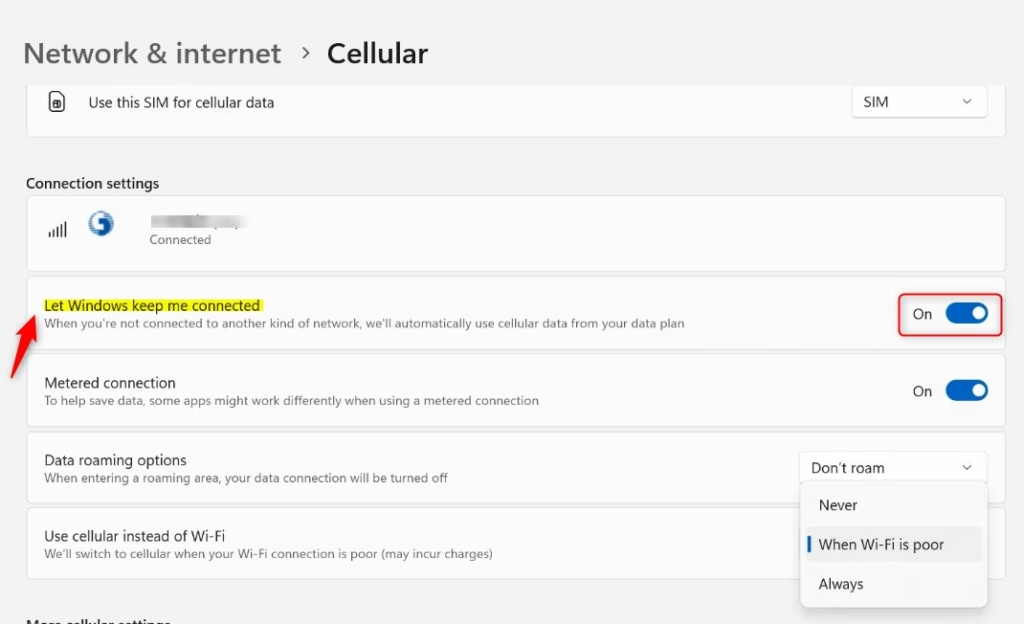
Manage cellular connection settings for Windows 11 by navigating to Network & internet settings, then selecting Cellular. To enable automatic connection, toggle “Let Windows keep me connected” to On. Turn it Off to manually connect when needed.
Step 1Find Your Cellular Settings
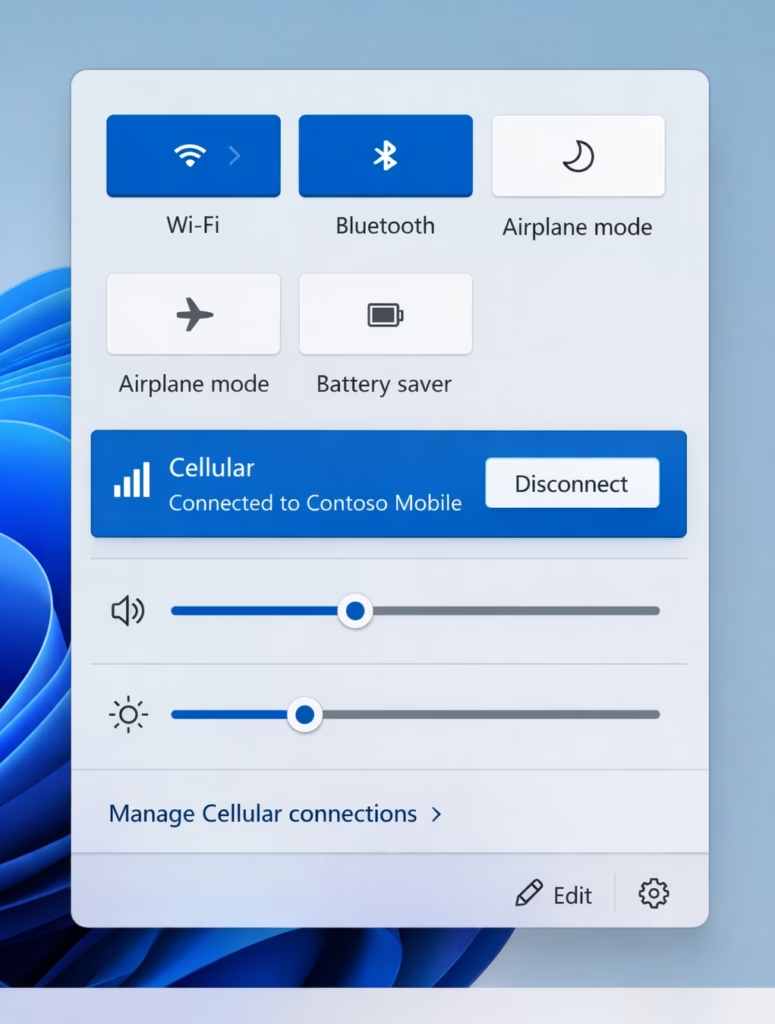
Finding your Windows 11 cellular connection settings starts in the taskbar quick settings panel. This panel shows your mobile data status and lets you manage the cellular connection.
- Look at the bottom right of your screen, near the clock. Click the icon that looks like a Wi-Fi signal or a globe. The Network quick settings panel opens.
- In the panel, look for a “Cellular” tile. If you don’t see it, click the small arrow (
>) next to “Wi-Fi ” or “Mobile hotspot” to show more options. - Check the name of your mobile company under “Cellular.” If it is listed, Windows has detected your modem and SIM.
If there is no Cellular tile at all, the usual causes are no modem in the device, no SIM or eSIM installed, or Airplane mode being on. You can also check Settings Network & internet and look for a Cellular entry in the list.
Step 2Turn On Automatic Connection
Turning on Let Windows keep me connected lets your PC switch to mobile data automatically when Wi-Fi drops. This keeps your Windows 11 cellular connection active when you lose your primary internet source.
- Open the Cellular quick settings panel as described above.
- Find the switch for Let Windows keep me connected.
- Set the switch to On if you want Windows to use cellular data whenever you are not connected to Wi-Fi or a wired internet cable. This is usually best if you want to stay connected all the time.
- Set the switch to Off if you want to choose when to use cellular data. With the switch off, you need to click Connect in the Cellular settings yourself each time you want to use it.
The change takes effect right away. To undo it, return to the same panel and flip the switch back.
Helpful Tip: Leaving “Let Windows keep me connected” enabled keeps you online when you are on the move or when Wi-Fi fails. Be careful on a limited mobile plan, because Windows and your apps can use data in the background without you noticing. If your plan has a small data cap, consider leaving the switch off, or check your usage regularly.
Step 3Connect Manually (If "Keep Me Connected" is Off)
Connecting to your mobile network manually stops Windows 11 from using cellular data in the background without your permission. You establish the connection yourself, from the network quick settings panel, whenever you need internet access.
- Click the network icon on your taskbar to open the Network quick settings panel.
- Find the "Cellular" section.
- If "Let Windows keep me connected" is off, you should see a Connect button. Click it. Windows then connects to your mobile network, and the tile should show the connected state.
- If prompted, type in a username, password, and the Access Point Name (APN). This information is specific to your mobile company. It might have come with your SIM card, your device, or your modem. If you don't have it, your carrier's support page or customer service can provide it.
Reference:
Summary
The "Let Windows keep me connected" setting in Windows 11 automatically uses your cellular data if your Wi-Fi or wired internet connection fails, so you stay online. Turn it on if you want constant connectivity, or turn it off and connect by hand if you need to control your data use.
Have a question about this guide?
Answered by AI from this guide. Good questions may be added to this page — please don't include personal details.
Did this guide fix your problem?

About the Author
Richard
Tech Writer, IT Professional
Richard is a writer at Geek Rewind who turns complex IT tasks into clear, step-by-step guides. He draws on years of hands-on experience in system administration and enterprise IT operations, focusing on Windows, Linux and WordPress: the problems people actually run into, and the fixes that work. His server and WordPress guides come from systems he runs himself. Richard builds and maintains the platform behind Geek Rewind, from its Ubuntu servers and Nginx configuration to its custom WordPress plugins. Many new tutorials start with readers' questions, and he's always glad to answer them in the comments.
No comments yet — be the first to share your thoughts!