How to Turn Metered Connection on or off with Cellular Connection in Windows 11

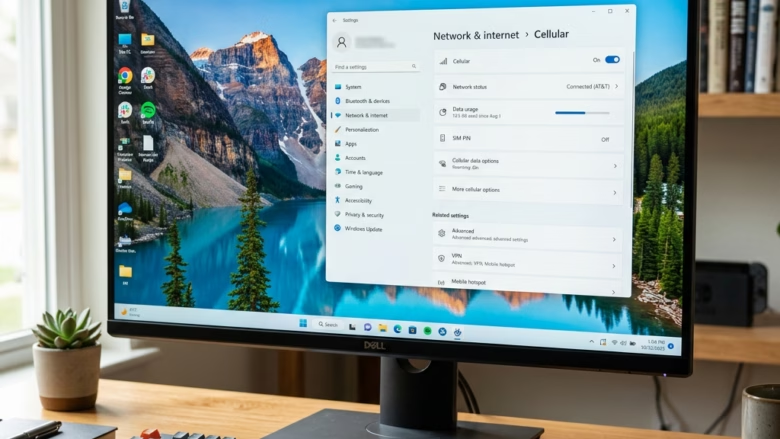
A metered connection in Windows 11 is a network setting that tells Windows your data is limited. Apps and Windows then hold back large background downloads over mobile data. Turning it on helps you avoid overage fees when your PC is on a cellular network or a phone hotspot.
You need this setting whenever your mobile data plan has a strict cap. Windows 11 pauses big system updates and cloud syncs until you switch back to an unlimited network, such as home Wi-Fi.
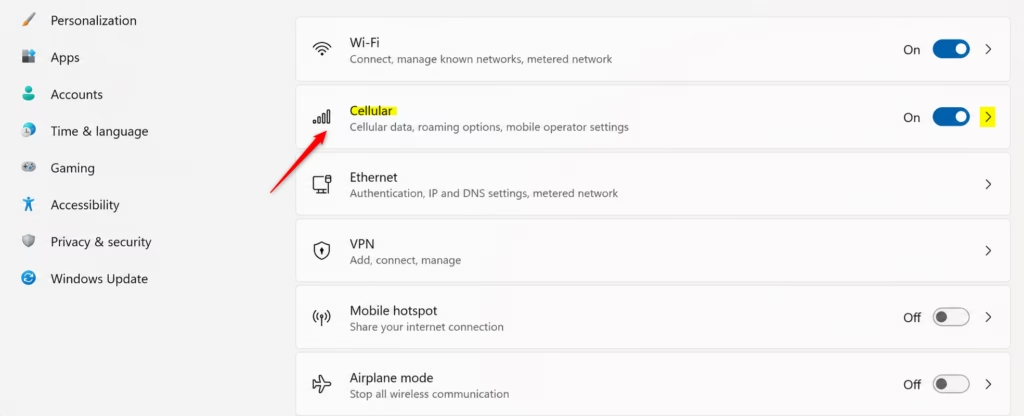
Open Settings, go to Network & internet, then select Cellular. Find the Metered connection option and toggle it On or Off to manage data usage for your cellular connection. Windows 11 usually defaults cellular to metered.
How 🪟 Windows 11 Handles Metered Connections
When you mark a connection as metered, Windows 11 stops large background downloads, pauses automatic Windows Updates, and holds back cloud sync apps. It treats your plan with caution so you do not run out of data or pay extra fees. In practice you will notice these changes:
- Windows UpdatesBig updates might not download by themselves. You will usually see a message and can choose to download them later, when you are on Wi-Fi or have data to spare. Small, critical updates may still come through.
- App BehaviorSome apps will use less data. They might sync less often, stream video at lower quality, or stop using data in the background. This depends on the app, because developers choose whether to respect the setting.
- Background DataApps that use data while you are not actively using them might be stopped. This cuts down on hidden data use.
Many apps ignore system-wide restrictions. Browsers, game launchers, cloud storage clients and messaging apps often have their own data-saving or sync settings. If your allowance is tight, check each of those apps as well.
Setting Your Cellular Connection as Metered
Setting your cellular connection as metered stops your laptop or tablet from downloading large system updates over a hotspot or cellular data card. You can turn it on from Settings in a few clicks, and it takes effect right away. No restart is needed.
- Open Settings. Click the Start button, type “Settings,” and select the Settings app. Or press the
Windows key + Ikeys on your keyboard. The Settings window opens. - Go to Network & internet. Click Network & internet in the left sidebar. The network options appear on the right.
- Choose Cellular. Click Cellular. If you do not see this option, your PC has no cellular modem (or the driver is missing), and this guide does not apply. Phone hotspots connected over Wi-Fi are handled under Wi-Fi instead.
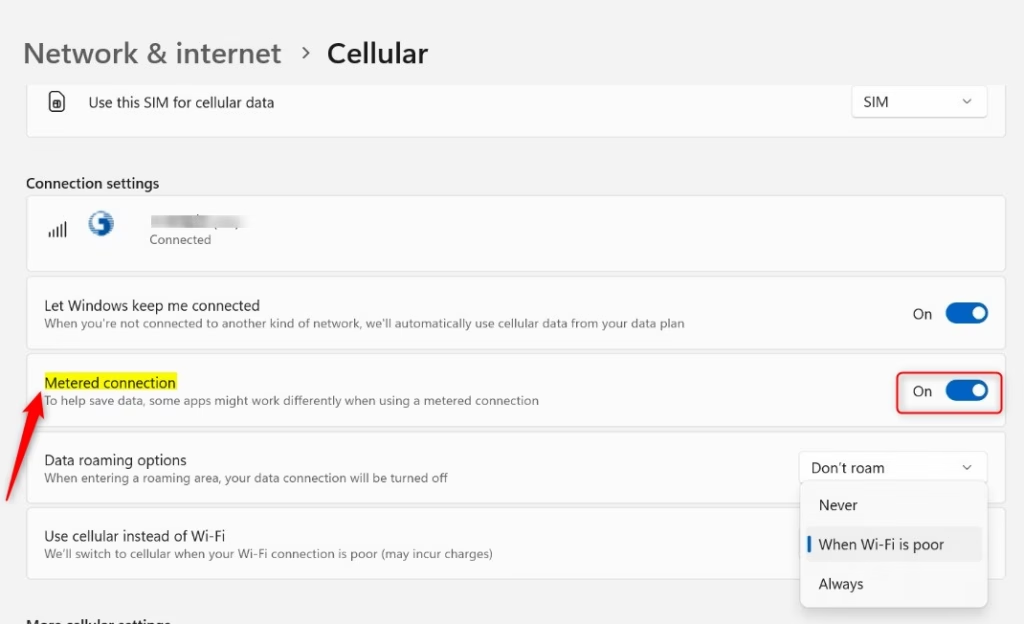
- Find Metered connection. Look for the Metered connection setting for your cellular connection. On some PCs it sits on the main Cellular page. On others it is inside the connection’s properties or advanced options. The exact layout varies with Windows 11 version and modem driver.
- Adjust it as needed. You will see a switch or a dropdown menu:
- If the switch is On, the connection is metered and Windows will manage data use.
- If you see Set data limit (or a similar data usage limit option), click it. You can enter your data limit and the date your billing cycle ends. Windows will warn you as you get close to the limit. In current Windows 11 builds, the Data usage page under Network & internet also shows how much each app has used.
- If you have a specific reason to turn it off (not recommended on a limited plan), switch it to Off.
If the switch is greyed out or missing, check that the cellular connection is active. Some carrier or manufacturer profiles also lock the setting.
What Happens When You Turn Metered Connection On or Off?
Turning a metered connection on or off changes how Windows 11 downloads updates and runs background tasks. When it is on, data-heavy features pause to save your plan. When it is off, Windows assumes you have unlimited internet and lets background apps and updates download freely again.
To switch it back, follow the same steps as above:
- Open Settings Network & internet Cellular.
- Find the Metered connection setting for your connection.
- Set it to On to limit background data, or Off to allow normal downloads. The change applies immediately.
Disabling a metered connection tells Windows 11 that unlimited data is available. Automatic updates resume right away, and background apps may use extra data. Keeping it off on a limited cellular plan risks high, unexpected costs. If you only want one big update to download while you are metered, you can also let Windows Update do it manually, so you do not have to turn the setting off for everything.
Reference:
Summary
Restricting network traffic through a metered profile protects your cellular billing cycle from overage charges and unexpected data drain. Turn it on whenever you connect to a capped plan, and turn it off only when you are back on an unlimited network.
Have a question about this guide?
Answered by AI from this guide. Good questions may be added to this page — please don't include personal details.
Did this guide fix your problem?

About the Author
Richard
Tech Writer, IT Professional
Richard is a writer at Geek Rewind who turns complex IT tasks into clear, step-by-step guides. He draws on years of hands-on experience in system administration and enterprise IT operations, focusing on Windows, Linux and WordPress: the problems people actually run into, and the fixes that work. His server and WordPress guides come from systems he runs himself. Richard builds and maintains the platform behind Geek Rewind, from its Ubuntu servers and Nginx configuration to its custom WordPress plugins. Many new tutorials start with readers' questions, and he's always glad to answer them in the comments.
No comments yet — be the first to share your thoughts!