How to Send a File to Another Device Using Bluetooth in Windows 11

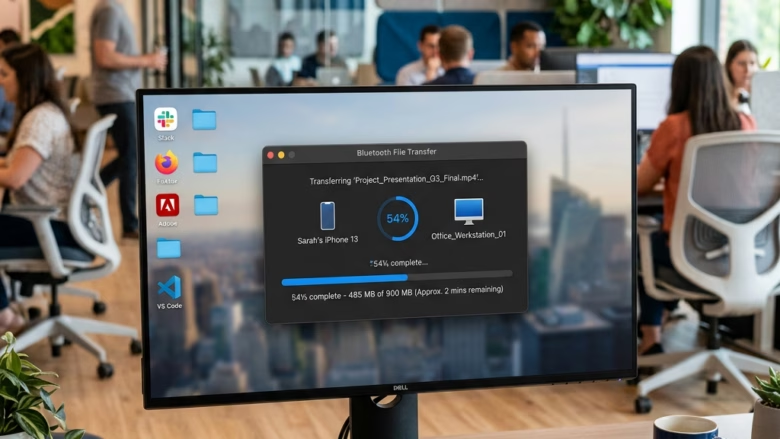
Bluetooth file sharing in Windows 11 lets you send photos, videos, and documents to nearby phones, tablets, and computers without cables or an internet connection. It uses a direct wireless link between two paired devices, so nothing goes through the cloud or your router.
Before you send anything, Bluetooth must be turned on and the two devices must be paired. This method suits quick shares, such as one picture from your laptop to your phone. For large files or whole folders it is slow, and a USB drive or a network share will serve you better.
Open Settings , click Bluetooth & devices, scroll to Related settings, and click Send or receive files via Bluetooth . Select Send files, choose the receiving device, click Browse to pick your file, then click Next to start the transfer.
How to Send a File to Another Device Using Bluetooth in 🪟 Windows 11
Windows has a built-in wizard for this, so you don’t need to install anything. The whole process takes only a few minutes.
Step 1Open Bluetooth & Devices Settings
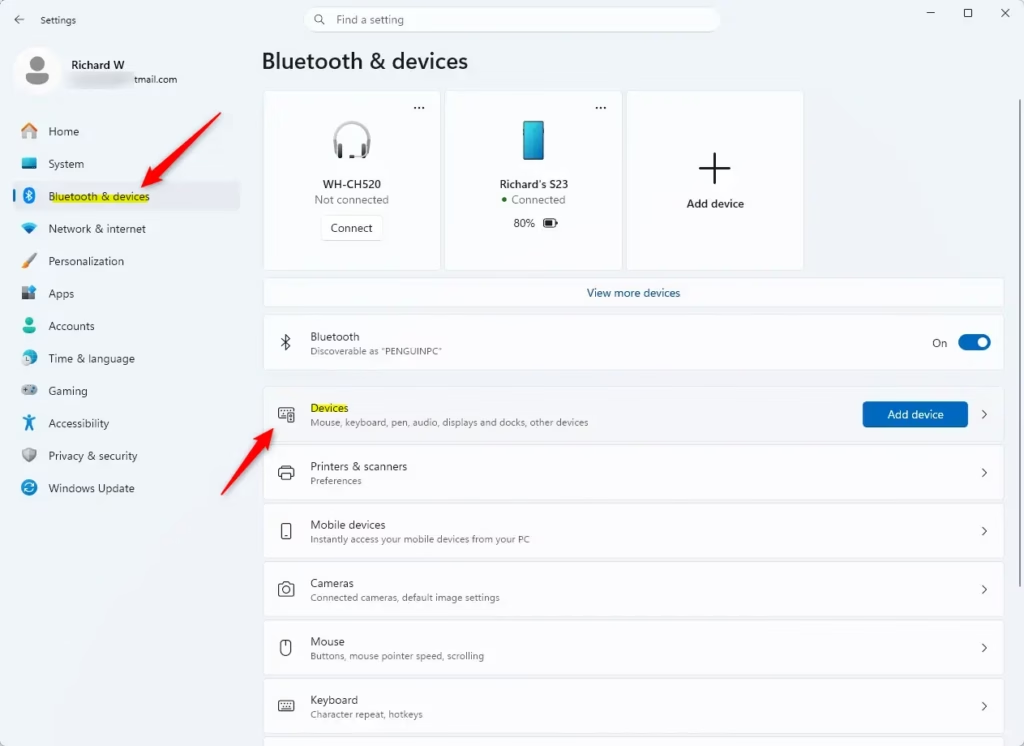
You start in the Bluetooth & devices page, which lists your paired hardware and the related tools.
- Press the Win and the I key together to open the Settings app.
- Click Bluetooth & devices in the left menu.
- Check that the Bluetooth toggle at the top of the page is set to On. You should see your paired devices listed below it.
Quick Tip: Press the Windows key + I keys on your keyboard to open the Settings app immediately. Then, click Bluetooth & devices.
If there is no Bluetooth toggle at all, the PC has no working Bluetooth adapter or the driver is missing. Plug in a USB Bluetooth adapter or install the driver from your PC maker.
Step 2Find the Bluetooth File Transfer Tool
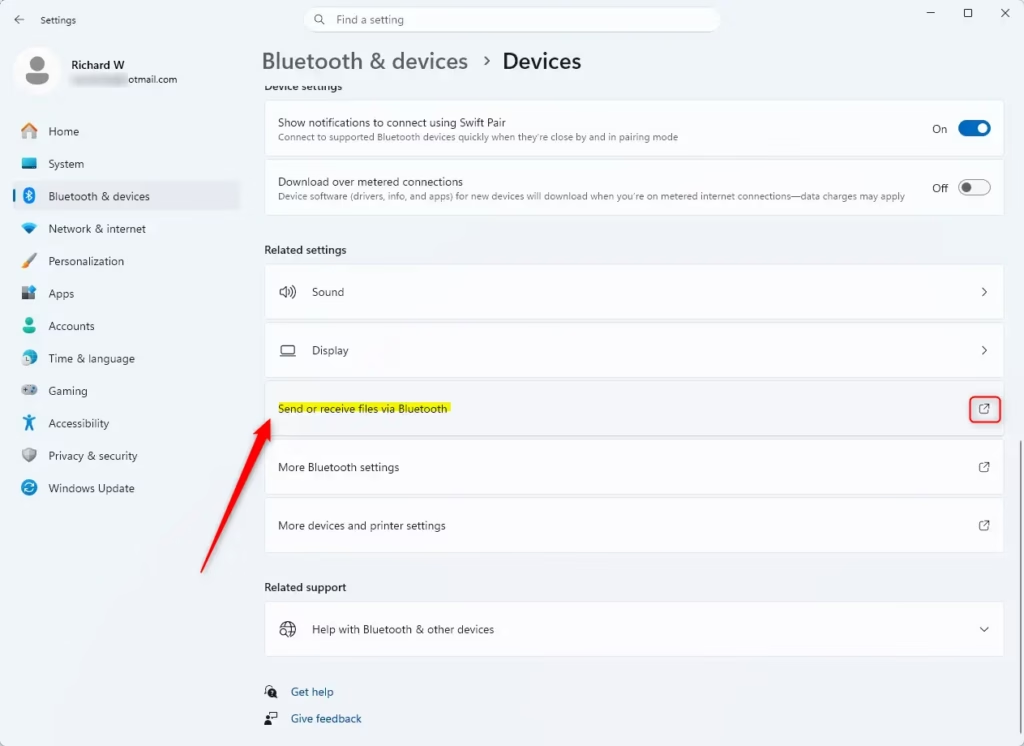
The file transfer wizard is not a button on the main page. It is a link in the Related settings section, so you have to scroll for it.
- Scroll down the Bluetooth & devices page until you reach the Related settings section.
- Click Send or receive files via Bluetooth .
The file transfer wizard opens in its own window. On some builds this link sits on the Devices page under Bluetooth & devices instead of the main page, so look there if you don’t see it.
If you don’t see this option anywhere, your PC might lack a Bluetooth adapter or the necessary drivers (software that helps Windows communicate with hardware). Open Device Manager and look for a Bluetooth entry. If it is missing, or it has a yellow warning mark, update or reinstall the driver. A restart is sometimes needed after that.
Step 3Choose to Send Files
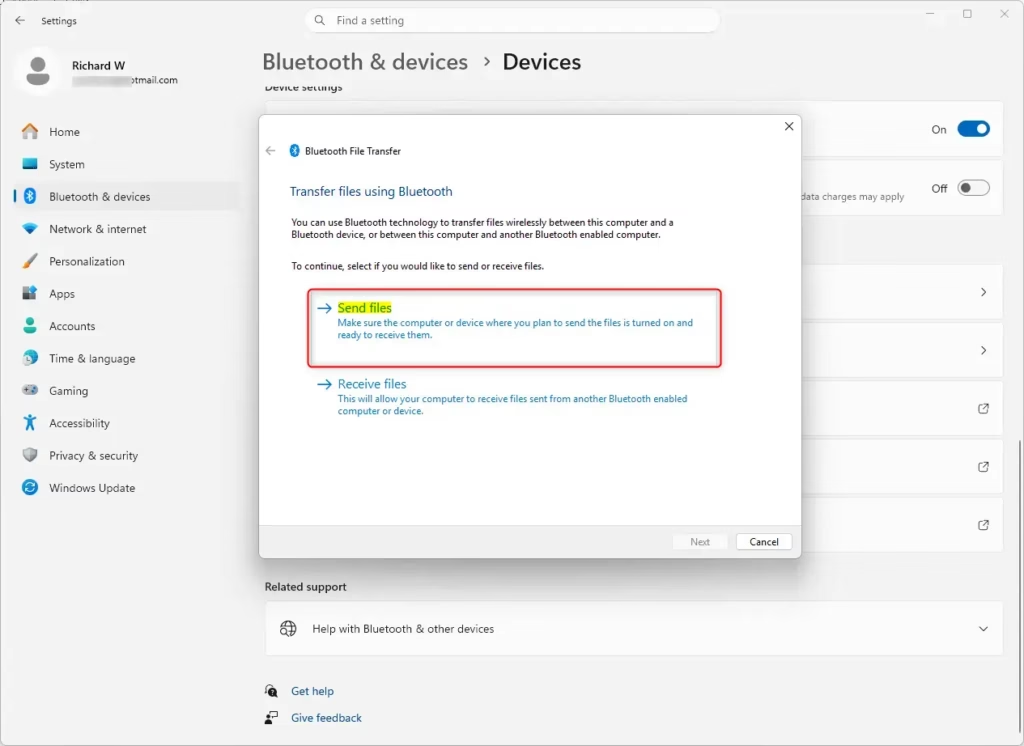
A new window appears, called Bluetooth File Transfer. It offers two choices: Send files and Receive files.
- Click Send files, since you want to send something.
- Wait for the next screen to load. It lists the devices you can send to.
Step 4Pick the Device You Are Sending To
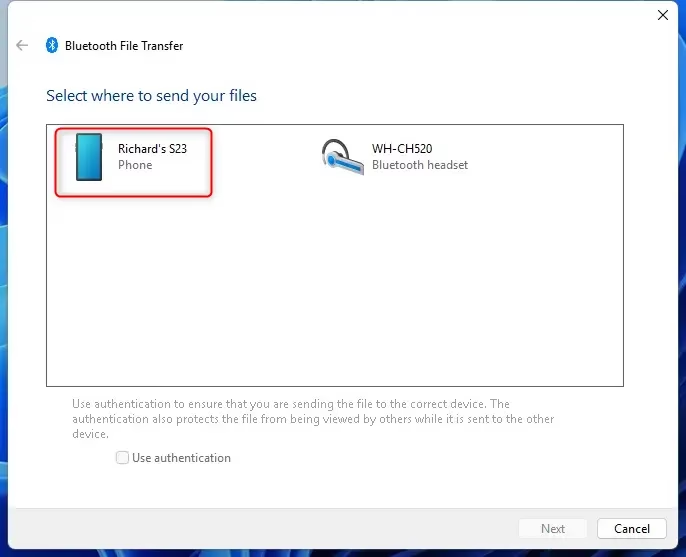
The wizard now shows the paired devices it knows about. Pick the one that will receive the file.
- Click the name of the device you want to share with.
- Click the Next button.
If the device you want is not in the list, check these things first:
- The target device is powered on and has Bluetooth turned on.
- It is within roughly 10 meters (30 feet) of your PC. Walls and other obstacles shorten that range, so move closer if in doubt.
- It is already paired with your PC. If pairing isn’t complete, start that process through the main Bluetooth & devices settings. Pairing creates a secure connection for communication and file sharing.
You may also see a Use authentication option. It adds an extra security layer when sending files. If the devices are already paired, this option is often greyed out. When it is available, sending files requires confirmation on the receiving device.
Step 5Find and Select the File to Send
Next you choose the file. The wizard opens a standard file picker.
- Click the Browse button. A file picker window opens.
- Go through your folders and find the file you want to send. It could be a picture, a music file, a document, or anything else.
- Select the file and click the Open button. The file path now appears in the wizard.
- Click the Next button in the Bluetooth File Transfer window. The transfer starts.
The wizard sends one file at a time unless you select several in the picker. Each file must be accepted on the receiving device.
Step 6Watch the File Transfer
Once the transfer begins, a progress window shows how much data has moved and how much time remains. Keep the screen open until the process finishes. If the transfer slows down, move the two devices closer together and make sure neither one goes to sleep.
If nothing moves, check the receiving device’s screen.
The most common reason is that the receiving device isn’t ready or has stopped accepting files. Try again, making sure the receiving device is waiting for the file. If it’s another Windows device, you might need to check the Receive files part of the Bluetooth File Transfer tool on that computer. For devices that aren’t Windows, check their specific instructions.
Step 7Finish the Transfer
- Wait for the screen to show a message that the file was successfully transferred.
- Click Finish. This closes the wizard.
Then open the file on the receiving device to confirm it arrived and opens correctly. To send another file, run through the wizard again. To undo any of this, you can delete the received copy on the other device. The original on your PC is never moved or changed.
That's all there is to it. Sending files wirelessly like this is handy for one-off transfers.
Reference:
Summary
To recap: open Settings, find Send or receive files via Bluetooth, choose your device, select the file, and confirm the transfer.
Have a question about this guide?
Answered by AI from this guide. Good questions may be added to this page — please don't include personal details.
Did this guide fix your problem?

About the Author
Richard
Tech Writer, IT Professional
Richard is a writer at Geek Rewind who turns complex IT tasks into clear, step-by-step guides. He draws on years of hands-on experience in system administration and enterprise IT operations, focusing on Windows, Linux and WordPress: the problems people actually run into, and the fixes that work. His server and WordPress guides come from systems he runs himself. Richard builds and maintains the platform behind Geek Rewind, from its Ubuntu servers and Nginx configuration to its custom WordPress plugins. Many new tutorials start with readers' questions, and he's always glad to answer them in the comments.
No comments yet — be the first to share your thoughts!