Ho Wto Use Your Android Phone Camera as a Webcam on Windows 11

Your Android phone’s rear or front camera is usually much sharper than a laptop’s built-in webcam. In Windows 11 you can use it for Zoom, Microsoft Teams and Skype without buying any hardware. The phone connects to the PC over Wi-Fi or Bluetooth through a built-in Windows feature and Microsoft’s Link to Windows app.
The built-in feature is still rolling out, so not every PC shows it yet. The steps below work on Windows 11 Home and Pro alike. Neither edition has any extra restrictions.
To use your Android phone camera as a webcam on Windows 11, open Settings , go to Bluetooth & devices, click Manage devices under Mobile devices, find your phone, and toggle Use as a connected camera to On. Then select your phone camera in your video app’s camera settings.
What You Need to Know
- An Android phone running Android 9 or higher.
- The Link to Windows app installed and signed in on the phone.
- The Cross Device Experience Host update on the PC. It normally arrives through the Microsoft Store and Windows Update , so keep both up to date.
- The phone and the computer on the same Wi-Fi network, so the video can stream.
If any of these is missing, the option in Settings may not appear, or the phone may not show up as a camera.
How to Set Up Your Phone Camera as a Webcam
Follow these steps to get started. Each one is shown with its screenshot.
Step 1Open Windows Settings
- Open Settings. Click the Start menu (the Windows icon on the taskbar ) and choose Settings, or press Win+I. The Settings window opens with a list of categories on the left.
Step 2Go to Bluetooth & Devices
- In the left panel of the Settings window, click Bluetooth & devices. The right side now shows your paired devices and related options.

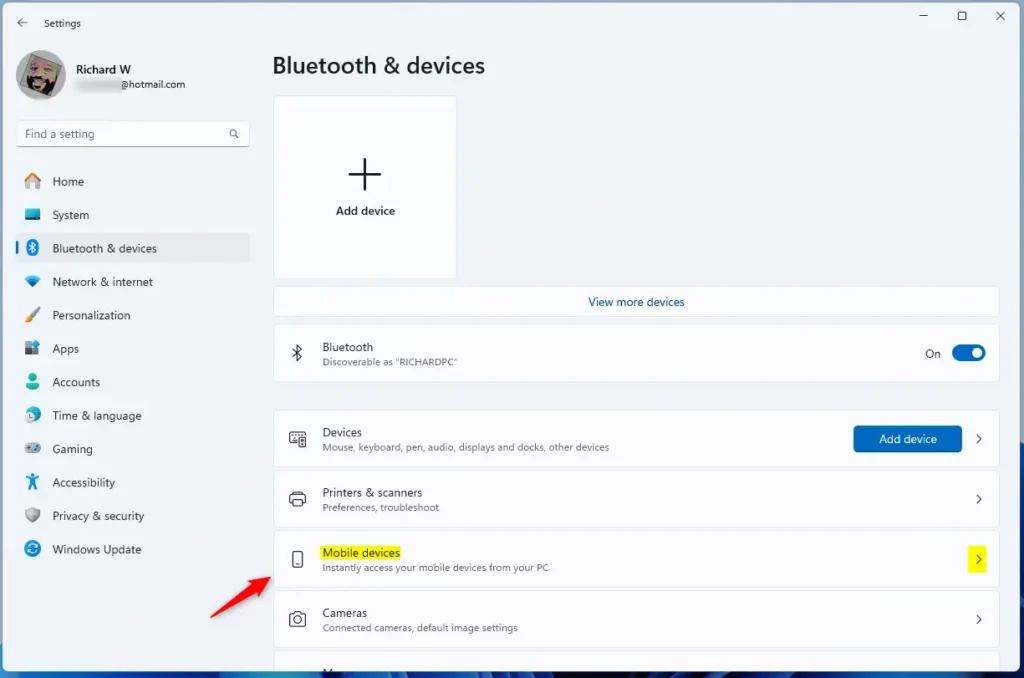
- Find the Mobile devices box on the right side of the screen. This is where the connection settings for your phone live.
If you can’t see Mobile devices, your PC probably doesn’t have the feature yet. Go to Windows Update , install everything that’s pending, restart if asked, and check again. Also update Cross Device Experience Host from the Microsoft Store. Because the rollout is gradual, you may still need to wait.
Step 3Find Mobile Devices
Open the Mobile devices box to see its connection options.
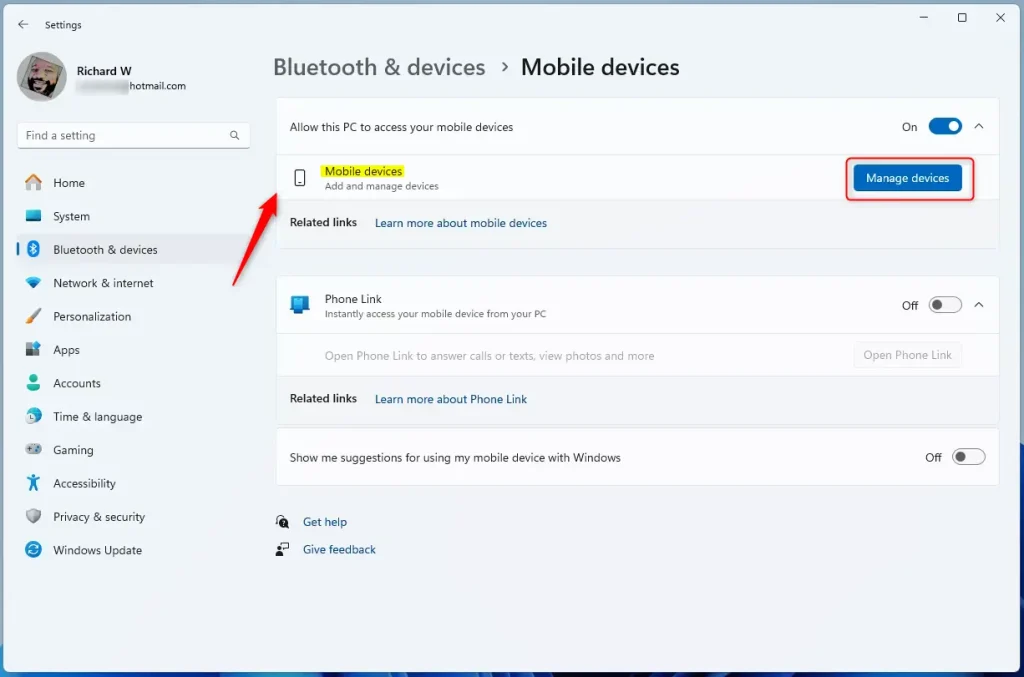
- Click the Manage devices button. It sits right under the Allow this PC to access your mobile devices option. Turn that option on first if it is off. This prepares the connection for video streaming.
You should now see a list of the phones linked to your Microsoft account. If your phone isn’t listed, open Link to Windows on the phone and make sure it’s signed in with the same account as the PC.
Step 4Manage Device Access
If it does, accept the prompt and allow any camera permission it requests.
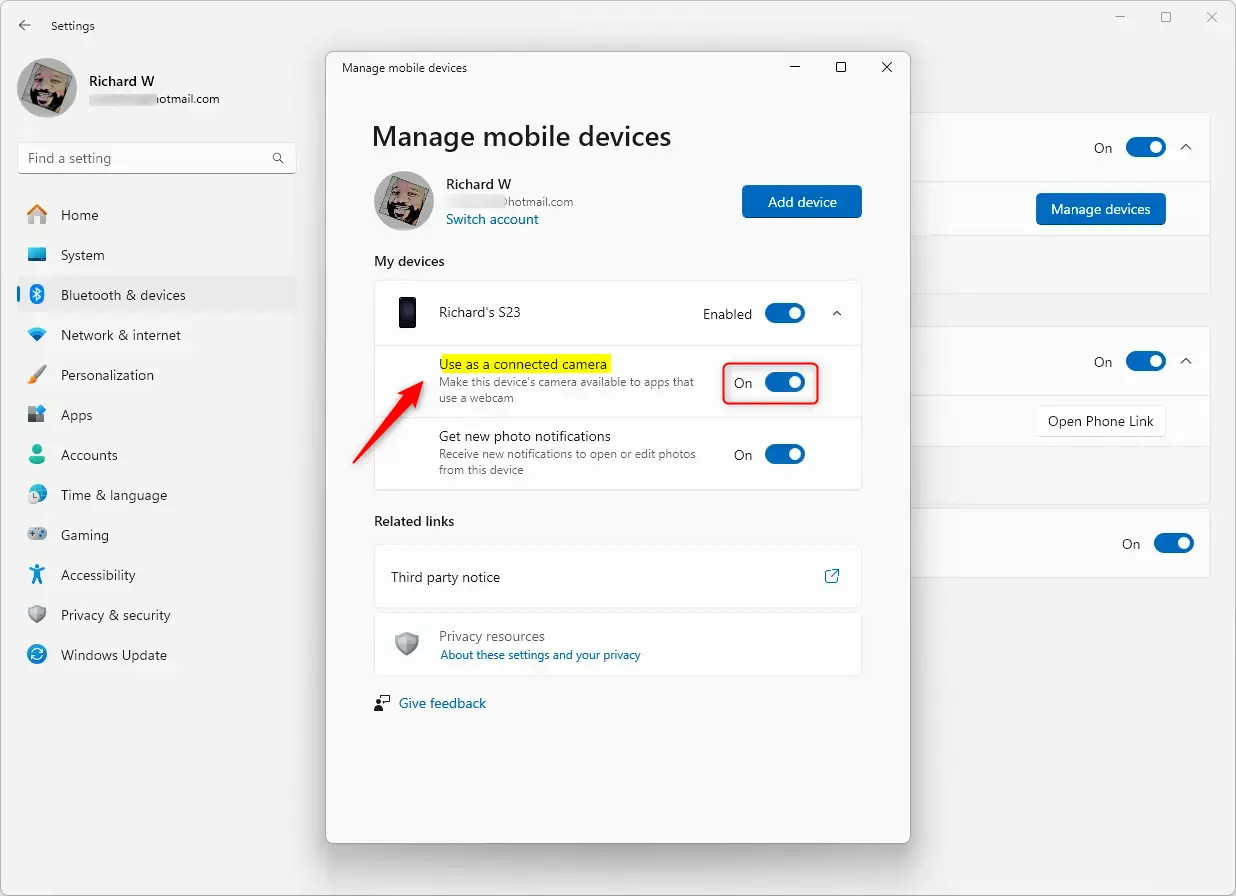
- Find the setting labeled Use as a connected camera and switch the toggle to On. The toggle should now show as on.
To undo this later, come back to the same page and set the toggle to Off. The phone will then stop appearing as a camera on the PC.
Step 5Turn on “Use as a connected camera”
If the toggle is greyed out or missing, check that the phone is connected and that the Link to Windows app is open or running in the background.
- Keep the Android phone nearby and linked to the PC through Bluetooth or Wi-Fi . Once configuration completes, the phone camera appears in your list of available webcams.
Step 6Connect Your Phone
You don’t need to restart the PC. If the camera doesn’t show up straight away, close and reopen your video app so it re-reads the list of cameras.
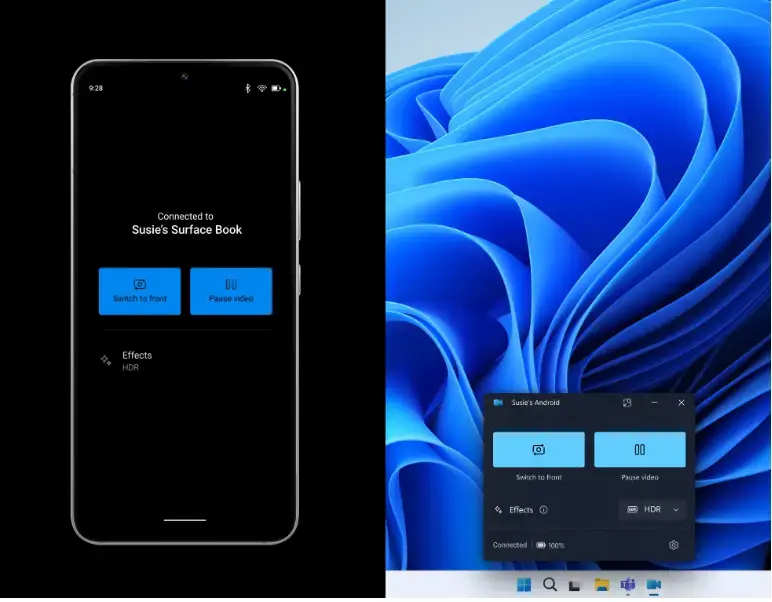
Image credit: Microsoft
That’s It!
- Open any video app, such as Zoom, Microsoft Teams or Skype. Go to its video or camera settings and select the phone camera as the active webcam. Your phone’s picture should now appear in the preview.
You get clearer video and more freedom in how you position the camera, without extra hardware. If the app keeps using the laptop camera, pick the phone again in its camera list, or restart the app.
Learn More
Read deeper details or check feature availability on the official Microsoft blog.
Summary
- Windows 11 now lets you use your Android phone's camera as a webcam.
- You can connect your phone easily through the new Mobile devices setting.
- This feature lets you switch cameras and pause video streams.
- It's still rolling out to some users, so check if you have it yet.
Have a question about this guide?
Answered by AI from this guide. Good questions may be added to this page — please don't include personal details.
Did this guide fix your problem?

About the Author
Richard
Tech Writer, IT Professional
Richard is a writer at Geek Rewind who turns complex IT tasks into clear, step-by-step guides. He draws on years of hands-on experience in system administration and enterprise IT operations, focusing on Windows, Linux and WordPress: the problems people actually run into, and the fixes that work. His server and WordPress guides come from systems he runs himself. Richard builds and maintains the platform behind Geek Rewind, from its Ubuntu servers and Nginx configuration to its custom WordPress plugins. Many new tutorials start with readers' questions, and he's always glad to answer them in the comments.
No comments yet — be the first to share your thoughts!