How to Access Photos with Windows 11 Phone Link App


Use the Windows 11 Phone Link app to view and transfer your phone’s photos directly to your PC.
Phone Link (formerly known as Your Phone) connects your Android phone or iPhone to your Windows computer. Once connected, you can view, organize, and download your phone pictures on the PC. Photo access works best with Android. An iPhone pairs through Bluetooth for calls and messages, and in my experience it doesn’t get the photo gallery. If you use an iPhone, skip to the USB cable method later in this guide.
You can browse your phone’s camera roll, move recent pictures over, and manage your photos without touching your phone. The app uses Wi-Fi or Bluetooth to link your devices, so both need to be on and nearby.
For example, with Phone Link version 1.22.2227.0, you can view and download your newest photos and add them to your computer’s files.
Open the Phone Link app and click the Photos button. You can then click on thumbnails to open, copy, save, share, or delete photos. Use the “Save as” option to move a photo to your PC.
Important Update: Phone Link Photo Feature Changes
Microsoft keeps changing the Phone Link experience. Some users will find that direct photo viewing is being phased out in favor of more stable file management methods. Features also vary by phone model and app version, so the Photos tab may look different on your PC than it does here. This guide covers how to use the app, and how to fall back on File Explorer when it doesn’t work.
Why use 🪟 Windows 11 Phone Link photos?
Using this app saves time. You don’t have to email photos to yourself or hunt for a cable. Your latest pictures show up on your desktop, so you can grab what you need without switching devices.
Before you start, check three things:
- Phone Link is already paired with your phone. On Android, that means the Link to Windows app is installed and you're signed in with the same Microsoft account on both devices.
- Your phone and PC are on the same Wi-Fi network, or Bluetooth is on for both.
- Your phone has allowed Phone Link to access photos and media. If you denied this earlier, the Photos tab will stay empty until you allow it in your phone's app permissions.
What happens when done?
Once you finish these steps, you'll be able to save your phone photos to PC folders like C:\Users\GenericUser\Pictures, or share them with friends right away. You'll also have a clean, organized backup of your mobile memories on your computer. Nothing here changes your phone's photos. Saving a copy leaves the original where it is.
How to view and save photos
You can view and save your phone pictures on your computer using the Windows 11 Phone Link photos feature. Open the Phone Link app from your Start menu and click the Photos tab at the top of the window. This shows recent images from your phone's Camera Roll and Screenshots folders, so you can download them to your PC.
- Open the Phone Link app. You can find it by clicking the Start menu and looking through All apps. You should see the Phone Link window with your phone's name near the top.
- If you'd rather not dig through the menu, click the Phone Link icon on your Taskbar (Taskbar overflow) instead. It opens the same window.
- Once the app is open, click the Photos button in the menu. If your phone is connected, your recent pictures load in a grid.
If the Photos tab is missing or says it can't connect, make sure your phone is awake, unlocked, and on the same network. Then give it a minute to sync.
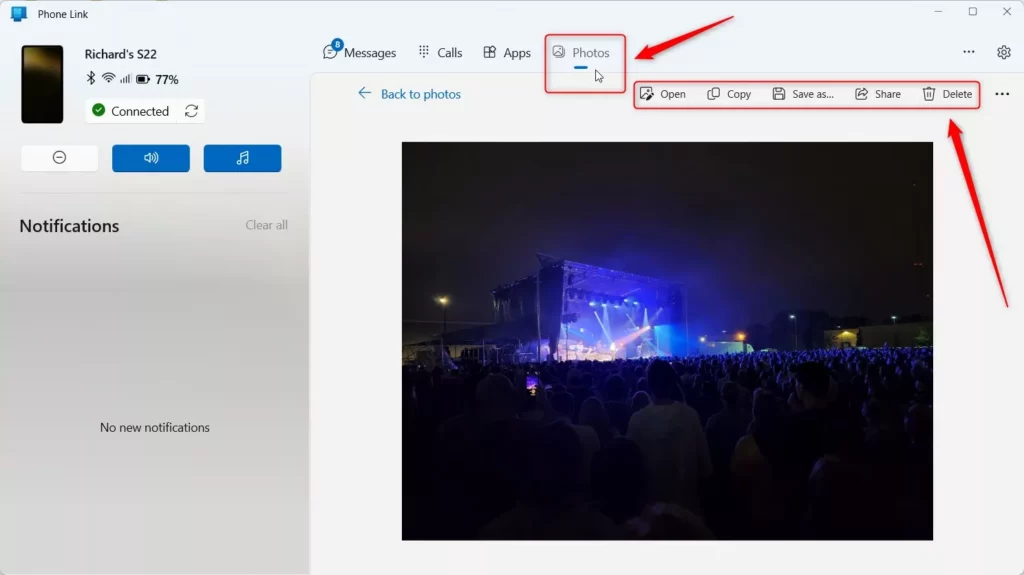
Your photos appear as small thumbnails. Click one to open it, or right-click it to see the options: copy, save, share, or delete. Be careful with delete, because it removes the photo from your phone too.
- Right-click the photo you want on your PC.
- Choose Save as. A standard save window opens.
- Pick a folder, such as Pictures, and click Save. The file now sits in that folder and shows up in File Explorer.
Alternative Workflow: Using File Explorer
If the Phone Link app isn't working for your photos, an alternative is to use a USB-C cable to connect your phone directly to your PC and use File Explorer. This method works for iPhones too, and it doesn't depend on Wi-Fi or Bluetooth.
- Plug your phone into the PC with a USB cable.
- Unlock the phone. If it asks what the USB connection is for, choose file transfer (on Android) or tap Trust (on iPhone).
- Open File Explorer and look for your phone under This PC.
- Open the phone's storage and find the DCIM folder, where camera photos are usually kept.
- Copy the pictures you want and paste them into a folder on your PC.
If the phone doesn't appear, try a different cable. Some cables only charge and can't carry data.
| Method | Speed | Data Usage |
|---|---|---|
| Phone Link | Slow (Wireless) | Uses Wi-Fi |
| File Explorer | Fast (Wired) | None |
Troubleshooting and Requirements
Fix problems with Windows 11 Phone Link photos by checking that your phone and computer are on the same Wi-Fi network and that Bluetooth is turned on. Also confirm that you're signed in with the same Microsoft account on both devices and that the phone still allows photo access for the Link to Windows app. Restarting the PC and the phone clears a lot of stuck connections.
If your pictures still will not load, reinstall the app. Open PowerShell (a command-line tool for advanced tasks) as an administrator and run Get-AppxPackage *Microsoft.YourPhone* | Remove-AppxPackage. Then download Phone Link again from the Microsoft Store and pair your phone once more. Reinstalling removes the app from your PC only. Your photos stay on your phone.
Get-AppxPackage *Microsoft.YourPhone* | Remove-AppxPackageSummary
The Phone Link app is a helpful tool for Windows 11 users to connect mobile and desktop. While the photo viewing feature is changing, you can still manage your files with File Explorer over a USB cable. Follow these steps and your photos will be safely backed up to your PC folders.
Have a question about this guide?
Answered by AI from this guide. Good questions may be added to this page — please don't include personal details.
Did this guide fix your problem?

About the Author
Richard
Tech Writer, IT Professional
Richard is a writer at Geek Rewind who turns complex IT tasks into clear, step-by-step guides. He draws on years of hands-on experience in system administration and enterprise IT operations, focusing on Windows, Linux and WordPress: the problems people actually run into, and the fixes that work. His server and WordPress guides come from systems he runs himself. Richard builds and maintains the platform behind Geek Rewind, from its Ubuntu servers and Nginx configuration to its custom WordPress plugins. Many new tutorials start with readers' questions, and he's always glad to answer them in the comments.
No comments yet — be the first to share your thoughts!