Enable Photos Access in Phone Link for Windows 11


Phone Link connects your Android phone to your Windows 11 PC. Once photo access is on, you can view up to 2,000 of your most recent photos and screenshots on the PC without a USB cable. You can save them, share them or copy them into other apps from the desktop.
The setup takes a few clicks in the Phone Link settings. You can change your sync preferences at any time.
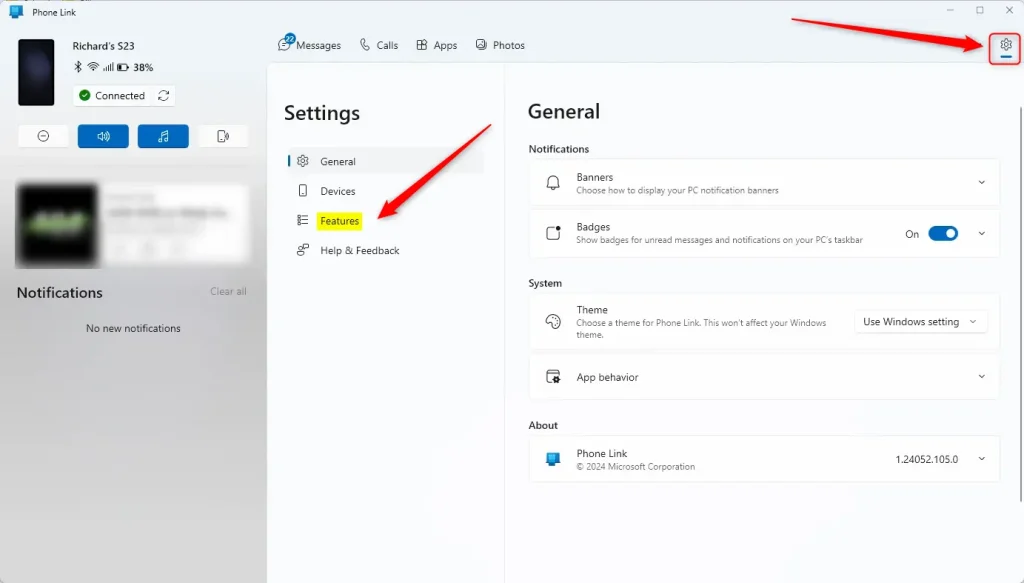
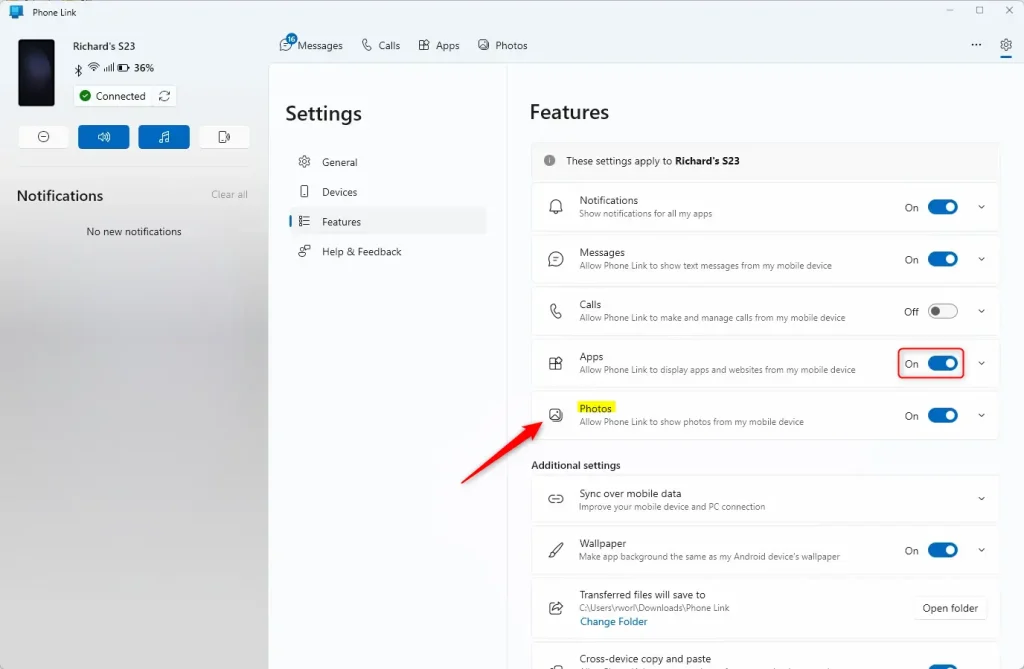
To enable Phone Link photos access on Windows 11, open the Phone Link app, click the gear-icon Settings button in the top-right corner, select the Features tab, and turn on the Photos toggle. Your 2,000 most recent photos and screenshots then appear on the PC. This works only with Android phones; iPhones don’t show a Photos option.
Access your photos from your phone using the Phone Link app
With photo access on, you can view and save pictures from your phone on your computer. You don’t have to email them to yourself or plug in a cable. You turn it on in the Phone Link app, under Settings, in the features list.
Photos is an Android feature in Phone Link. If you use an iPhone, the Photos option won’t be there.
- Launch the Phone Link app. The Phone Link window opens with your linked phone, if you have one.
- Add your phone if no device appears as linked. Follow the on-screen prompts to pair it. You’ll usually need the Link to Windows app on the phone and a sign-in with the same Microsoft account on both devices.
- Click the Settings button (the gear icon) in the top-right corner. The Settings page opens.
- Select the Features tab. You should see a list of tiles for the features Phone Link offers.
- Locate the Photos tile and turn its toggle switch to On. Your recent photos and screenshots should now appear in the Photos section of Phone Link.
If the photos don’t load, check your phone. Android may ask you to allow access to photos and media for the Link to Windows app. Approve that prompt, then give Phone Link a moment to refresh. Also make sure the phone is connected to the internet.
To revoke access, flip that same switch back to Off. You can do this whenever you like.
Close the settings page once you're finished. The change applies straight away, and you don't need to restart the PC.
That completes the configuration.
Reference:
- Phone Link on Windows 11 lets you reach your phone's apps and data from your computer.
- You can turn access to your Android device's photos on or off in the Phone Link settings. That gives you control over what content shows on your PC.
- A few steps in the Phone Link app are all it takes to manage access to your photos.
- Phone Link shows only the 2,000 most recent photos and screenshots. That limit keeps network use and performance reasonable.
Did this guide fix your problem?

About the Author
Richard
Tech Writer, IT Professional
Richard is a writer at Geek Rewind who turns complex IT tasks into clear, step-by-step guides. He draws on years of hands-on experience in system administration and enterprise IT operations, focusing on Windows, Linux and WordPress: the problems people actually run into, and the fixes that work. His server and WordPress guides come from systems he runs himself. Richard builds and maintains the platform behind Geek Rewind, from its Ubuntu servers and Nginx configuration to its custom WordPress plugins. Many new tutorials start with readers' questions, and he's always glad to answer them in the comments.
No comments yet — be the first to share your thoughts!