How to Change Phone Link Download Folder in Windows 11

The Phone Link download folder in Windows 11 controls where photos and files from your Android phone or iPhone land on your PC. By default, Windows saves these transferred files in 📁C:\
Phone Link is a built-in Windows app that connects your mobile device to your computer so you can open apps, view photos, and manage files without picking up your phone. Moving the download folder keeps your main Downloads folder tidy. It also lets you save transfers to a different drive if your system drive is running low on space.
Open Phone Link, click the gear icon at the top right, then select Features. Under Additional settings, find Transferred files will save to and click Change Folder. Pick your new folder in File Explorer and click Select Folder. Future transfers go there immediately, with no restart needed. Files already transferred stay in the original folder.
Why Change Your Download Folder?
The setting lives inside the Phone Link app itself, not in the Windows Settings app. You pick a new folder once, and every later transfer goes there. It takes about a minute and does not need a restart.
Choose a folder your account can write to. A folder on another drive works, but make sure that drive will be connected whenever you transfer files.
How to Change the Phone Link Download Folder
- Open the Phone Link app. You should see the Phone Link window with your connected phone, or a prompt to set one up.
- If you have not connected a phone yet, follow the prompts to add one first. The folder setting is only available once a phone is set up. If your phone is already connected, continue to the next step.
- Click the Settings button (the gear icon) at the top right corner of the app. Then select Features from the menu. In short: Settings Features The Features page opens.
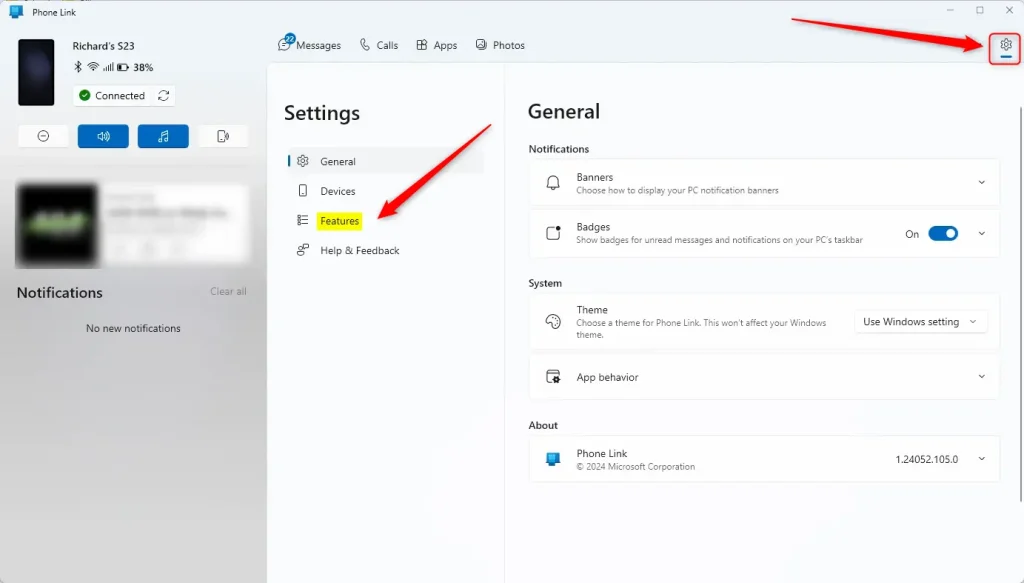
Phone Link app settings screen on a Windows PC. - On the Features page, look under Additional settings. Scroll down if you do not see it. Find the text Transferred files will save to. The current folder path is shown there. Click the Change Folder link below it.
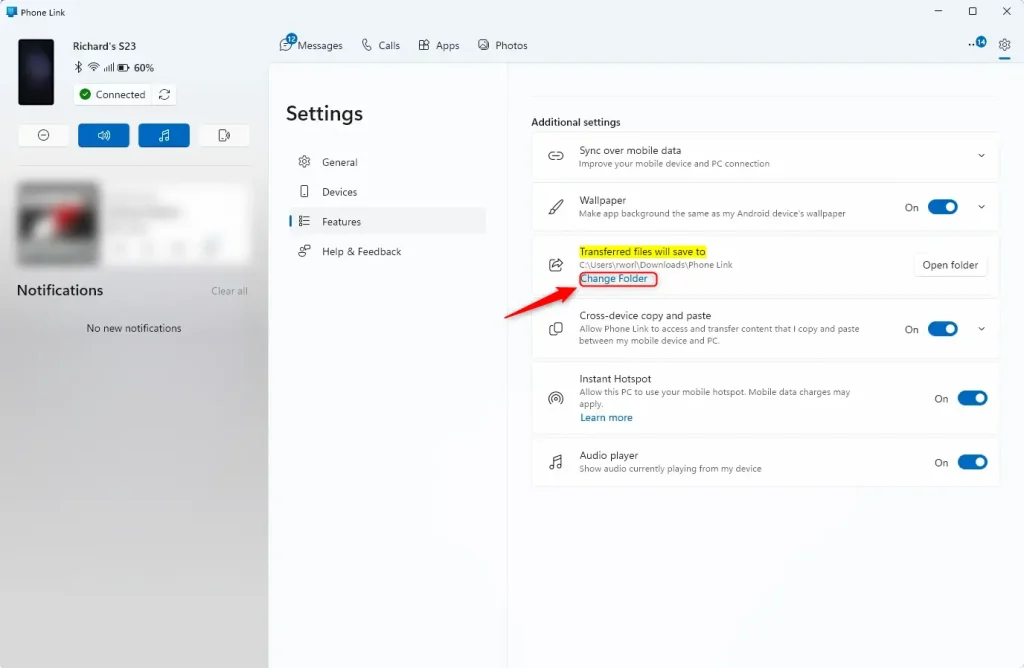
Change folder link phone link app - In the folder window that opens, browse with File Explorer to the folder you want. You can click Make New Folder here if you still need to create one. Select the folder, then click Select Folder. The window closes and the new path now appears under Transferred files will save to.
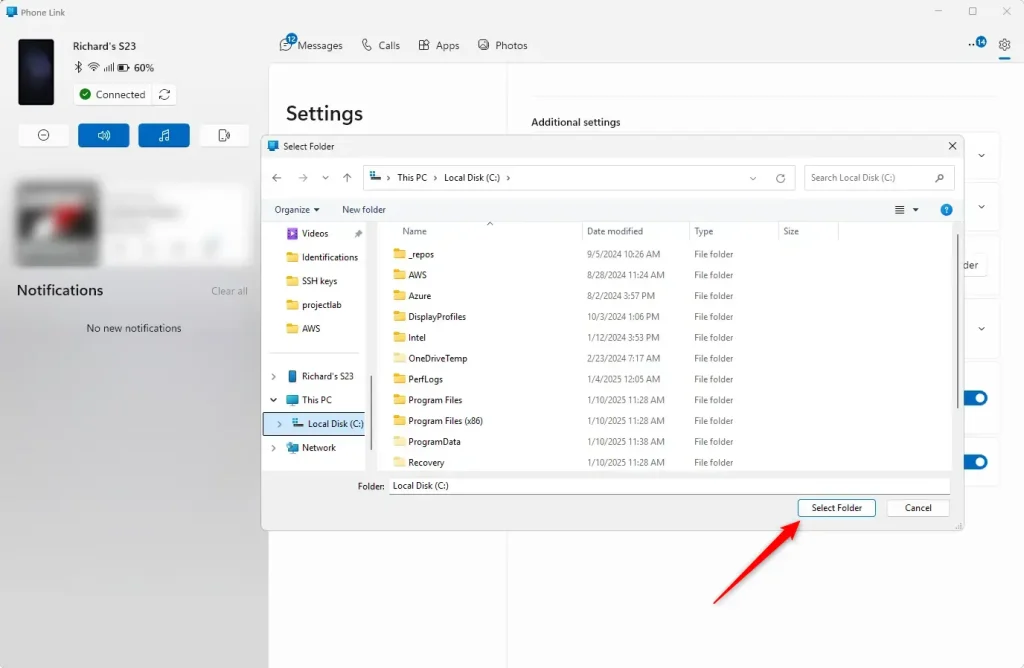
Change folder link phone select folder
Older versions may lay out the settings differently. The steps above match the current Phone Link app on Windows 11.
To undo the change, repeat the same steps and choose the original folder, 📁C:\
What Happens Next?
Any new files you transfer from your phone will save to your new folder. Phone Link does not move files that were already downloaded, so older transfers stay in the original folder. If you want everything in one place, open both folders in File Explorer and move the old files over yourself.
To check that it worked, send one photo from your phone to the PC. Then open the new folder and confirm the file is there.
Summary
Changing the Phone Link download folder sends photos and files straight to a custom location instead of the default Downloads\Phone Link folder. You set it once in the app settings, and your transferred files stay organized the way you want them.
- Phone Link normally saves files to
C:\Users\UserName\Downloads\Phone Link. - You can pick any folder you have permission to write to instead.
- Open Phone Link, then go to Settings Features
- Look for Transferred files will save to under Additional settings and click Change Folder.
- Choose your new folder in the File Explorer window and click Select Folder.
- All future transfers go to the new location. Files already downloaded stay where they are.
- No restart is needed. To go back, choose the original folder again.
Have a question about this guide?
Answered by AI from this guide. Good questions may be added to this page — please don't include personal details.
Did this guide fix your problem?

About the Author
Richard
Tech Writer, IT Professional
Richard is a writer at Geek Rewind who turns complex IT tasks into clear, step-by-step guides. He draws on years of hands-on experience in system administration and enterprise IT operations, focusing on Windows, Linux and WordPress: the problems people actually run into, and the fixes that work. His server and WordPress guides come from systems he runs himself. Richard builds and maintains the platform behind Geek Rewind, from its Ubuntu servers and Nginx configuration to its custom WordPress plugins. Many new tutorials start with readers' questions, and he's always glad to answer them in the comments.
hey, i want to know how you got the device in file explorer “richard’s s23” i also had it previously but idk why this feature is missing now from my devices can you please help me .
@shantnu108
shantnuswami1008@gmail.com
[…] If you want to change this folder, you can learn how here. […]