Open the Downloads Folder on This Device in Windows 11

- 38 steps
- Needs administrator rights
The Downloads folder in Windows 11 is the default location where browsers and apps save the files you download, and it sits in your user profile at C:\Users\USERNAME\Downloads on most PCs. The fastest way to open it is to press Win+E and select Downloads in the left pane of File Explorer.
This post covers that method plus several others: the Run dialog, the Start menu, and your browser. It also explains what to do when Downloads is missing from File Explorer or has moved to a different location. None of the steps need administrator rights, and they work the same on Windows 11 Home and Pro.
To open the Downloads folder on this device in Windows 11, press Win+E to open File Explorer, then select Downloads in the left pane. The folder sits in your user profile at 📁C:\
Where Downloads on This Device Are Stored
Windows creates a Downloads folder inside each user profile. If your account name is USERNAME, the folder lives at C:\Users\USERNAME\Downloads. Each person who signs in to the PC, called a user account, gets a separate Downloads folder. You will not see files that another account saved.
Edge, Chrome, Firefox and most apps save to this folder by default. Any of them can be set to save somewhere else, which is the most common reason people cannot find a recent download. The troubleshooting section below covers that case.
Opening the folder only displays its contents. Nothing is changed or deleted until you act on a file.
Open Downloads on This Device With File Explorer
File Explorer (the Windows app for browsing folders and files) is the most direct route to your downloads on this device. These steps take you from the desktop to the folder contents.
- Press Win+E. File Explorer opens. You can also select the File Explorer icon (a yellow folder) on the taskbar.

File Explorer - Look at the left pane. This is the navigation pane, the list of locations on the left side of the window.
- Select Downloads in the left pane. It sits below Desktop and above Documents on most PCs and has a blue arrow icon.
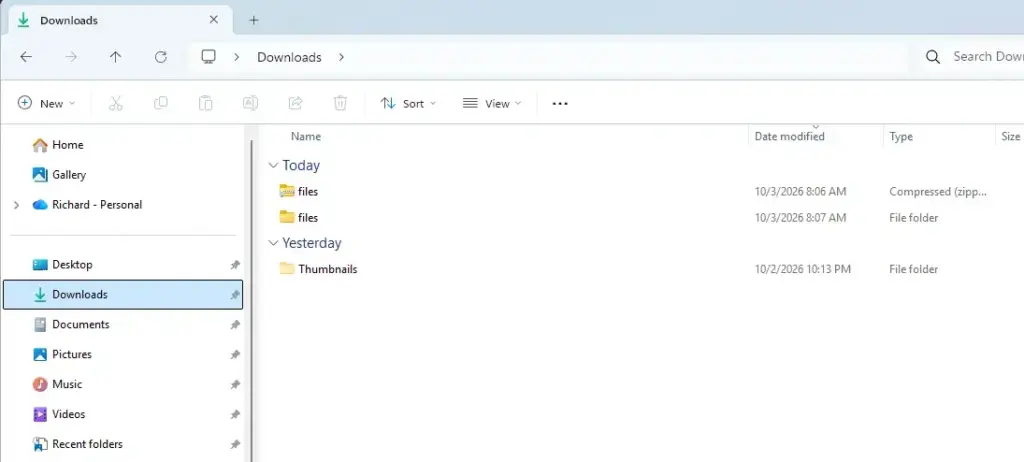
File Explorer - Check the address bar. It shows the short folder name,
Downloads, or the full path, such asC:\Users\USERNAME\Downloads. This confirms you are in the right folder. - Look through the file list. Your most recent files appear in groups with names like Today and Earlier this week.
- Double-click a file to open it. Right-click it to see options such as Open with, Copy or Delete. Be careful with Delete: deleting a file moves it to the Recycle Bin, but you should check the file first.
If Downloads is not in the left pane, skip ahead to the troubleshooting section. If the folder opens but is empty, the files may have been saved to another folder or to another account’s profile.
Other Ways to Open the Downloads Folder
File Explorer is not the only route. The methods below are useful when you want a shortcut, when you are working from the keyboard, or when the left pane does not list Downloads.
Use the Run Dialog
- Press Win+R. The Run dialog opens in the lower-left corner of the screen.

Run dialog - Type
shell:Downloadsin the Open box. - Press Enter. File Explorer opens directly in your Downloads folder.
The shell:Downloads command is a shortcut name that Windows turns into the real folder location. Because it points to the folder itself, it still works if you have moved Downloads. If you moved Downloads to another drive, this command still finds it.
Type the Path in the File Explorer Address Bar
The address bar accepts a typed path. This is a good option when File Explorer is already open and you want to jump to Downloads without scrolling through the left pane.
- Open File Explorer with Win+E.
- Click once in the address bar at the top of the window. The path turns into editable text.
- Type
%userprofile%\Downloadsand press Enter.
The %userprofile% part (a variable that stands for C:\Users\USERNAME) lets you use the same text on any PC. If you moved the folder, this path leads to the old default location, not the new one. If you moved the folder, use the Run dialog method above instead, with the shell:Downloads command, because it finds Downloads in its new location.
Search From the Start Menu
The Start menu search finds the folder by name. Use this when you do not want to open File Explorer first.
- Press the Win to open the Start menu.
- Type the folder name,
Downloads. Windows lists matches under Best match, and the Downloads folder usually appears at the top. - Press Enter to open it. The search also returns Settings pages with similar names, so check the item labeled Folder.
Add Downloads Next to the Start Menu Power Button
Windows 11 can show folder shortcuts at the bottom of the Start menu, beside the power button. The Downloads shortcut is off by default, but you can switch it on in Settings.
- Press Win+I to open Settings.

Start Menu - Go to Settings Personalization Start.
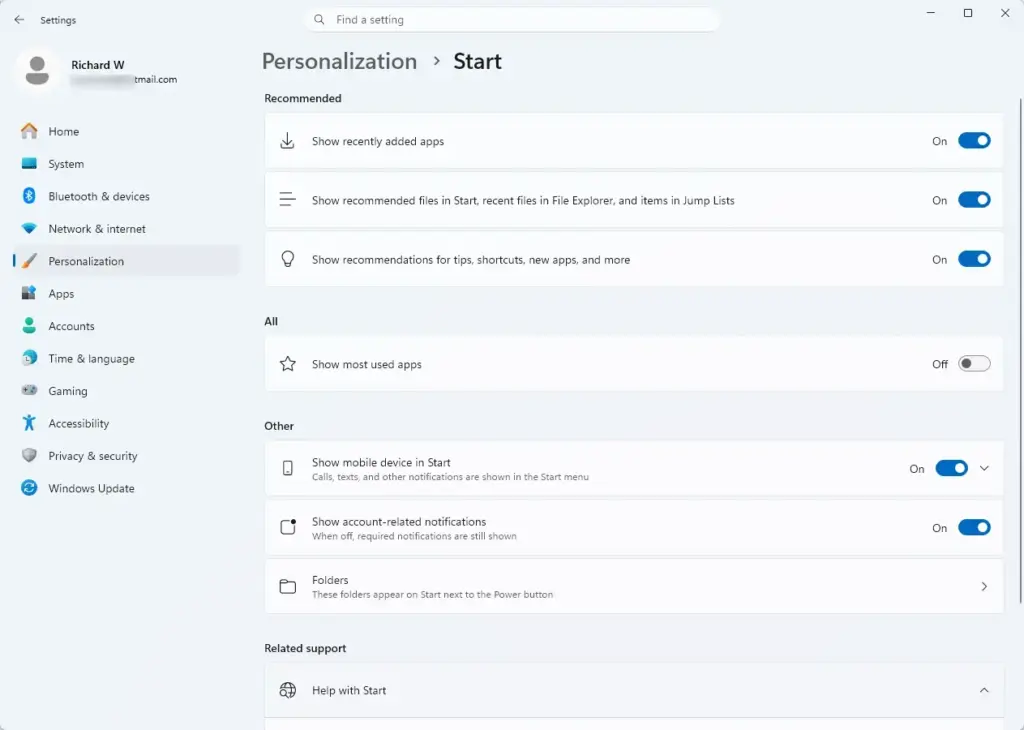
Windows 11 Settings Personalization Start menu options for recent files - Select Folders. A list of folder shortcuts appears, each with a toggle.
- Switch the Downloads toggle to On.
- Open the Start menu. A Downloads icon (a folder with a down arrow) now appears next to the power button.
- Select that icon to open Downloads in File Explorer.
To undo this, return to the same page and switch the toggle to Off. The folder and its files are not affected. The Folders option is part of the Start settings in current Windows 11 builds. If you do not see it, install the latest updates from Settings Windows Update.
Open Downloads From Your Browser
Your browser keeps its own list of recent downloads. Use it when you know which file you want and would rather jump straight to it than browse the folder.
Microsoft Edge
Edge shows downloaded files in a panel and also tells you which folder it saves to. These steps cover both.
- Press Ctrl+J in Edge. The Downloads panel opens near the top right of the window.
- Find the file you want in the list.
- Select the folder icon next to a finished download to show it in the folder. The label for this icon can differ slightly between Edge versions. File Explorer opens with the file highlighted.
To see where Edge saves files, select Settings and more (the three dots at the top right) > Settings Downloads. The Location setting on that page shows the current folder. Select Change to pick a different folder.
Google Chrome and Firefox
Both browsers use Ctrl+J or a similar shortcut to show recent downloads. In Chrome, press Ctrl+J to open the downloads page, then use the Show in folder link beside a file. Chrome’s save location is under Settings Downloads Location.
In Firefox, press Ctrl+Shift+Y to open the downloads list in the Library window. Right-click a file and choose Open Containing Folder. Firefox’s save location is in Settings General, in the Files and Applications section, under Downloads. Menu wording in browsers changes between releases, so look for the closest match if your labels differ.
If Downloads Is Missing or Opens in the Wrong Place
Most problems come down to one of three causes: the folder is unpinned from the left pane, it was moved, or your browser saves somewhere else. Check them in this order.
Downloads Is Missing From the Left Pane
Windows 11 shows Downloads in the left pane because it is pinned to Quick access (a list of folders you want close at hand). Someone may have unpinned it. Unpinning removes only the shortcut, not the folder.
- Press Win+R. In the Open box, type
shell:Downloads, then press Enter. The folder opens, which proves it still exists. - Click the up arrow beside the address bar to move to your user folder,
C:\Users\USERNAME. - Right-click the Downloads folder in the list. On a touchscreen, press and hold the folder instead.
- Select Pin to Quick access. In the compact Windows 11 right-click menu, this appears as a pin icon. If you do not see it, select Show more options first.
- Check the left pane. Downloads now appears again.
To remove the shortcut later, right-click Downloads in the left pane and choose Unpin from Quick access.
Downloads Has Moved to Another Drive or Folder
The Downloads folder can be relocated. If it was, the path in the address bar will not match C:\Users\USERNAME\Downloads. You can check and change this in the folder’s properties.
- Right-click Downloads in the File Explorer left pane.
- Select Properties. A dialog box opens.
- Select the Location tab. The box shows the folder’s current path.
- Select Restore Default to send the folder back to its original location, or Move to choose a new one.
- Select Apply. If Windows asks whether to move existing files, choose Yes to keep them with the folder.
Moving a folder with many files can take a while, and files that are open in another program may fail to move. Close those programs and try again. If the Location tab is missing, the folder is likely managed by your organization or a sync app, and the setting is locked by that tool.
Your Browser Saves Somewhere Else
If Downloads is in the right place but a new file is not there, the browser has its own save location. Open your browser’s download settings, as described in the browser section above, and read the Location value. Some browsers also have an option to ask where to save each file, which sends files to a different folder every time.
Make the Downloads Folder Easier to Read
A busy Downloads folder gets hard to scan. File Explorer lets you change how the files are grouped and sorted without moving anything.
- Open the Downloads folder using any method above.
- Select Sort in the toolbar and choose an option such as Date modified, Name or Size.
- Select Sort again, then Descending or Ascending, to reverse the order.
- Select Group in the toolbar and choose None to remove the date headings, or pick another grouping, such as Type.
These changes affect only how the folder looks. Your files stay where they are. Sorting by size is a quick way to find large installers that are worth deleting.
Your other personal folders work the same way. If you are looking for a specific type of file, these related guides can help:
- How to find downloads on my computer for a wider look at where downloaded files end up
- Locate music downloads on my computer in Windows 11
- Find my Videos folder on my computer in Windows 11
- Locate my Pictures folder on my computer in Windows 11
What to Do Next
Pin Downloads to Quick access or switch on the Start menu shortcut, so the folder is one click away from now on. If a browser keeps saving files to an unexpected place, change its Location setting and test with a small file. Once Downloads is quick to reach, the next useful task is sorting by size and clearing out installers and archives (compressed ZIP files) you no longer need.
Have a question about this guide?
Answered by AI from this guide. Good questions may be added to this page — please don't include personal details.
Did this guide fix your problem?

About the Author
Richard
Tech Writer, IT Professional
Richard is a writer at Geek Rewind who turns complex IT tasks into clear, step-by-step guides. He draws on years of hands-on experience in system administration and enterprise IT operations, focusing on Windows, Linux and WordPress: the problems people actually run into, and the fixes that work. His server and WordPress guides come from systems he runs himself. Richard builds and maintains the platform behind Geek Rewind, from its Ubuntu servers and Nginx configuration to its custom WordPress plugins. Many new tutorials start with readers' questions, and he's always glad to answer them in the comments.
No comments yet — be the first to share your thoughts!