How to Find and Access Recently Downloaded Files in Windows 11 Downloads Folder

- 40 steps
- Needs administrator rights
Windows 11 saves every file you download to the Downloads folder, which File Explorer can open with a quick keystroke. The fastest way to find your most recent downloads is to sort the folder by date, with the newest files at the top.
Press Win+E to open File Explorer, then click Downloads in the left pane. Right-click an empty area of the folder, select Sort by, then choose Date modified and Descending. Or select the Date modified column header (in Details view) to sort.
This works the same way on Windows 11 Home and Windows 11 Pro, and you don’t need administrator privileges to access your Downloads folder.
Press Win+E to open File Explorer, then click Downloads in the left pane, where every file you have downloaded is listed. To see your newest downloads first, right-click an empty area of the folder, select Sort by, then choose Date modified and Descending. You can also press Win+R, type shell:Downloads and press Enter.
Open the Downloads folder in File Explorer
Windows saves most downloads to one folder in your user profile, at C:\Users\USERNAME\Downloads. File Explorer is the program that shows your files and folders, and it gives you several ways to reach that folder.
Use the navigation pane
The navigation pane (the list of folders and locations along the left side of File Explorer) gives you direct access to Downloads. Use it when File Explorer is already open.
- Press Win+E to open File Explorer . You can also select the folder icon on the taskbar .

File Explorer - Select Downloads in the left pane. It sits under Home and Gallery, in the Quick access list (the pinned and frequently used folders).
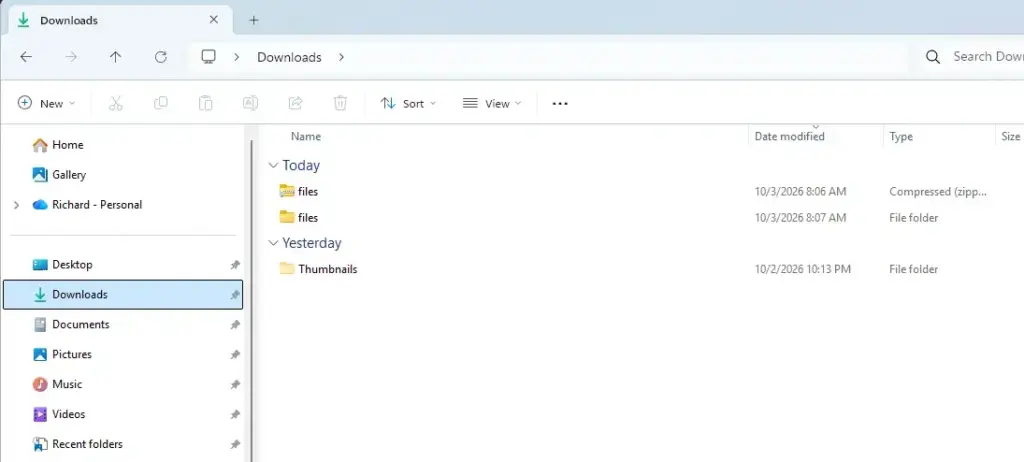
File Explorer - Check the file list. You should see every file saved there, with the folder path shown in the address bar at the top.
If Downloads is missing from the left pane, someone unpinned it. Select This PC in the left pane, right-click Downloads in the Folders section, and select Pin to Quick access. The folder returns to the left pane.
Use a keyboard shortcut or the Run box
The Run box opens the folder from anywhere, even when File Explorer is closed. It is the fastest route if you prefer the keyboard.
- Press Win+R to open the Run dialog box.

Run dialog - Type
shell:Downloadsand press Enter. - Check that File Explorer opens with your Downloads folder. This command follows the folder wherever Windows currently points it, even if you moved it.
You can also paste %USERPROFILE%\Downloads into the File Explorer address bar and press Enter.
Open it from your browser
Use this route when you do not know where your browser saved the file. Your browser keeps a record of where each file was saved.
- Press Ctrl+J in Microsoft Edge, Google Chrome or Mozilla Firefox. In Edge and Chrome this opens the downloads list. In Firefox it opens the Library window.
- Find the file you want in the list.
- In Edge, select the folder icon next to the file, or open the More actions menu (the three dots) and select Show in folder. In Chrome, select Show in folder. In Firefox, select the folder icon.
- Check that File Explorer opens with the file highlighted. The address bar now shows the real save location.
If the file opens somewhere other than your normal Downloads folder, your browser saves to a different location. See the section on missing downloads below.
Show the newest downloads first
A busy Downloads folder can hold hundreds of files. Sorting by date brings your latest download to the top, cutting out the scrolling.
Use the default date groups
Windows groups the Downloads folder by date by default. You see headings such as Today, Yesterday, Earlier this week, Last week, Earlier this month and A long time ago. Your newest files sit under Today.
If the groups appear in the opposite order, with A long time ago at the top, reverse them. Right-click an empty area of the folder, select Sort by, then select Descending.
If you see no group headings, someone changed the folder view. Right-click an empty area, select Group by, then select Date modified.
Sort by Date modified or Date created
Sorting puts files in a single list, with the newest first. Use it when you prefer a plain list to grouped headings.
- Open the Downloads folder.
File Explorer - Right-click an empty area of the file list. Do not right-click a file.
- Select Sort by, then select Date modified.
- Right-click an empty area again, select Sort by, then select Descending.
- Check the top of the list. Your most recent download should now be the first file.
You can also use the Sort button on the command bar (the row of buttons at the top of File Explorer). It has the same options.
Add the Date created column
Date modified can be misleading. Some files show the date their author last edited them, not when you saved them. This is common with files extracted from a ZIP archive and with files copied from a USB drive. Date created shows when the file first appeared on this computer, which is usually what you want.
- Select View on the command bar, then select Details. You can also press Ctrl+Shift+6. The files now appear in rows with columns such as Name, Date modified, Type and Size.
- Right-click any column heading, such as Name.
- Select Date created. If it is not in the short list, select More, tick Date created, and select OK.
- Select the Date created heading once to sort by it. Select it again if the oldest files appear first. A small arrow on the heading shows the direction.
To remove the column later, right-click a column heading and clear the tick next to Date created.
Search for recent downloads by date or name
The search box in File Explorer filters the current folder. A date filter narrows a long list to the files you saved recently. You do not have to scroll.
- Open the Downloads folder.
File Explorer - Select the Search Downloads box at the top right, or press Ctrl+E.
- Type
datemodified:todayand press Enter. The list now shows only files modified today. - For a wider range, replace
todaywithyesterday,this weekorlast week. - To filter by when the file reached your PC, use
datecreated:todayin the same way.
You can also search by name or file type. Type part of the file name, or type *.pdf to list only PDF files. Press Esc or select the X in the search box to clear the filter and return to the full list.
Search filters the folder you are in. If you search from This PC or Home, Windows searches a much wider area and can take longer.
Pin Downloads so it is always one click away
Pinning saves you from hunting for the folder each time. Pin it to the Quick access list, to the Start menu, or both.
- Open File Explorer and find Downloads in the left pane or under This PC.
- Right-click Downloads.
File Explorer - Select Pin to Quick access to keep it in the left pane. Select Pin to Start to add a tile to the Start menu.
- Check the pinned item. It now appears in the location you chose.
To undo either pin, right-click the pinned item and select Unpin from Quick access or Unpin from Start. Unpinning does not delete the folder or its files.
Why a recent download is missing
If you open the folder and the file you expect is not there, one of these causes is almost always responsible. Check them in this order.
The browser saved the file somewhere else
Browsers can save to any folder, and some ask for a location every time. Use the Ctrl + J method above and select Show in folder to find the file. Then change the default so it does not happen again:
- In Microsoft Edge, select Settings and more (the three dots at the top right), then select Settings.
- Select Downloads in the left pane.
- Next to Location, select Change, choose your Downloads folder, and select Select Folder.
Chrome and Firefox have the same option under their own Settings, in the downloads section. Menu wording can differ slightly between browser versions.
The download did not finish
When a download stops mid-way, it leaves an incomplete file with a different file extension than the original. Edge and Chrome use .crdownload. Firefox uses .part. These files will not open. To see the extensions, select View, then Show, then File name extensions. Delete the partial file and download the original again.
Storage Sense deleted old downloads
Storage Sense is a Windows feature that frees disk space by deleting temporary files and, if configured, old files in Downloads. The Downloads cleanup is set to Never by default, but it may have been changed. To check:
- Open Settings and select System, then select Storage.
- Select Storage Sense.
- Look at Delete files in my Downloads folder if they have been there for over. If it shows a number of days, files older than that are removed automatically. Set it to Never to stop this.
If the setting is not on the page, your Windows build may present it differently. Open Storage Sense and look for the Downloads option in its configuration.
The Downloads folder was moved
Windows lets you move the Downloads folder to a different drive or location. If File Explorer opens a Downloads folder that looks empty, check where it points:
- Right-click Downloads in the left pane and select Properties.
- Select the Location tab. The box shows the current path.
- Select Restore Default to point it back to
C:\Users\USERNAME\Downloads, then select OK.
If Windows asks whether to move your files to the new location, select Yes to bring existing files across. Select No to leave them where they are. Files you leave behind stay in the old folder, so you can still open them from there.
You are looking at the Recent list
The Recent section on the Home page of File Explorer lists files you opened, not files you downloaded. A file you saved but never opened does not appear there. Always check the Downloads folder itself.
Open a downloaded file that Windows blocks
Windows marks files downloaded from the internet with a hidden tag called the Mark of the Web. This tag tells Windows the file came from outside your PC. When you open a flagged file, you may see a SmartScreen warning or a message that the file is blocked. Only continue if you trust the source.
- Right-click the file in the Downloads folder and select Properties.
- On the General tab, look near the bottom for a Security note that says the file came from another computer and might be blocked.
- Tick Unblock, then select Apply and OK.
The Unblock box is not a way to make a suspicious file safe. It only removes the warning.
If this didn't work
If a file is still missing, search your whole drive by name. Open This PC, select the Search This PC box and type the file name. Also check that you are signed in to the same Windows account you used to download it. Each user account has its own Downloads folder, so files saved under another profile will not appear in yours. If you reinstall a browser or create a new browser profile, its download location can reset to the default, so check Settings and Downloads in the browser afterwards.
Frequently asked questions
How to see recently downloaded files?
Open File Explorer by pressing Windows key + E, then click Downloads in the left pane. Right-click an empty area, select Sort by, then choose Date modified and Descending. The newest files appear at the top.
How to show recent files in 🪟 Windows 11?
Press Windows key + E to open File Explorer and click Downloads. Sort by Date modified (descending) to see your most recent downloads first. You can also pin Downloads to Quick Access for faster access next time.
Why are my Downloads not showing up?
Check that you're looking in the right folder: C:\Users\USERNAME\Downloads. Make sure filename extensions aren't hidden in View settings. If files still don't appear, your browser may be saving downloads to a different location—check your download settings.
How to find the location of a downloaded file?
Open File Explorer and click Downloads in the left pane to see where files are stored (C:\Users\USERNAME\Downloads by default). Right-click a file and select Properties to view its full path and location on your computer.
Still have a question?
Answered by AI from this guide. Good questions may be added to this page — please don't include personal details.
Did this guide fix your problem?

About the Author
Richard
Tech Writer, IT Professional
Richard is a writer at Geek Rewind who turns complex IT tasks into clear, step-by-step guides. He draws on years of hands-on experience in system administration and enterprise IT operations, focusing on Windows, Linux and WordPress: the problems people actually run into, and the fixes that work. His server and WordPress guides come from systems he runs himself. Richard builds and maintains the platform behind Geek Rewind, from its Ubuntu servers and Nginx configuration to its custom WordPress plugins. Many new tutorials start with readers' questions, and he's always glad to answer them in the comments.
No comments yet — be the first to share your thoughts!