Enable or Disable Chrome Download Location Prompt

The Google Chrome download prompt is a setting that asks you where to save a file every time you download one. With it off, Chrome sends everything to the default folder without asking. Turning the prompt on stops files from piling up in your main downloads folder. Turning it off makes every new download go straight to the same place.
To enable the Chrome download location prompt, open Chrome, click the three dots in the top right, select Settings, search for “Ask” in the search bar, then toggle on “Ask where to save each file before downloading ” under the Downloads section. Toggle it off to disable the prompt.
Enable/Disable Download Location Prompt in Chrome
The easiest way to change this is in Chrome’s own settings. It works the same on Windows 11 Home and Pro, and it only affects your Chrome profile. You don’t need administrator rights. It is also the quickest way to choose where files go once you download Chrome for Windows and start using it.
These steps turn the Chrome download location prompt on or off:
- Open Google Chrome browser. Any Chrome window will do.
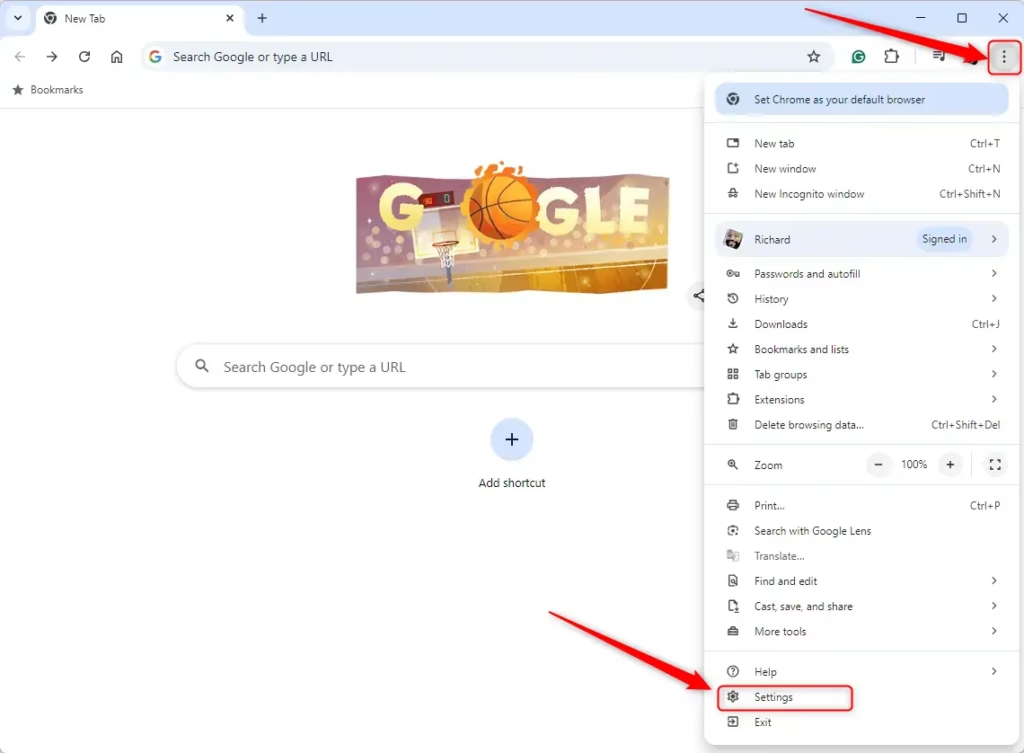
- Click the three dots in the top right corner. A menu drops down.
- Choose Settings. The Settings page opens in a new tab.
- Click the search bar at the top of the Settings page and type Ask. Chrome filters the page and shows only the matching options.
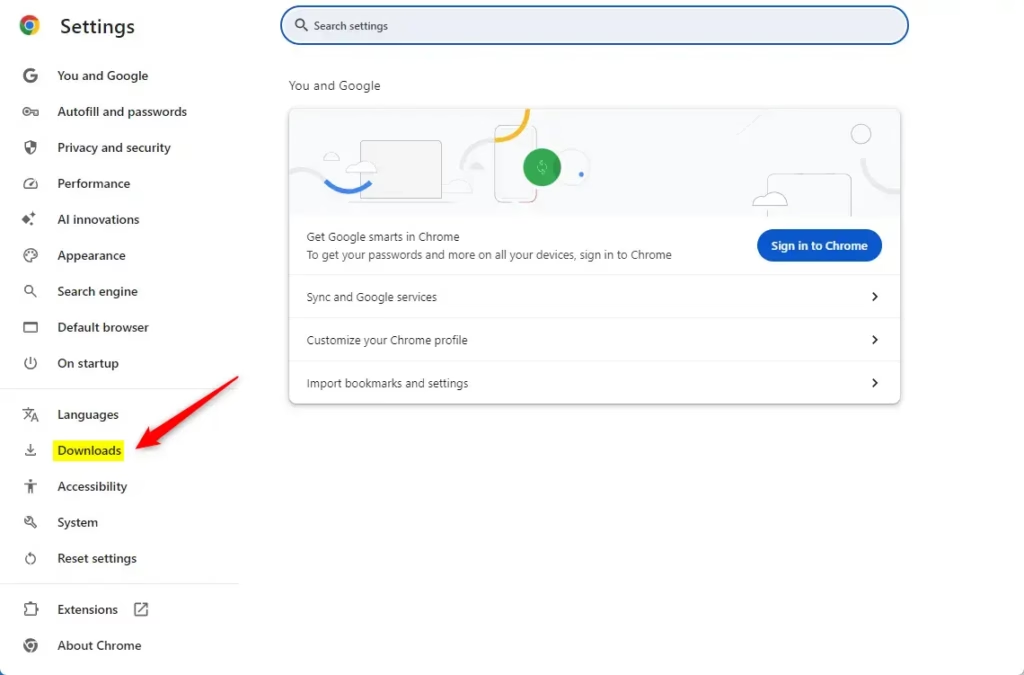
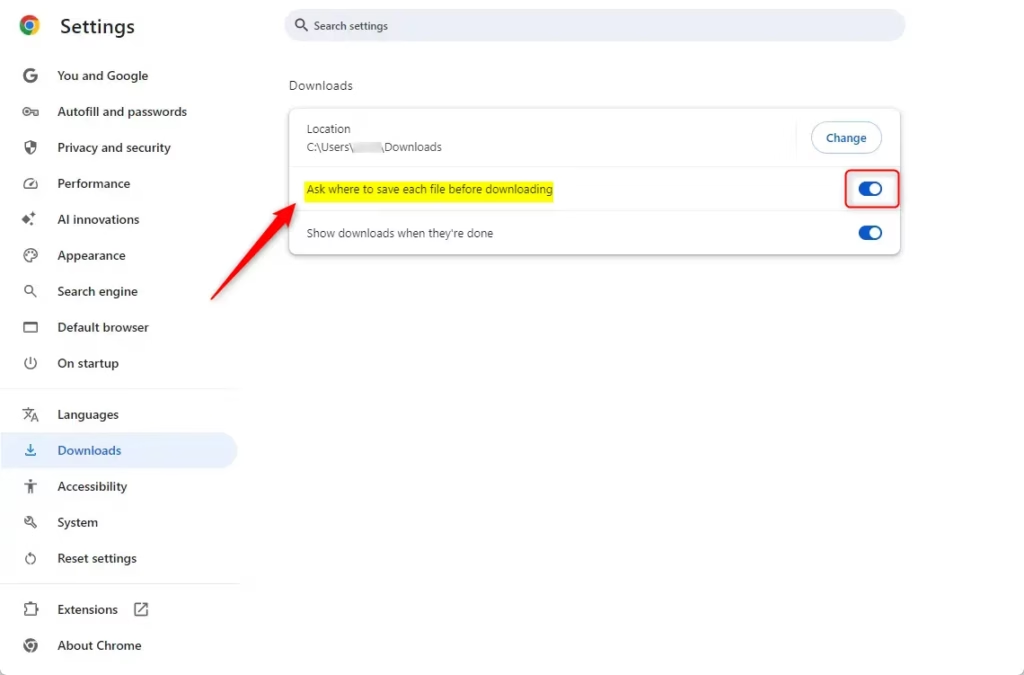
- Find the setting Ask where to save each file before downloading . It sits under the Downloads section. If the search shows nothing, pick Downloads in the left sidebar instead.
- Click the toggle switch next to Ask where to save each file before downloading . The switch changes colour right away.
- Check the colour of the switch. Blue means On, so Chrome will show a Save As window for every download. Grey means Off, so files go straight to your default downloads folder.
- Close the Settings tab. Chrome saves the change as soon as you flip the switch, so there is nothing to confirm and no restart is needed.
That includes the registry method further down this page. You have to change or remove that policy before the toggle will respond.
To undo the change, come back to the same setting and flip the switch the other way.
Enable / Disable Download Location Prompt using the Registry
You can also set this through the Windows Registry Editor. This method forces the setting through a Chrome policy, either for one user account or for the whole computer. It suits cases where you want to lock the behavior so it can’t be changed from Chrome’s settings page.
Targeting a single user account uses the HKEY_CURRENT_USER path. Changing the setting for every account on the machine uses HKEY_LOCAL_MACHINE instead, and that needs administrator privileges. The steps below use HKEY_CURRENT_USER. For all users, follow the same steps under HKEY_LOCAL_MACHINE\SOFTWARE\Policies\Google\Chrome.
Export the key first or create a restore point if you want a safety net.
These steps force the Chrome download location prompt on or off with a policy value:
- Open the Windows Registry. Approve the User Account Control prompt if one appears.
- Go to the Chrome policy key. The path is Computer\HKEY_CURRENT_USER\SOFTWARE\Policies\Google\Chrome, and you can paste it into the address bar at the top of the Registry Editor.
- Create any missing key. If the "Google" or "Chrome" folders aren't there, they just haven't been created yet. Right-click the folder above the missing one, choose New Key, and give it the correct name. Repeat for the second folder if both are missing, and spell the names exactly as shown.
- Select the Chrome key. Its contents show in the right pane, which is probably empty.
- Right-click the empty space in the right pane and choose New DWORD (32-bit) Value. A new value appears in the right pane with its name ready to edit.
- Name the value PromptForDownloadLocation. Spell it exactly, with no spaces.
- Double-click PromptForDownloadLocation to edit it. A small edit window opens.
- Set the Value data to 1 to force the prompt to appear. Set it to 0 to disable the prompt, which is the default behavior.
- Click OK. The value now shows your number in the Data column.
- Close the Registry Editor, then close and reopen Chrome so it picks up the policy. If it still doesn't change, restart the computer.
Once the policy is active, the matching toggle in Chrome's settings is locked and Chrome shows that the setting is managed.
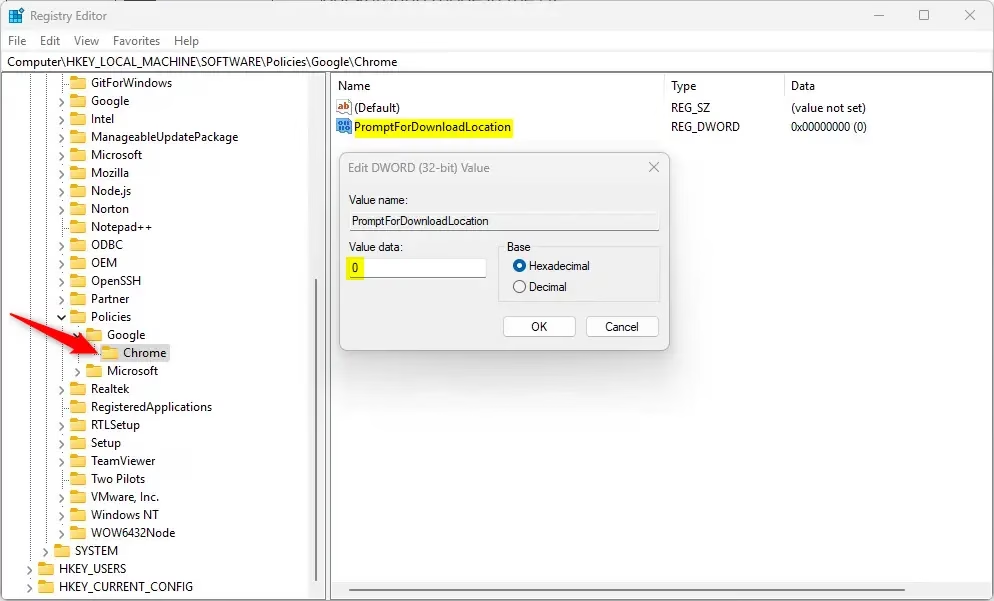
To restore default behavior, delete the "PromptForDownloadLocation" value in the Windows Registry:
- Open the Registry Editor and go back to the Chrome key. Use the same path you used above, or the HKEY_LOCAL_MACHINE path if you set it for all users.
- Right-click PromptForDownloadLocation in the right pane. A context menu opens.
- Choose Delete. Windows asks you to confirm.
- Confirm the deletion. The value disappears from the right pane.
- Restart the computer to apply the change. With the policy gone, the toggle in Chrome's settings is unlocked again and you can set the prompt on or off yourself.
For more technical details, check the Chrome Enterprise Policy.
Have a question about this guide?
Answered by AI from this guide. Good questions may be added to this page — please don't include personal details.
Did this guide fix your problem?

About the Author
Richard
Tech Writer, IT Professional
Richard is a writer at Geek Rewind who turns complex IT tasks into clear, step-by-step guides. He draws on years of hands-on experience in system administration and enterprise IT operations, focusing on Windows, Linux and WordPress: the problems people actually run into, and the fixes that work. His server and WordPress guides come from systems he runs himself. Richard builds and maintains the platform behind Geek Rewind, from its Ubuntu servers and Nginx configuration to its custom WordPress plugins. Many new tutorials start with readers' questions, and he's always glad to answer them in the comments.
No comments yet — be the first to share your thoughts!