Enable Download Location Prompt in Microsoft Teams

By default, Teams saves downloaded files straight to a folder without asking you. The download location prompt changes that: every time you download a file, Teams asks where to put it. That saves you from digging through a crowded Downloads folder for a document you only half remember grabbing. The setting is per user and takes a minute to turn on.
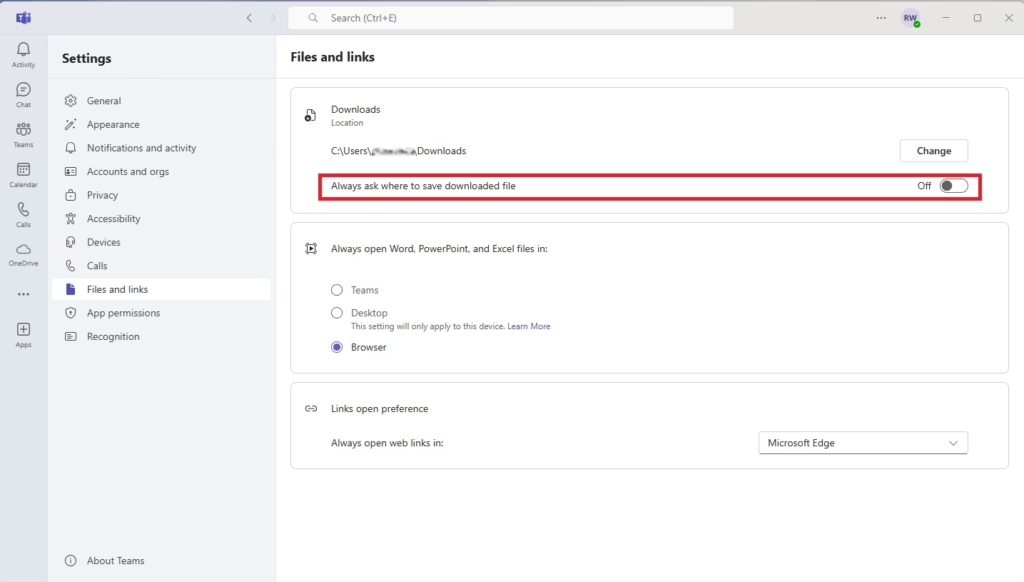
Go to Settings , then Files and links, and toggle “Always ask where to save downloaded files” to On. This ensures a prompt appears each time you download a file, letting you select the save location.
Where is the Downloads folder?
The Teams desktop app sends downloaded files to the default Downloads folder in your Windows user profile. It does this silently, with no prompt, unless you turn on the setting described below.
Does Microsoft Teams use browser download settings?
If you use Teams in a web browser, the browser decides where files go, not Teams. Chrome and Edge each use the download location set in their own settings. The Teams option below does not control the browser, so check the browser’s Downloads settings instead. Both browsers have an option to ask where to save each file before downloading .
How to enable the download location prompt
To make the desktop app ask every time, open Teams, click the three dots near your profile picture, choose Settings, open the Files and links tab, and turn on the switch for always asking where to save downloaded files. The steps below walk through it one at a time.
- Launch the Microsoft Teams app from your Start menu . Wait for your chats and teams to load.

- Click the Settings and more (…) button near your profile picture. A menu opens below it.

- Select Settings from the menu. The Settings window or page opens.
- Click the Files and links tab on the left. The file-related options appear on the right.
- Toggle the switch for Always ask where to save downloaded files to On.
If you don't see this option, update Teams first. Menu names and layout can differ slightly between the classic and new Teams apps, and between releases. Your organization's admin may also restrict some settings. The switch applies to your account only, and you shouldn't need to restart Teams for it to take effect.
Once the setting is on, a save window pops up every time you click download. You can pick the exact folder for that file, or browse to a different drive or a network location. To go back to the old behavior, return to the same tab and switch the toggle to Off.
Troubleshooting missing files
If a file you downloaded earlier seems to be missing, check the default Downloads folder in your user profile first. Anything you downloaded before turning the prompt on went there. File Explorer's search box is also a quick way to find it by name.
Summary
Choosing the destination yourself keeps local storage tidy and makes files easier to find later. For example, you can save project files straight into the project's folder instead of sorting them out afterward.
Can I change the default download location for Microsoft Teams?
Microsoft Teams' desktop app saves downloads to your system's Downloads folder by default.
Why don't my files download to a specific folder?
Files bypassing preferred directories usually indicate that the 'Always ask' preference remains disabled.
Have a question about this guide?
Answered by AI from this guide. Good questions may be added to this page — please don't include personal details.
Did this guide fix your problem?

About the Author
Richard
Tech Writer, IT Professional
Richard is a writer at Geek Rewind who turns complex IT tasks into clear, step-by-step guides. He draws on years of hands-on experience in system administration and enterprise IT operations, focusing on Windows, Linux and WordPress: the problems people actually run into, and the fixes that work. His server and WordPress guides come from systems he runs himself. Richard builds and maintains the platform behind Geek Rewind, from its Ubuntu servers and Nginx configuration to its custom WordPress plugins. Many new tutorials start with readers' questions, and he's always glad to answer them in the comments.
No comments yet — be the first to share your thoughts!