

Installing Google Chrome on Windows 11 takes less than five minutes when you use the official web installer. Google Chrome is a fast, free web browser that lets you visit websites, run web apps, and sync your bookmarks across devices.
You start by downloading the setup file from the official Google website. Then you run it on your PC and let the automated installer finish the setup. You need an internet connection the whole time, because the small file you download fetches the rest of Chrome while it installs. You also don’t need a Google account to install Chrome. You only need one if you want to sync later.
Go to google.com/chrome in Microsoft Edge, click Download Chrome, then click Accept and Install. Run the small ChromeSetup file from your Downloads folder and click Yes if Windows asks for permission. Chrome downloads the rest of itself and installs in about 30 seconds, with no Google account needed. On Windows 11 in S mode, you must switch out of S mode first.
Why Install Chrome on 🪟 Windows 11?
You should install Google Chrome Windows 11 if you want to sync your bookmarks, saved passwords, and browsing history across all your devices. Microsoft Edge is the default browser, but adding Chrome lets you use your preferred extensions, keep your personal settings, and maintain the same browsing experience you already use on your phone or other computers.
Installing Chrome doesn’t remove Edge. Both browsers can stay on the PC, and you decide which one opens your links.
If you prefer Chrome and use it on your phone or other devices, you can install it on Windows 11 too. Once you sign in, Chrome will remember your preferences and saved information across all your devices.
One exception is a PC running Windows 11 in S mode. S mode only allows apps from the Microsoft Store, so the Chrome installer won’t run until you switch out of S mode. The switch is free, but you can’t go back to S mode afterward.
How to Download and Install Google Chrome
Step 1Open Microsoft Edge
Click the Microsoft Edge icon on your taskbar at the bottom of your screen. A new Edge window should open on your home page or a blank tab.
If the icon isn't on your taskbar, click the Start button, type Edge, and open it from the search results. Any other browser on your PC works for this step too.

Step 2Go to Chrome's Download Page
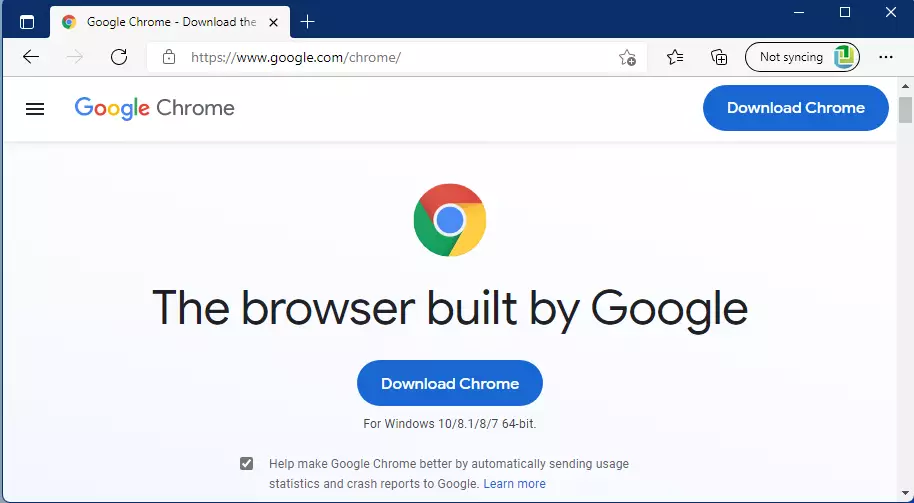
Visit the link below to download Chrome. Click it or copy it into the address bar at the top of the browser window, then press Enter.
The Chrome download page should now load. Always download from Google's own site. Third-party download sites often bundle extra software with the installer.
Step 3Click the Download Button
On the download page, click the blue Download Chrome button. The page detects that you're on Windows and offers the right version for your PC.
If a window or prompt appears, that is the next step. If nothing seems to happen, wait a few seconds. Edge may show a download notification near the top right of the window.
Step 4Accept and Install
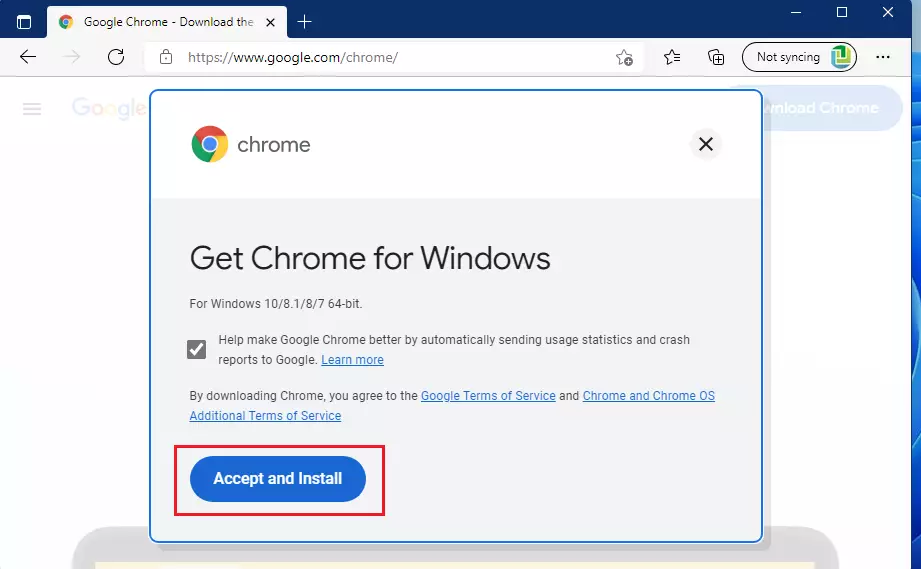
When a window pops up, click the Accept and Install button to begin the download. The installer file then starts downloading to your PC. It is a small file, so it usually finishes in a few seconds.
The window also shows the Google Terms of Service. It may include checkboxes, such as one to make Chrome your default browser or one to send usage statistics to Google. Leave them on or turn them off as you like. You can change both later in Chrome's settings.
Step 5Open the Installer
After the file downloads, run it to start the installation:
- Open File Explorer and click Downloads in the left pane.
- Double-click the Chrome installer file, which is usually the newest file in the folder.
- If Windows asks Do you want to allow this app to make changes to your device?, click Yes.
If the prompt asks for an administrator password, you're signed in with a standard account. Ask an administrator to enter their credentials, or ask them to install Chrome for you.
Step 6Wait for Installation to Complete
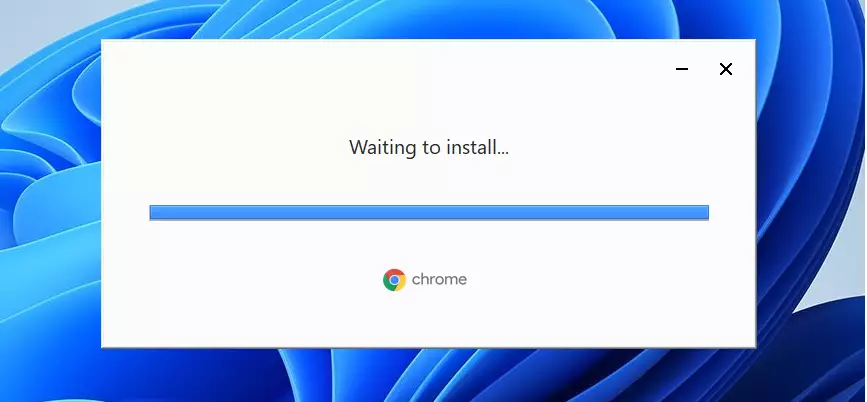
The Google Chrome installer starts on its own once you run it. You don't need to click anything or choose any options. The installation process takes about 30 seconds to finish, though a slow connection can make it longer. Keep the installer window open while Chrome finishes setting up.
If the installer stalls or shows an error, close it, check that your internet connection is working, and run the file again.
Step 7Chrome is Ready
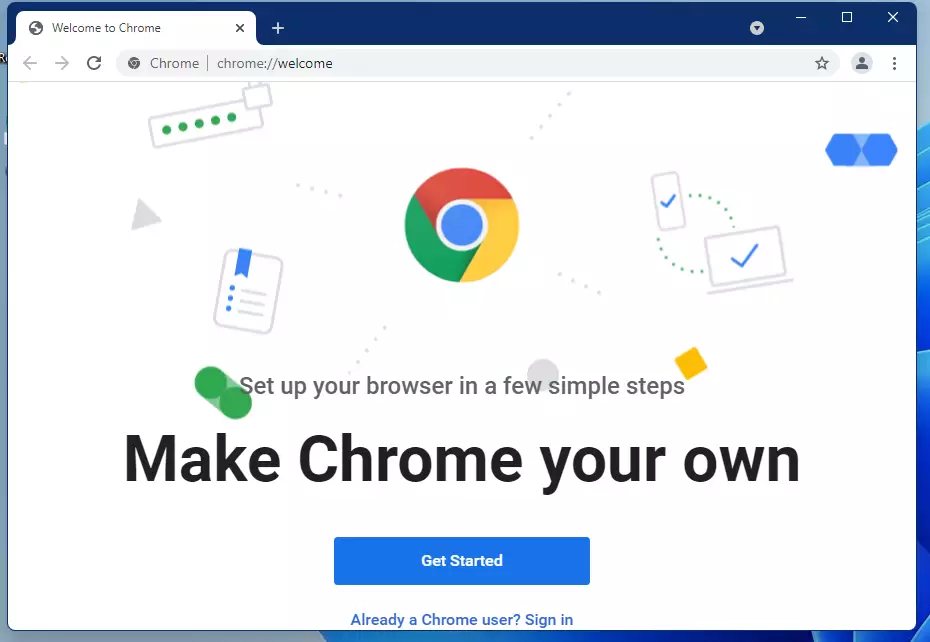
When installation finishes, Chrome will open automatically. You're done! Chrome is now installed and ready to use. You don't need to restart Windows.
You can find Chrome in the Start menu any time. If you want it on the taskbar, right-click the Chrome icon in the Start menu and choose Pin to taskbar. To sign in and sync, click the profile icon at the top right of the Chrome window and follow the prompts.
Make Chrome Your Default Browser
Chrome becomes your default browser when you select it to open web links automatically. This setting ensures Chrome launches whenever you click a hyperlink. In Windows 11, the setting lives under Settings Apps Default apps A detailed guide explains how to make Google Chrome the default browser.
This step is optional. If you skip it, Edge keeps opening your links, and you can change that whenever you want.
How to make Google Chrome the default web browser on Windows 11
Summary
You can easily get Google Chrome Windows 11 by downloading the setup file from the official Google website and running it on your PC. Because Chrome does not come pre-installed on Windows 11 like Microsoft Edge does, you must download it manually. The entire setup process takes just a few minutes from start to finish.
- Google Chrome is a popular web browser that works great on Windows 11.
- Chrome does not come pre-installed on Windows 11, so you must download it yourself.
- The installation process is simple and takes just a few minutes.
- After installing Chrome, you can sign in to sync your preferences and data across devices.
- You can set Chrome as your default browser for a smoother online experience.
- Chrome offers strong security and fast performance for web browsing.
Have a question about this guide?
Answered by AI from this guide. Good questions may be added to this page — please don't include personal details.
Did this guide fix your problem?

About the Author
Richard
Tech Writer, IT Professional
Richard is a writer at Geek Rewind who turns complex IT tasks into clear, step-by-step guides. He draws on years of hands-on experience in system administration and enterprise IT operations, focusing on Windows, Linux and WordPress: the problems people actually run into, and the fixes that work. His server and WordPress guides come from systems he runs himself. Richard builds and maintains the platform behind Geek Rewind, from its Ubuntu servers and Nginx configuration to its custom WordPress plugins. Many new tutorials start with readers' questions, and he's always glad to answer them in the comments.
This doesn’t work on Windows 11. Windows prevents you from downloading. Wants Edge.
This doesn’t work on Windows 11. Windows prevents you from downloading.
It says: For security purposes Windows 10 is able to download in S mode.
This doesn’t work on Windows 11. Windows prevents you from downloading.
Windows 11 makes Edge default and greys out the Make Default button