How to Change Browser Theme in Google Chrome


Google Chrome themes change the colors, toolbars, and background images of your browser window to match your personal style. You can pick from thousands of free custom designs in the Chrome Web Store to update your browser look in just a few clicks.
When you sign in, your chosen theme automatically syncs to your Google account across every computer you use.
Visit the Chrome Web Store and select a theme. Click “Add to Chrome” to apply it immediately. To revert, go to Settings , Appearance, and click “Reset to default.
Change browser theme in Google Chrome
You can change Chrome theme settings in just a few clicks by visiting the Chrome Web Store through your browser settings. Pick any color scheme or background design you like, and click add to Chrome to apply it instantly. This lets you personalize your window colors and tab appearance without downloading any extra software.
Let’s walk through the steps.
First, open the Google Chrome browser.
Click the three vertical dots in the top right corner of the window to open the main menu. Selecting "Settings" opens the main configuration menu, where browser appearance options and themes reside.

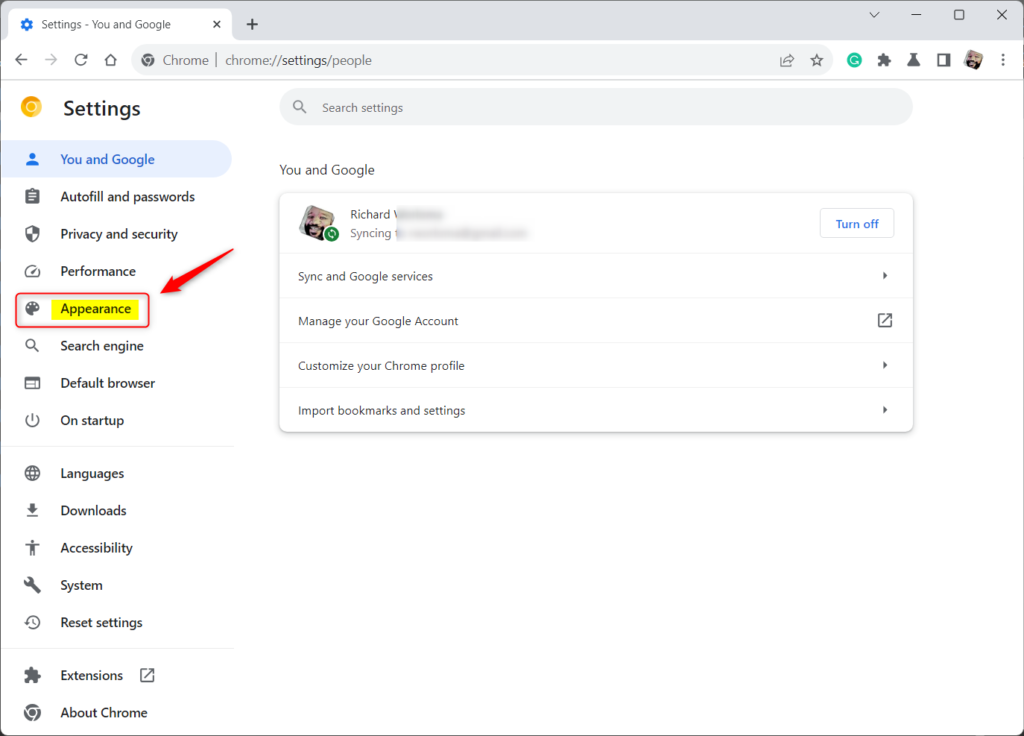
On the Settings page, look for the section labeled 'Appearance' in the left panel.
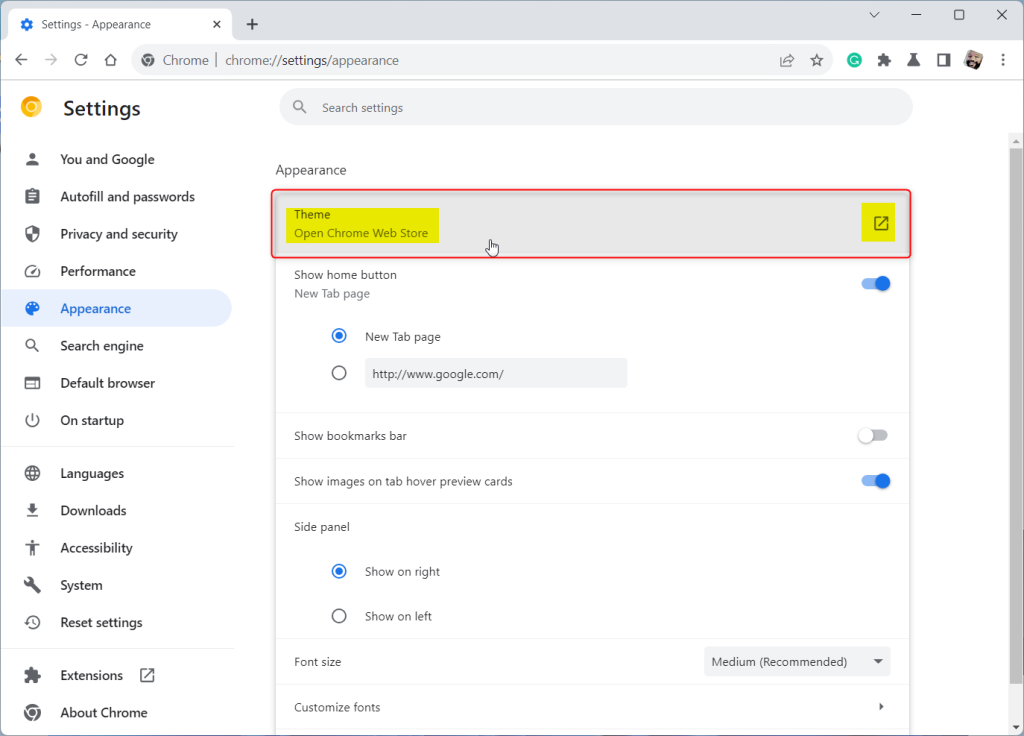
On the right, under "Appearance," click Themes to open the store. Alternatively, visiting the Chrome Web Store Themes gallery directly works too.
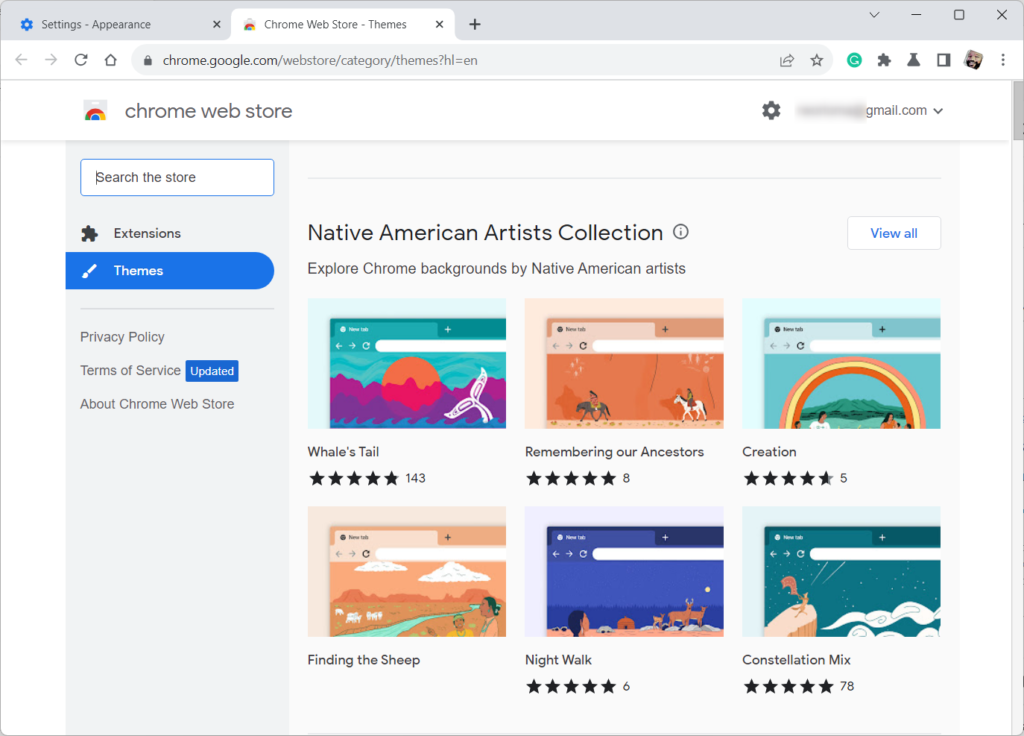
Browse the store to find a preferred theme. Clicking thumbnails previews different options. Clicking Add to Chrome applies the chosen design.
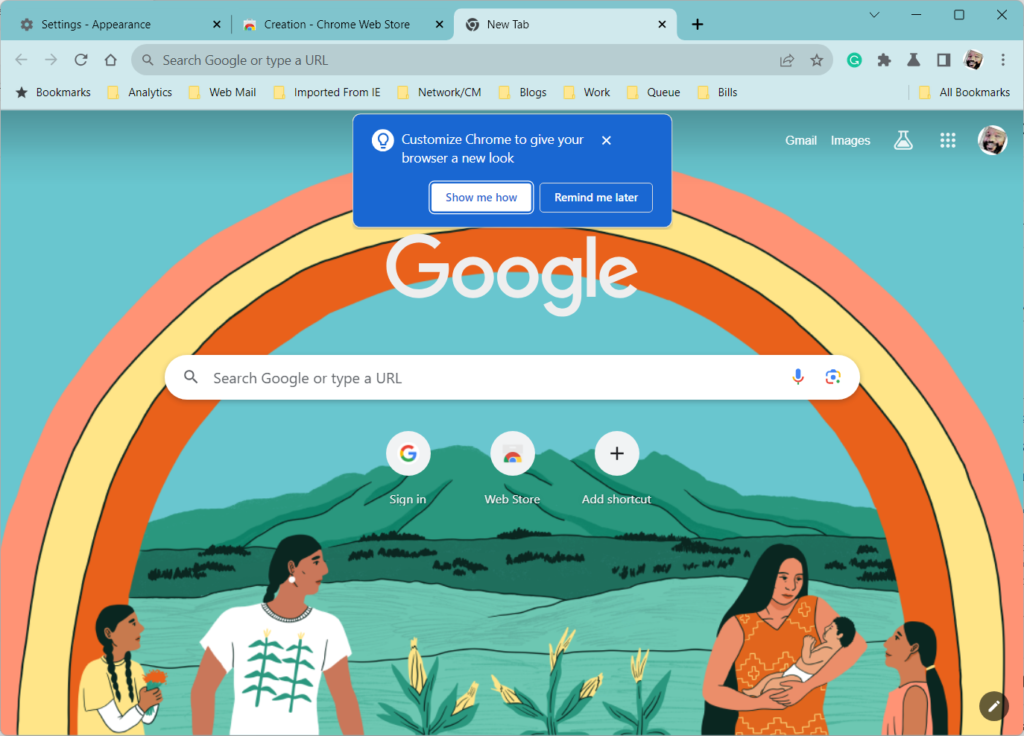
The theme applies immediately. Changing preference prompts an Undo button at the top to revert the modification.
Remove a theme in Google Chrome
To remove a theme in Google Chrome, return to the Settings page by clicking More


Appearance settings control browser aesthetics. Under "Appearance," clicking "Reset to default" restores the original Google Chrome theme. This action returns the browser to its standard appearance.
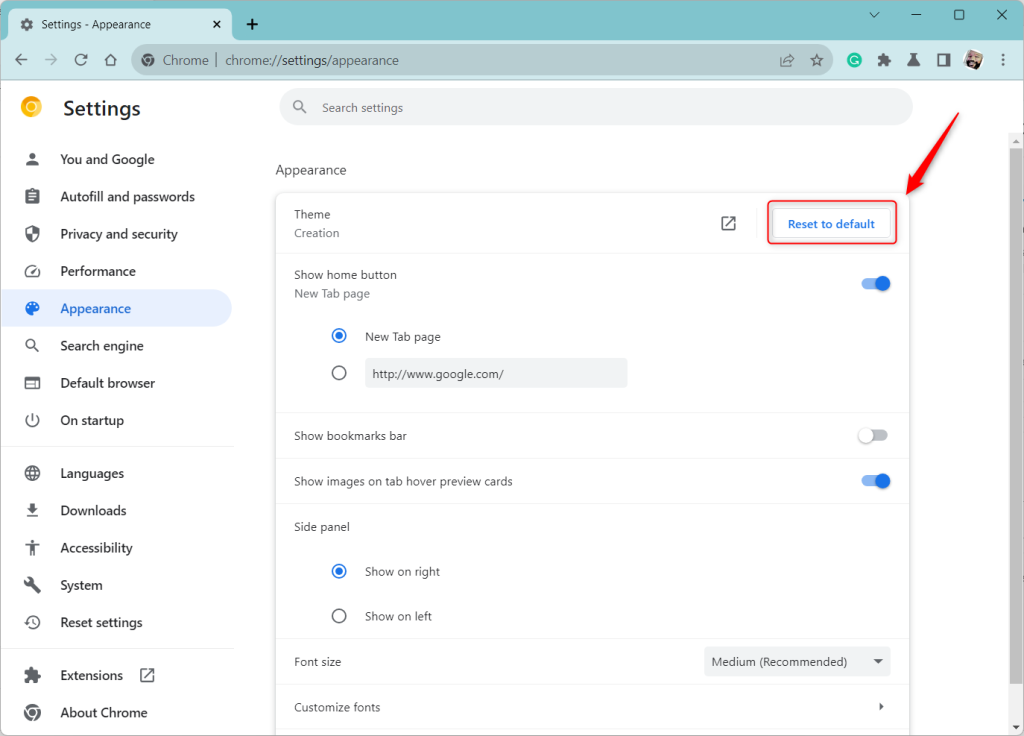
That completes the process.
Reference:
Conclusion:
- Changing the browser theme in Google Chrome allows you to personalize your browsing experience
- Customizing the look of your browser can create a more visually appealing and comfortable environment for web browsing
- It can help differentiate your browser from others and make it easier to identify
- Adding a touch of personality to your browsing experience is worth considering
Was this guide helpful?

About the Author
Richard
Tech Writer, IT Professional
Richard is a writer at Geek Rewind who turns complex IT tasks into clear, step-by-step guides. He draws on years of hands-on experience in system administration and enterprise IT operations, focusing on Windows, Linux and WordPress: the problems people actually run into, and the fixes that work. His server and WordPress guides come from systems he runs himself. Richard builds and maintains the platform behind Geek Rewind, from its Ubuntu servers and Nginx configuration to its custom WordPress plugins. Many new tutorials start with readers' questions, and he's always glad to answer them in the comments.




No comments yet — be the first to share your thoughts!