Google Chrome features include hidden settings and built-in tools that help you speed up your browsing, save laptop battery, and organise messy tabs. Most people only use a tiny fraction…
Google Chrome
37 tutorials
Google Chrome privacy settings control what data websites and trackers can see while you browse the web in Chrome version 120 and newer. These built-in controls block third-party cookies, stop…
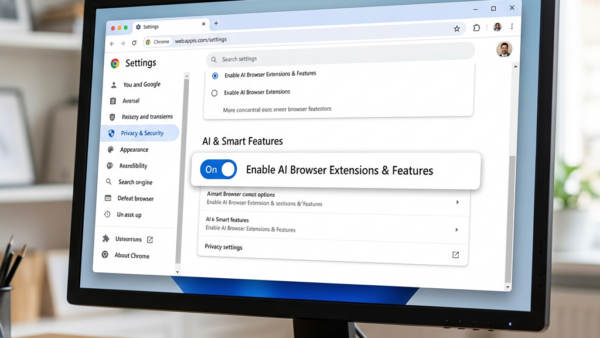
Gemini Nano is a built-in AI system in Google Chrome that runs writing help and page summaries locally on your Windows 11 PC, taking up about 4GB of storage space…
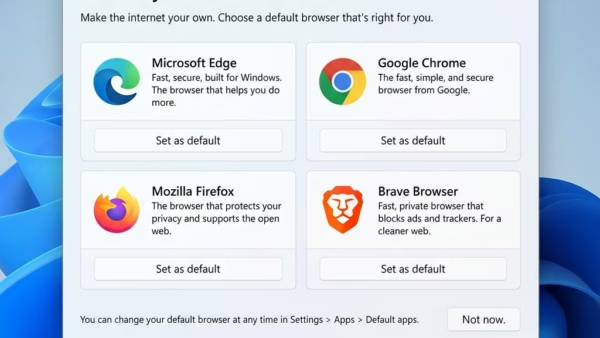
Microsoft Edge and Google Chrome are the two most popular web browsers on Windows 11, and choosing between them directly affects battery life, page speed, and RAM usage on your…
This article outlines how to configure Google Chrome to use the system's default printer by adjusting the PrintPreviewUseSystemDefaultPrinter setting in the Windows Registry. It emphasizes the importance of backing up the registry and provides guidance on creating and modifying registry keys. Rebooting may be necessary for changes to take effect.
This article outlines how to enhance device security by blocking external extensions in Google Chrome. By using the BlockExternalExtensions policy in the Windows Registry, users can prevent the installation of third-party extensions, which may pose security risks. Backing up the registry and rebooting is recommended after making changes.
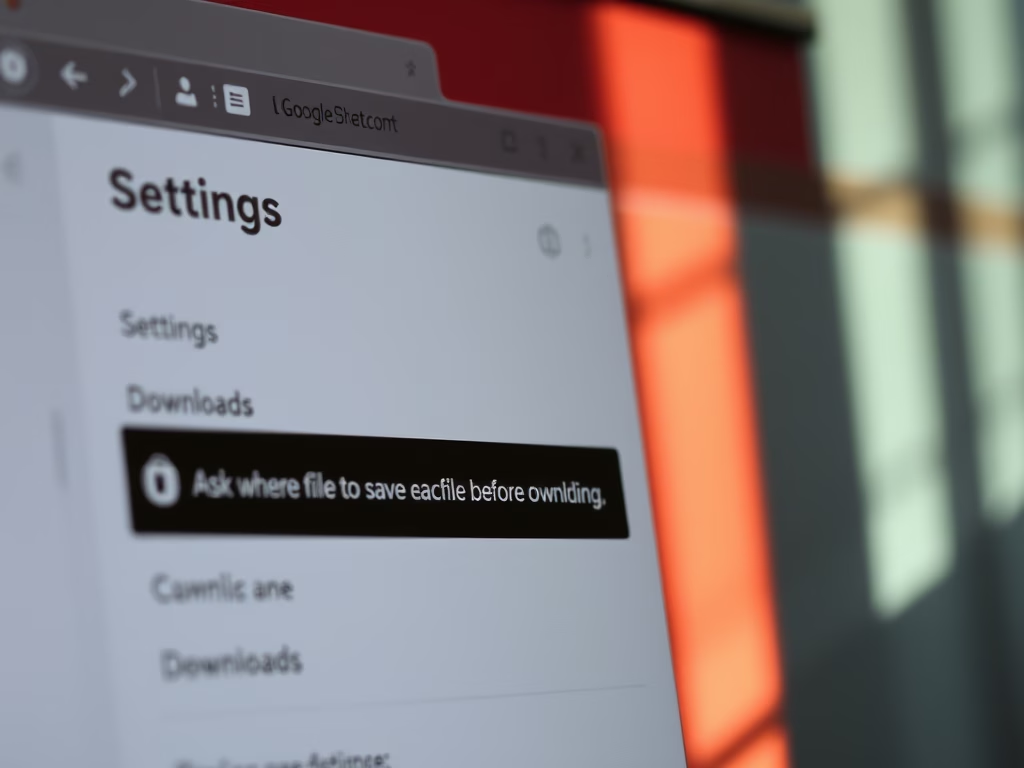
This article outlines how to enable or disable the "Ask where to save each file before downloading" option in Google Chrome. Users can adjust this setting through the Chrome settings menu or using the Windows Registry Editor. Proper backup procedures are recommended when modifying the registry to ensure system safety.
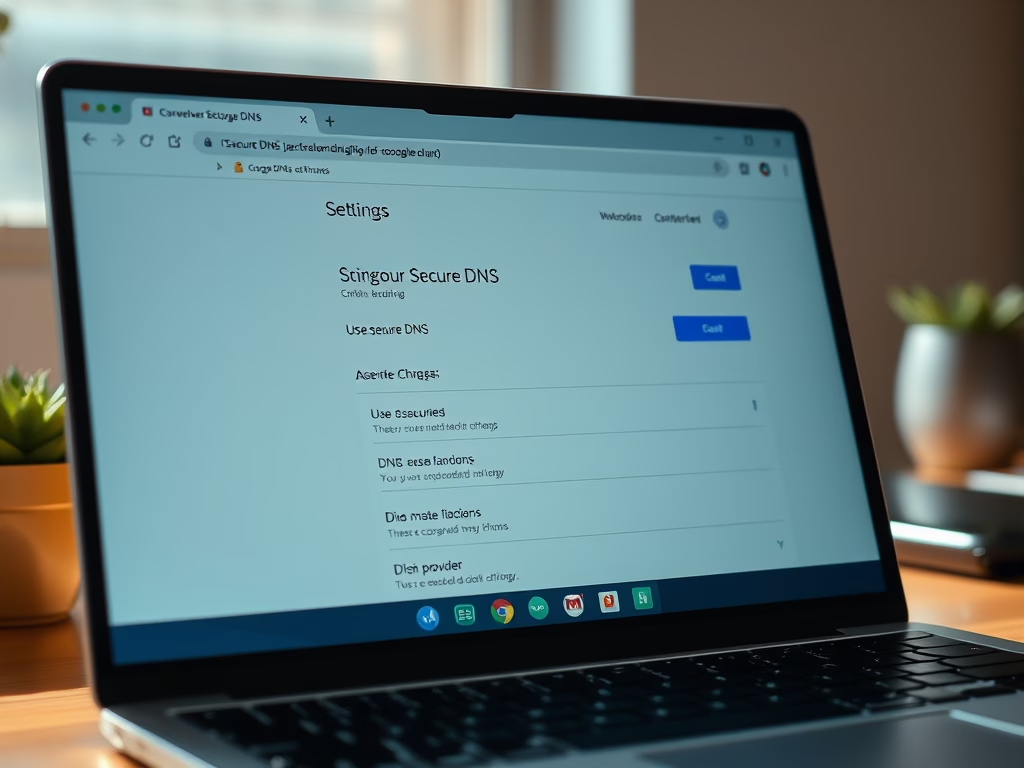
The article explains how to enable or disable secure DNS (DNS over HTTPS) in Google Chrome using the DnsOverHttpsMode policy. Users can change settings through the browser interface or Windows Registry. It outlines different modes (off, automatic, secure), emphasizes backing up the registry, and notes that a restart may be needed for changes to take effect.
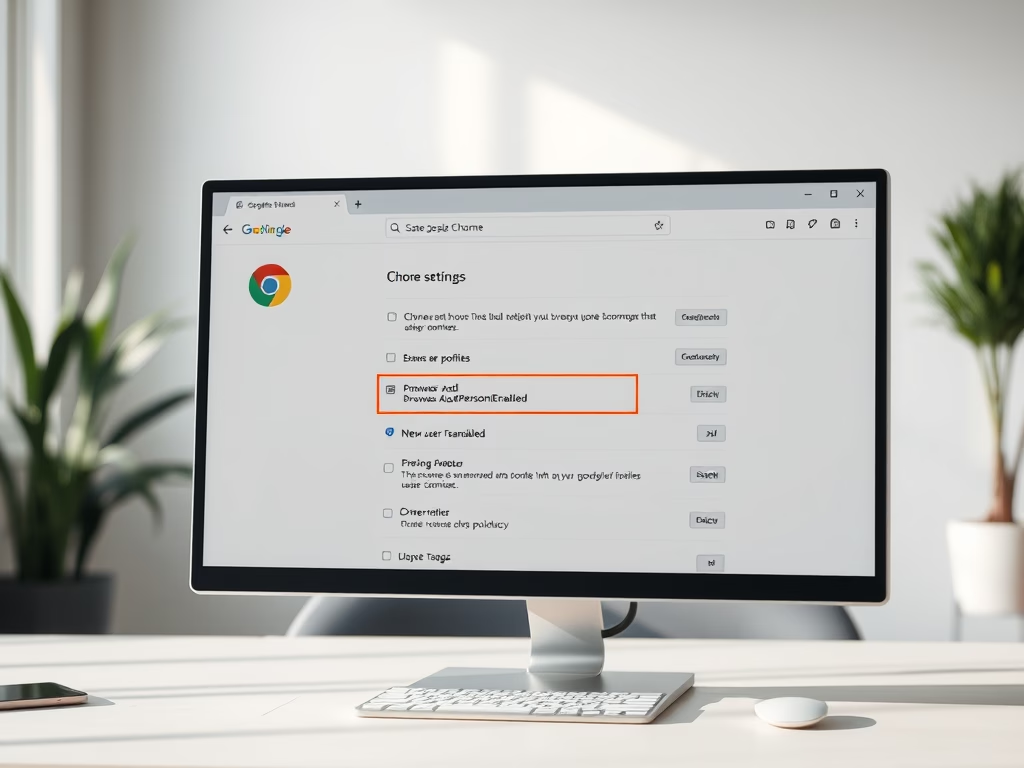
This article discusses how to enable or disable the option to add new profiles in Google Chrome using the Windows Registry Editor. It details the necessary steps to modify the BrowserAddPersonEnabled policy, emphasizing the importance of backing up the registry before changes and rebooting the computer for them to take effect.
This article explains how to manage Google Chrome's background mode using the BackgroundModeEnabled policy. Users can toggle this feature through Chrome settings or the Windows Registry. It emphasizes the importance of backing up the registry before making changes and provides steps to enable or disable background apps effectively.
The article details methods to enable or disable graphics acceleration in Google Chrome. Users can manage this through the Chrome settings or the Windows Registry Editor. Disabling graphics acceleration may resolve browser malfunctions. Always back up the registry before making changes for optimal performance and a better browsing experience.
This article outlines how to configure Google Chrome to automatically delete browsing data upon exiting the browser. By using the ClearBrowsingDataOnExitList policy, users can select which data types, such as browsing history and cookies, are removed. Careful consideration is advised, as this action permanently deletes local personal data.
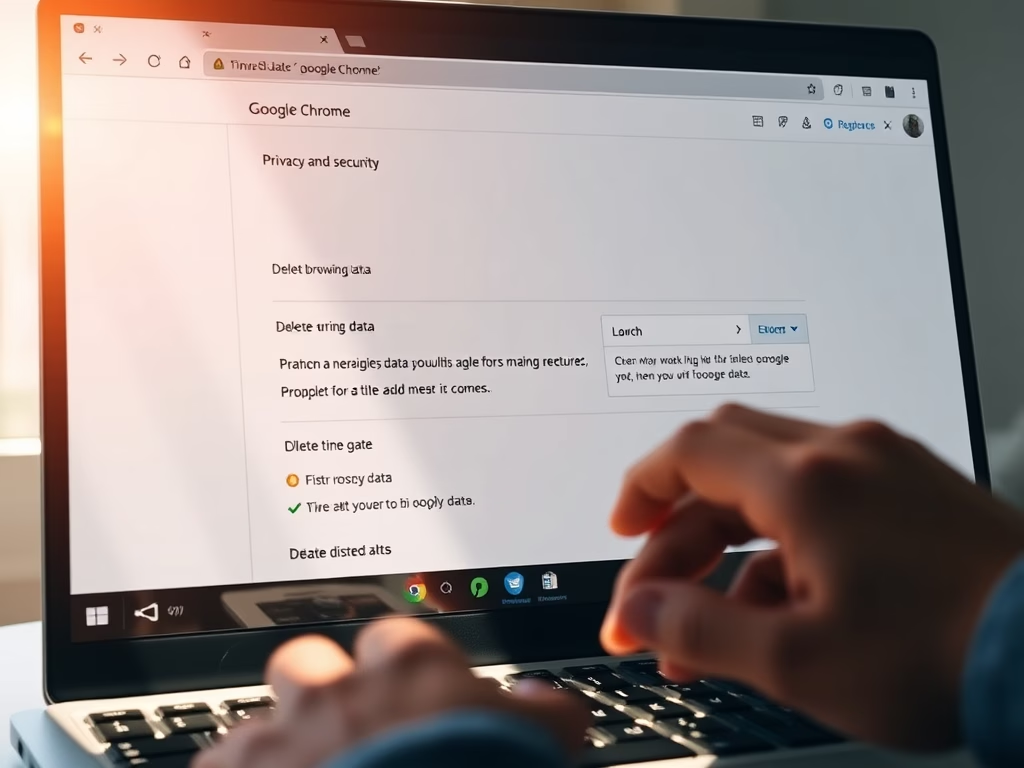
This article outlines how to delete browser data in Google Chrome, which includes websites visited, preferences, and autofill information. It provides step-by-step instructions to access the settings and delete specific types and time frames of data. Regularly clearing browser data can enhance privacy and improve performance. Establishing a routine is recommended.
This article outlines how to enforce Google Safe Search in Chrome using the Windows Registry Editor. By enabling the ForceGoogleSafeSearch policy, users will automatically have Safe Search activated, preventing access to explicit content. The process involves creating a registry key and adjusting its value, with a reminder to back up settings beforehand.