How to Enable Secure DNS in Google Chrome


Secure DNS in Google Chrome is a built-in privacy setting that encrypts your website address lookups. Internet providers and other people on your network can then no longer see which specific sites you look up. It is also called DNS-over-HTTPS, a protocol that hides website requests inside normal encrypted web traffic. In effect, it creates a secure tunnel for your browser’s DNS requests.
Google added this protection in Chrome 78 to block web trackers and stop DNS hijacking. It takes a few clicks to turn on. It protects your lookups only inside Chrome, not other apps on your PC. It also does not hide the sites you visit from the sites themselves.
Open Google Chrome, click the three vertical dots in the top right corner, select Settings, click Privacy and security, then Security, scroll to Use secure DNS, and toggle the switch on. Your DNS lookups are now encrypted.
Enable/Disable DNS Over HTTPS in Chrome
To enable secure DNS in Chrome, open the browser menu, go to Privacy and security, and turn on Use secure DNS. This encrypts your website address lookups so your internet provider cannot track the sites you visit. The steps below cover the Chrome settings page first. Group Policy and the Registry come after that, for managed or multiple PCs.
- Open the Google Chrome browser. Use an up-to-date version, because older builds may not show the secure DNS option.
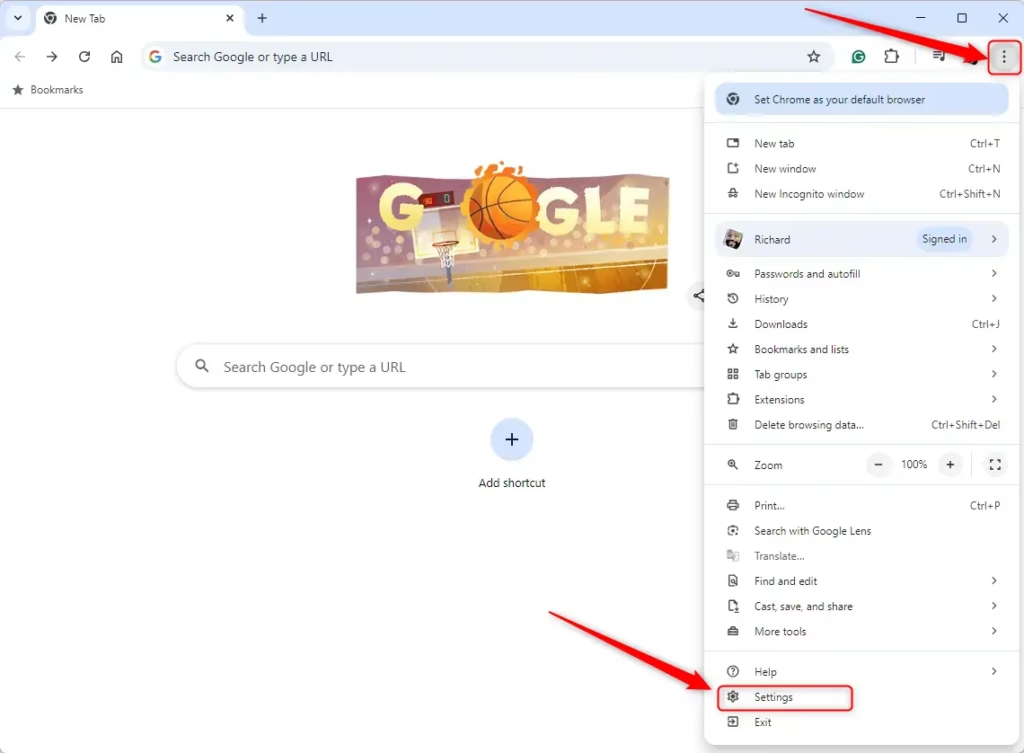
- Click the three vertical dots in the top right corner. The Chrome menu opens.
- Select Settings. The Settings page opens in a new tab.
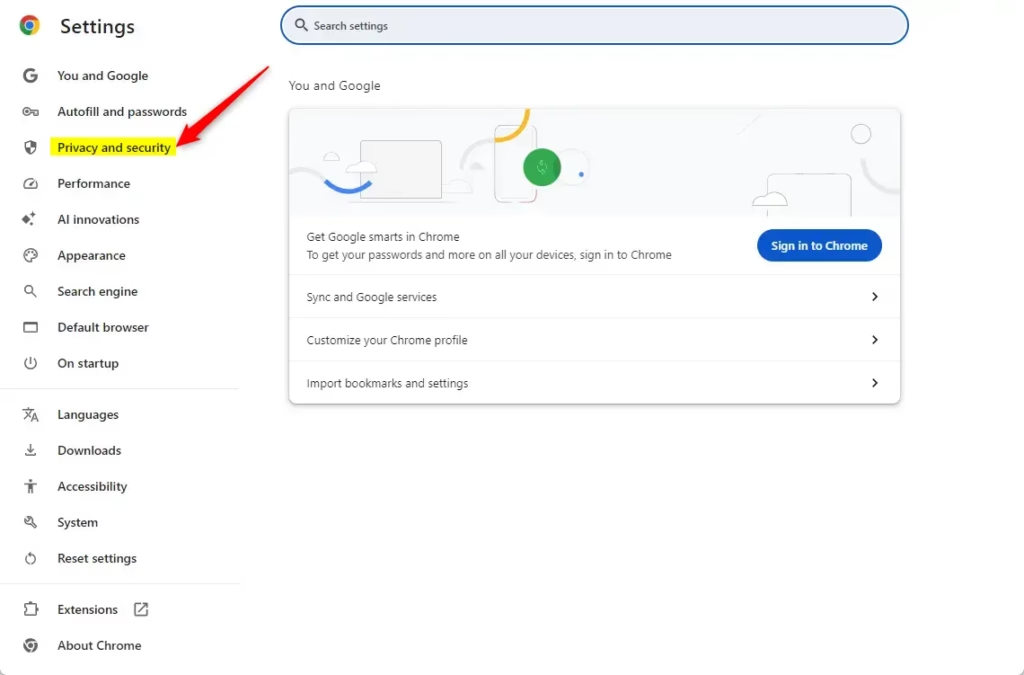
- Click Privacy and security on the left sidebar. The privacy options appear on the right.
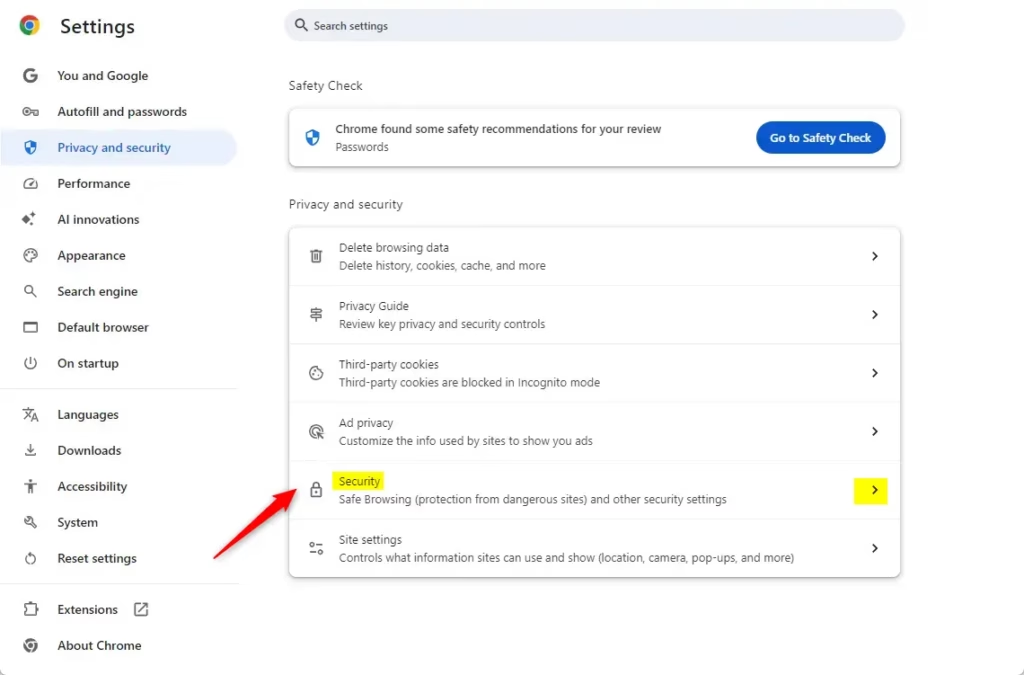
- Click the Security tile. The Security page opens with safe browsing and advanced options.
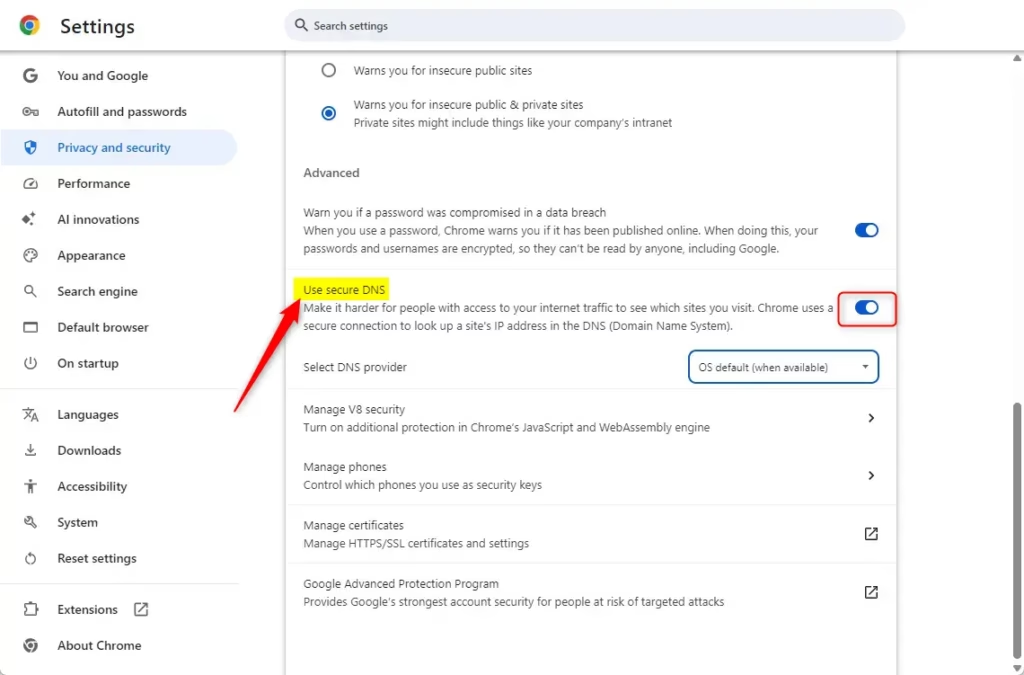
- Scroll down to the Advanced section and find Use secure DNS.
- Toggle the switch to On or Off. When it is on, extra provider options appear under the switch.
- To choose a specific provider, click Choose another provider. You can pick from a list or type in a custom address.
If the switch is missing or greyed out, your PC is probably managed by a policy, often from an employer or school. The Group Policy and Registry methods below can cause the same thing on your own PC. In that case, change the setting where the policy was set. Toggle the switch back to Off at any time to undo this change.
Enable / Disable Secure DNS in Chrome using Group Policy
You can enable secure DNS in Chrome across multiple computers by using the Local Group Policy Editor. Open the Run dialog with Win+R, type gpedit.msc, and press Enter. From there you configure the DNS-over-HTTPS policy for every user of the PC at once.
Two limits apply. The Local Group Policy Editor is not included in Windows 11 Home, so Home users should use the Registry method instead. Also, the Google and Google Chrome folders only appear if Chrome’s policy templates (ADMX files) are installed. If you do not see them, download the templates from Google and add them first.
- Press Win + R, type gpedit.msc, and press Enter to open the Local Group Policy Editor.
- Navigate to: Computer Configuration Administrative Templates Google Google Chrome
- Find the policy named Configure the DNS-over-HTTPS mode.
- Double-click it. A settings window opens.
- Select Enabled.
- In the Options box, choose off, automatic, or secure from the dropdown menu. Use automatic to use secure DNS when available, or secure to always require it.
- Click Apply, then OK.
- Close and reopen Chrome so it picks up the policy.
To undo this, open the same policy and select Not Configured.
Enable / Disable Secure DNS in Chrome using the Registry
To enable secure DNS in Chrome through the Windows Registry, you open Registry Editor and add the correct policy keys. This advanced method is for computers where Local Group Policy is unavailable, such as Windows 11 Home. You need an administrator account, and Windows may ask you to confirm with a User Account Control prompt.
In Registry Editor, you can use File Export to save a copy. A wrong edit can cause problems, and a backup lets you reverse it.
Navigate to this path:
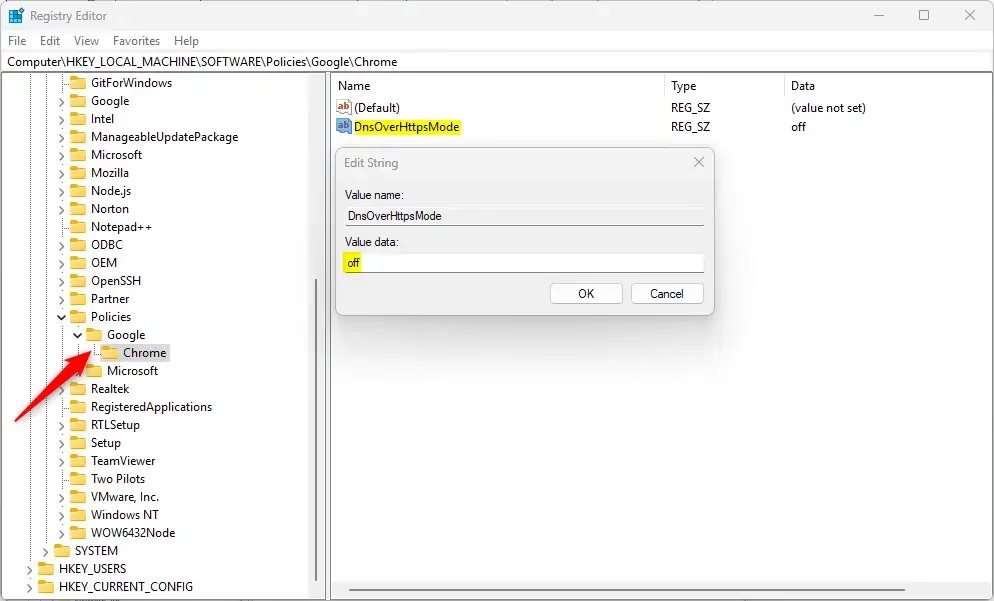
Computer\HKEY_LOCAL_MACHINE\SOFTWARE\Policies\Google\Chrome
Create Google first, then create Chrome inside it. Check the spelling, because Chrome ignores keys with the wrong names.
- Click the Chrome key so it is selected, then right-click in the right pane.
- Select New String Value.
- Name it DnsOverHttpsMode. The name is case sensitive.
- Double-click it and set the value to one of these:
- off: Disables secure DNS.
- automatic: Uses secure DNS if available.
- secure: Always uses secure DNS.
- Click OK, close Registry Editor, and restart Chrome.
To undo the change, delete the DnsOverHttpsMode value, or import the backup you exported.
Your computer may need to be restarted for these changes to take effect. Restarting Chrome is often enough, but a full restart rules out other causes. This post helps you manage a DnsOverHttpsTemplates for your network.
Reference: Chrome Enterprise Policy
Conclusion
Managing secure DNS settings in Chrome helps keep your internet activity private. You can choose between automatic setup or strict encryption. You can revert these changes at any time by removing the applied policies or registry entries. For a single PC, the Chrome settings page is the simplest method. Use Group Policy or the Registry when you need the setting enforced.
- Options: Choose "automatic" for the best balance or "secure" for maximum privacy. With "secure", sites may fail to load if the DNS provider cannot be reached.
- Restoring: Delete the registry entry or set the policy to "Not Configured" to go back to default settings.
- Conflicts: Be aware that local registry edits may be overridden by domain-level group policies set by your IT administrator. If your settings are grayed out, a company policy is likely in charge.
- Reboot: Always restart Chrome or your computer if settings do not take effect immediately.
Was this guide helpful?

About the Author
Richard
Tech Writer, IT Professional
Richard is a writer at Geek Rewind who turns complex IT tasks into clear, step-by-step guides. He draws on years of hands-on experience in system administration and enterprise IT operations, focusing on Windows, Linux and WordPress: the problems people actually run into, and the fixes that work. His server and WordPress guides come from systems he runs himself. Richard builds and maintains the platform behind Geek Rewind, from its Ubuntu servers and Nginx configuration to its custom WordPress plugins. Many new tutorials start with readers' questions, and he's always glad to answer them in the comments.




[…] article explains how to select the URI template (DNS provider) for the desired DNS-over-HTTPS resolver in Google […]