
Google Chrome privacy settings control what data websites and trackers can see while you browse in Chrome version 120 and newer. These built-in controls block third-party cookies, stop cross-site tracking, and clear your browsing history in less than two minutes.
Locking down these options stops advertisers from following you across different sites and keeps your personal information private. To get there, click the three-dot menu at the top right of Chrome, then go to Settings Privacy and security.
The steps below cover the most useful settings. Chrome updates often, so a label may differ slightly on your build. The settings work the same on Windows 11 Home and Pro, and none of them need a restart.
Open Chrome, click the three-dot menu at the top right, and go to Settings Privacy and security. Here you can block third-party cookies, enable enhanced safe browsing, and manage what data sites can access. These controls stop trackers from following you across websites.
Getting Your Browser Set Up
Set up the basic browser behaviors first, such as bookmark visibility and how downloads are handled. Do this before you move on to daily tasks, because these choices affect everything else you do in Chrome. The guides in this group cover the core visual setups.
Boosting Your Security and Privacy
Protecting your online activity means setting firm limits on what sites can do. The configurations in this group block unwanted tracking and keep your connections secure. Most of them live under Settings Privacy and security. Each one can be switched back, so you can test a change and undo it if a site stops working.
Managing Your Browsing Experience
Daily performance depends on how much data Chrome stores and how many add-ons are running. The preferences in this group manage local data and control your active extensions (add-ons that add new features to your browser). Fewer extensions also means fewer programs with access to the pages you visit.
Printing and Advanced Options
Some tasks, such as printing documents, need their own adjustments. These guides cover less common but still useful configurations. Printing in particular depends on Windows as well as Chrome.
Common questions
How do I stop Chrome from asking where to save downloads?
By default, Chrome saves files straight to your Downloads folder. If you want to pick a location each time, or you want it to stop asking, change one setting. Here is how to stop the save-location prompt:
- Click the three-dot menu at the top right of Chrome, then click Settings.
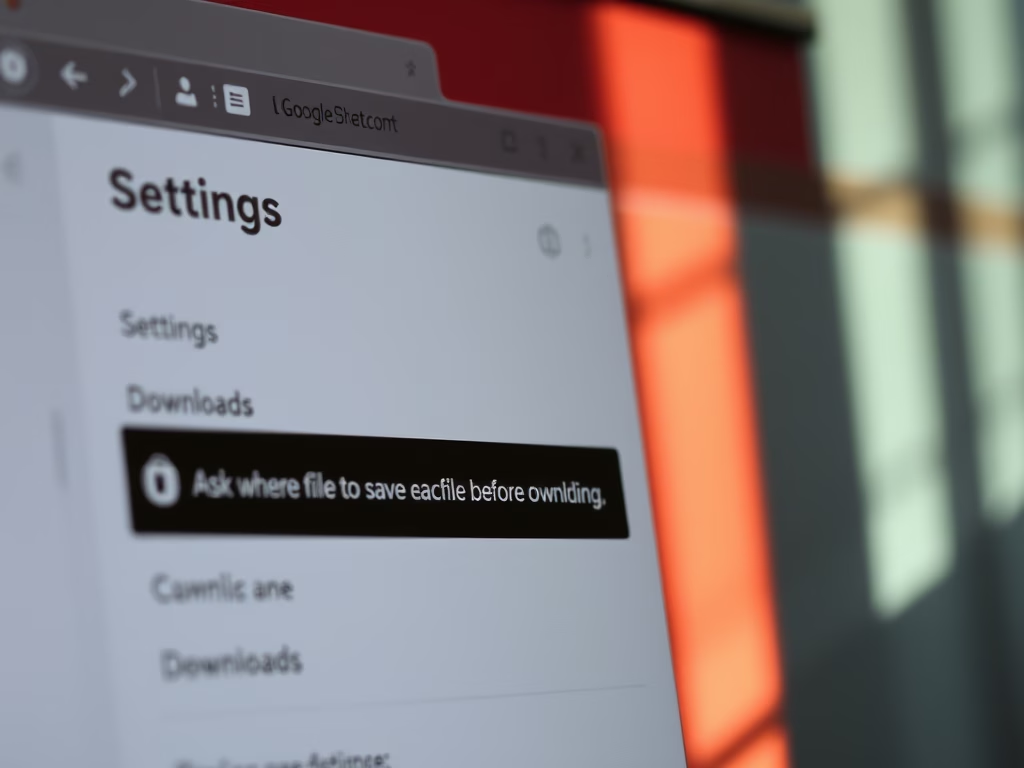
- In the left sidebar, click Downloads. You should see the current download location and a few toggles.
- Find Ask where to save each file before downloading and switch it off. Chrome will now save files without asking.
To undo this, switch the same toggle back on. If you only want to change the default folder, use the Change button next to the location on the same page.
How can I clear my browsing history?
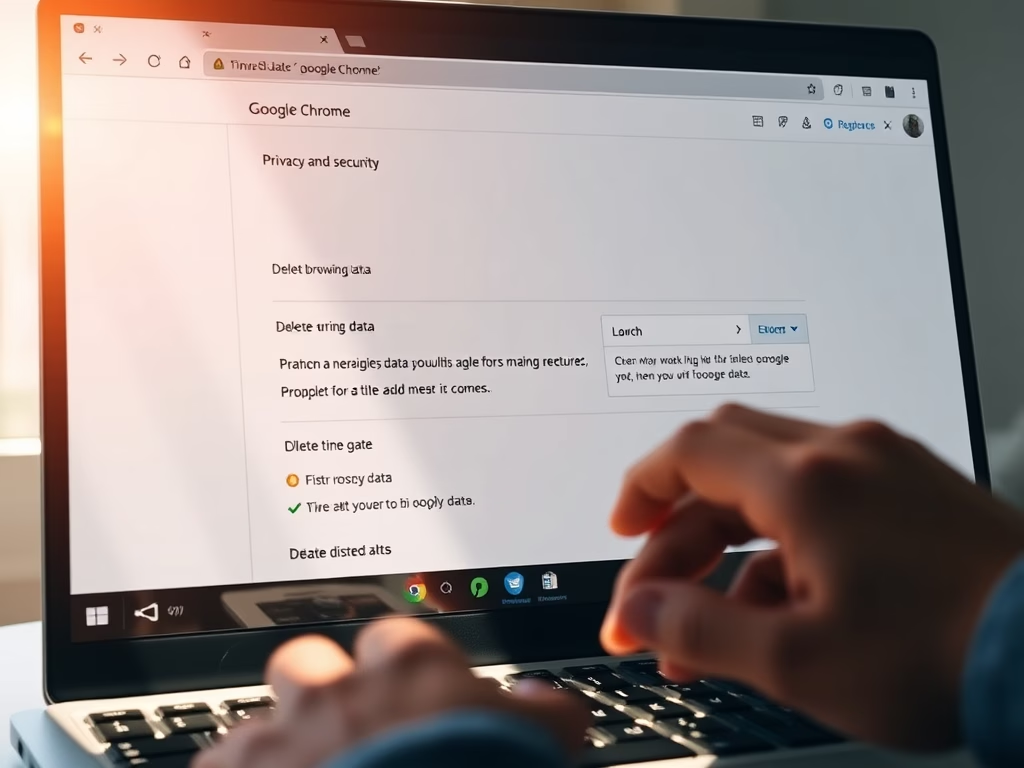
Browsing data builds up over time, and clearing it is the quickest way to remove traces of what you did. Here is how to do it:
- Open Settings Privacy and security.
- Click Clear browsing data. A dialog opens. You can also open it with Ctrl+Shift+Del.
- Choose the Basic tab for the common items, or Advanced for more options.
- Open the Time range list and pick a period, from the last hour up to All time.
- Tick the items you want to remove. The usual ones are Browsing history, Cookies and other site data, and Cached images and files.
- Click Delete data. The dialog closes and the selected items are removed.
What is Guest Mode in Chrome?
Guest mode lets someone else use your computer without exposing personal data like your browsing history or saved bookmarks. The temporary session runs separately from your personal profile. When the guest closes the window, the session data is discarded.
To start it, click your profile icon in the toolbar and choose Guest mode. A new window opens, and Chrome tells you that it won’t save your activity. Guest mode keeps your data private from the next person at the PC. It does not hide activity from websites, your employer, or your internet provider.
How do I add or remove extensions in Chrome?
- Use the toggle on a card to turn an extension on or off without deleting it.
- Click Remove to uninstall an extension you no longer use. Chrome asks you to confirm.
- Click Details to see what an extension can access.
- Use the page’s side menu to open the Chrome Web Store when you want to add something new.
For privacy, review this list now and then. Remove anything you don’t recognize or no longer need. If a page misbehaves, turn extensions off one at a time to find the cause.
How do I make Chrome use my default printer?
Windows usually sends print jobs to your default printer automatically. If documents fail to reach the right printer, check the setting in Windows rather than in Chrome. In Windows 11, open Settings Bluetooth & devices Printers & scanners. Older guides call this section Devices Printers & scanners.
Check that your printer is listed there and that it is the one you expect. If the Let Windows manage my default printer toggle is on, Windows picks the printer you used most recently. Switch it off if you want to set one printer as the default yourself.
Have a question about this guide?
Answered by AI from this guide. Good questions may be added to this page — please don't include personal details.
Did this guide fix your problem?

About the Author
Richard
Tech Writer, IT Professional
Richard is a writer at Geek Rewind who turns complex IT tasks into clear, step-by-step guides. He draws on years of hands-on experience in system administration and enterprise IT operations, focusing on Windows, Linux and WordPress: the problems people actually run into, and the fixes that work. His server and WordPress guides come from systems he runs himself. Richard builds and maintains the platform behind Geek Rewind, from its Ubuntu servers and Nginx configuration to its custom WordPress plugins. Many new tutorials start with readers' questions, and he's always glad to answer them in the comments.
No comments yet — be the first to share your thoughts!