How to Enable or Disable Graphics Acceleration in Chrome

Graphics acceleration in Google Chrome moves heavy visual work from your computer’s main processor (CPU) to your graphics card (GPU). Pages scroll more smoothly, video plays better, and web games run faster. On some PCs, usually ones with an old or buggy graphics driver, it can cause flickering, black or distorted pages, or browser crashes. In that case, turning it off often fixes the problem.
In Chrome 120 and newer, you change this in Settings System with the toggle for graphics acceleration. Chrome then needs to relaunch. If your PC is managed by an organization, or if you prefer to set it by policy, you can also use the Windows Registry, which is covered further down.
To enable or disable graphics acceleration in Chrome, go to Settings , search for “Hardware acceleration,” and toggle the “Use graphics acceleration when available” switch. Relaunch Chrome for changes to take effect.
Enable/Disable Hardware Acceleration in Chrome
The quickest way is through Chrome’s own settings. You open the menu, go to the System settings, and flip one toggle. With the toggle on, Chrome uses your graphics hardware, which helps pages load faster and scrolling feel smoother. Turn it off if pages look distorted, the screen flickers, or the browser keeps crashing. The change is easy to undo, so you can switch it back at any time.
- Open Google Chrome browser.
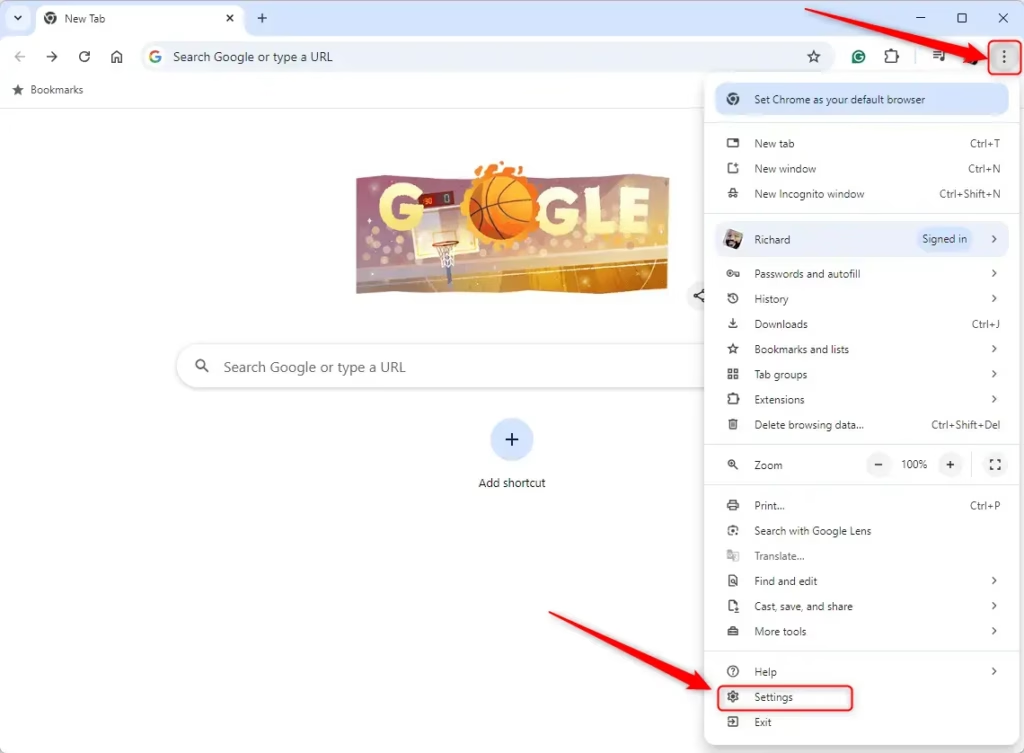
- Click the three dots in the top right corner of the window.
- Choose Settings from the menu. The Settings page opens in a new tab.
Chrome moves its settings around between updates, so the search bar is the most reliable way to find this option.
- Click the Search settings bar at the very top of the Settings page.
- Type “Hardware acceleration” or “graphics acceleration”. Chrome’s older versions used the first name and newer ones use the second.
- Look at the results. The page should scroll to the System section and highlight the graphics acceleration toggle.
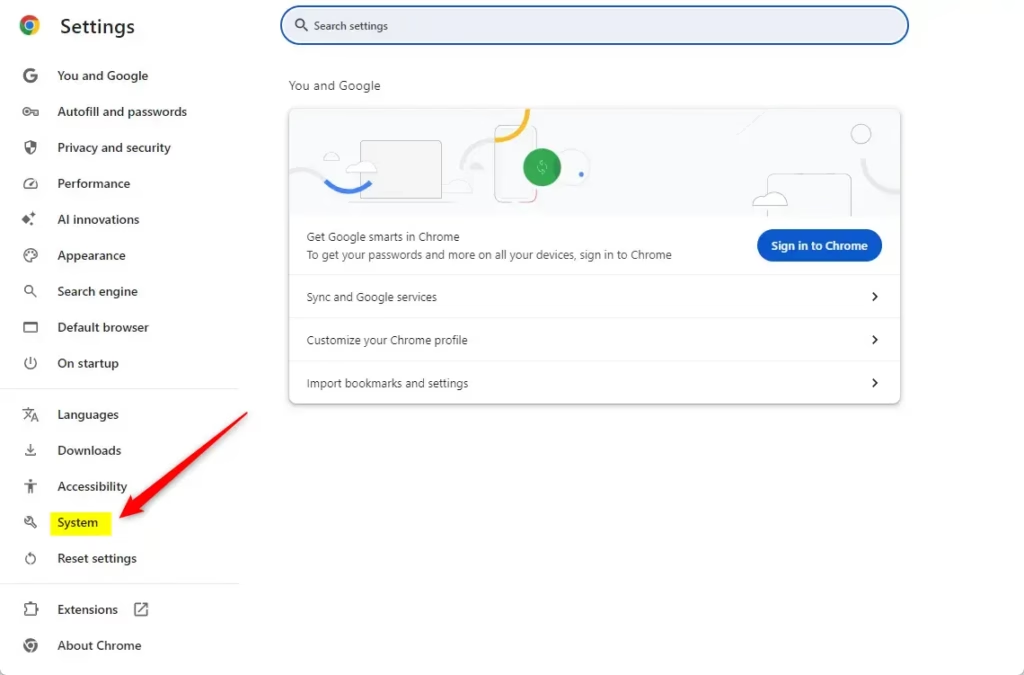
If nothing shows up, check that you are on the Settings page and not another Chrome page. You can also go to Settings System using the left sidebar.
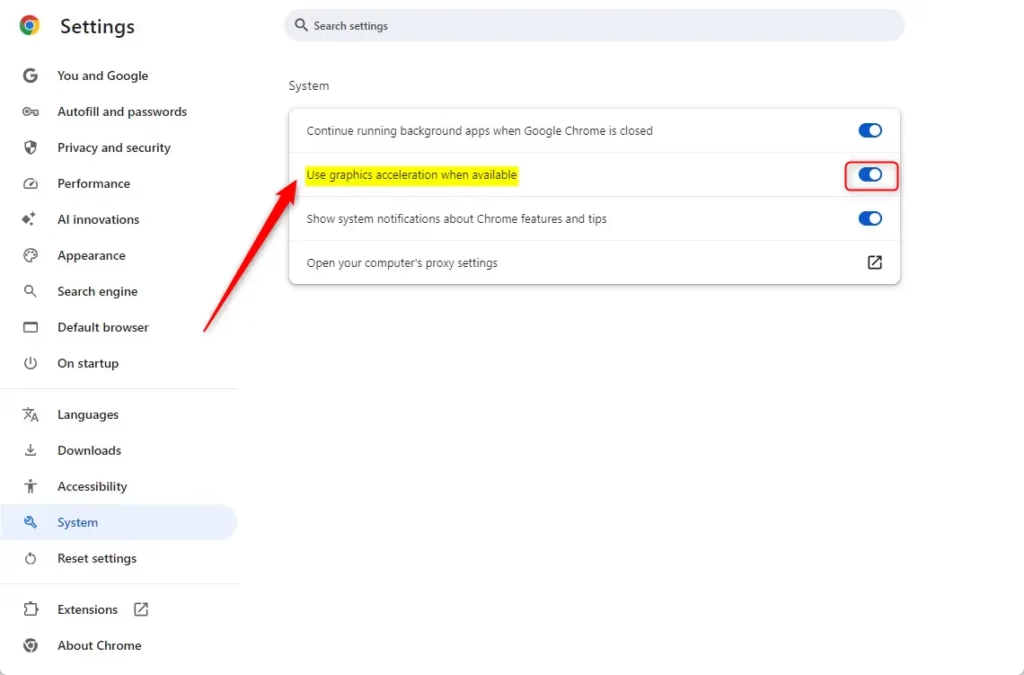
- Find the line “Use graphics acceleration when available” in the System section.
- Click the switch next to it to set it to On or Off. Blue means on and grey means off.
- Look for a Relaunch button that appears next to the switch. That means Chrome has accepted the change but has not applied it yet.
If the switch is greyed out, or the page says “Managed by your organization”, a policy is controlling the setting. This can come from your employer, or from a registry value like the one described below. You cannot change it here until the policy is removed.
The change only takes effect after Chrome restarts, so you will probably need to click the Relaunch button.
- Save anything you are working on in open tabs, such as forms or documents in web apps.
- Click Relaunch. Chrome closes and reopens, and it normally restores the tabs you had open.
If the glitches you were seeing are gone, you are done. If you want to undo the change, return to the same setting, flip the toggle back, and relaunch again.
Enable / Disable Graphics Acceleration in Chrome using the Registry
You can also control this setting through the Windows Registry, which stores your computer's system settings. This sets a Chrome policy, so it applies to every user on the PC. It is mostly useful if you manage several machines or if the toggle in Chrome will not stay changed.
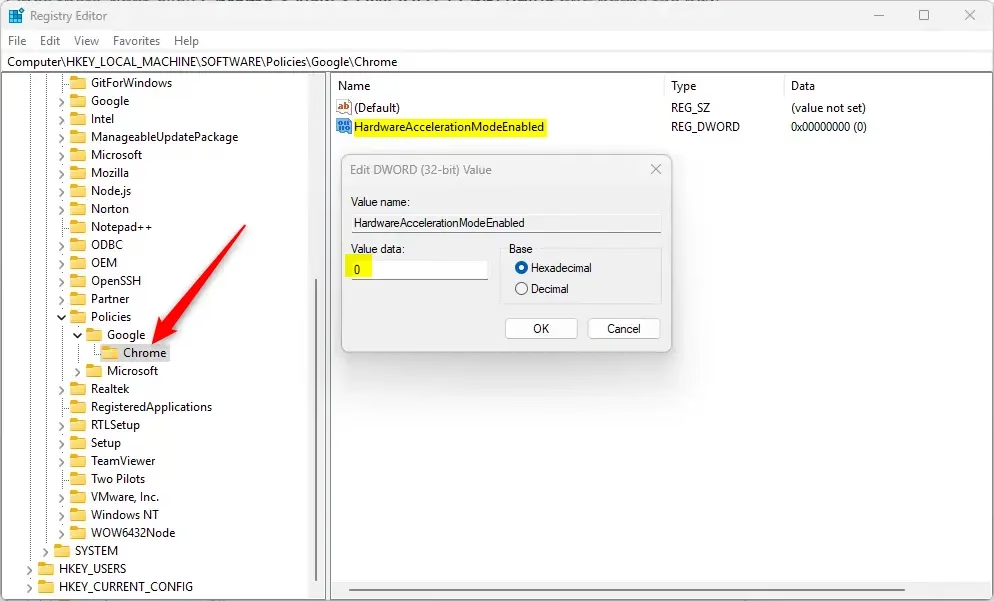
In Registry Editor, go to HKEY_LOCAL_MACHINE\SOFTWARE\Policies. Create a Google key with a Chrome subkey, then add a DWORD value named HardwareAccelerationModeEnabled. Set it to 1 to turn the feature on or 0 to turn it off.
You need an administrator account to edit this part of the registry. Registry Editor is included in both Windows 11 Home and Pro. Once the policy is set, Chrome will show the setting as managed and the toggle in Settings will be greyed out.
A wrong registry edit can cause problems, so if you must use the registry, please back up your Windows Registry (which stores your computer's settings) or create a System Restore point first. That gives you a way to roll back if something goes wrong.
- Open the Windows Registry. Approve the User Account Control prompt if it appears.
- Navigate to: Computer\HKEY_LOCAL_MACHINE\SOFTWARE\Policies\Google\Chrome
- If the Google or Chrome folders (keys) do not exist, right-click the parent key, choose New Key, and name it. Create Google under Policies first, then Chrome under Google.
- Select the Chrome key, then right-click in the empty space on the right.
- Choose New DWORD (32-bit) Value and name it HardwareAccelerationModeEnabled.
- Double-click the new value to open it.
- Enter 0 in the Value data box to disable the feature or 1 to enable it, then click OK.
- Close Registry Editor and fully close Chrome, including any windows still open, then start it again.
To check that the policy was picked up, open Chrome's Settings System The graphics acceleration toggle should now be greyed out and show the managed message. To undo the change, delete the HardwareAccelerationModeEnabled value (or the whole Chrome key if you created it just for this) and restart Chrome. The toggle in Settings will then work normally again.
Conclusion
After you change the setting, check what Chrome is actually doing. Chrome has an internal page for this.
- Type chrome://gpu into the address bar and press Enter.
- Find the Graphics Feature Status section near the top of the page.
- Read the status next to each item, such as Canvas, Compositing, Video Decode, and WebGL. "Hardware accelerated" means the GPU is being used. "Software only, hardware acceleration unavailable" or "Disabled" means it is not.
This page shows whether hardware acceleration is active, blocked, or disabled on your system. If you turned the feature on but still see "Software only", Chrome may have blocked your GPU because of a known driver problem. If you turned it off and the glitches stopped, your graphics driver is a likely cause. Use the page to judge whether changing the browser setting or updating your graphics drivers fixed your performance problems.
Keeping all your software up to date is always a good idea for the best experience. For this problem, that means two things: update Chrome from Settings About Chrome, and install the newest driver for your graphics card from Windows Update or the card maker's website. A driver update often lets you switch graphics acceleration back on without the glitches returning.
Reference: Chrome Enterprise Policy
Have a question about this guide?
Answered by AI from this guide. Good questions may be added to this page — please don't include personal details.
Did this guide fix your problem?

About the Author
Richard
Tech Writer, IT Professional
Richard is a writer at Geek Rewind who turns complex IT tasks into clear, step-by-step guides. He draws on years of hands-on experience in system administration and enterprise IT operations, focusing on Windows, Linux and WordPress: the problems people actually run into, and the fixes that work. His server and WordPress guides come from systems he runs himself. Richard builds and maintains the platform behind Geek Rewind, from its Ubuntu servers and Nginx configuration to its custom WordPress plugins. Many new tutorials start with readers' questions, and he's always glad to answer them in the comments.
No comments yet — be the first to share your thoughts!