How to Check Graphics Card Details on Windows 11

Graphics card details on Windows 11 show you the exact GPU (graphics processing unit, the hardware that renders images on your screen) inside your computer, including the model name, video memory, and driver version. Knowing these specs helps you check whether your PC meets the system requirements for a new game or a video editing app.
You can find this information in a few clicks with built-in Windows tools such as the Settings app and Task Manager . You don’t need to install any third-party software. The methods below work the same on Windows 11 Home and Pro.
Open Settings , go to System, then Display, and click Advanced display. Select Display adapter properties for Display 1 to see your graphics card name and memory. Alternatively, press Win+R, type dxdiag, and press Enter, then click the Display tab.
Methods to check your GPU
Method 1Using Windows Settings
The Settings app is the quickest place to start. It shows your graphics hardware model, the memory available to it, and the display adapter properties, with no extra downloads. You open the display options, go into the advanced section, and read the specs from there.
One thing to know first: Settings reports on the GPU that drives the selected screen. If you have a laptop with both integrated and dedicated graphics, you may see only one of them here. Device Manager, covered later, lists both.
- Press Win+I to open Settings . The Settings window opens with the list of categories on the left.
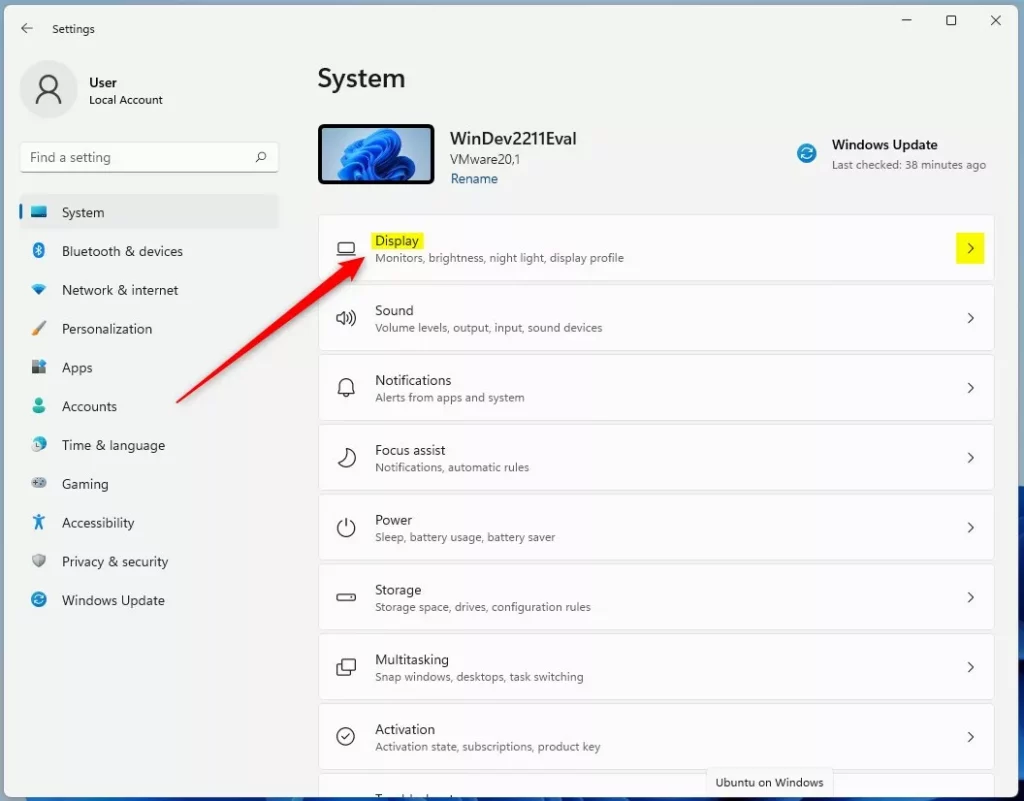
- Select System, then click Display. You will see your screen layout, brightness, scale and resolution options.

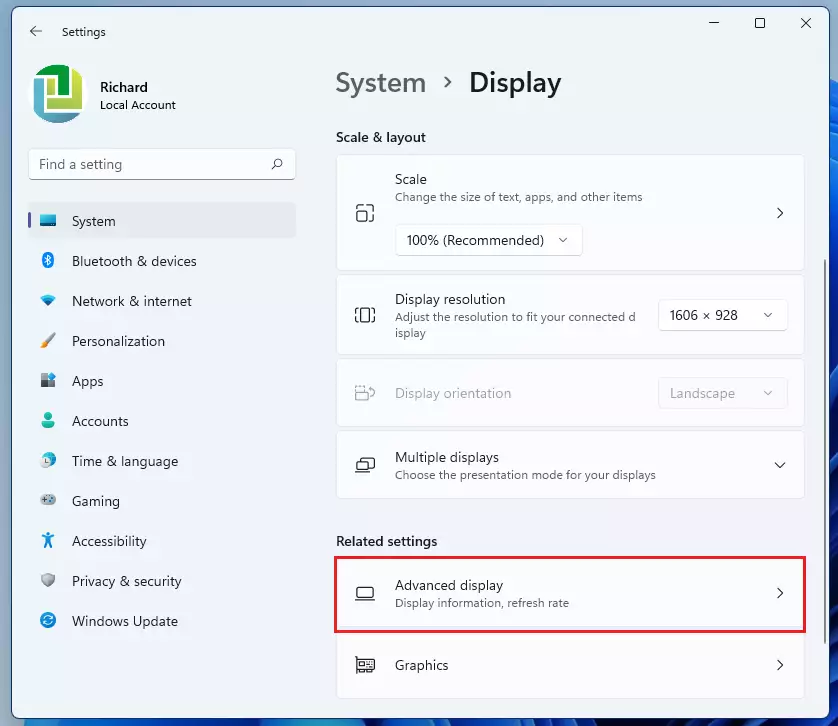
- Scroll down to the Related settings area and click Advanced display. A page opens showing your display's refresh rate, resolution and connected monitor.
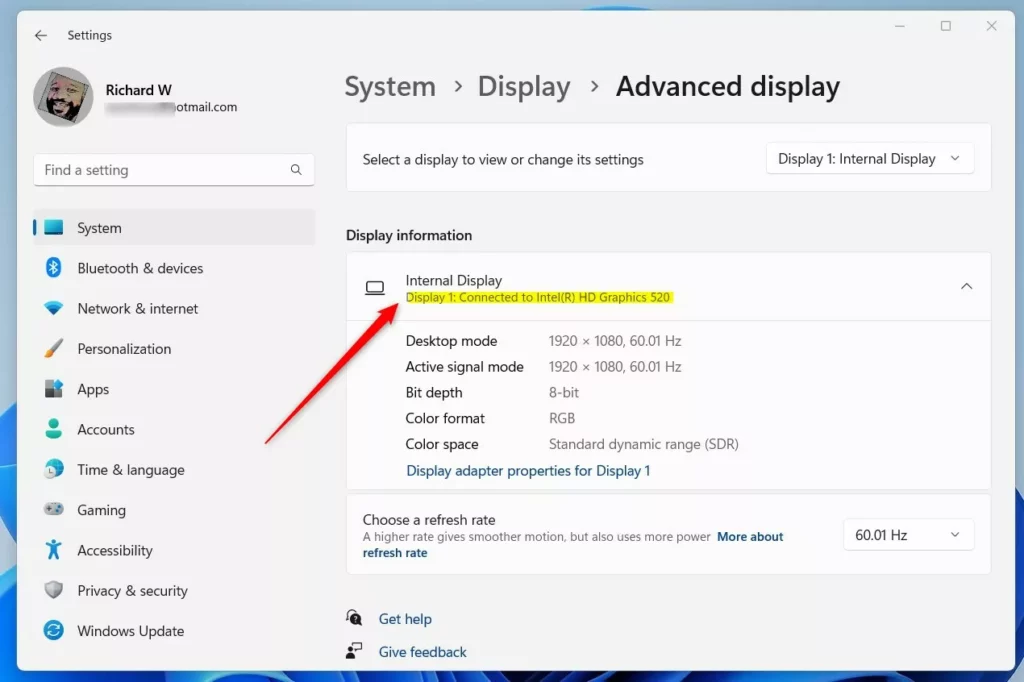
- Click Display adapter properties for Display 1. If you use more than one monitor, pick the screen you want from the dropdown at the top of the page first. The link name changes to match the display you select.
A properties window opens on the Adapter tab. It shows your adapter type and the graphics memory figures. These include dedicated video memory (VRAM, the dedicated pool of memory your graphics card uses for rendering), system video memory and shared system memory.
Integrated GPUs often show a small dedicated figure and a large shared figure. That is normal, because they borrow regular system RAM. Close the window with OK or Cancel. Nothing here changes unless you click into the other tabs and edit settings.
Pro Tip: Quick Search
As a shortcut, type Display adapter properties into the Windows Search bar on your taskbar. If it appears in the results, select it to open the info window directly. If it doesn't show up, use the Settings steps above, since search results can vary between Windows 11 builds.
Method 2DirectX Diagnostic Tool (dxdiag)
The DirectX Diagnostic Tool gives a more detailed view of your graphics driver version and hardware status. It is the tool I reach for when someone needs to send a support team their driver details, because everything sits on one tab.
- Press Windows key + R, type dxdiag, and press Enter. If a prompt asks whether to check that your drivers are digitally signed, you can click either Yes or No. The DirectX Diagnostic Tool window then opens and may take a few seconds to collect data.
- Click the Display tab at the top. On a PC with two GPUs, you may see a second display tab. Check each one to see both cards.
- Read the Device and Drivers sections. You will see your card name, manufacturer, and current driver version, along with the driver date and the display memory. The driver date is a quick way to tell whether the driver is recent.
Method 3Device Manager
Device Manager lets you check your graphics hardware status and verify that your drivers are installed correctly. It shows the exact model name of your graphics hardware, flags any error codes, and tells you whether Windows is communicating with the card properly. It is also the one place that lists every GPU in the machine, including integrated graphics on a laptop. Right-click the Start button to open the hardware list, then expand your display adapters.
- Right-click the Start button and select Device Manager. A window opens with your hardware grouped by category.
- Expand the Display adapters section. Your graphics card name appears underneath. If you see Microsoft Basic Display Adapter instead of a real model name, the proper driver isn't installed yet. A small warning icon on the entry also points to a problem.
- Right-click your card and select Properties to see if the device is working properly. On the General tab, the Device status box should say "This device is working properly." Any other message includes an error code you can search for. Open the Driver tab to see the driver provider, date and version.
You can view details as a standard user. Actions such as updating, rolling back or disabling the driver ask for an administrator password or a UAC confirmation.
Method 4Command Line
The command line can also check your hardware name without needing administrator privileges. Open Windows Terminal or Command Prompt as a normal user, run the command shown below, and read the card name from the output. This method is handy over a remote session or when you want to copy the name into a ticket or script. It gives you a name, not the full set of memory figures that the earlier methods show.
Get-CimInstance -ClassName Win32_VideoController | Select-Object NameDriver Management and Performance
Keeping your graphics card drivers up to date is key for good performance and a stable computer. Once you know your card model and driver version, you can compare them with what the manufacturer currently offers. NVIDIA, AMD and Intel each publish drivers on their own sites. You can also check Settings Windows Update Advanced options Optional updates, where driver updates often appear.
After installing a new graphics driver, the screen may flicker briefly. Restart the PC if the installer asks you to. If a new driver causes problems, open the card's Properties in Device Manager and use Roll Back Driver on the Driver tab. The button is greyed out when Windows has no earlier driver to go back to.
Summary
Checking your graphics card details in Windows 11 helps you manage your PC's performance and confirm that games and apps will run properly. Settings is fastest for the basics, DirectX Diagnostic Tool is best for driver details, and Device Manager is the place to check for problems. Use whichever fits what you need to find out.
Have a question about this guide?
Answered by AI from this guide. Good questions may be added to this page — please don't include personal details.
Did this guide fix your problem?

About the Author
Richard
Tech Writer, IT Professional
Richard is a writer at Geek Rewind who turns complex IT tasks into clear, step-by-step guides. He draws on years of hands-on experience in system administration and enterprise IT operations, focusing on Windows, Linux and WordPress: the problems people actually run into, and the fixes that work. His server and WordPress guides come from systems he runs himself. Richard builds and maintains the platform behind Geek Rewind, from its Ubuntu servers and Nginx configuration to its custom WordPress plugins. Many new tutorials start with readers' questions, and he's always glad to answer them in the comments.
Great site first off but I would suggest moving this article to “Windows” section.
[…] How to check graphics card details in Windows 11. […]
[…] First, find out which video card your computer has. You can learn how here: How to check graphics card details in Windows 11. […]