How to Quickly Reset Graphics Drivers in Windows 11


Pressing Win+Ctrl+Shift+B restarts your graphics drivers in Windows 11. It fixes frozen screens, black displays, and display glitches in about 10 seconds. This built-in keyboard shortcut reloads the software that talks to your monitor without closing open apps or restarting your PC.
Use it any time your screen locks up while you play a game or watch a video. Your monitor will flicker once, and on most PCs you will hear a quick beep while Windows resets the display. This guide covers the shortcut, how to check that the PC is still running, and what to do if the shortcut does not help.
Press Win+Ctrl+Shift+B to reset your graphics driver in Windows 11. Your screen will flicker and may beep, then return to normal in about 10 seconds. This fixes frozen screens and display glitches without closing your open apps or restarting your PC.
Why reset your graphics driver?
The graphics driver is the translator between your graphics hardware and the screen. When that communication breaks down, the picture can freeze, go black, or fill with stripes and flicker. Resetting the driver clears minor errors in that link and brings the display back.
This is a common first fix for Windows 11 screen freezes and general display adapter problems. It costs nothing to try, and it does not change any settings or files.
What happens when you do this?
When you trigger the reset, the screen flickers, goes black for a second, and usually gives a short beep. This is normal. It means Windows is reloading the display software. Your open apps keep running, and unsaved work is not lost.
If the screen stays black for more than a few seconds, wait a little longer before you try anything else. A screen that is busy with a heavy game can take a moment to come back. The beep depends on your PC’s speaker and sound setup, so a missing beep alone does not mean the reset failed.
Step 1Verify your computer is on
A dead screen does not always mean a frozen computer.
- Press the CapsLock key once and watch its light. If you have no light, try NumLock instead.
- Check whether the light turns on or off each time you press the key.
- If the light toggles, the computer is running normally and the screen has probably lost its connection to the graphics driver. Go on to the shortcut in the next section.
- If the light does not respond at all, the whole system is frozen, not just the display. The shortcut will not help in that case. Hold the power button until the PC shuts off, then start it again.
Step 2Use the keyboard shortcut
Once you know the computer is running but the screen shows nothing, you can reset the driver.
- Press and hold Windows Key + CTRL + SHIFT + B at the same time, then let go.
- Wait a few seconds. The screen should flicker or go black for a moment, and you may hear a beep.
- Check that your desktop, game, or video comes back. Your open apps should still be where you left them.
NVIDIA, AMD, and Intel graphics all support this command. You do not need administrator rights or any special permissions to use it, and there is nothing to undo afterward. On a tablet without a keyboard, press the volume up and volume down buttons together three times within two seconds. This does the same thing.
Advanced Troubleshooting: Clean Reinstallation
If the keyboard shortcut does not fix the problem, reinstall the graphics driver completely. This removes the current driver and lets Windows put a fresh copy in its place. It takes a few minutes and needs one restart.
Using Device Manager (Requires Admin Privileges)
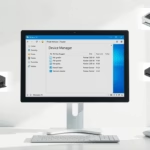
- Right-click the Start button and select Device Manager. The Device Manager window opens with a list of hardware.
- Expand Display adapters. You will see your graphics card listed. Some PCs show two, for example an Intel one and an NVIDIA or AMD one.
- Right-click the graphics card and select Uninstall device. A confirmation box appears.
- Confirm the removal. The screen may drop to a low resolution, which is expected while the driver is gone.
- Restart the computer to let Windows reinstall the driver automatically. After the restart, your normal resolution should return.
If you have two display adapters and the problem is on one screen, uninstall the one that drives it. If you are not sure which one that is, start with the main card, the NVIDIA or AMD one on a gaming laptop or desktop.
C:\Windows\System32\drivers
Manufacturer Software vs. Windows Update
Windows Update often provides stable drivers. For the best performance, especially in games, install the manufacturer's own software, such as NVIDIA GeForce Experience or AMD Software: Adrenalin Edition. You can download the latest versions from the official NVIDIA or AMD websites.
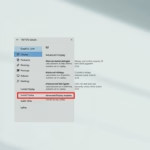
If a new driver caused the problem, you can go back to the previous one. Open the card's Properties in Device Manager, go to the Driver tab, and choose Roll Back Driver if the button is available. It is greyed out when Windows has no older driver stored for that card.
Summary
This built-in keyboard shortcut forces Windows to restart the display adapter instantly. It fixes frozen screens and flickering without a full system reboot, so you save time when display problems happen.
It takes only a moment and resolves common problems like flickering or a black screen without restarting the computer. If it does not work, check that the PC still responds, then reinstall the driver from Device Manager.
- Quick Fix: Use Windows Key + CTRL + SHIFT + B to refresh your display instantly.
- Universal: Works on all major graphics hardware brands, including NVIDIA, AMD, and Intel.
- Check First: Use the CapsLock light to ensure your system is responsive before you reset anything.
- Clean Install: Use DDU or Device Manager if the shortcut fails to resolve persistent errors. DDU is a third-party tool that removes driver leftovers more thoroughly than Device Manager does.
- Admin Note: Modifying system files in
C:\Windows\System32or registry paths likeHKEY_LOCAL_MACHINE\SOFTWARErequires administrator privileges. The keyboard shortcut itself does not.
Was this guide helpful?

About the Author
Richard
Tech Writer, IT Professional
Richard is a writer at Geek Rewind who turns complex IT tasks into clear, step-by-step guides. He draws on years of hands-on experience in system administration and enterprise IT operations, focusing on Windows, Linux and WordPress: the problems people actually run into, and the fixes that work. His server and WordPress guides come from systems he runs himself. Richard builds and maintains the platform behind Geek Rewind, from its Ubuntu servers and Nginx configuration to its custom WordPress plugins. Many new tutorials start with readers' questions, and he's always glad to answer them in the comments.

No comments yet — be the first to share your thoughts!