How to Turn On or off Driver Updates with Windows Update in Windows 11

Driver updates in Windows 11 install software for hardware like graphics cards and printers through Windows Update , alongside the regular system patches. You can turn this on or off. Turn it off if a bad driver has broken your computer, or if you want to manage hardware installs yourself.
Blocking these updates stops Windows from replacing a stable hardware driver with a faulty one. You can change the setting at any time using the Local Group Policy Editor, the Registry Editor, or the Advanced System Settings panel. Which one you use depends mostly on your Windows edition.
You can manage driver updates in Windows 11 through either the Local Group Policy Editor or the Registry Editor. Both methods involve navigating to specific settings and enabling or disabling the “Do not include drivers with Windows Updates” option. Administrator privileges are required for these changes.
What Are Driver Updates?
Drivers are the small pieces of software that let your computer talk to devices such as printers, graphics cards and keyboards. Windows Update often includes newer drivers to keep those devices working properly. Most of the time that is helpful. Occasionally a new driver causes crashes, display problems or a device that stops working, and that is when you may want to stop Windows from installing them on its own.
For more background, see Learn more about driver updates from Microsoft Support.
Before You Start
- You need to be signed in as an administrator on your PC to make these changes. A standard account will either not open the tools below or will not be able to save the change.
- Even if you turn off driver updates, some device drivers might still update automatically. Treat this setting as a strong block on Windows Update drivers, not a guarantee. Drivers installed by a manufacturer’s own update tool are not controlled by it.
- Check which edition you have before you start. The Local Group Policy Editor is only included in Windows 11 Pro, Enterprise and Education. If you are on Home, use the registry method later in this tutorial instead.
Option 1Use Local Group Policy Editor (🪟 Windows 11 Pro/Enterprise/Education)
You can manage Windows 11 driver updates with the Local Group Policy Editor if you have the Pro, Enterprise or Education edition. This built-in tool stops Windows from replacing your hardware drivers with updates from Microsoft, so you decide which device software gets installed. On Windows 11 Home the editor is not available, so the Run command in step 2 will return an error. Skip to the registry method in that case.
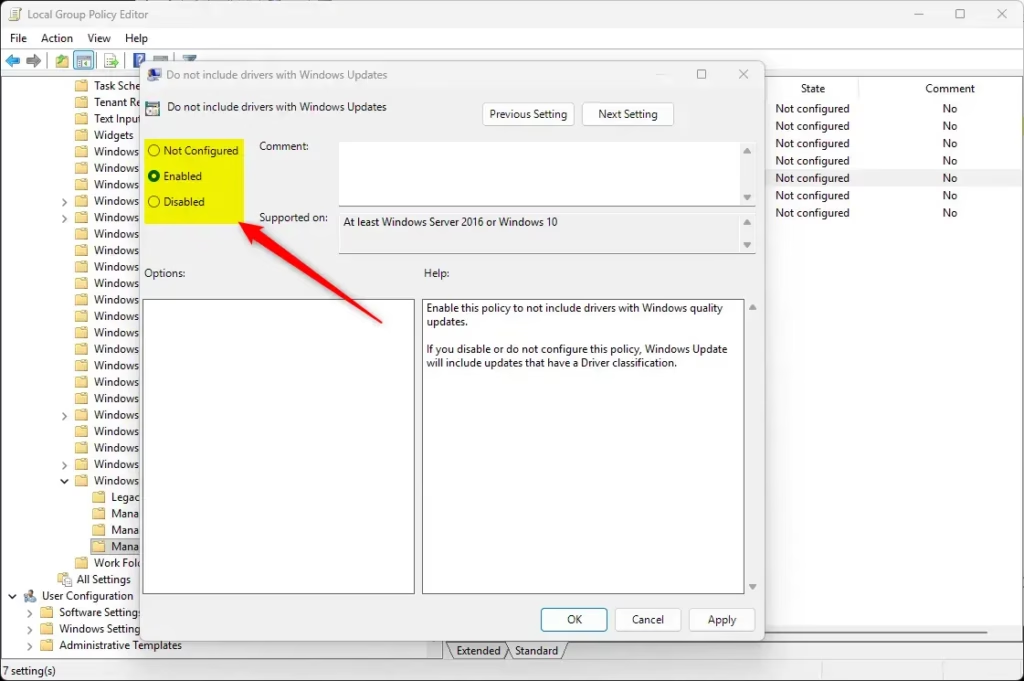
One thing to watch: the policy is worded as a negative. Do not include drivers with Windows Updates set to Enabled means driver updates are off. Set to Not Configured or Disabled, driver updates are on.
- Press Win+R on your keyboard to open the Run box.
- Type
gpedit.mscand press Enter. The Local Group Policy Editor window opens. If you get a “cannot find” error, you are probably on Windows 11 Home. - In the left panel, expand the folders and go to:
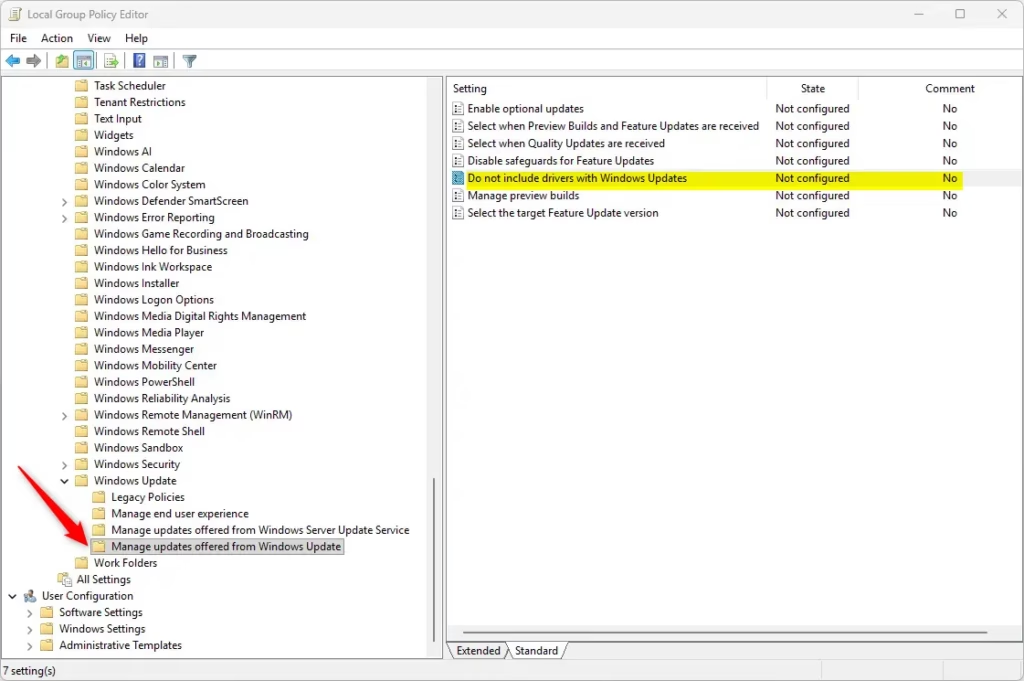
Computer Configuration > Administrative Templates > Windows Components > Windows Update > Manage updates offered from Windows Update
The policy list for that folder appears in the right panel. - On the right, find and double-click Do not include drivers with Windows Updates. A settings window opens with the options Not Configured, Enabled and Disabled.
- To enable driver updates (the default), select Not Configured or Disabled, then click OK. Choose Not Configured if you want to put the policy back exactly as it was before you touched it.
- To disable driver updates, select Enabled, then click OK. The policy now shows as Enabled in the list.
- Close the Local Group Policy Editor.
The change normally takes effect without a restart. If Windows still offers drivers right afterwards, restart the PC or sign out and back in. To undo the change, repeat the steps and set the policy back to Not Configured.
Option 2Use Registry Editor (Works on All 🪟 Windows 11 Editions)
This method is a bit more detailed, but it works on Windows 11 Home as well as Pro, Enterprise and Education. It makes the same kind of change as the Group Policy method, just by editing the registry directly. You need to be signed in as an administrator.
A wrong change can cause problems with Windows or your apps. Please back up your registry before making changes. Learn how to back up your registry.
Follow the steps below in order and enter each value exactly as shown. If you need to undo the change later, reverse it the same way you made it, or restore your registry backup. Restart your PC afterwards if Windows keeps offering drivers.
To Turn ON Driver Updates (Default)
Windows Registry Editor Version 5.00

[HKEY_LOCAL_MACHINE\SOFTWARE\Policies\Microsoft\Windows\WindowsUpdate]
"ExcludeWUDriversInQualityUpdate"=-

[HKEY_LOCAL_MACHINE\SOFTWARE\Microsoft\Windows\CurrentVersion\DriverSearching]
"SearchOrderConfig"=dword:00000001

[HKEY_LOCAL_MACHINE\SOFTWARE\Microsoft\WindowsUpdate\UpdatePolicy\PolicyState]
"ExcludeWUDrivers"=dword:00000000
To Turn OFF Driver Updates
Windows Registry Editor Version 5.00

[HKEY_LOCAL_MACHINE\SOFTWARE\Policies\Microsoft\Windows\WindowsUpdate]
"ExcludeWUDriversInQualityUpdate"=dword:00000001

[HKEY_LOCAL_MACHINE\SOFTWARE\Microsoft\Windows\CurrentVersion\DriverSearching]
"SearchOrderConfig"=dword:00000000

[HKEY_LOCAL_MACHINE\SOFTWARE\Microsoft\WindowsUpdate\UpdatePolicy\PolicyState]
"ExcludeWUDrivers"=dword:00000001
How to Edit the Registry
Windows 11 driver updates can also be controlled by editing the Windows registry if you are using Windows 11 Home edition, which does not include the Group Policy Editor. Registry Editor allows you to manually change system values to block automatic hardware updates, though you need to follow the steps carefully to avoid system errors.- Press Win+R, type
regedit, and press Enter. - Navigate to the keys shown in the code above using the left sidebar.
- Change or create the values as shown. To create a new value, right-click in the right pane, choose New, then DWORD (32-bit) Value.
- Double-click the value to change its data.
- Close Registry Editor and restart your computer for changes to take effect.
Summary
- By default, Windows 11 updates drivers with Windows Updates to keep your devices working well.
- You can turn off automatic driver updates using Group Policy Editor or Registry Editor.
- Group Policy Editor is easier but only on certain Windows editions.
- Registry Editor works on all editions but needs careful handling.
- Administrator permission is required to make these changes.
- Turning off driver updates doesn’t always stop all driver updates entirely.
Windows 11 driver updates happen automatically alongside regular system patches to keep your hardware running smoothly, but you can turn them off if they cause problems. You can block these automatic downloads using either the Group Policy Editor or the Registry Editor, depending on which edition of Windows 11 is installed on your computer.
Frequently asked questions
How to turn off brother printer update reminders 🪟 Windows 11 🪟 Windows 11 🪟 Windows 11?
Open the Brother software on your PC and look in its settings for an update or notification option, then turn it off. If the reminders come from Windows, open Device Installation Settings from Advanced System Settings and choose No for automatic driver downloads. That setting applies to all devices, not only your printer.
How to quit getting updates for printers in 🪟 Windows 11 updates?
Open Device Installation Settings from Advanced System Settings and choose the option that lets you decide, rather than letting Windows install drivers automatically. Windows then stops installing printer drivers from Windows Update on its own. When you need a printer driver, download it directly from the manufacturer's website.
Is there a way to never allow automatic video card driver updates in 🪟 Windows 11?
Yes. Open Local Group Policy Editor, go to Computer Configuration, Administrative Templates, Windows Components, Windows Update, then Manage updates offered from Windows Update. Set Do not include drivers with Windows Updates to Enabled. Local Group Policy Editor is available only in Pro, Enterprise and Education editions.
How to get rid of driver update message on 🪟 Windows 11?
Turn off driver offers in Device Installation Settings so Windows stops suggesting new drivers. To clear a driver that is already listed, open Settings, select Windows Update, then Advanced options, then Optional updates, and clear the box beside the driver. The message should stop appearing after that.
Can you puase just driver updates from Windows?
No. The Pause updates option in Windows Update stops all updates, including security fixes, not only drivers. To block drivers alone, use Device Installation Settings or the Group Policy setting for drivers. Pausing is only a short-term fix, because Windows Update resumes automatically when the pause period ends.
Does Windows updates include driver updates?
Yes, sometimes. Windows Update delivers some drivers with its regular updates, and it lists others under Optional updates. To check, open Settings, select Windows Update, then Advanced options, then Optional updates. Driver updates for graphics cards and printers can appear there.
Still have a question?
Answered by AI from this guide. Good questions may be added to this page — please don't include personal details.
Did this guide fix your problem?

About the Author
Richard
Tech Writer, IT Professional
Richard is a writer at Geek Rewind who turns complex IT tasks into clear, step-by-step guides. He draws on years of hands-on experience in system administration and enterprise IT operations, focusing on Windows, Linux and WordPress: the problems people actually run into, and the fixes that work. His server and WordPress guides come from systems he runs himself. Richard builds and maintains the platform behind Geek Rewind, from its Ubuntu servers and Nginx configuration to its custom WordPress plugins. Many new tutorials start with readers' questions, and he's always glad to answer them in the comments.
No comments yet — be the first to share your thoughts!