Windows 11 Updates and Maintenance Hub

- 16 steps
- Needs administrator rights
- Includes a restart or sign-out
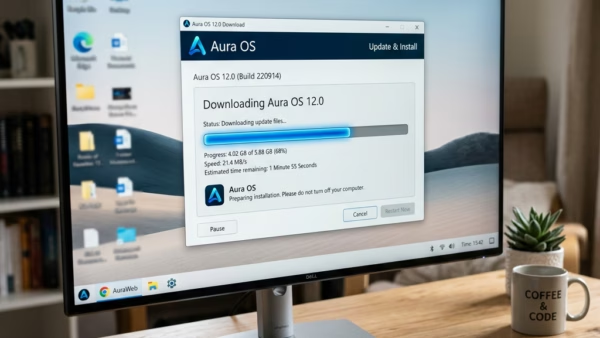
Windows 11 updates and maintenance tools keep your PC secure and running smoothly by installing security patches and repairing broken files. Left unmanaged, they can also cause unexpected restarts or failed downloads. This page collects the guides for controlling that behavior, grouped by task.
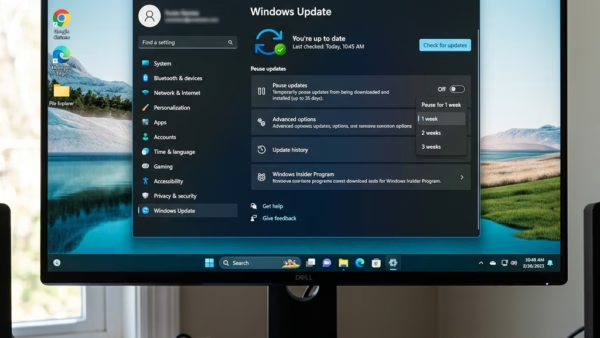
You can pause updates for up to 35 days (five weeks), and the same steps work on Home and Pro:
- Open Settings Windows Update .
- Find the Pause updates row and open the drop-down next to it. The default is Pause for 1 week.
- Choose how long to pause, up to 5 weeks. The page should now say that updates are paused until a specific date.
- To undo the pause early, click Resume updates on the same page.
Once the pause runs out, Windows makes you install the pending updates before you can pause again. Pausing is meant for short delays, not for skipping patches for good.
To check if your computer has the latest updates, open the Settings app, click on Windows Update, and look at the status message on the screen. This page tells you if your device is currently up to date or if a new installation is waiting for your approval.
Control When and How Updates Install
Stop updates from interrupting your workday or eating through a limited data plan. The guides below show how to set your working hours and control how updates download. Both settings are free to change at any time and need no restart.
Manage Update History and Notifications
Learn how to check your update status and quiet the pop-ups that tell you to restart. These steps help you keep track of what your system is doing in the background. Checking by hand is a good habit before you start important work or shut down for a long trip.

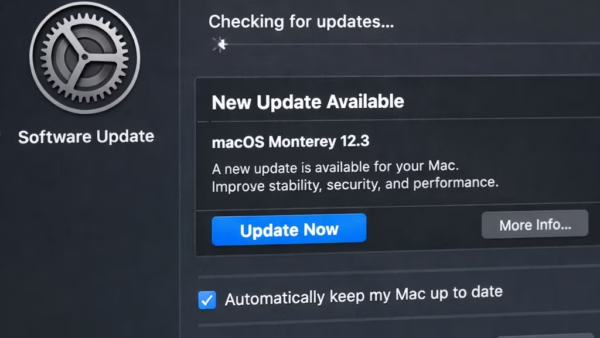
Handle Advanced Hardware and Storage Settings
These guides cover deeper system settings, such as managing hardware driver updates and setting aside disk space for future updates. They are useful when you want more control over your hardware and storage. Check your options before changing anything here, because drivers and storage affect how stable the machine is.

Troubleshoot and Fix Update Problems
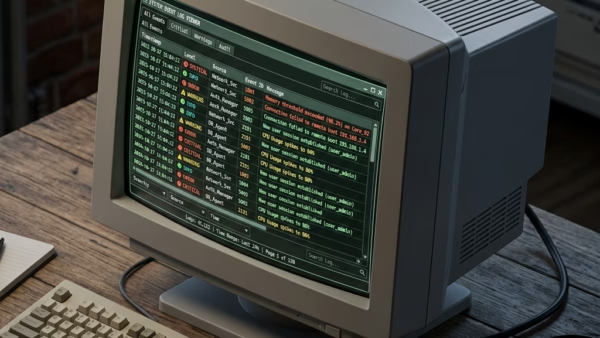
When updates fail or your system files get damaged, you need more advanced tools. These guides show you how to read system logs, download official installation files, and repair corrupted Windows components. Start with the simplest fix and only move to the heavier tools if the problem remains. Some of the repair tools need to be run as administrator, so sign in with an admin account first.

Common questions
How do I stop 🪟 Windows 11 from restarting my computer automatically?
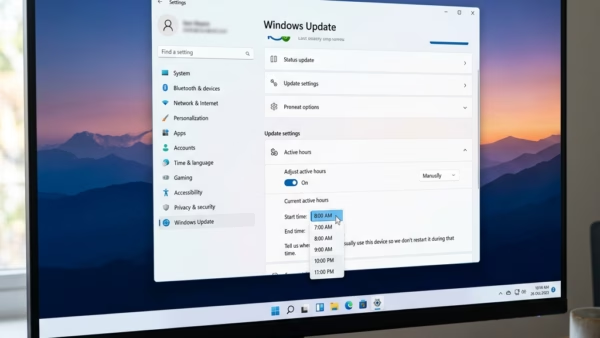
Active hours tell Windows when you normally use the PC, so it avoids restarting during that time. You can also turn off the restart notifications so pop-ups do not interrupt you. To set both:
- Open Settings Windows Update .
- Click Advanced options.
- Click Active hours and choose Automatically or Manually. Automatic lets Windows learn your schedule from how you use the PC. Manual lets you set a start and end time yourself.
- If you chose Manually, set the start time and end time, then save your choice. The window can be at most 18 hours long.
- On the same Advanced options page, turn the Notify me when a restart is required to finish updating toggle on or off, depending on whether you want the alerts.
Active hours only cover automatic restarts. If an update has a deadline, Windows can still restart outside your hours. To reverse any of these changes, return to the same page and change the setting back.
Can I block 🪟 Windows 11 updates from using my mobile hotspot?
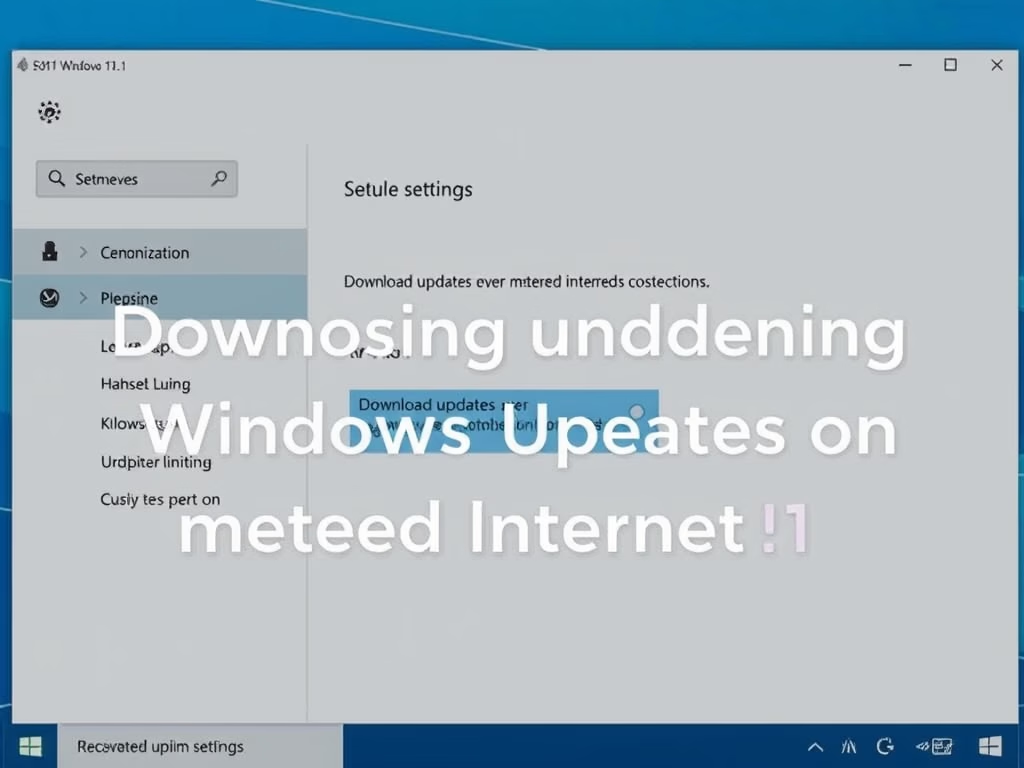
Setting a connection as metered tells Windows to limit background downloads over it. This stops updates from using up a limited mobile data plan without your permission. The setting is per connection, so you turn it on for the network you are using. For Wi-Fi:
- Open Settings Network & internet Wi-Fi .
- Click the properties entry for the network you are connected to.
- Turn on the Metered connection toggle. The setting applies right away and does not need a restart.
For a wired connection, use Settings Network & internet Ethernet and look for the same toggle. To undo it, switch the toggle off. You can also check Settings Windows Update Advanced options for the Download updates over metered connections toggle. Leave it off if you want to save data, and note that Windows may still download small critical updates.
Why do Windows updates sometimes fail to install?
Updates can fail if system files are corrupted or if there is not enough free space on the drive. Running a system repair tool, such as System File Checker, or clearing out broken update files usually fixes the problem. Before you try either, check these basics:
- Make sure the system drive has several gigabytes of free space.
- Restart the PC once and try the update again.
- Confirm you are signed in as an administrator before running repair tools.
If the failure continues, note the error code shown in Windows Update, because the guides in this section use it to find the cause.
How do I check if my computer has the latest updates?
To see where your updates stand:
- Open Settings Windows Update.
- Read the status message at the top of the page. It says whether you are up to date or whether an installation is waiting for your approval.
- Click Check for updates to ask Windows to look for new ones. The page should show that it is checking and then list anything it finds.
- If a restart is pending, you will see a Restart now button. Save your work before you click it.
The page also shows your update history under Advanced options, which helps when you need to confirm that a particular patch installed.
What is reserved storage in 🪟 Windows 11?
Reserved storage is space that Windows sets aside for updates and temporary system files. It makes sure the PC always has room to download and install patches, so an update does not fail because the drive is full. It is usually turned on by default on PCs that shipped with, or were freshly installed with, recent versions of Windows 11, and a PC that was upgraded from an older version may not have it. You can see how much space it uses in Settings System Storage. Open Show more categories and look at System & reserved. The amount changes with your installed features and languages, and it counts against your drive's free space. On a small drive, keep that in mind when you plan your storage.
Have a question about this guide?
Answered by AI from this guide. Good questions may be added to this page — please don't include personal details.
Did this guide fix your problem?

About the Author
Richard
Tech Writer, IT Professional
Richard is a writer at Geek Rewind who turns complex IT tasks into clear, step-by-step guides. He draws on years of hands-on experience in system administration and enterprise IT operations, focusing on Windows, Linux and WordPress: the problems people actually run into, and the fixes that work. His server and WordPress guides come from systems he runs himself. Richard builds and maintains the platform behind Geek Rewind, from its Ubuntu servers and Nginx configuration to its custom WordPress plugins. Many new tutorials start with readers' questions, and he's always glad to answer them in the comments.
No comments yet — be the first to share your thoughts!