How to Read Windows Update Logs in Windows 11

Windows Update logs record every system action and error code generated while your Windows 11 PC downloads and installs updates. They track background downloads, component replacements, and installation failures, so you can troubleshoot update errors such as KB5012345.
Reading these logs shows why a feature failed to install, or why the computer behaves strangely after a restart. Windows stores the raw data in a format you can’t read directly. This guide uses PowerShell to turn it into a text file on your desktop, and Event Viewer as a quicker alternative.
Open PowerShell as administrator, paste Get-WindowsUpdateLog -LogPath 📁C:\
Why read Windows Update logs?
Updates fail for many reasons: network drops, corrupted files, or conflicts with other software. The log usually records an error code at the point where the update stopped. Searching for that code tells you what went wrong, so you can fix the cause instead of rerunning the update and hoping.
Check the logs when an update keeps retrying, stalls at the same percentage, or rolls back after a restart.
What happens when done?
If you follow the steps below, you end up with a readable text document on your desktop. It shows when each Windows Update operation started, whether it hit an error code, and whether it finished successfully. Open it in Notepad and use Ctrl+F to search for the update’s KB number or for words like “error” and “failed”.
Understanding Log Structure and Syntax
Windows Update logs are stored as ETL files at 📁C:\
Once converted, a typical log entry looks like this:
2023-10-27 10:00:00.1234567 1234 5678 Agent * START * Finding updates
Breakdown:
- Timestamp: The exact date and time the event occurred.
- PID (Process ID): The unique number assigned to the Windows Update service.
- TID (Thread ID): The specific task thread running the update.
- Component: The part of the system (like the Agent) performing the action.
- Message: The actual status or error description.
When you scan a long log, read the Component and Message columns first. Lines that share a PID and TID belong to the same task, so you can follow one operation from start to finish.
References:
Option 1Read logs using PowerShell
PowerShell can read Windows Update logs by running a built-in command that converts the raw ETL files into a normal text file on your desktop. This is the best way to see your complete update history in a standard text editor, where you can search it and trace failed updates. It works the same on Windows 11 Home and Pro.
- Open the Start menu and type PowerShell.
- Right-click the result and select Run as administrator. (Requires Admin privileges)
- Click Yes if the User Account Control prompt appears. A PowerShell window opens, possibly inside Windows Terminal, with "Administrator" in the title bar.
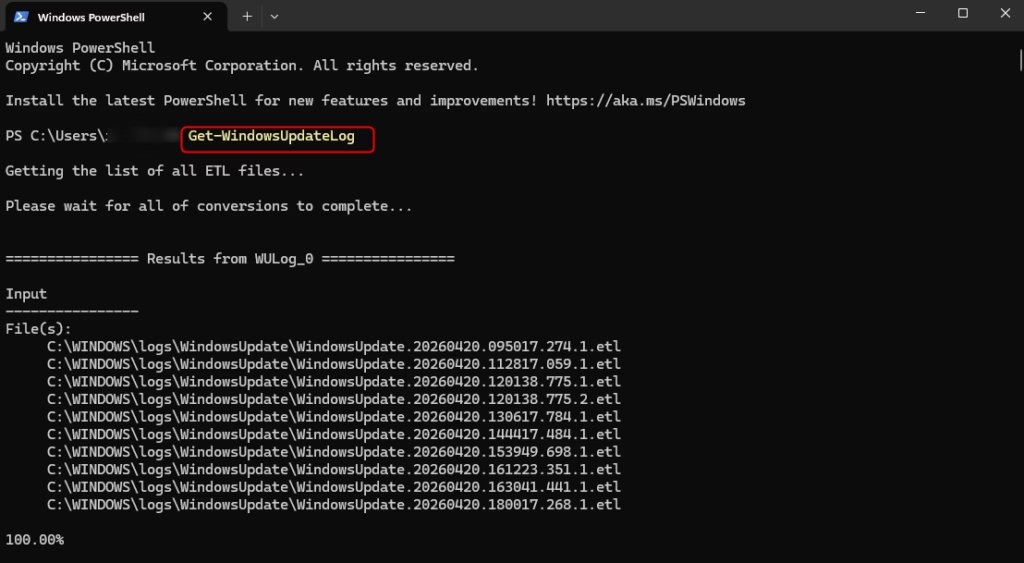
- Copy the following command, paste it into the window, and press Enter:
Get-WindowsUpdateLog -LogPath C:\Users\Public\Desktop\WindowsUpdate.log
The command can take a minute or more, because it processes every ETL file. Wait until the prompt returns. A new log file then appears on your desktop. Double-click it to open it in Notepad.
Further detail on this command is available here: Windows Update log files
-ForceFlush parameter to ensure all pending data is written to the log file before conversion.If you run the update again, run the command again to get the newest entries. To undo anything, just delete the text file from your desktop. The original ETL files are not changed.
Option 2Read logs using Event Viewer
Event Viewer is a built-in Windows tool that displays detailed system logs. It gives you a visual way to read Windows Update logs, with recent events in a clear list. You don't need to convert any files or type commands, so it is the fastest way to check what happened with your recent updates.
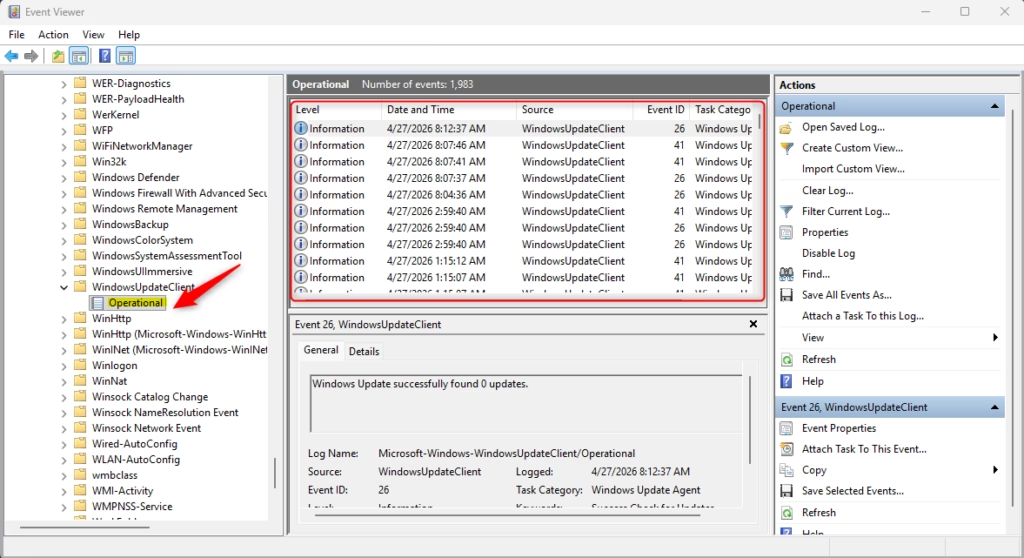
- Press the Windows key, type eventvwr.msc, and press Enter. Event Viewer opens.
- In the left pane, expand Applications and Service Logs Microsoft Windows WindowsUpdateClient
- Click Operational. A list of recent update events appears in the middle pane.
- Click any event to see its details in the pane below the list. Look at the General tab for the update name and any error code.
Events marked Error or Warning are the ones to look at first. You can also use Filter Current Log in the right pane to show only those levels.
Event Viewer and the converted log serve different purposes. Event Viewer gives you high-level, near real-time events, such as "installation started" or "installation failed". In contrast, the WindowsUpdate.log file gives a detailed, granular history of the update process, which makes it better for in-depth troubleshooting. A good approach is to find the failing update and its error code in Event Viewer, then search for that code in the text log to see what happened around it.
Troubleshooting Common Errors
If your Windows Update logs are empty or unreadable, check two things:
- The Windows Update service. Open Services from the Start menu and find Windows Update. It may show as stopped when no update is running, which is normal. If it is disabled, set it back to its default so updates can run and write new entries.
- Administrative rights. Make sure you opened PowerShell with Run as administrator, and that you are signed in with an account that has admin rights to the log path.
If the log is still empty, try an update check first so there is fresh activity to record, then convert the log again.
Advanced Tools: SetupDiag
For persistent failures, Microsoft provides a tool called SetupDiag. It automatically scans your logs and identifies why an update failed. It is much faster than reading thousands of lines of text manually, and it is most useful when a major feature update fails to install or rolls back.
Was this guide helpful?

About the Author
Richard
Tech Writer, IT Professional
Richard is a writer at Geek Rewind who turns complex IT tasks into clear, step-by-step guides. He draws on years of hands-on experience in system administration and enterprise IT operations, focusing on Windows, Linux and WordPress: the problems people actually run into, and the fixes that work. His server and WordPress guides come from systems he runs himself. Richard builds and maintains the platform behind Geek Rewind, from its Ubuntu servers and Nginx configuration to its custom WordPress plugins. Many new tutorials start with readers' questions, and he's always glad to answer them in the comments.


No comments yet — be the first to share your thoughts!