How to Enable or Disable Windows 11 Update Restart Notifications

Windows 11 shows a restart notification when an update has been installed but the PC still needs a reboot to finish the job. These alerts matter because security patches are not fully active until the restart happens. They also tend to appear while you are in the middle of something.
You can turn the notification on or off, or choose when the restart happens, so a reboot doesn’t catch you off guard. The Settings app covers all of it, and you don’t need any extra tools. Advanced users have a registry method as well, covered below.
Open Settings Windows Update Advanced options and toggle Notify me when a restart is required to finish updating on or off. The change takes effect immediately without restarting.
How to Turn On or Off Restart Notifications Using Windows Settings
The simplest way to control these alerts is the Settings app. You open Settings, go to Windows Update , open its advanced options, and flip one switch. The switch works the same on Windows 11 Home and Pro. The steps below follow the current Windows 11 layout (22H2 and later). Older builds may word things slightly differently.
- Open the Windows Settings app. Click the Start button and select the gear icon, or press the Win+I. The Settings window opens, with a list of categories down the left side.
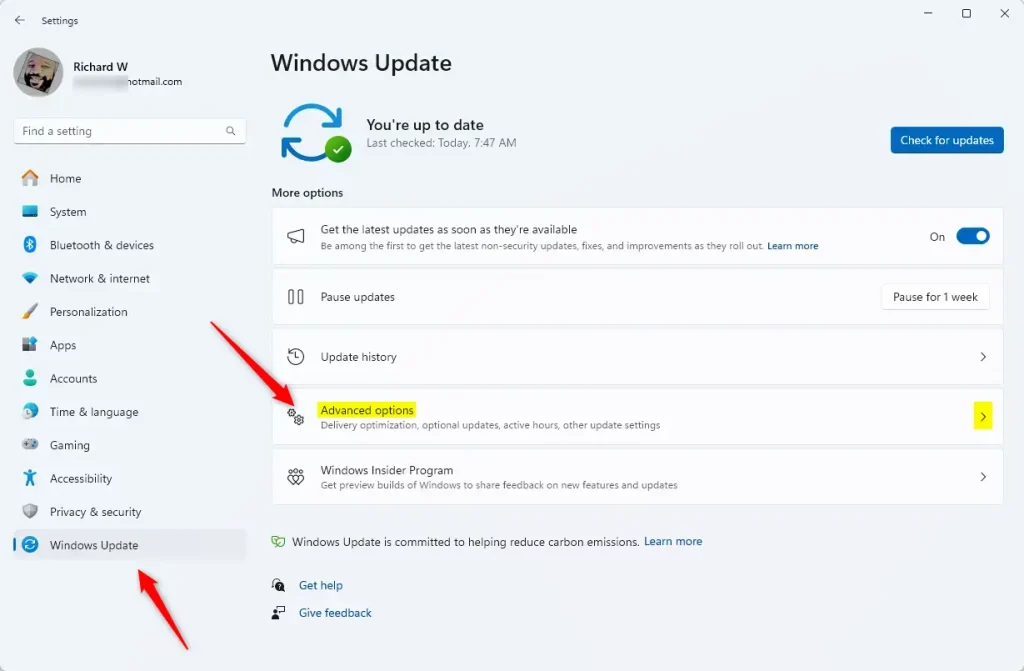
- On the left side, click Windows Update . The right pane now shows your update status, such as “You’re up to date” or a list of pending updates, along with a few option tiles.
- On the right side, click the Advanced options tile. A page of extra update settings opens.
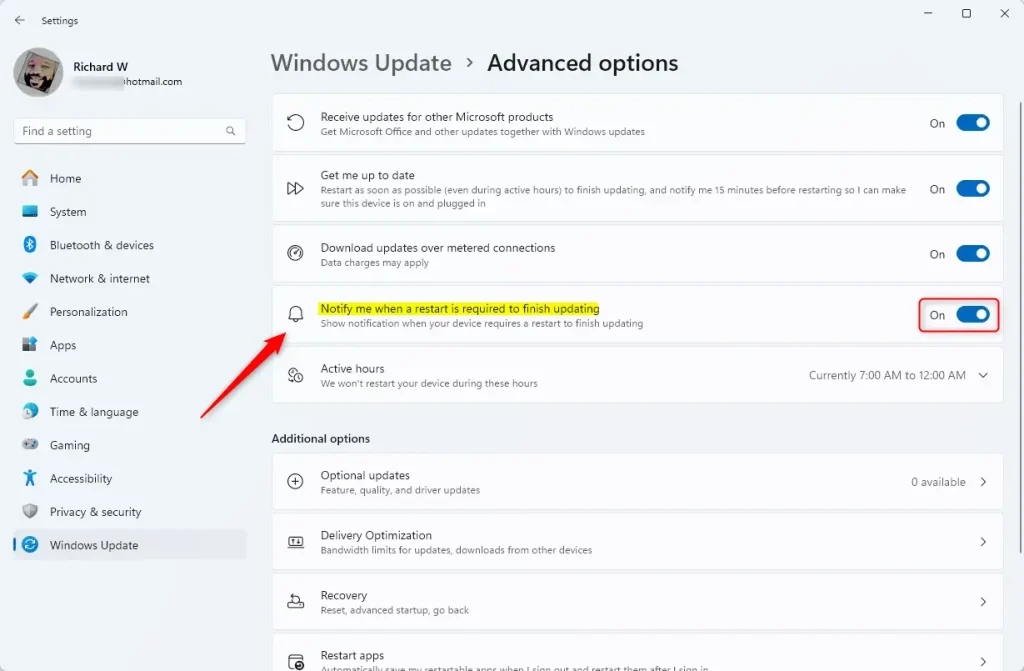
- Find the option called Notify me when a restart is required to finish updating. It sits in the list of toggles near the top of the page. If you can’t find it, check that you’re on the Advanced options page and not the main Windows Update page. Also make sure the PC is fully updated. Very old Windows 11 builds may not show it.
- Set the switch to On if you want notifications, or Off if you want to stop them. The change takes effect straight away. There is no Save or Apply button.
- Close the Settings window when you’re done. To undo the change later, come back to the same page and flip the switch the other way.
Once you close the Settings window, Windows will either show or stop showing the restart notifications. You will see the difference the next time Windows installs an update that needs a reboot. The setting applies to all such notifications, not just one update.
The update still needs a reboot to finish, so the PC will restart eventually, usually outside your active hours. If the toggle is greyed out or you see the message "Some settings are managed by your organization", a work or school policy controls it. Only your IT administrator can change it on that PC.
How to Turn On or Off Restart Notifications Using the Registry Editor (For Advanced Users)
Advanced users can control the same behavior by editing the Windows Registry. You open the Registry Editor, go to the right key, and create or change one value. This works on both Home and Pro. It is a system-level change, so use the Settings method above unless you have a reason to use the registry.
Here's how:
- ⚠️ Admin privileges required — Open the Windows Registry Editor by typing
regeditin the search box and pressing Enter. Click Yes if a User Account Control prompt appears. You need an administrator account to change this value. - Navigate to this folder path:
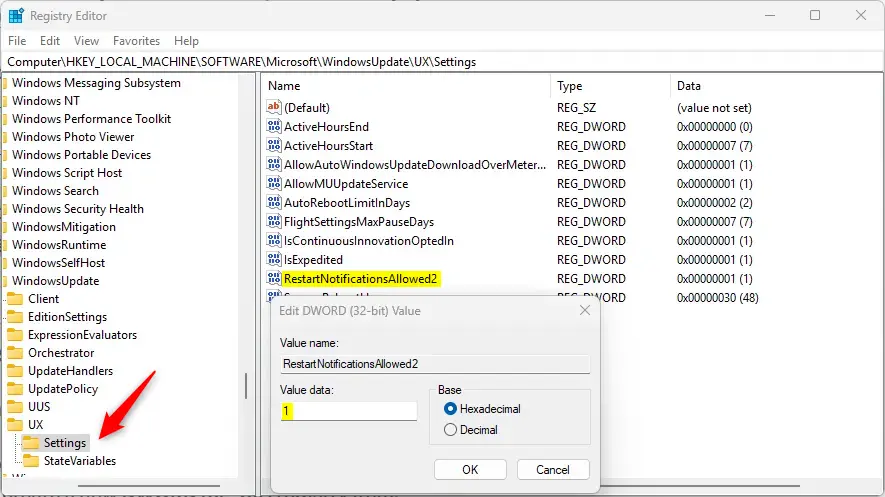
Computer\HKEY_LOCAL_MACHINE\SOFTWARE\Microsoft\WindowsUpdate\UX\Settings. You can expand the folders in the left pane one at a time. Once the key is selected, its values are listed in the right pane. - Look for an entry named
RestartNotificationsAllowed2on the right side. Whether it is already there decides which of the next two steps you follow. - If it exists, double-click it. The Edit DWORD (32-bit) Value box opens. In the Value data field:
- Set the value to
1to enable restart notifications. - Set the value to
0to disable them.
- Set the value to
- If it doesn't exist, create it:
- Right-click in the blank area of the right pane and choose New DWORD (32-bit) Value. A new entry appears with its name highlighted for editing.
- Name it
RestartNotificationsAllowed2and press Enter. Check the spelling carefully, because Windows ignores a value with the wrong name. - Double-click it and set the value to
1or0as above, then click OK.
- Close the Registry Editor.
- Restart your computer to apply the changes. To undo the change later, open the same value and set it back, or delete the value you created.
A wrong value in the wrong place can cause problems that are hard to trace. Before you proceed, back up your system or create a restore point. In the Registry Editor you can also use File Export to save a copy of the key you are about to change.
Choose a Time to Restart After Updates
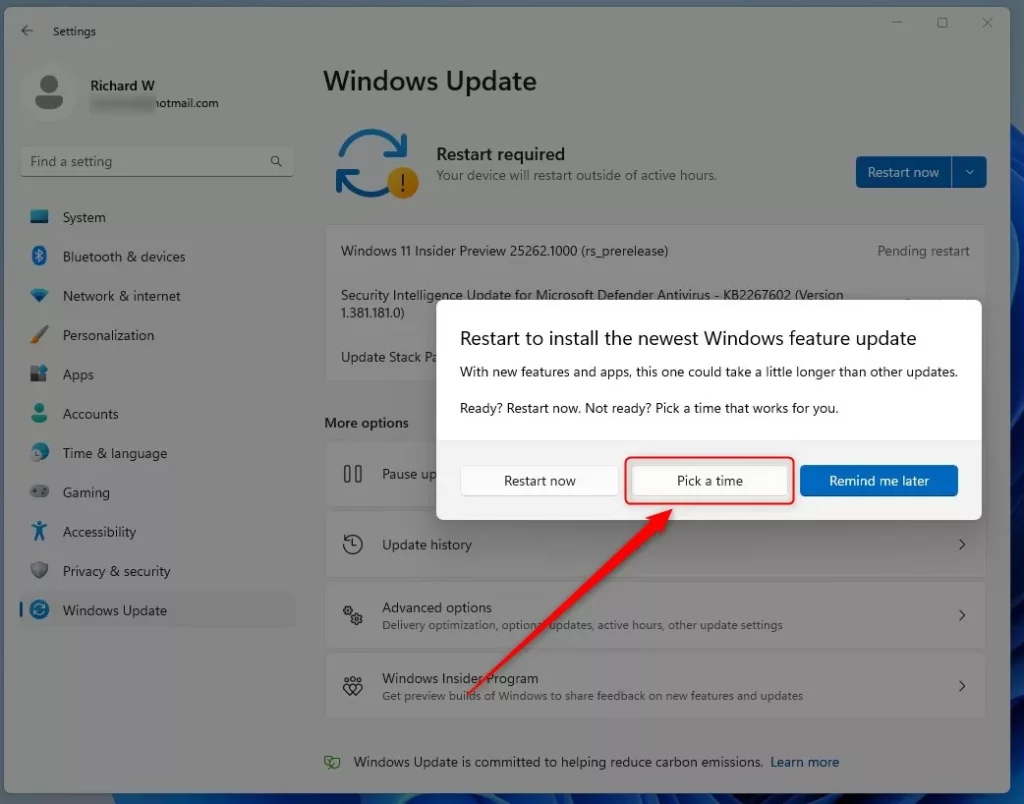
If you would rather keep the notifications and just control the timing, Windows 11 lets you pick a convenient time to restart after updates. This way you won't be interrupted unexpectedly.
When an update is waiting for a restart, go to Settings Windows Update and choose the option to schedule the restart. Then pick a date and time that suits you. You can also set your active hours under Advanced options on the same page. Windows avoids restarting automatically during those hours.
Summary
- You can turn Windows Update restart notifications on or off with one switch in the Settings app, under Windows Update Advanced options.
- Advanced users can also manage these notifications by editing the Windows Registry.
- Always be careful when changing registry settings, and back up your system or create a restore point first.
- Restart your computer after a registry change to make sure it takes effect. The Settings toggle applies immediately.
- By managing these notifications, and scheduling restarts or setting active hours, you can control when and how your PC restarts after updates.
You can manage Windows 11 restart notifications with the standard Settings app or with the Registry Editor, depending on your preference. For most people the Settings toggle is enough, and it is easy to reverse. Whichever you use, remember that updates still need a restart to finish installing, so pick a time that suits you and don't put it off for too long.
Have a question about this guide?
Answered by AI from this guide. Good questions may be added to this page — please don't include personal details.
Did this guide fix your problem?

About the Author
Richard
Tech Writer, IT Professional
Richard is a writer at Geek Rewind who turns complex IT tasks into clear, step-by-step guides. He draws on years of hands-on experience in system administration and enterprise IT operations, focusing on Windows, Linux and WordPress: the problems people actually run into, and the fixes that work. His server and WordPress guides come from systems he runs himself. Richard builds and maintains the platform behind Geek Rewind, from its Ubuntu servers and Nginx configuration to its custom WordPress plugins. Many new tutorials start with readers' questions, and he's always glad to answer them in the comments.
No comments yet — be the first to share your thoughts!