How to Enable or Disable Windows 11 Notifications


Windows 11 notifications send pop-up alerts and sound effects to the bottom-right corner of your screen for new emails, chat messages, and app reminders. You can turn these alerts on or off for your whole PC or for specific apps to stop distractions and stay focused.
Windows 11 version 22H2 and later add extra settings, such as Do Not Disturb and focus sessions, to help you manage these pop-ups. The menu names below match current Windows 11 builds. On an older build, a label may differ slightly or sit one level deeper.
Navigate to Settings System Notifications and toggle the main switch to On or Off. You can also customize settings for individual apps or enable Do Not Disturb mode to silence all alerts.
Turn Notifications On or Off in Settings
Windows 11 notifications management through the Settings app lets you turn off all pop-up alerts with a single switch or turn off sounds and banners for specific apps one by one. You can stop distractions from mail, chat apps, and games in a few clicks without digging through advanced system tools. The steps below cover the master switch. The same screen works on both Home and Pro editions.
The path is Settings System Notifications The first switch on that page, Notifications, controls everything. When it is off, no app can show banners or play sounds, and the app list below it is hidden or greyed out. Turn it back on to see the full list again.
- Open the Windows Settings app.
- Click System on the left side.
- Click the Notifications tile on the right.
The change applies straight away. You do not need to restart or sign out. To undo it, return to the same page and flip the switch back.
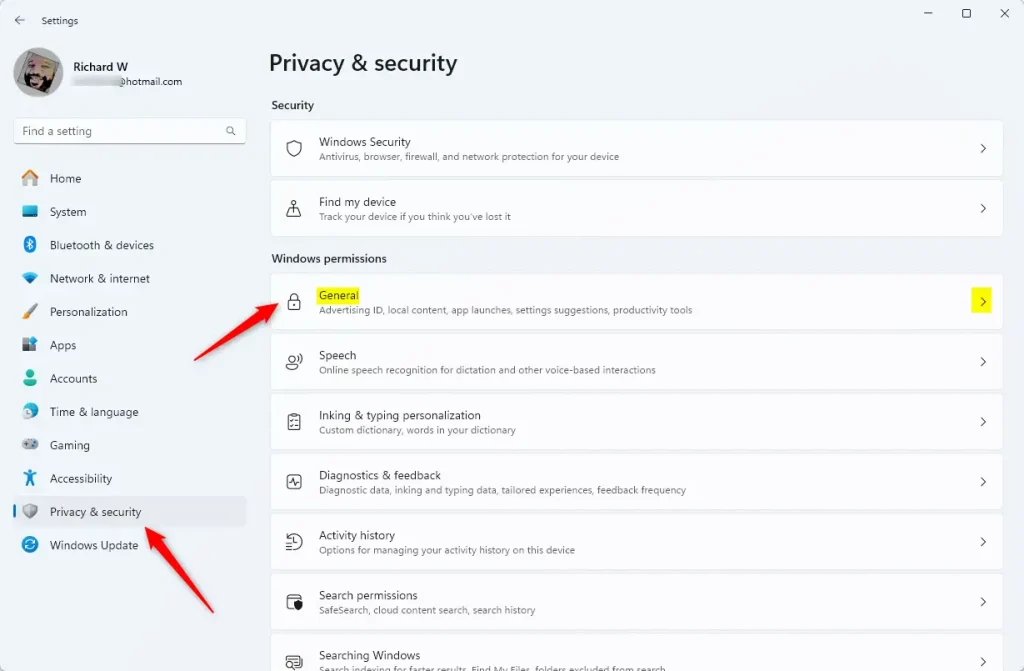
If you only want to silence a few noisy apps, leave the main Notifications switch on and work through the list under “Notifications from apps and other senders”. Each app has its own switch. Click the app’s name, not just the switch, to open its detailed options.
- Toggle the main Notifications switch to On or Off.
- You can also scroll down to toggle notifications for specific apps.
- Close the Settings app when done.
An app only appears in this list after it has sent at least one notification. If you cannot find an app, trigger an alert from it once and check again. Per-app changes also apply immediately, and you can reverse them with the same switch.
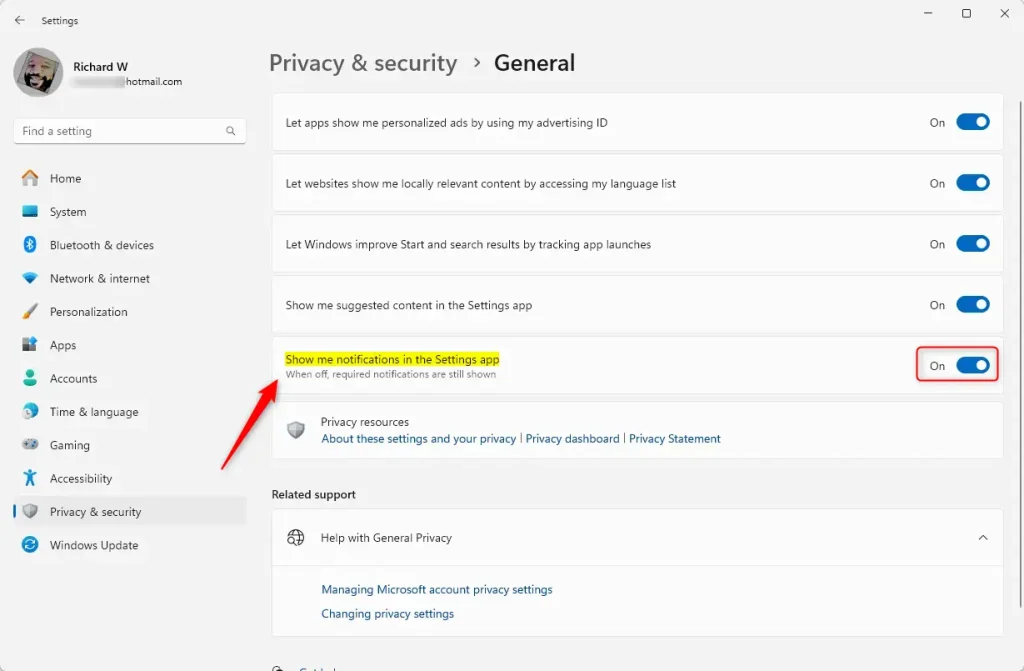
Customizing Notification Banners and Sounds
Change how your Windows 11 notifications look and sound right from the Notifications menu. Stop pop-up banners if they bother you, while still seeing alerts in the Notification Center. You can also disable notification sounds entirely.
Open Settings System Notifications, click an app in the list, and you will find separate options for the banner, the Notification Center entry, and the sound. A good middle ground for chat apps is to turn off the banner and the sound but leave the Notification Center entry on. You can then read missed messages when it suits you.
Using Do Not Disturb and Focus Sessions
Windows 11's Do Not Disturb mode stops pop-up banners and sounds, so you get quiet when you need it. Alerts are not lost. They still collect in the Notification Center, and you can read them when you are done. Find the Do Not Disturb setting under System Notifications. Set schedules for Do Not Disturb to turn on automatically during work hours, for example, from 9 AM to 5 PM on weekdays.
- Open Settings System Notifications
- Find the Do not disturb switch and turn it on to start quiet time right now.
- Look for the options that turn Do Not Disturb on automatically. Depending on your build, they appear on this page or on a linked page. Choose the times or situations that suit you, such as set hours or when you are playing a game.
- Turn the switch off again whenever you want alerts back.
On older builds before 22H2, this feature is called Focus Assist and offers similar choices. If an option is missing, check which version you have under Settings System About
How to Access the Notification Center
The Windows 11 Notification Center collects all your missed alerts. Use it to catch up after a meeting or a stretch of Do Not Disturb.
- Click the date and time in the bottom-right corner of your taskbar. The Notification Center opens with your stored alerts listed.
- Click an alert to open the app that sent it, or click the close button on an alert to remove just that one.
- Click Clear all at the top right of the panel to remove every alert at once.
Cleared notifications cannot be brought back, so read anything important first.
Troubleshooting Missing Notifications
Wondering why your Windows 11 notifications aren't showing up? Work through these checks in order, since the first two cause most cases.
- Check whether Focus Assist or Do Not Disturb is active. Windows may have turned it on by itself, for example while you play a game or use a full-screen app.
- Open the Notifications settings menu and make sure the main Notifications switch is on.
- Scroll to the app in the list and make sure it has permission to send alerts. Also check that its banner and sound options are on.
- Check the settings inside the app itself. Many apps have their own notification toggle that overrides Windows.
- If issues persist, verify that your system is updated via Windows Update, then restart the PC.
Advanced Control via Registry Editor
Windows 11 notifications management via Registry Editor (a database storing low-level system settings) gives you deep control over system behavior that goes beyond the standard Settings menu options. This advanced method lets you change notification settings at the system level, which is helpful if the main toggles do not work or you manage multiple user accounts.
Be careful here. A wrong edit can cause problems that are hard to trace. Before you change anything, back up the registry or create a restore point, and make a note of the original value so you can put it back. Registry Editor is available on both Home and Pro editions, but you need an administrator account for changes that affect the whole PC.
- Open the Windows Registry editor as administrator.
- Navigate to:
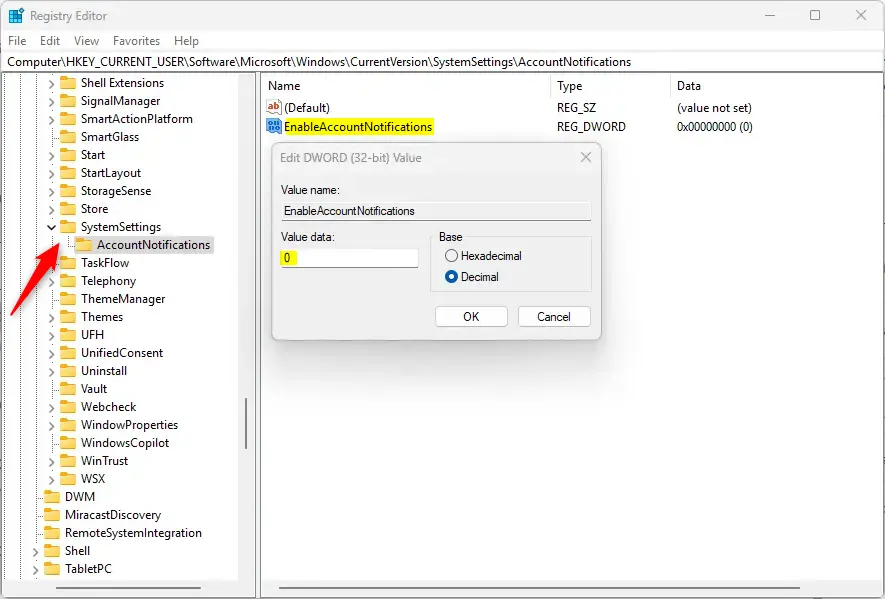
HKEY_CURRENT_USER\Software\Microsoft\Windows\CurrentVersion\SystemSettings\AccountNotifications - Find EnableAccountNotifications.
- Double-click to set the value to 1 (on) or 0 (off).
Registry changes often do not show up until you sign out and back in, or restart the PC. If the notification behavior looks unchanged after the steps above, do that first. To undo the change, restore the original value you noted, or import your backup.
Summary
Managing your Windows 11 notifications helps you stay focused and in control. Turn them all on or off, adjust how individual apps alert you, or use Do Not Disturb mode for quiet time, all through the Settings app. Start with the main switch and the per-app list, and only use the Registry Editor if those settings do not do the job.
How do I hide notification content on the lock screen?
Have a question about this guide?
Answered by AI from this guide. Good questions may be added to this page — please don't include personal details.
Did this guide fix your problem?

About the Author
Richard
Tech Writer, IT Professional
Richard is a writer at Geek Rewind who turns complex IT tasks into clear, step-by-step guides. He draws on years of hands-on experience in system administration and enterprise IT operations, focusing on Windows, Linux and WordPress: the problems people actually run into, and the fixes that work. His server and WordPress guides come from systems he runs himself. Richard builds and maintains the platform behind Geek Rewind, from its Ubuntu servers and Nginx configuration to its custom WordPress plugins. Many new tutorials start with readers' questions, and he's always glad to answer them in the comments.
[…] Notification Center (Win+N) in Windows 11 allows quick access to notifications, the calendar, and the ability to start or end a focus session from a taskbar […]