How to Enable or Disable Turn On Do Not Disturb with Focus Session in Windows 11

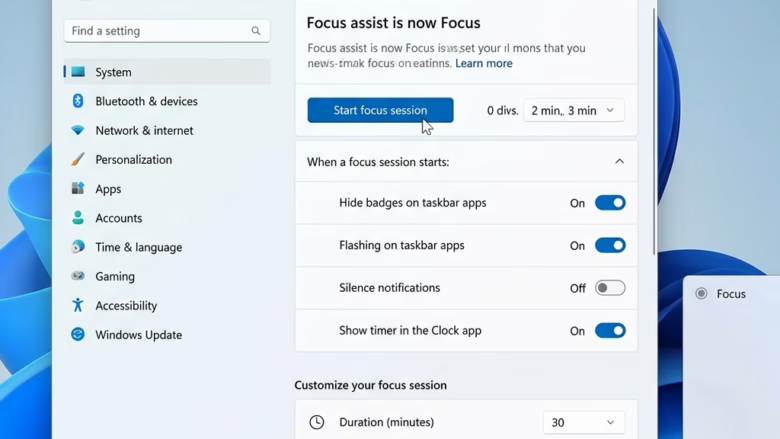
Do Not Disturb with Focus Session in Windows 11 silences pop-up alerts and puts a countdown timer on your screen. Starting a focus session turns on Do Not Disturb automatically, so apps and people can’t interrupt your work.
You can also link a Microsoft To Do account to check off daily tasks inside the Clock app, or play background music with Spotify. When the timer finishes, your computer goes back to its usual notification settings.
Open Settings System Focus, find Turn on do not disturb, and check or uncheck the box. The change takes effect the next time you start a focus session without needing a restart.
How to Enable or Disable Turn On Do Not Disturb with Focus Session in 🪟 Windows 11
Focus sessions block distracting notifications for as long as the timer runs. The setting that controls this is in the Focus page of Settings, and the steps below work on both Windows 11 Home and Pro.
- Press Win+I to open Settings. The Settings window opens on the System page.
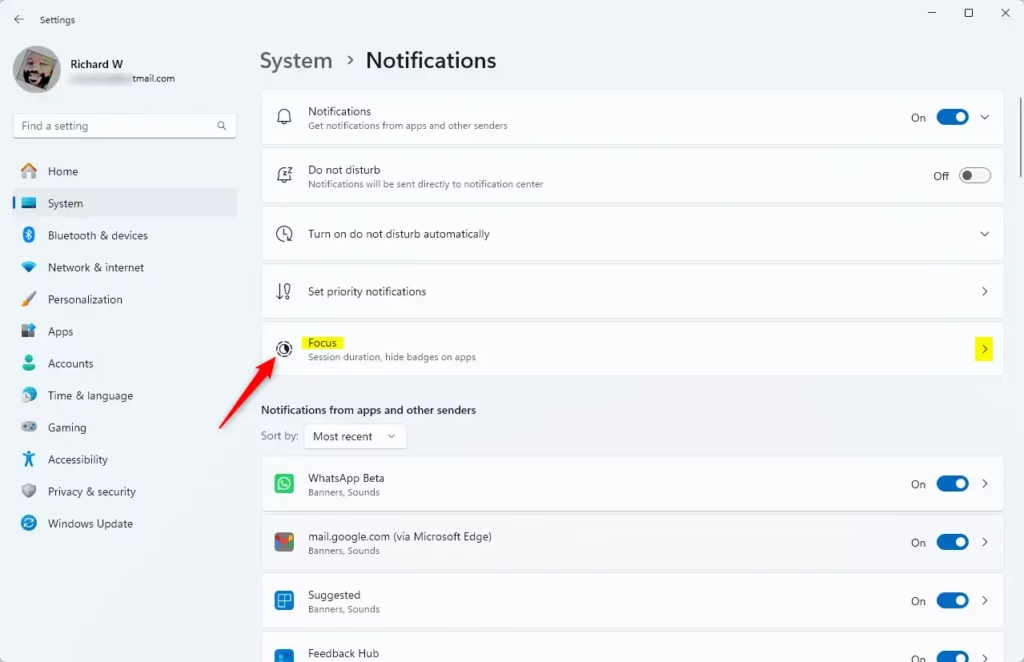
- Click System in the left menu if it isn’t already selected, then click Focus on the right. You should now see the focus session options, including the duration and the start button .
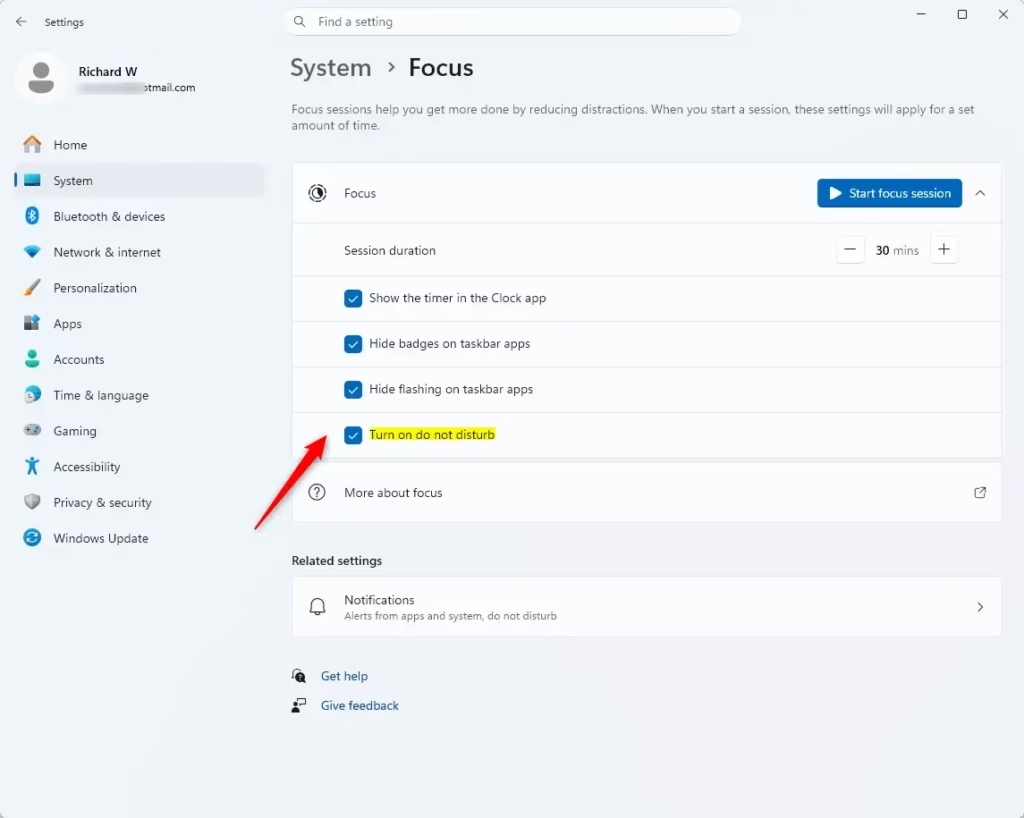
- Find the option labeled Turn on do not disturb. Check the box to turn it on, or uncheck it to turn it off. The change applies the next time you start a focus session.
No restart is needed.
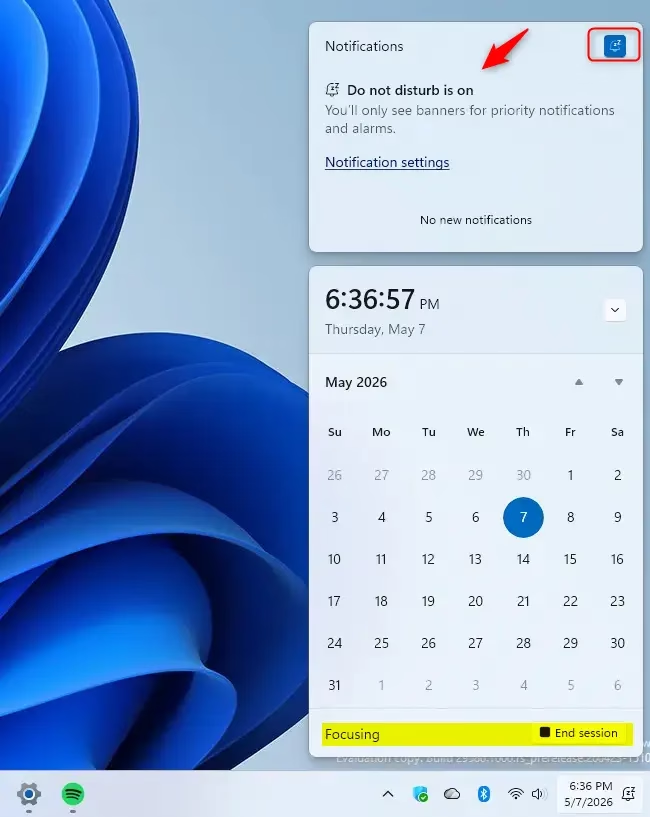
End the active session first, and the box becomes available again so your change can take effect.
Comparing Focus Mode vs. Manual Do Not Disturb
| Feature | Focus Mode | Manual Do Not Disturb |
|---|---|---|
| Timer | Yes | No |
| Task Integration | Yes | No |
| Automatic Start | Yes | No |
| Notification Blocking | Yes | Yes |
Configuring Priority Notifications
Do Not Disturb doesn’t have to hide everything. You can let important alerts through during a focus session.
- Open Settings System Notifications Do not disturb. The exact wording on this page can differ slightly between Windows 11 builds, so look for the priority option if your labels don't match.
- Select Priority notifications. This is where you choose the specific apps or contacts that are allowed to break through the silence.
- Add the apps or people you can't afford to miss, such as a calling app or your work chat. Everything else stays quiet while Do Not Disturb is on.
Keep the list short. Every app you add is one more source of interruptions.
Integrating Microsoft To Do and Spotify
The Clock app lets you connect Microsoft To Do and Spotify, so your tasks and music sit right next to the focus timer.
- Open the Clock app from the Start menu.
- Click the Focus sessions tab. You should see the timer, along with the options to link your accounts.
- Sign in to your Microsoft account to link Microsoft To Do. Your daily tasks then appear in the timer window, where you can check them off as you finish them.
- Sign in to your Spotify account to play background music from the same window.
Both links are optional. If you don't use these services, the timer and Do Not Disturb work fine without them. To disconnect an account later, sign out of it from the same tab in the Clock app.
Summary
Focus sessions are a simple, reliable way to get more done in Windows 11. Turning on Do Not Disturb removes the constant interruptions without any extra effort. Adding task lists and music makes the setup fit the way you work, and a priority list means urgent messages still get through.
References
Have a question about this guide?
Answered by AI from this guide. Good questions may be added to this page — please don't include personal details.
Did this guide fix your problem?

About the Author
Richard
Tech Writer, IT Professional
Richard is a writer at Geek Rewind who turns complex IT tasks into clear, step-by-step guides. He draws on years of hands-on experience in system administration and enterprise IT operations, focusing on Windows, Linux and WordPress: the problems people actually run into, and the fixes that work. His server and WordPress guides come from systems he runs himself. Richard builds and maintains the platform behind Geek Rewind, from its Ubuntu servers and Nginx configuration to its custom WordPress plugins. Many new tutorials start with readers' questions, and he's always glad to answer them in the comments.
No comments yet — be the first to share your thoughts!