How to Enable or Disable Show Timer in Clock App with Focus Session in Windows 11

- 8 steps
- Includes a restart or sign-out
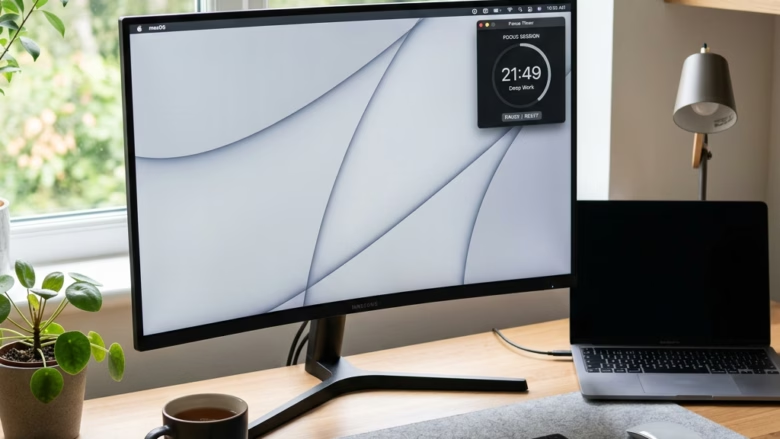
The Show timer setting in the Windows 11 Clock app controls whether a countdown appears on your screen during a Focus Session. A Focus Session breaks your work into timed blocks and can play background sounds. Recent Windows 11 updates turn the timer on by default. You can turn it off for a cleaner screen, or leave it on to see your remaining minutes at a glance.
Press Win+I to open Settings, select System, click Focus, then check the box next to Show the timer in the Clock app to enable it or uncheck to disable it. The change applies immediately to your next Focus session.
What Happens When You Change This Setting?
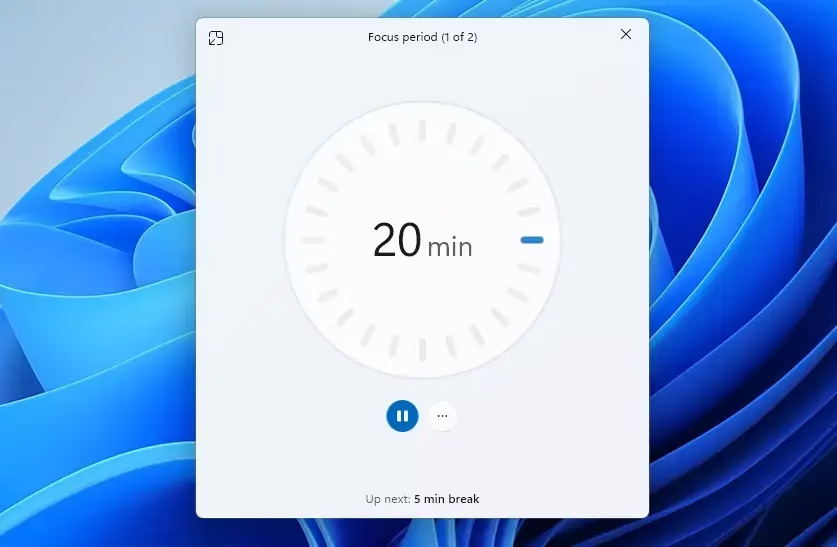
With the timer enabled, a small window appears on your desktop showing the time you have left. With it disabled, the timer stays hidden, but the Focus session still runs in the background. Your notifications stay silenced until the session ends either way. Hiding the timer changes only what you see, not how the session works.
How to Enable or Disable Show Timer in Clock app with Focus Session in 🪟 Windows 11
The focus timer shows a countdown on your screen during a Focus session in the Clock app. You switch it on or off from the main Settings app, and you can change it whenever you like. The steps are the same on Windows 11 Home and Pro, and you don’t need to restart the PC.
- Press Win+I to open the Settings app. The Settings window opens.
- Select System from the left-hand menu. The System options appear on the right.
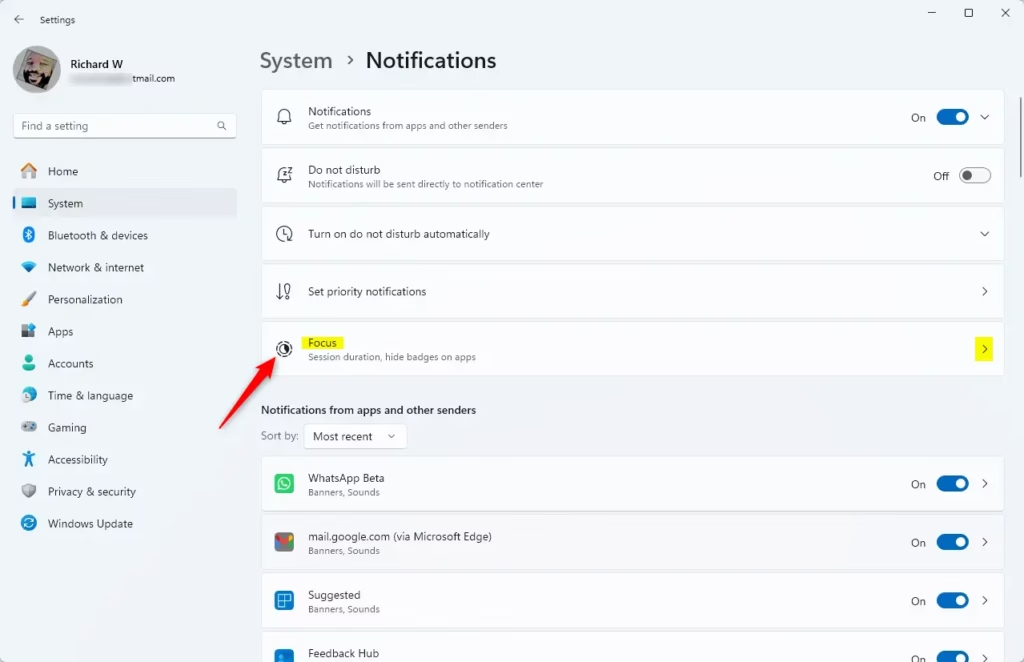
- Click Focus on the right side of the screen. The Focus settings page opens.
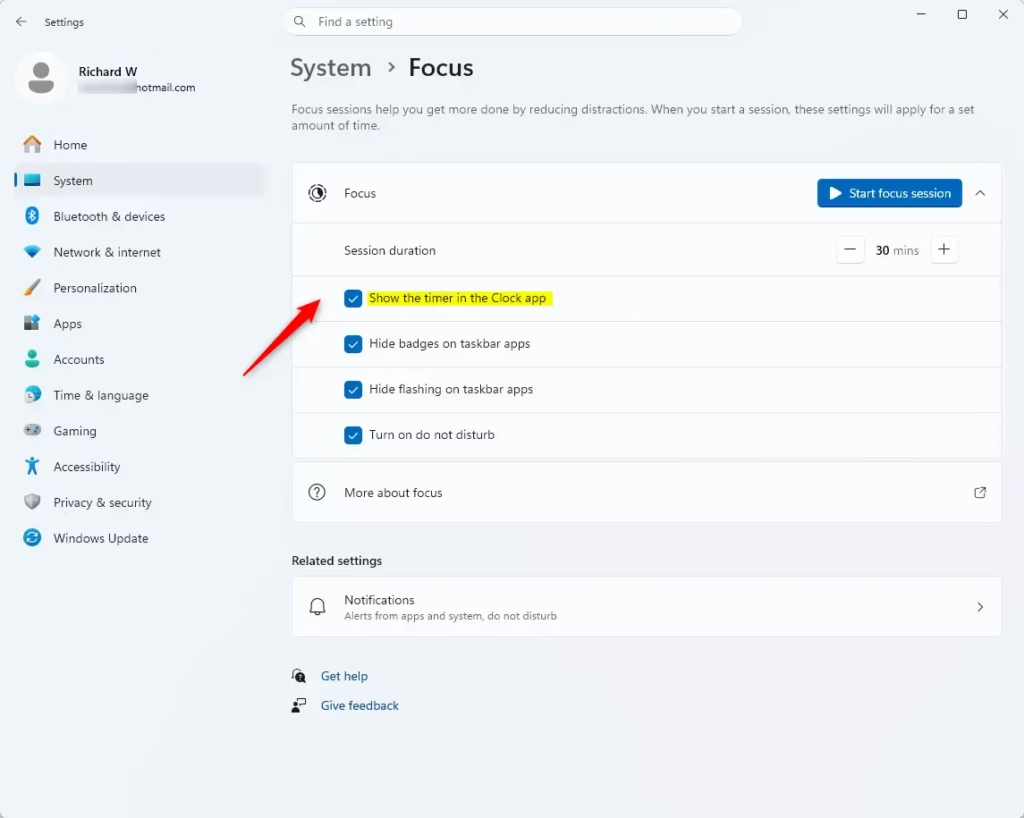
- Find the option labeled Show the timer in the Clock app.
- Check the box to show the timer, or uncheck it to hide it. The change applies straight away and is used for your next Focus session.
Integrating To-Do and Spotify
The Clock app works with Microsoft To Do to help you manage tasks. You can pick a task to work on before you start your session, so the session has a clear purpose.
You can also link your Spotify account to play focus-friendly music directly from the Clock app. Neither connection is required. Focus sessions and the timer work without them.
Troubleshooting Focus Session Issues
If your Windows 11 focus timer isn’t showing up, or the settings are greyed out, it’s usually because of the session state. A session is either currently active, which locks the setting, or it has already ended, so there is no timer left to display.
- End any active Focus session from the Clock app.
- Go back to Settings System Focus and check that Show the timer in the Clock app is set the way you want.
- Start a new session and see whether the timer appears.
If the option is missing entirely, make sure Windows 11 and the Clock app are up to date. Older builds may not have this setting.
Summary
Changing your Windows 11 focus timer settings is a quick way to make Focus sessions fit how you work. Show the timer if you like watching the clock, or hide it if it distracts you. Either way, the session keeps running.
Have a question about this guide?
Answered by AI from this guide. Good questions may be added to this page — please don't include personal details.
Did this guide fix your problem?

About the Author
Richard
Tech Writer, IT Professional
Richard is a writer at Geek Rewind who turns complex IT tasks into clear, step-by-step guides. He draws on years of hands-on experience in system administration and enterprise IT operations, focusing on Windows, Linux and WordPress: the problems people actually run into, and the fixes that work. His server and WordPress guides come from systems he runs himself. Richard builds and maintains the platform behind Geek Rewind, from its Ubuntu servers and Nginx configuration to its custom WordPress plugins. Many new tutorials start with readers' questions, and he's always glad to answer them in the comments.
No comments yet — be the first to share your thoughts!