How to manage app notification badges and priority access in Windows 11 Focus mode
Before you start
🔢 28 steps
🔄 Includes a restart or sign-out
Focus mode in Windows 11 blocks distracting pop-ups and taskbar alerts so you can work without interruptions. It is built into Windows 11 version 22H2 and later. You can set a timer and silence noisy apps while you work. If you do not see a Focus page in Settings, check that Windows Update has installed the latest version.
You do not have to block every alert on your system. Priority access lets specific apps break through the silence. Notification badges show missed messages, but only when you choose to see them. This guide covers both, plus the settings around them.
⚡ Quick Answer
Open Settings›System›Focus and set your timer, then go to Settings›System›Notifications›Priority notifications to choose which apps can get through. Focus mode hides pop-up banners and taskbar flashing during the session. To turn off a single app’s badge or alerts, open Settings›System›Notifications and switch that app off.
Advertisement
Understanding 🪟 Windows 11 Focus Mode
Focus mode is a built-in productivity tool that hides pop-up alerts, stops taskbar flashing, and silences notification sounds. You start a timed work session, and Windows keeps the interruptions away until the timer ends.
Think of it as a do-not-disturb sign on your office door. You set the timer, and Windows keeps your screen clean and quiet while it runs. You can start a session from the Clock app or from Settings›System›Focus. On many builds the Notification Center also has a focus option next to the calendar. The Focus settings work the same on Home and Pro.
Advertisement
How Notifications Work on 🪟 Windows 11
Windows 11 collects messages from your email, chat apps, games, and browser. It then shows them as banners, sounds, or badge counts. Anything that arrives is also stored in the Notification Center, so you can read it when you are ready instead of the moment it lands.
Taskbar badges are the small numbers or red dots on an app icon. If your chat app has three unread messages, you will see a badge with a 3 on its icon. Badges are useful, but they can make you feel you must check every app right away. That pressure is the reason to manage them.
Taskbar
How to Configure General Notifications
General notification settings let you turn off all alerts or silence only the apps that bother you. You do this in Settings, and the changes apply right away. You do not need to restart.
Click the Start button and open the Settings app.
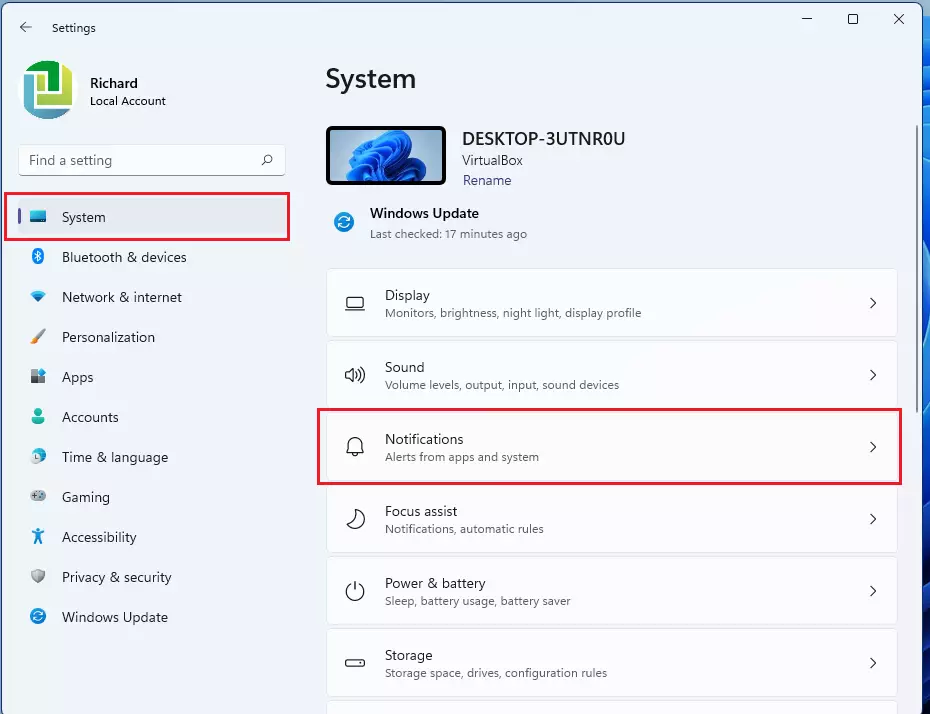
Select System from the menu on the left side.
Click Notifications. The notification settings page opens.
Use the Notifications switch at the top to turn all notifications on or off. To change one app instead, scroll down to the list of senders and find the app.
Turn the app’s switch to Off to stop it from sending alerts. Other apps keep working as before.
To undo this, return to the same page and flip the switch back on. If an app is missing from the list, it has probably not sent a notification yet. Apps usually appear in the list after their first alert.
Advertisement
Using Do Not Disturb vs. Focus Mode
Do Not Disturb and Focus mode both silence your alerts, but they work differently. Do Not Disturb is a manual switch that stays on until you turn it off. Focus mode adds a timer and a clear end to the session.
⚠️WarningWhen you turn on Do Not Disturb, standard notification pop-ups stay hidden and go straight to the Notification Center.
Nothing turns it off for you. If you forget about it, you can miss alerts for days, so check it if messages seem to have stopped arriving. You can also set it to turn on automatically at certain times, such as when you are presenting or playing a game.
Settings › System › Notifications
Focus mode goes a step further. Along with hiding alerts, it runs a timer you choose, for example 45 minutes of work followed by a break. It can also hide taskbar badges and stop taskbar flashing for the length of the session. Use it when you want a dedicated work block with a clear end time.
How to Set Priority Notifications for Important Apps
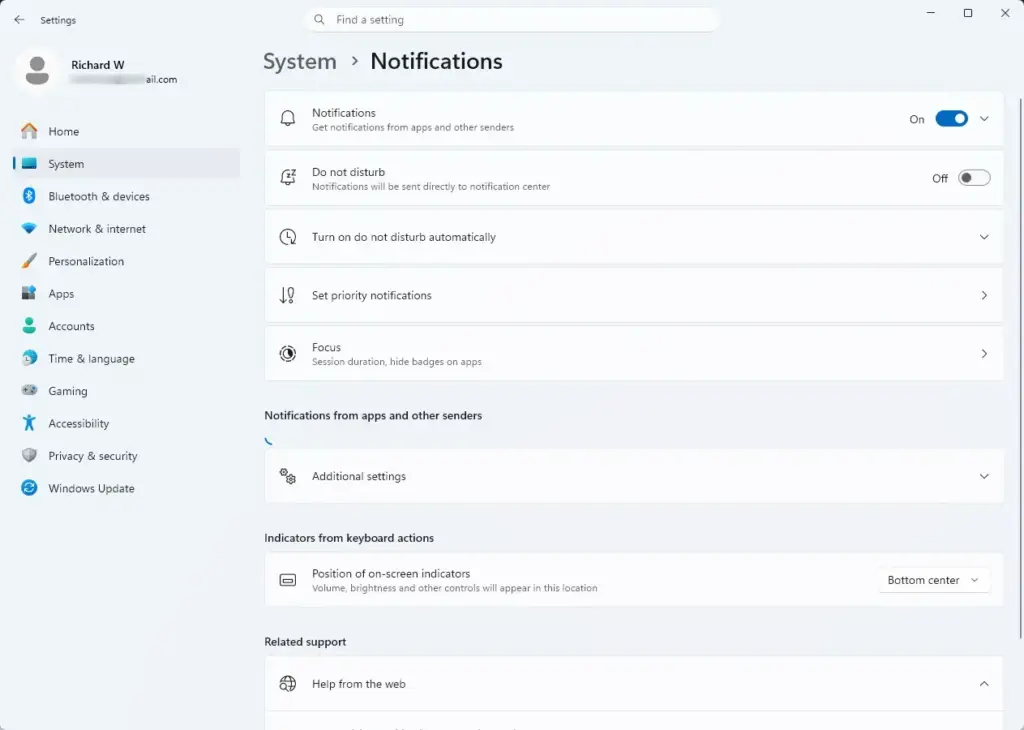
Priority notifications let chosen apps break through while Do Not Disturb or Focus mode is on. This is how you keep alerts from your boss’s chat app or a critical work program. The wording on this page changes a little between Windows 11 versions, so your screen may not match every label below.
Advertisement
Open the Settings app from your Start menu⊞. Settings
Click System, then select Notifications.
Scroll down and click Do not disturb to expand its settings.
Find the section that controls which notifications are allowed while Do not disturb is on. On newer builds this is the priority notifications list.
Click the button to add apps, then pick each app you want to allow through. The apps you chose now appear in the list.
📝Good to KnowOnly apps that have already sent you a notification tend to show up in the picker. If an app is missing, trigger one alert from it first. To undo this later, open the same list and remove the app.
Managing App Notification Badges on the Taskbar
Taskbar badges are the small numbers or red dots on your app icons. You can turn them off in the taskbar settings. The change is instant and needs no restart.
Open the Windows Settings app. windows 11 notifications tile windows 11 notifications tile
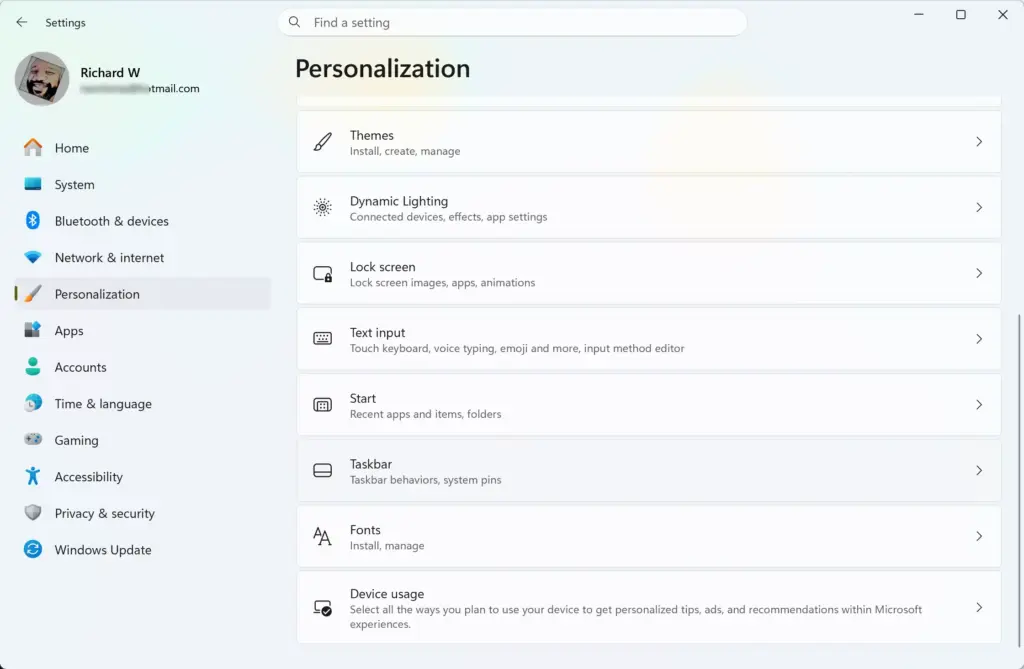
Click Personalization on the left menu. Settings › Personalization
Select Taskbar from the options.
Click Taskbar behaviors to expand more choices. Settings › Personalization › Taskbar
Uncheck the option that shows badges (unread message counters) on taskbar apps. In the same list you can also uncheck the option for flashing on taskbar apps.
Advertisement
The red dots and unread counters now disappear from your taskbar icons. The messages are not deleted. They are still inside each app and in the Notification Center. To bring the badges back, tick the same box again.
Advanced Focus Options: Timers and Automatic Rules
Advanced focus options let you change the timer length, stop taskbar flashing, and tune what is hidden during a session. Match them to how you actually work.
Open Settings and select System.
Click Focus. The focus session settings appear.
Change the session length to the time you want.
Review the checkboxes for hiding taskbar badges, turning off flashing, and turning on Do Not Disturb during the session. Tick the ones you want.
The exact labels depend on your Windows 11 build, and the Clock app is where you start and track the session. If you do not see these options, update Windows to version 22H2 or later.
Advertisement
Expert Tips for Minimizing Digital Distractions
Beyond the built-in Windows settings, a few extra steps can protect your focus. None of them need extra software.
Clear Your Taskbar Clutter
A busy taskbar pulls your eye away from the task at hand. Cleaning it up takes a few minutes, and everything is easy to put back.
Right-click an icon you rarely use on the taskbar🖥️.
Click Unpin from📌 taskbar. The icon disappears from the bar.
Open Settings›Personalization›Taskbar and switch off items you do not need, such as Search, Task view, or Widgets.
You can pin any app back at any time. Right-click it in the Start menu and choose to pin it to the taskbar.
Advertisement
Simplify Your Start Menu and Visual Effects
Performance Options
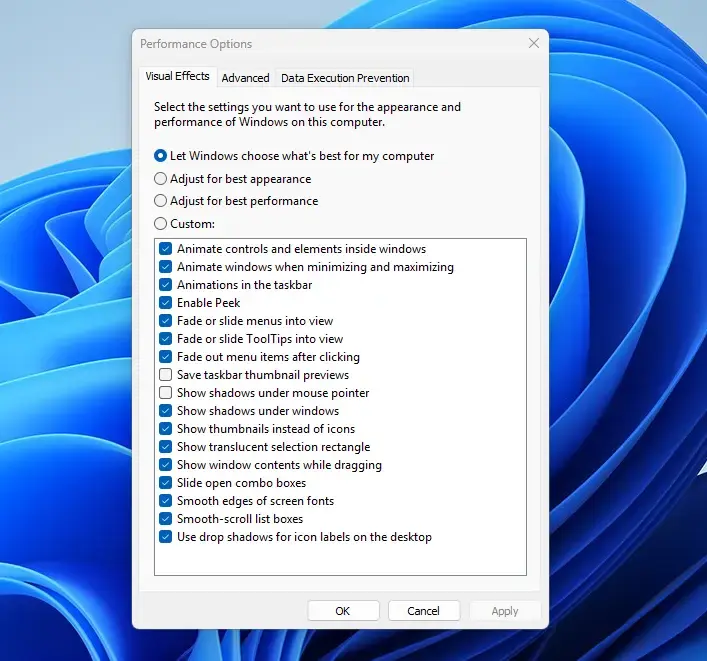
Sliding windows and animated effects add visual noise and can tire your eyes. You can turn them off in Settings›Accessibility›Visual effects by switching off Animation effects. The change applies immediately. Switch it back on if you miss the animations.
Troubleshooting Missing Notification Badges
If taskbar badges or Notification Center alerts stop showing up, the cause is usually a switch that was turned off, often after a system update. Work through these checks in order.
Open the Windows Settings app.
Go to System›Notifications.
Make sure the main Notifications switch is on. Scroll down and check that the app you care about is also on.
Check that Do Not Disturb is off, because it hides pop-ups on purpose. Also check that no Focus session is running.
Open Settings›Personalization›Taskbar›Taskbar behaviors and confirm the badge option is ticked.
Restart your🔄 computer to refresh the Windows interface and clear temporary glitches.
After the restart, send yourself a test message in the app and see whether the badge appears.
Summary
Managing badges and setting up priority access in Focus mode gives you back control of your time. Hide the pop-ups you do not need, turn off the badges that add stress, and let the few important alerts through. The result is a quiet workspace where you can finish tasks with less stress.
Frequently asked questions
How to allow all notifications in focus mode?
Open Settings›System›Focus. Choose your Focus profile, then go to Notifications. Toggle on "Allow notifications from everyone" or add specific people and apps to your priority list so their alerts reach you even while Focus is active.
How to set app notification priority?
Go to Settings›System›Notifications›Advanced. Check "Priority notifications" to let important contacts and apps break through Focus mode. You can also add people and apps directly in your Focus mode settings under the Notifications tab.
How to manage notifications on 🪟 Windows 11?
Open Settings›System›Notifications. Turn notifications on or off per app, choose notification styles, and adjust priority settings. Use Focus mode to silence all notifications at once, and add exceptions for people and apps you want to hear from always.
How to stop focus from silencing notifications?
Open Settings›System›Focus and select your active Focus profile. Go to Notifications and disable the toggle next to "Mute notifications" or add specific apps and contacts to your priority list so they bypass the silence.
Still have a question?
Answered by AI from this guide. Good questions may be added to this page — please don't include personal details.
📬 Get new Windows tips in your inbox
One email when we publish something worth your time. We send a link to confirm. No spam, unsubscribe anytime.
Richard is a writer at Geek Rewind who turns complex IT tasks into clear, step-by-step guides. He draws on years of hands-on experience in system administration and enterprise IT operations, focusing on Windows, Linux and WordPress: the problems people actually run into, and the fixes that work.
His server and WordPress guides come from systems he runs himself. Richard builds and maintains the platform behind Geek Rewind, from its Ubuntu servers and Nginx configuration to its custom WordPress plugins.
Many new tutorials start with readers' questions, and he's always glad to answer them in the comments.





No comments yet — be the first to share your thoughts!