How to Set Priority Notifications for Do Not Disturb in Windows 11

Priority notifications in Windows 11 let specific apps and contacts break through Do Not Disturb, a system setting that silences banners and alert sounds across your screen. That way you don’t miss urgent messages. You choose the exceptions in the Settings app, so calendar reminders and family chats stay visible while random app alerts stay hidden. The feature works the same on Windows 11 Home and Pro. It needs version 22H2 or later, so if you can’t find the options below, run Windows Update first.
Open Settings , go to System Notifications, and click Set priority notifications. Check Show incoming calls and Show reminders to let those through Do Not Disturb, or click Add apps to pick specific apps that can interrupt you. Changes save immediately without restart.
What Are Notifications?
Notifications are the pop-up messages that apps, the system, or other programs send you. They alert you to new messages, reminders, or calls, and they usually appear as a banner in the corner of the screen with a short sound. Each notification is also stored in the Notification Center until you clear it.
What’s New in 🪟 Windows 11?
It cuts down on distractions by letting only the alerts you approve appear. Everything else is held back quietly instead of being thrown away. Missed an alert while the feature was active? Press Win+N to open the Notification Center and review everything you missed.
Why Set Priority Notifications?
Setting priority notifications lets you choose which apps or contacts break through while Do Not Disturb is active. This prevents missed calls or reminders without turning Do Not Disturb off. You set it up once and Windows applies it every time Do Not Disturb is on, whether you turned it on by hand or by a schedule.
Critical items like alarms always come through, no matter what you set. You don’t need to add them to any list.
Example of Privacy Feature for Important Notifications
When you are running a full-screen app, such as a game, a video, or a presentation, a priority notification shows a View Notification button instead of its content. The message stays private until you choose to see it, so nothing sensitive pops up in front of an audience. If you never see this button, check your version in Settings under System About
How to Set Priority Notifications
Option 1Allow Calls and Reminders
- Press Win + I to open Settings. The Settings window appears with the category list on the left.
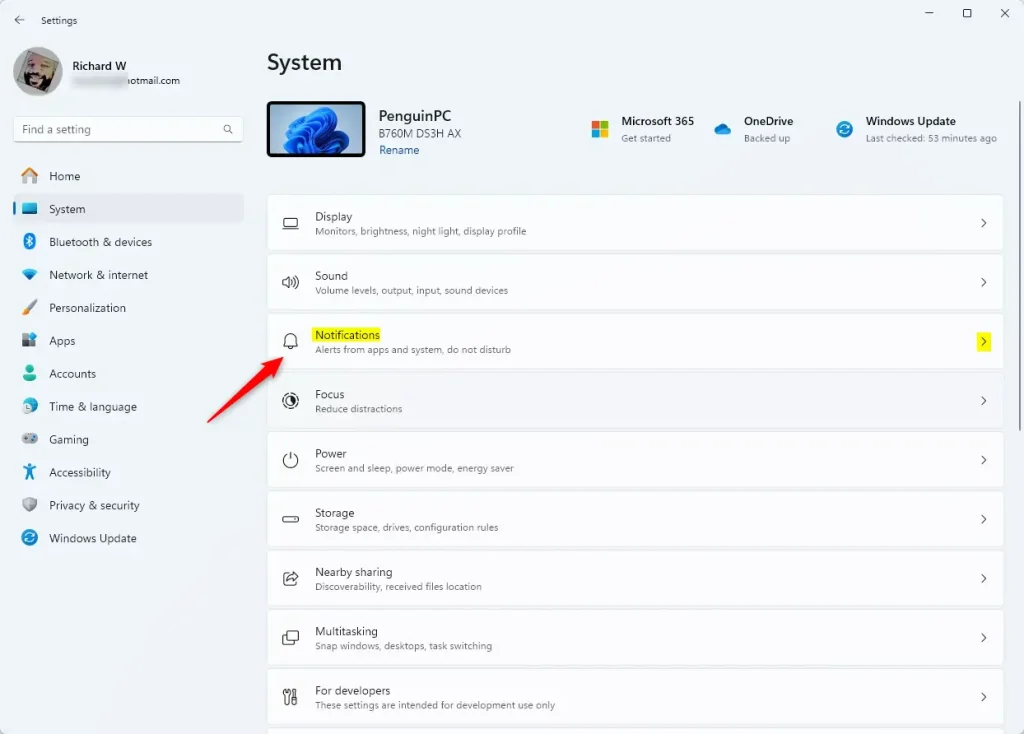
- Click System on the left, then select Notifications on the right. You should see the notification switches, including the Do Not Disturb toggle. Open Notifications Settings
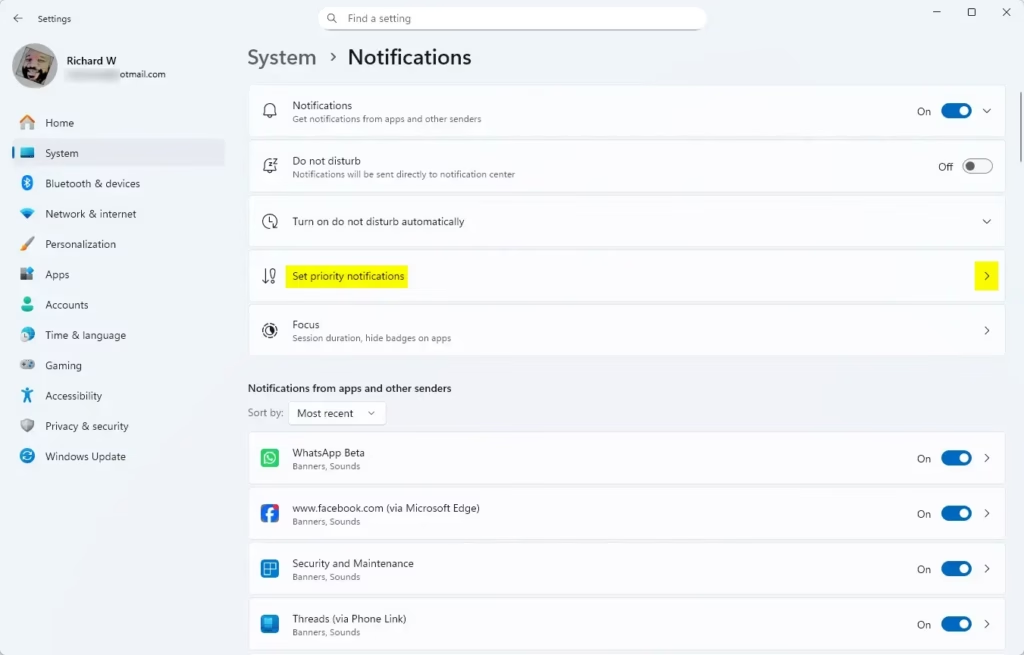
- Click Set priority notifications. A page opens with sections for calls, reminders, and apps. If you don't see this button, your Windows 11 is probably older than 22H2, so update it first.
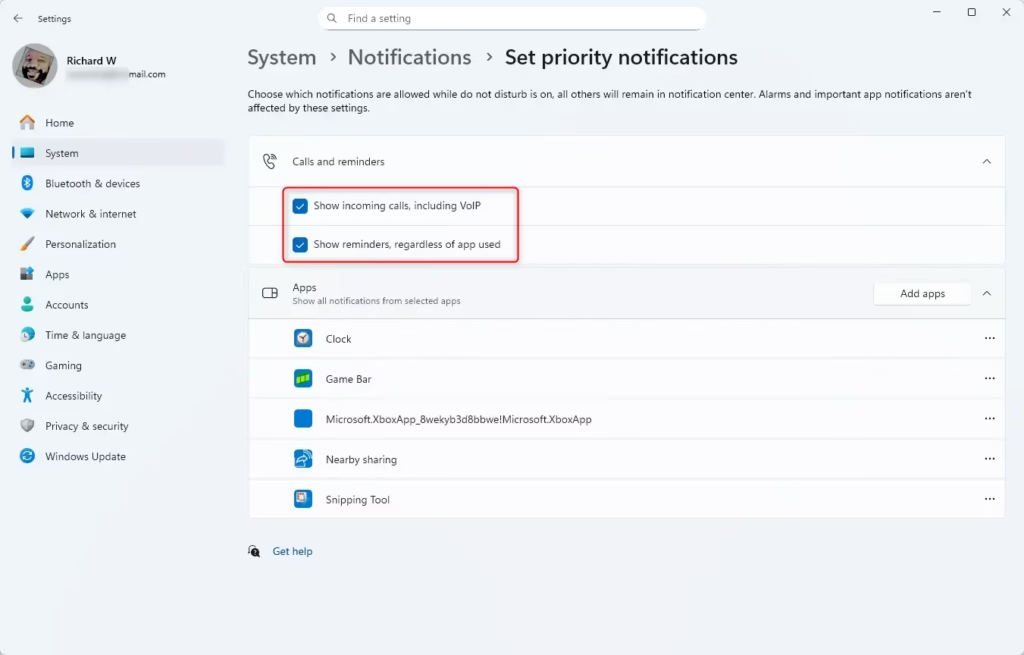
- Under Calls and reminders, check or uncheck these options. A checked box means that type of alert is allowed through Do Not Disturb:
- Show incoming calls, including VoIP: lets phone and internet calls through.
- Show reminders, regardless of app used: lets reminders through no matter which app created them.
- Close Settings when done. Changes save as soon as you tick or untick a box, and you don't need to restart. To undo a choice, come back to the same page and flip the box.
Option 2Add Apps to Priority Notifications
- Press Win + I to open Settings. Then go to System Notifications. (Open Notifications Settings)
- Click Set priority notifications. The priority page opens.
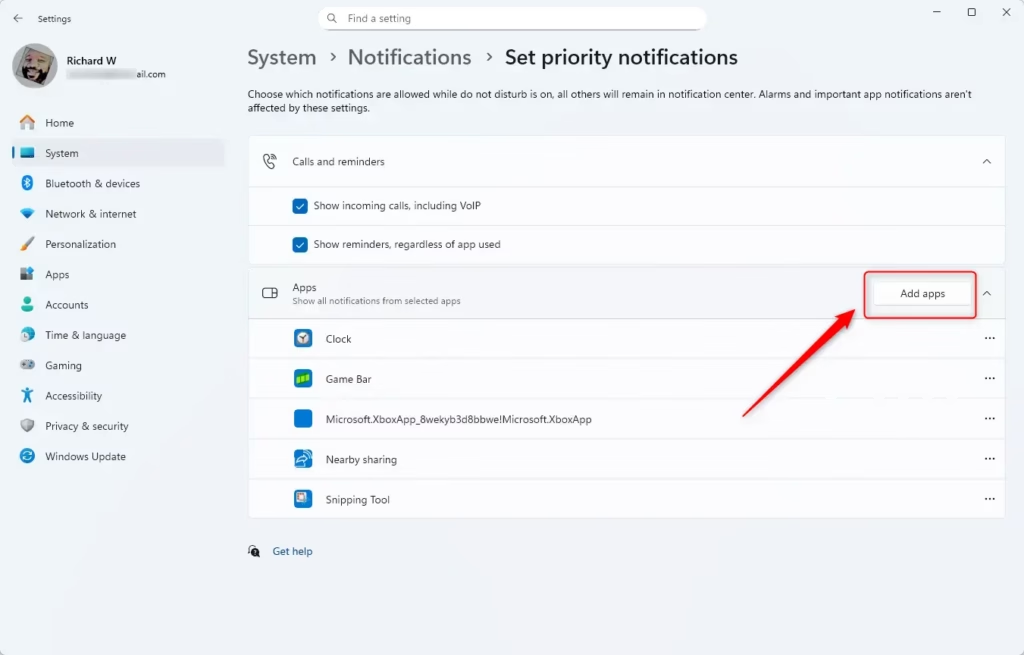
- Under Apps, click the Add apps button. A list of the apps installed on your PC appears.
- Select the app or apps you want to allow to send notifications during Do Not Disturb. Pick only the ones you really need, such as your calendar or a chat app. Every app you add can interrupt you.
- Close Settings when finished. The apps you chose now show under Apps on the priority page. No restart is needed.
Option 3Remove Apps from Priority Notifications
- Press Win + I to open Settings. Then go to System Notifications. (Open Notifications Settings)
- Click Set priority notifications.
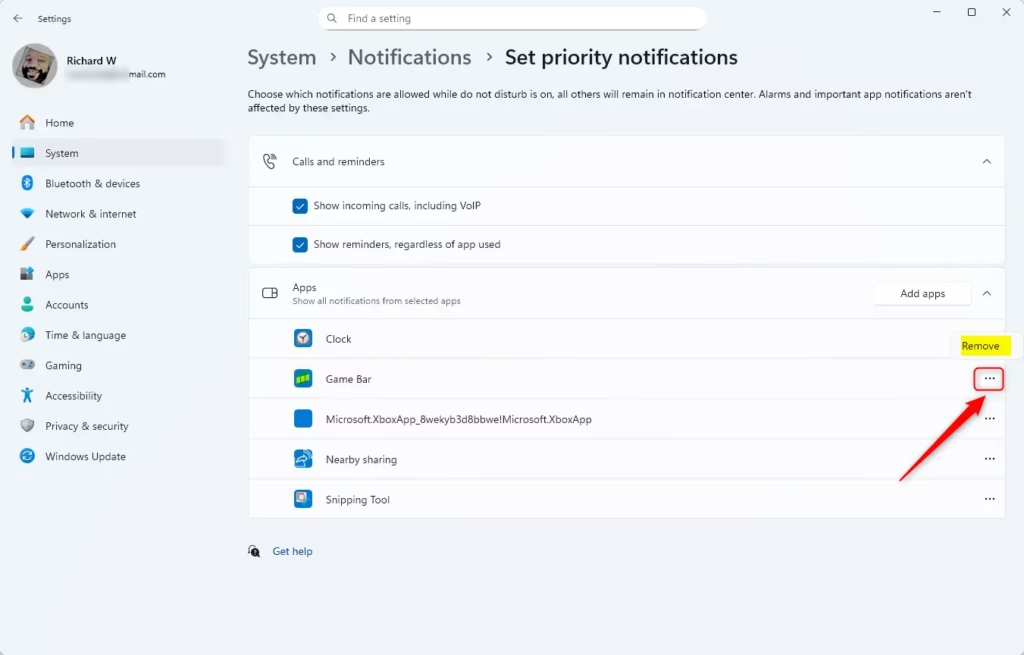
- Under Apps, find the app you want to remove. It will be in the list you built earlier.
- Click the three dots (More options) next to the app and select Remove. The app disappears from the list and is silenced again whenever Do Not Disturb is on.
- Close Settings when done. If you remove an app by mistake, use Add apps to put it back.
Summary
The priority notification settings in Windows 11 let you choose which apps and contacts can break through when Do Not Disturb is turned on. This way you don't miss important calls or messages from family, friends, or work, while everyday distractions stay blocked and you can stay focused on your tasks.
- Better Focus: Limit interruptions while working or relaxing.
- Custom Rules: Automatically turn on Do Not Disturb based on your schedule, so your priority list applies without any manual switching.
- Choose What's Important: Let calls, reminders, and the apps you pick get through.
- Privacy: Important notifications show a View Notification button in full-screen mode, so their content stays hidden until you open it.
- Easy to Manage: Add or remove apps anytime in Settings, with no restart.
Following these steps tailors notifications to your daily routine and keeps you focused without missing what matters. If you find the list too noisy after a few days, remove the least important app and test again.
Learn More
Windows 11 lets you set priority notifications for Do Not Disturb mode, giving you control over which app alerts get through. Microsoft also publishes documentation titled "App notification content - Windows apps". It explains how specific apps show alerts and how to manage them during Do Not Disturb periods.
Was this guide helpful?

About the Author
Richard
Tech Writer, IT Professional
Richard is a writer at Geek Rewind who turns complex IT tasks into clear, step-by-step guides. He draws on years of hands-on experience in system administration and enterprise IT operations, focusing on Windows, Linux and WordPress: the problems people actually run into, and the fixes that work. His server and WordPress guides come from systems he runs himself. Richard builds and maintains the platform behind Geek Rewind, from its Ubuntu servers and Nginx configuration to its custom WordPress plugins. Many new tutorials start with readers' questions, and he's always glad to answer them in the comments.

[…] How to Set Priority Notifications for Do Not Disturb in Windows 11 How to Enable or Disable Clipboard History in Windows 11 […]