How to Turn On or off the Notification Center in Windows 11

The Notification Center in Windows 11 is a side panel that collects your app alerts, emails and calendar items in one place on the right side of the screen. To open it at any time, press Win+N or click the date and time on the taskbar.
Turning off the Notification Center stops pop-up alerts from interrupting you while you work or play. You can switch it on or off with a few changes in Windows settings . This guide covers two ways to do it, and each one can be undone.
Open Settings System Notifications & actions and toggle Notifications off to disable the Notification Center. To enable it again, toggle Notifications back on. The change takes effect immediately without restarting.
What is the Notification Center?
The Notification Center is where Windows keeps alerts, app messages and calendar reminders until you read them. If you miss a pop-up, the message is still waiting there.
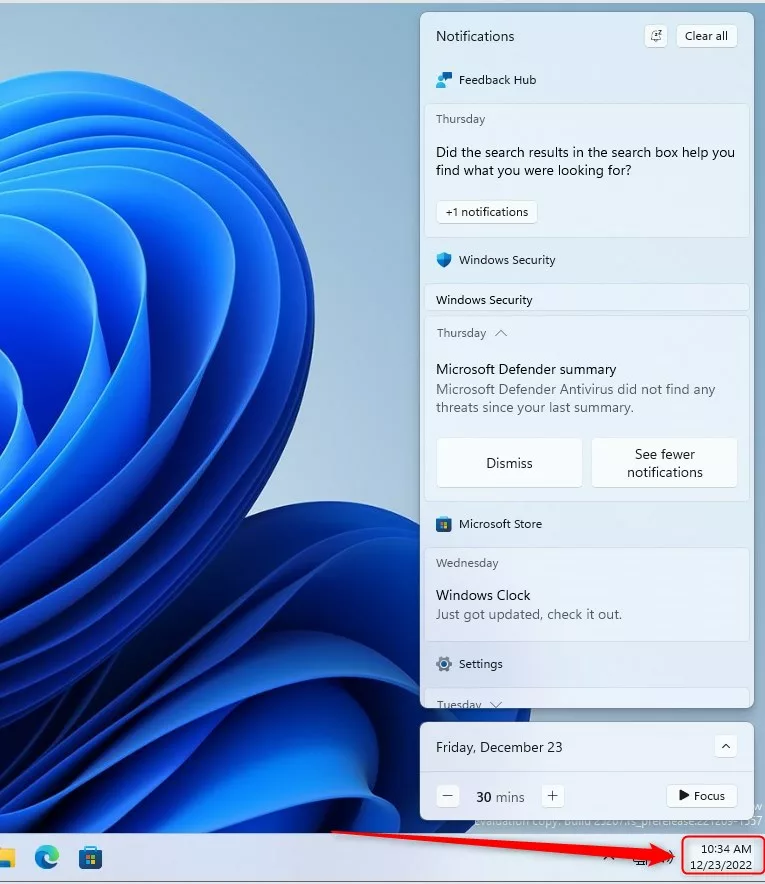
You can open it in any of these ways:
- Click the clock area at the bottom right of the taskbar .
- Press Win+N on your keyboard.
- Swipe in from the right edge of the screen if you have a touchscreen.
If you only want some quiet time, that mode is easier than the policy changes below, because you can switch it back with one click.
How to Turn Off or Turn On the Notification Center
To hide or show the Notification Center, you can use the Local Group Policy Editor or the Windows Registry Editor. Use the Group Policy method if your edition has it. It is safer because you pick a named setting from a list and don’t edit registry values by hand.
Whichever method you use, sign in with an administrator account. Windows may ask you to confirm with a User Account Control prompt.
Method 1Using Local Group Policy Editor (Easy if available)
The Local Group Policy Editor is only included in Windows 11 Pro, Enterprise and Education. Windows 11 Home does not have it, so skip to Method 2 if you are on Home. This method changes one policy setting in the Start Menu and Taskbar section.
- Click the Start button and type Edit group policy in the search box.
- Click Edit group policy in the search results. The Local Group Policy Editor window opens.
- On the left side, expand User Configuration, then Administrative Templates, then click Start Menu and Taskbar. The list of policies for that folder appears on the right.
- Find the policy named Remove Notifications and Action Center and double-click it. A settings window opens.
- Choose the option you want:
- Enabled = turn off the Notification Center.
- Not Configured or Disabled = turn on the Notification Center (the Windows default).
- Click Apply, then click OK.
- Restart your computer so the change takes effect.
To undo the change, open the same policy again, set it to Not Configured, and restart. If the panel still opens after a restart, check that you edited the policy under User Configuration. How completely the policy hides the panel can differ between Windows 11 builds, so test it after the restart.
Method 2: Using Windows Registry Editor (If Group Policy Editor is not available)
This method creates a DWORD value named DisableNotificationCenter inside the Explorer policy key. A wrong change in the registry can cause problems, so back it up first. In the Registry Editor, click File and then Export, and save a copy somewhere safe.
- Press Windows key + R, type
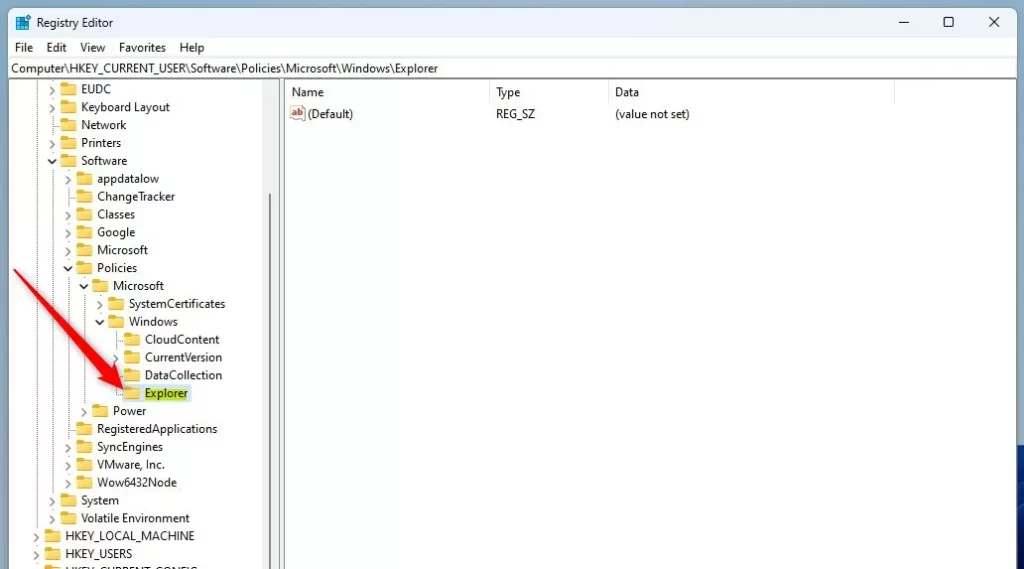
regedit, and press Enter. Click Yes if Windows asks for permission. The Registry Editor opens. - In the left pane, go to this key:Registry
HKEY_CURRENT_USER\Software\Policies\Microsoft\Windows\Explorer
- If you don't see an Explorer key, right-click Windows, select New Key, and name it Explorer.
- Select the Explorer key, right-click an empty area in the right pane, choose New DWORD (32-bit) Value, and name it DisableNotificationCenter.
- Double-click DisableNotificationCenter and set its Value data:
- 1 = Turn off Notification Center
- 0 = Turn on Notification Center
- Click OK.
- Repeat the same steps for this path:Registry
HKEY_LOCAL_MACHINE\SOFTWARE\Policies\Microsoft\Windows\Explorer
- Close the Registry Editor and restart your computer to apply the changes.
To undo the change, set the value back to 0 in both locations, or right-click DisableNotificationCenter and choose Delete. Then restart.
Summary
- The Notification Center shows all your alerts in one place.
- You can turn it on or off with the Local Group Policy Editor (Pro, Enterprise and Education) or the Registry Editor (all editions, including Home).
- Follow the steps carefully, back up the registry before editing it, and restart your computer for the change to work.
- To reverse either method, set the policy to Not Configured or the registry value to 0, then restart.
Managing the Notification Center gives you control over how alerts appear on your desktop. Pick the method that matches your edition of Windows and the way you like to work.
Have a question about this guide?
Answered by AI from this guide. Good questions may be added to this page — please don't include personal details.
Did this guide fix your problem?

About the Author
Richard
Tech Writer, IT Professional
Richard is a writer at Geek Rewind who turns complex IT tasks into clear, step-by-step guides. He draws on years of hands-on experience in system administration and enterprise IT operations, focusing on Windows, Linux and WordPress: the problems people actually run into, and the fixes that work. His server and WordPress guides come from systems he runs himself. Richard builds and maintains the platform behind Geek Rewind, from its Ubuntu servers and Nginx configuration to its custom WordPress plugins. Many new tutorials start with readers' questions, and he's always glad to answer them in the comments.
No comments yet — be the first to share your thoughts!