How to Show or Hide Accent Color on Start Menu and Taskbar in Windows 11

The accent color on Start and the taskbar paints those two areas with your chosen highlight color instead of leaving them dark or light gray. An accent color is the highlight tone Windows uses for buttons, icons, selected items, and menus. This guide covers the Settings method first, then a Registry method for advanced users.
This only works when Windows mode is set to Dark, or to Custom with the Windows mode set to Dark. In Light mode, Windows hides the accent color on Start and the taskbar , and the toggle is greyed out. The steps below work on all editions of Windows 11, Home and Pro.
Open Settings Personalization Colors, ensure Choose your mode is set to Dark or Custom with Dark selected, then toggle on Show accent color on Start and taskbar. The accent color immediately colors your taskbar and Start menu .
How to Turn Accent Color On or Off
- Press Win+I to open Settings .
- Click Personalization in the left menu. The personalization options appear on the right.
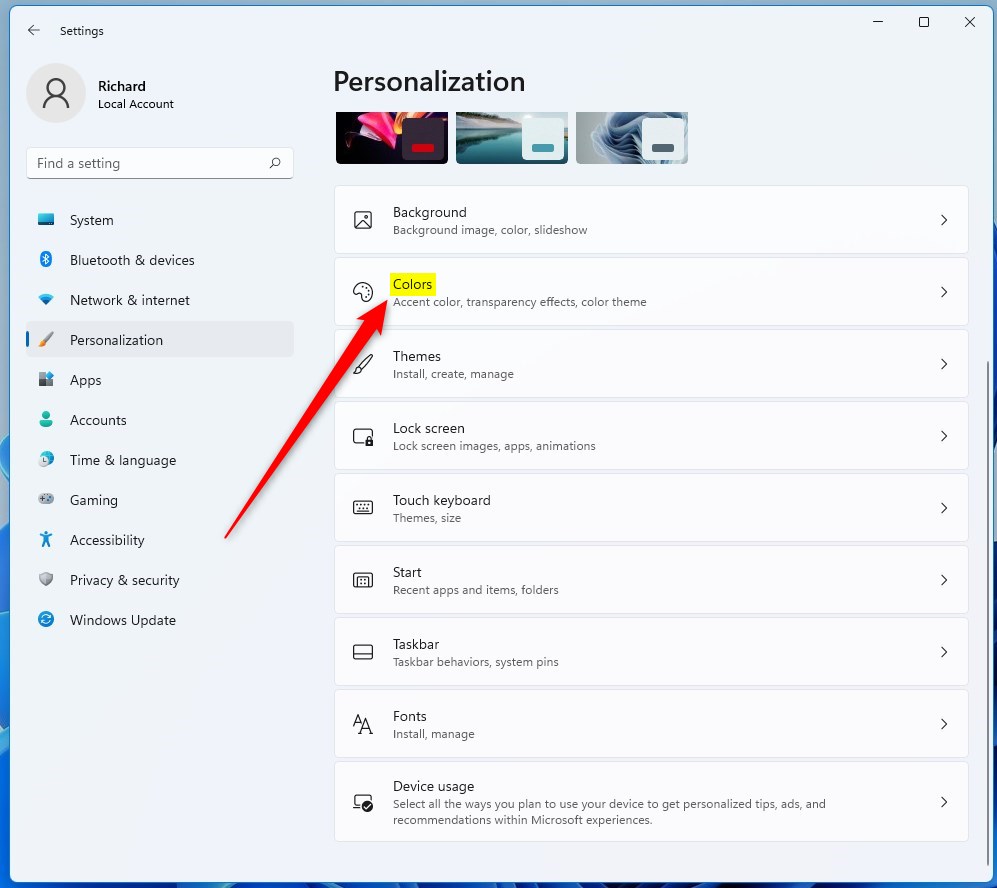
- Click Colors. You should see the Choose your mode setting at the top, followed by Transparency effects and Accent color.
- Check Choose your mode. If it says Light, change it to Dark. If you use Custom, make sure the Windows mode inside it is set to Dark.
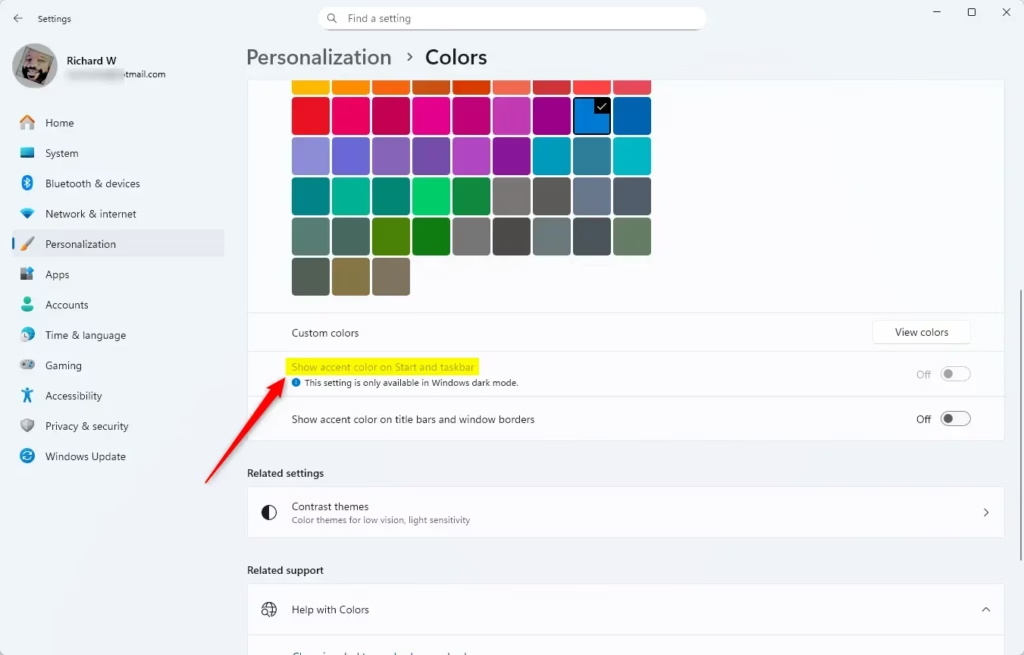
- Scroll down to Show accent color on Start and taskbar. If it was greyed out, it should now be clickable.
- Turn the toggle On to color Start and the taskbar , or Off to go back to the plain look.
The change applies immediately, with no restart or sign-out. The taskbar and the Start menu should switch to your accent color right away. If the color is not the one you want, pick another under Accent color on the same page. You can choose Automatic, which takes a color from your wallpaper, or Manual, where you pick a swatch yourself.
To undo the change, return to the same page and flip the toggle back. Nothing else is altered by this setting.
Switch to Dark, or to Custom with the Windows mode set to Dark, and the toggle becomes available again.
How to Change Accent Color Using the Registry (Advanced)
This is useful if you want to script the change or apply it consistently on several machines. The setting is stored per user, so it affects only the account you run it under.
Warning: The Registry Editor is a database that stores low-level system settings. Back up your registry before changing any values, since mistakes can cause system instability. To make a backup, open Registry Editor, choose File Export, select All as the export range, and save the file somewhere safe. Creating a restore point first is also a good idea.
- Right-click the Start button and choose Terminal (Admin).
- Click Yes if the User Account Control prompt appears. A Windows Terminal window opens with administrator rights.
- Run the command below that matches what you want: one shows the accent color on Start and the taskbar, and the other hides it. %%FLAG_ADMIN%%
- Check Start and the taskbar. If nothing changes, sign out and back in, or restart the PC, so Windows reloads the setting.
To undo the change, run the opposite command. The Dark or Custom mode requirement from the Settings method still applies. If the mode is Light, the value is saved but you will not see the color.
Turn On Accent Color on Start Menu and Taskbar
reg add "HKEY_CURRENT_USER\Software\Microsoft\Windows\CurrentVersion\Themes\Personalize" /v ColorPrevalence /t REG_DWORD /d 1 /fTurn On Accent Color Only on Taskbar (Not Start Menu)
reg add "HKEY_CURRENT_USER\Software\Microsoft\Windows\CurrentVersion\Themes\Personalize" /v ColorPrevalence /t REG_DWORD /d 2 /fTurn Off Accent Color (Default Setting)
reg add "HKEY_CURRENT_USER\Software\Microsoft\Windows\CurrentVersion\Themes\Personalize" /v ColorPrevalence /t REG_DWORD /d 0 /fSummary
Windows 11 accent color settings let you customize the look of your desktop interface by applying your favorite hue to the taskbar and Start menu. These color choices only appear when your system is set to Dark or Custom mode, giving you a sharp contrast against standard light backgrounds. You can control these visual tweaks easily through the built-in Settings app or the advanced Registry Editor.- Windows 11 has three color modes: Dark, Light, and Custom.
- Accent color works on the Start menu and taskbar only with Dark or Custom mode.
- You can change this setting easily in Settings.
- Advanced users can also use the Registry Editor to make changes.
- Try different colors and modes to make your PC look the way you want.
Was this guide helpful?

About the Author
Richard
Tech Writer, IT Professional
Richard is a writer at Geek Rewind who turns complex IT tasks into clear, step-by-step guides. He draws on years of hands-on experience in system administration and enterprise IT operations, focusing on Windows, Linux and WordPress: the problems people actually run into, and the fixes that work. His server and WordPress guides come from systems he runs himself. Richard builds and maintains the platform behind Geek Rewind, from its Ubuntu servers and Nginx configuration to its custom WordPress plugins. Many new tutorials start with readers' questions, and he's always glad to answer them in the comments.
No comments yet — be the first to share your thoughts!