Windows 11 Personalization: Make Your PC Look and Feel Right

- 18 steps
- Needs administrator rights
- Group Policy needs Windows 11 Pro, Enterprise or Education
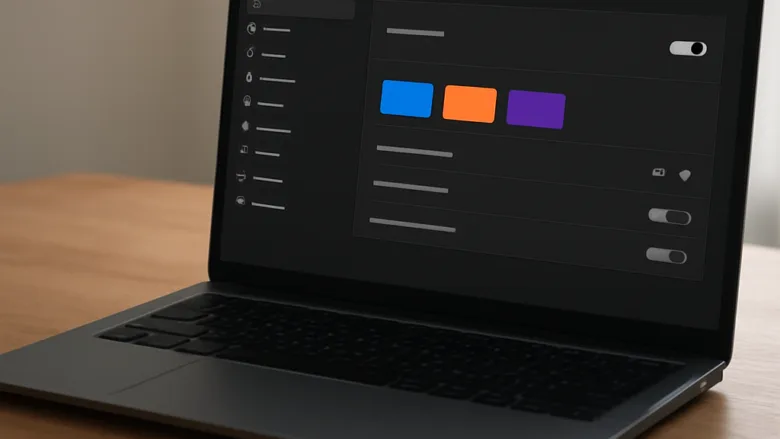
Windows 11 personalization is the built-in collection of design tools in the Settings app. It lets you change your desktop background, taskbar layout, color scheme, and system sounds. These visual settings help you make the PC match your preferences, and a darker theme can reduce eye strain in dim rooms.
The Personalization page holds hundreds of design options. You can swap themes, set a custom picture, and pick an accent color in a few clicks. To get there, open Settings Personalization. You can also right-click an empty spot on the desktop and select Personalize.
Windows 11 personalization is the set of design options in the Settings app that control your desktop background, colors, themes, taskbar, and Start menu. To open it, go to Settings Personalization, or right-click an empty spot on the desktop and select Personalize. Most changes apply as soon as you pick them.
Change Colors, Themes, and Dark Mode
These guides show you how to switch between light and dark themes and adjust accent colors to fit your style. Most of these changes apply the moment you pick them, so you can try an option and change it back if you don’t like it.
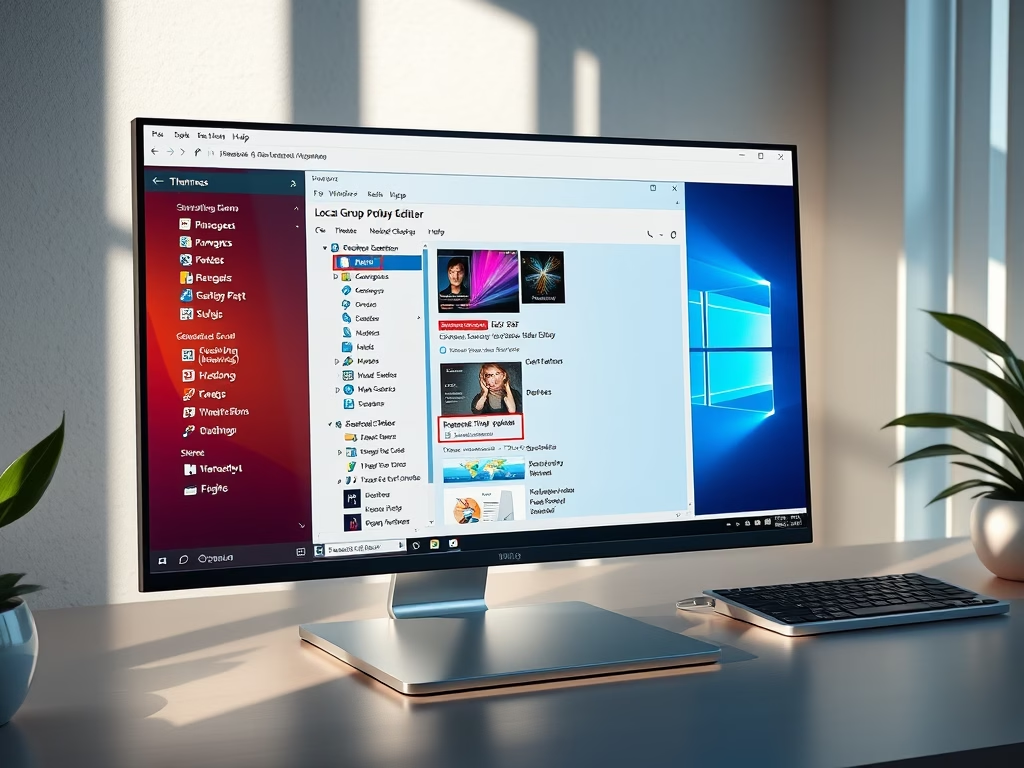
On a shared or managed PC, this is usually done with Group Policy, which is available in Windows 11 Pro, Enterprise, and Education. Windows 11 Home does not include the Local Group Policy Editor, so Home users have fewer options.
Customize Your Taskbar and Start Menu
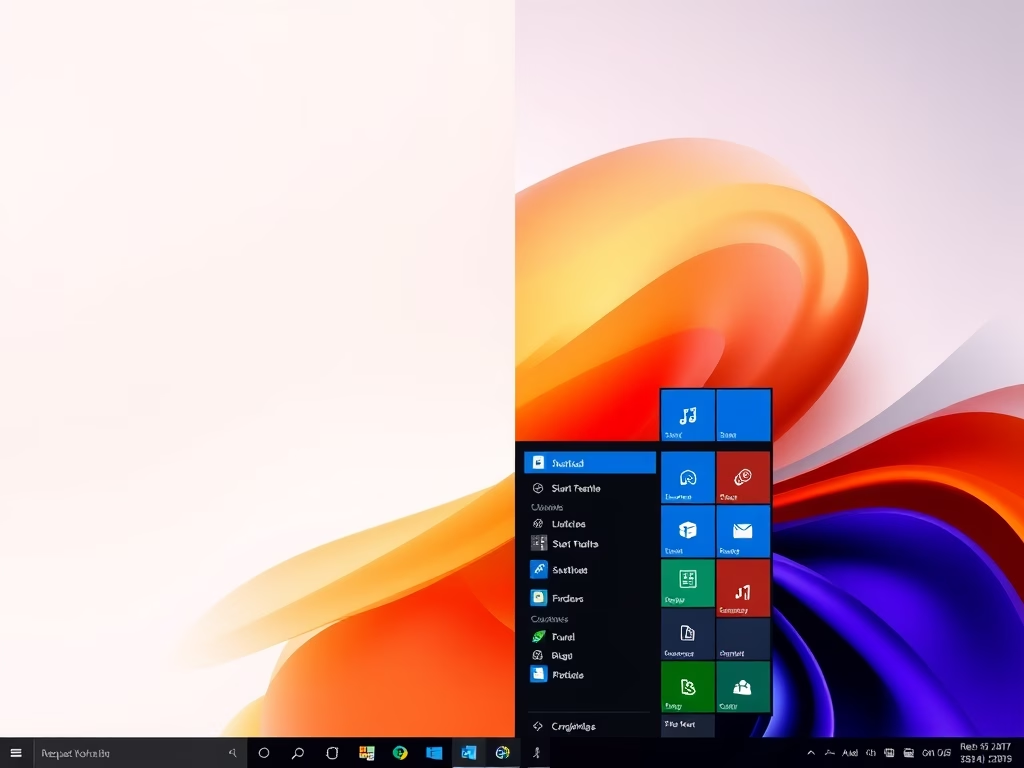
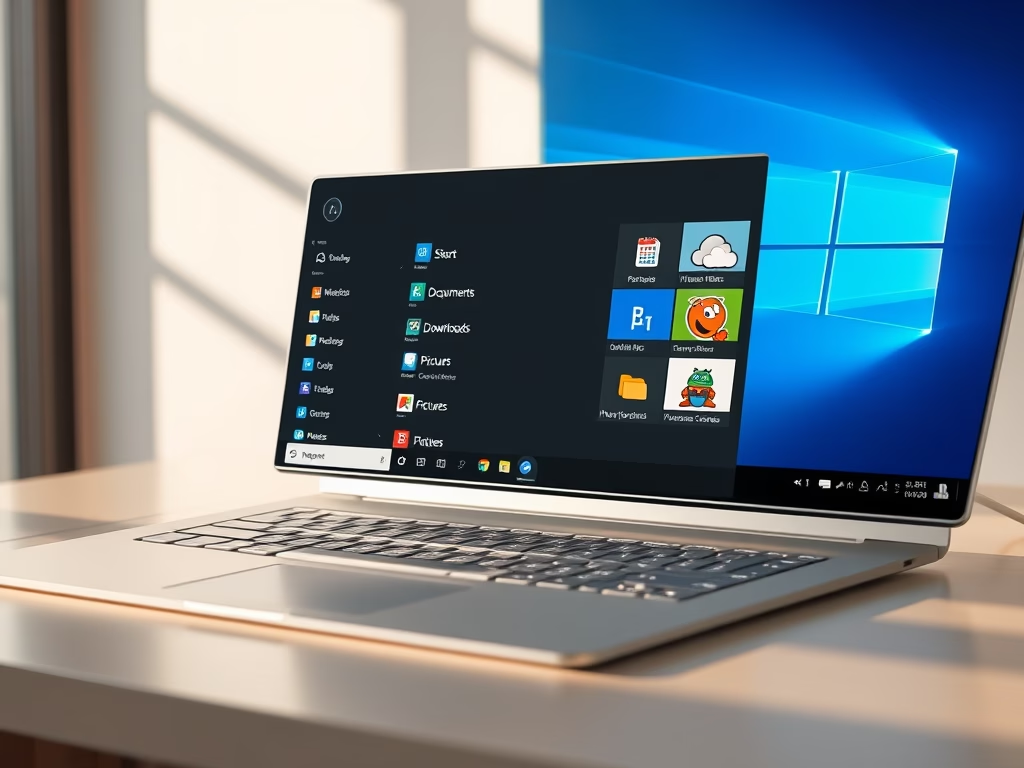
These steps help you rearrange the taskbar, hide it when you are not using it, and organize the Start menu folders. Most taskbar options are under Settings Personalization Taskbar. The folders that appear next to the power button on Start are under Settings Personalization Start Folders. A clean workspace stays out of the way while you work, and you can reverse any of these changes the same way you made them.
Adjust Text Size, Language, and Visuals
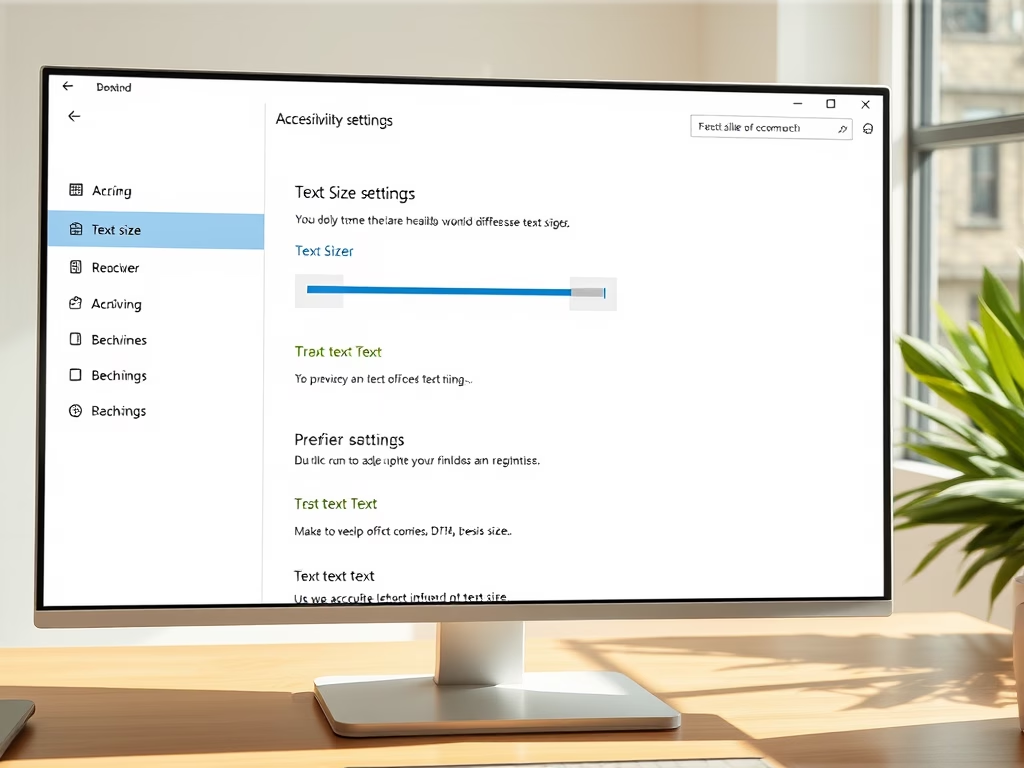
These guides help you make text easier to read, change your system language, and tweak your mouse pointer. Most of these settings are under Settings Accessibility, Settings Time & language, and Settings Bluetooth & devices Mouse. These adjustments keep your screen comfortable to look at and match it to the language you work in. Adding a display language may require a download, so keep the PC online while you do it.
Fix Performance and Display Settings
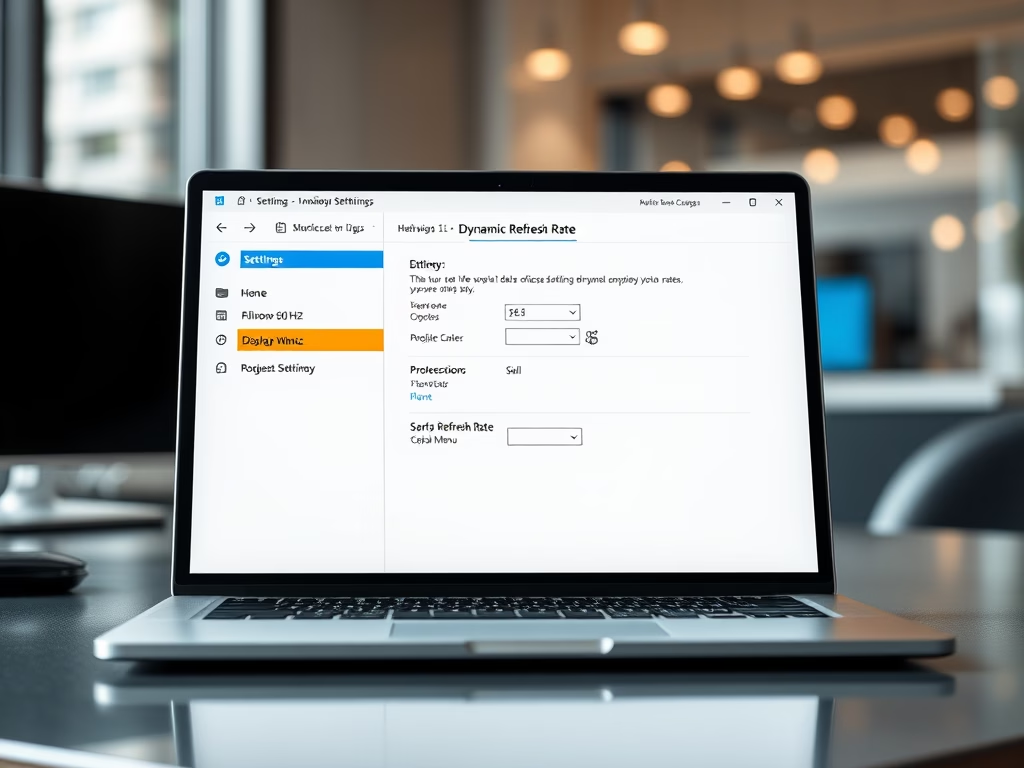
These guides cover more advanced display adjustments, like lowering your refresh rate to save battery and managing the right-click menus. A lower refresh rate reduces power draw on a laptop, but motion looks a little less smooth. The option only appears if your display and graphics driver support more than one rate. Use these settings to keep your screen running smoothly and your menus free of clutter.
Common questions
How do I turn on dark mode in 🪟 Windows 11?
- Open Settings Personalization Colors. You will see the color options for Windows.
- Find the Choose your mode setting and open its drop-down list.
- Select Dark. Your apps and system menus switch to a dark color scheme right away.
To go back, choose Light from the same list. The list also has a Custom option, which lets you set Windows and apps separately. If the colors do not change in a particular app, it may have its own theme setting. Check that app’s options.
Can I move the 🪟 Windows 11 taskbar to the top or side of the screen?
You cannot move it to the top or the sides in Settings. Moving the entire taskbar requires third-party software (tools made by outside developers) or registry edits. Both carry some risk, so create a restore point first if you try either one.
What you can change is the icon alignment. To move the icons from the center to the left:
- Open Settings Personalization Taskbar.
- Expand the Taskbar behaviors section.
- Next to Taskbar alignment, choose Left. The icons and the Start button move to the left edge.
Choose Center from the same list to undo it.
How do I make text bigger in 🪟 Windows 11?
- Open Settings Accessibility.
- Click Text size. A preview box shows how your text will look.
- Drag the slider to the right to make text larger. The preview updates as you move it.
- Click Apply. Windows briefly shows a “Please wait” screen, and then text across the system is bigger.
This setting scales text in Windows and in most apps, but a few apps ignore it. If you need icons and buttons larger too, use the scale setting under Settings System Display instead. To undo the change, drag the slider back to its original position and click Apply again. No restart is needed.
Why is my taskbar not hiding automatically?
A background app often triggers a notification or update, which keeps the taskbar visible. A flashing or badged taskbar icon is the usual sign. Try these fixes in order:
- Look at the taskbar for any icon that is blinking or has a badge. Click it, deal with the alert, and see whether the taskbar hides.
- Open the notification center and clear any pending notifications.
- Open Settings Personalization Taskbar and expand Taskbar behaviors.
- Clear the Automatically hide the taskbar check box, then select it again to reset the setting.
If the taskbar still will not hide, restart Windows Explorer from Task Manager. Find Windows Explorer on the Processes tab, right-click it, and select Restart. The taskbar disappears for a moment and then comes back.
How do I change my desktop wallpaper in 🪟 Windows 11?
- Right-click any empty space on your desktop and select Personalize. The Personalization page opens in Settings.
- Click Background.
- Next to Personalize your background, open the drop-down list and choose Picture, Solid color, or Slideshow.
- For a picture, pick one from the recent images or click Browse photos to find your own file. For a solid color, pick a swatch. For a slideshow, choose the folder of pictures and how often they change.
The new background applies as soon as you choose it, and no restart is needed. If the option is greyed out, check that Windows is activated. Unactivated copies limit personalization.
Have a question about this guide?
Answered by AI from this guide. Good questions may be added to this page — please don't include personal details.
Did this guide fix your problem?

About the Author
Richard
Tech Writer, IT Professional
Richard is a writer at Geek Rewind who turns complex IT tasks into clear, step-by-step guides. He draws on years of hands-on experience in system administration and enterprise IT operations, focusing on Windows, Linux and WordPress: the problems people actually run into, and the fixes that work. His server and WordPress guides come from systems he runs himself. Richard builds and maintains the platform behind Geek Rewind, from its Ubuntu servers and Nginx configuration to its custom WordPress plugins. Many new tutorials start with readers' questions, and he's always glad to answer them in the comments.
No comments yet — be the first to share your thoughts!