How to Hide Windows 11 Taskbar Automatically

Automatic hiding in Windows 11 clears the bottom taskbar off your screen until you slide your mouse pointer to the edge. This built-in layout option gives you extra visible workspace for open apps and web pages without requiring any extra software.
You can turn on this display setting in under a minute through the standard Settings app on Windows 11 version 22H2 or later. It works the same on Home and Pro, and you don’t need a restart.
Open Settings Personalization Taskbar Taskbar behaviors and check the box next to Automatically hide the taskbar . The taskbar disappears when your mouse moves away and reappears when you move your cursor to the bottom of the screen.
Why Hide the Taskbar?
Hiding the Taskbar automatically frees up valuable screen space. You’ll see more of your desktop and your open windows without the bar taking up room at the bottom.
The gain is biggest on laptops and smaller monitors, where every row of pixels counts. It also helps on a wide screen if you like a clean desktop with only your wallpaper and open windows showing.
How to Automatically Hide the Taskbar
You can automatically hide taskbar items in Windows 11 by turning on a built-in switch in the Settings app. When you enable this feature, the taskbar vanishes whenever your mouse pointer moves away and reappears the moment you move your cursor back to the bottom of your screen.
The steps below take you through Settings one screen at a time.
- Open Settings. Click the Start menu (the Windows icon at the bottom left) and then click the Settings gear icon. Or, press
Windows key + Ion your keyboard to open Settings quickly. The Settings window opens with a list of categories on the left. - In Settings, click on Personalization on the left side menu. The personalization options (background, colors, themes and so on) appear on the right.
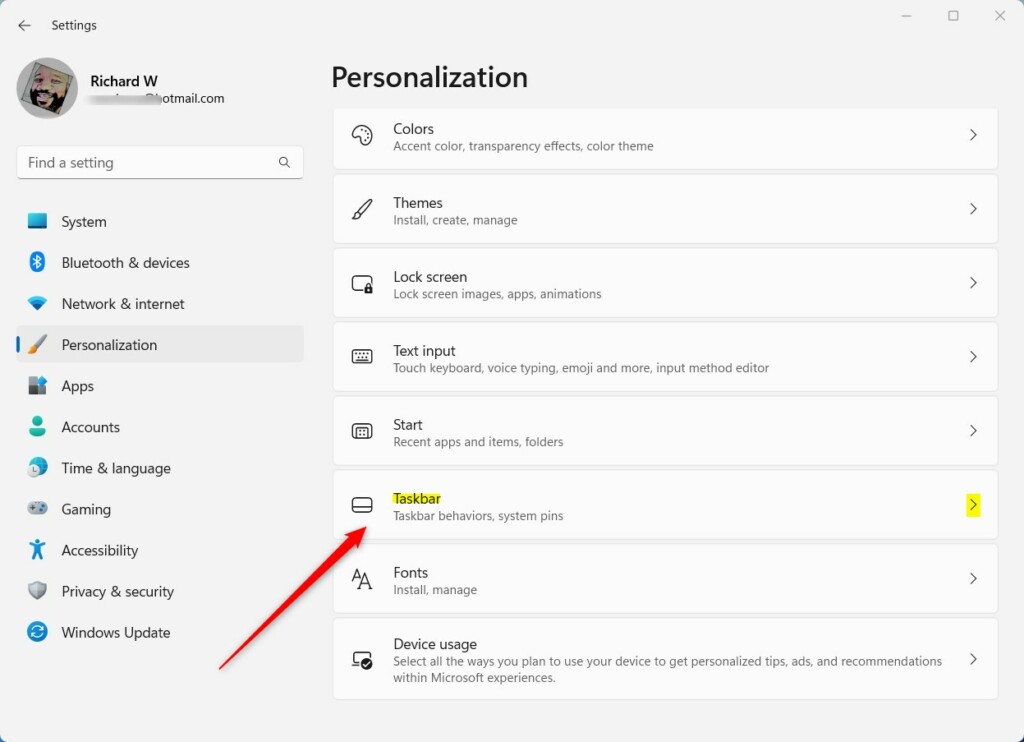
- Next, click on Taskbar on the right side. You may need to scroll down the list to find it. You'll now see the taskbar items and their on/off switches.
- Scroll down and click on Taskbar behaviors to open more options. This section is collapsed by default, so it expands into a list of checkboxes and drop-down menus when you click it.
- Check the box next to Automatically hide the taskbar. The change applies at once, and the taskbar slides out of view when you move the pointer away from it.
Here's what it looks like:
What Happens When You Turn This On?
After you turn this on, the Taskbar will disappear when you're not using it. To see the Taskbar again, just move your mouse cursor to the bottom of the screen, and it will pop back up.
A few things are worth knowing:
- The taskbar stays visible while the Start menu is open.
- If an app needs your attention, such as a flashing icon, the taskbar may pop up on its own.
- On a multi-monitor setup, move the pointer to the bottom edge of the screen that has the taskbar.
- To undo this, go back to Taskbar behaviors and clear the Automatically hide the taskbar checkbox.
Hide or Show the Taskbar Using Commands
This method requires administrative access and writes the setting to the registry, so the taskbar should start hiding when you are not actively using it.
If nothing changes right after you run a command, sign out and back in, or restart Windows Explorer from Task Manager. Registry-based taskbar settings sometimes need Explorer to reload before they show.
⚙️ Admin privileges required
The last step in this section shows how to open it.
To hide the Taskbar automatically, copy and paste this command:
powershell -command "&{$p='HKCU:\SOFTWARE\Microsoft\Windows\CurrentVersion\Explorer\StuckRects3';$v=(Get-ItemProperty -Path $p).Settings;$v[8]=3;&Set-ItemProperty -Path $p -Name Settings -Value $v;&Stop-Process -f -ProcessName explorer}"To stop hiding the Taskbar automatically, copy and paste this command:
powershell -command "&{$p= 'HKCU:\SOFTWARE\Microsoft\Windows\CurrentVersion\Explorer\StuckRects3' ;$v=(Get-ItemProperty -Path $p).Settings;$v[8]=2;&Set-ItemProperty -Path $p -Name Settings -Value $v;&Stop-Process -f -ProcessName explorer}"To open the Command Prompt inside Windows Terminal, press Windows key + X and choose Windows Terminal, then click the Command Prompt tab.
If you don't see a Command Prompt tab, click the small down arrow next to the plus sign at the top of the Terminal window and pick it from the list. Terminal often opens with PowerShell by default. For the admin requirement, choose the administrator version of Windows Terminal from that same menu, and approve the User Account Control prompt if it appears.
Summary
Automatically hiding the Taskbar is a simple trick that gives you more screen space, which is especially useful on smaller monitors. You can easily turn this feature on or off in the Settings app, or use the Command Prompt if you're comfortable with it. If you change your mind, clear the checkbox in Taskbar behaviors or run the second command to bring the taskbar back.
Have a question about this guide?
Answered by AI from this guide. Good questions may be added to this page — please don't include personal details.
Did this guide fix your problem?

About the Author
Richard
Tech Writer, IT Professional
Richard is a writer at Geek Rewind who turns complex IT tasks into clear, step-by-step guides. He draws on years of hands-on experience in system administration and enterprise IT operations, focusing on Windows, Linux and WordPress: the problems people actually run into, and the fixes that work. His server and WordPress guides come from systems he runs himself. Richard builds and maintains the platform behind Geek Rewind, from its Ubuntu servers and Nginx configuration to its custom WordPress plugins. Many new tutorials start with readers' questions, and he's always glad to answer them in the comments.
No comments yet — be the first to share your thoughts!