How to Turn On Mouse Pointer Shadow in Windows 11

Mouse pointer shadow in Windows 11 adds a dark drop shadow beneath your cursor so you can spot it quickly on bright backgrounds or busy screens. The option is not on the main Settings pages. It sits in the classic Mouse Properties dialog and in the Performance Options dialog, and both are older Windows windows.
Tracking your cursor on a large 4K monitor or a multi-display setup gets much easier with this setting on. Below are two ways to reach it. Both change the same setting, so use whichever is faster for you. Jump to a method with these links:
Enable the mouse pointer shadow in Windows 11 by opening Settings, navigating to Bluetooth & devices Mouse Additional mouse settings, and checking “Enable pointer shadow” on the Pointers tab. This makes the cursor easier to see, especially on large displays.
Steps to Turn On Mouse Pointer Shadow
This method starts in the Settings app. You go through Bluetooth & devices to your mouse options, then open the classic Mouse Properties window, where the shadow checkbox lives. It works the same on Windows 11 Home and Pro.
- Open Windows Settings . Press Windows key + I on your keyboard. Or click the Start button, then click Settings. The Settings window should open with the categories listed down the left side.

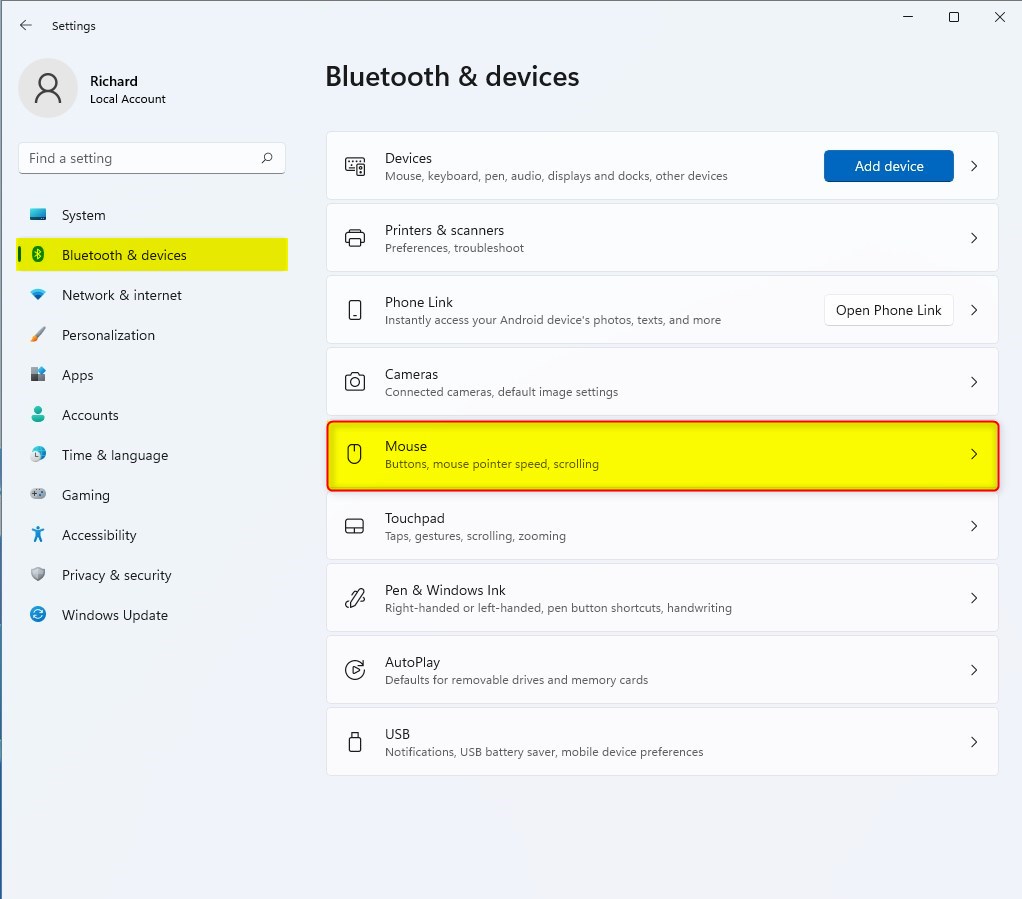
windows 11 start menu settings updated - Click Bluetooth & devices on the left side.
- Click Mouse on the right. You should now see your mouse options, such as the primary button, pointer speed and scrolling.
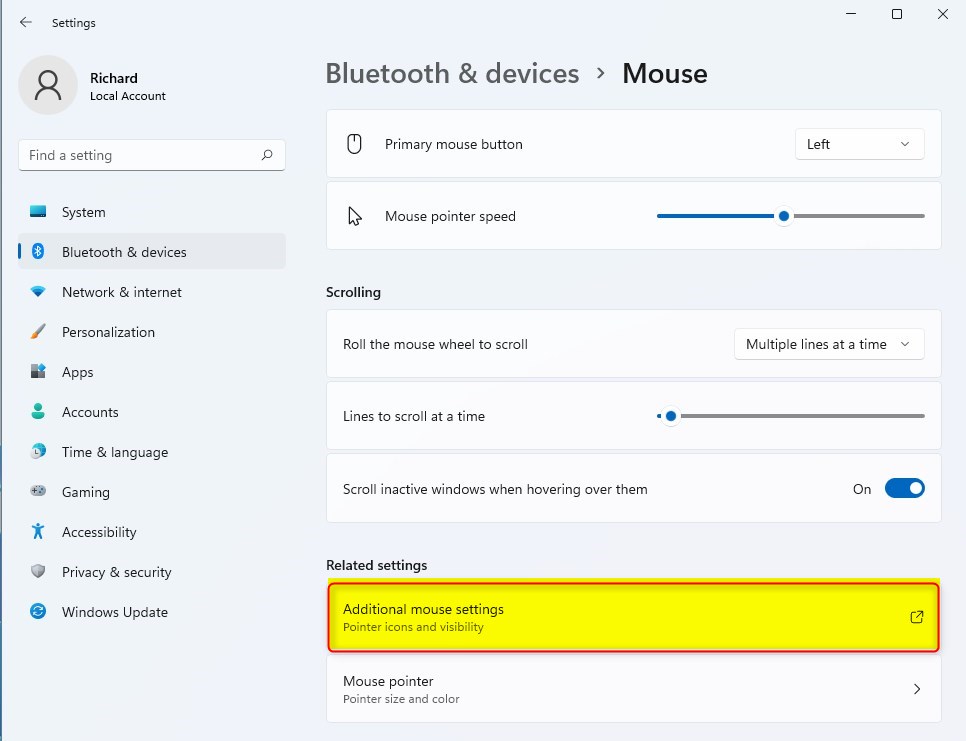
windows 11 mouse tile - Scroll down to the Related settings section and click Additional mouse settings. A separate window called Mouse Properties opens. It looks like older Windows because it is the classic Control Panel dialog.
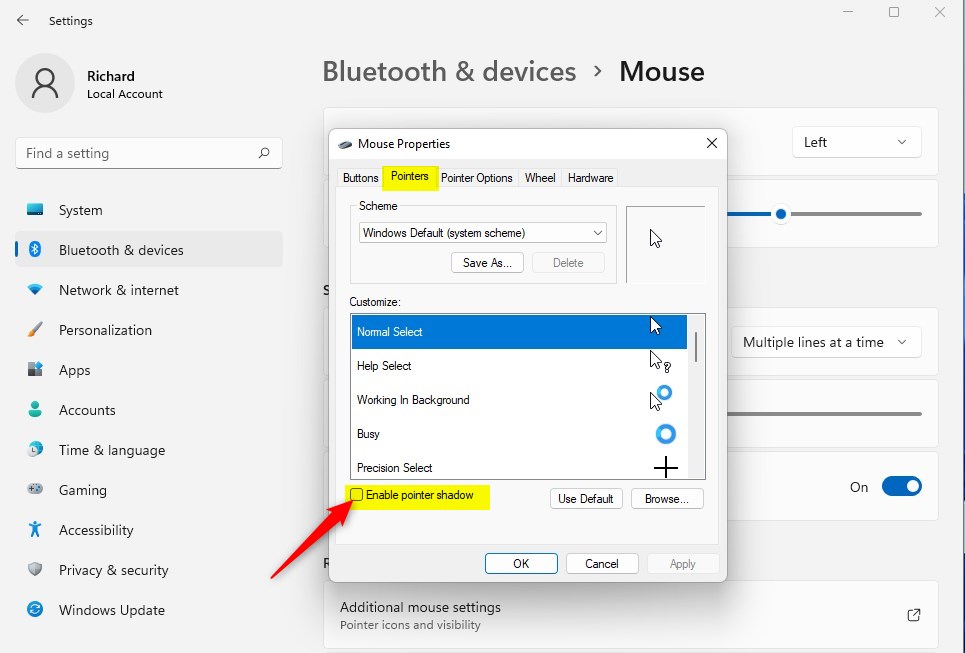
windows 11 mouse additional settings - In the Mouse Properties window, click the Pointers tab. You will see the pointer scheme list and a preview of each cursor.
- Check the box labeled Enable pointer shadow.
- Click OK to save and close the window. Move the mouse over a light window, such as a blank document or web page. You should see a soft shadow under the pointer.
windows 11 mouse pointer enable pointer shadow
The change applies right away and you do not need to restart. To undo it, come back to the same tab, clear the Enable pointer shadow box and click OK.
Alternative Way Using Run Command
The Run command is the fastest route, because it skips Settings entirely. It opens the Performance Options window straight on the Visual Effects tab, where the same shadow setting appears under a different name.
- Click Start, then search for and open Run. You can also press the Windows key + R. A small Run box opens.
- Type
SystemPropertiesPerformance.exein the Open field and press Enter. The Performance Options window should appear.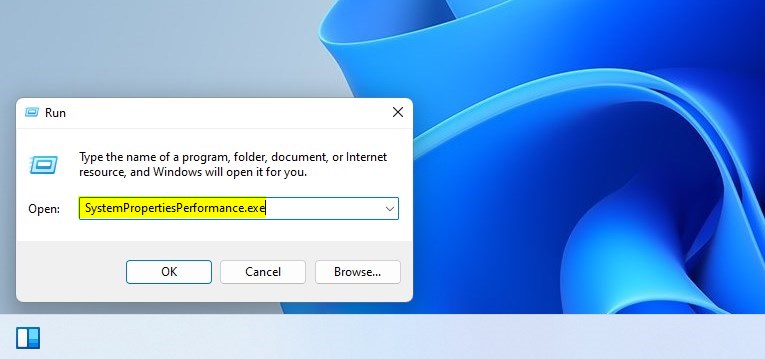
windows 11 run app system properties - Make sure you are on the Visual Effects tab. You will see a list of checkboxes for animations and effects.
- Find Show shadows under mouse pointer and check the box. If the option is set to Adjust for best performance, Windows switches to Custom once you tick the box. That is normal.
- Click OK to apply. The pointer should now have a shadow.
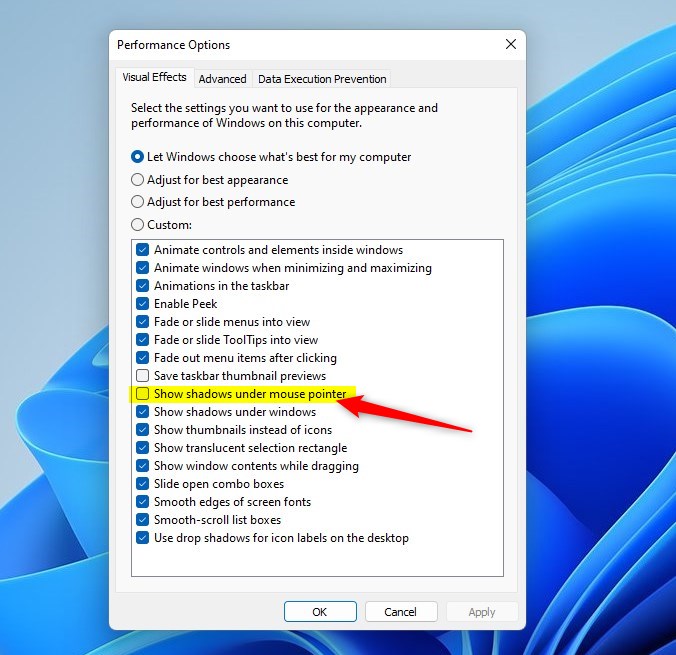
windows 11 enable shadow under mouse pointer
And that's it! Your mouse pointer will now have a shadow, making it easier to see. The shadow does not need a restart. If it does not show up, check that Adjust for best performance is not selected on the Visual Effects tab, because that preset turns shadows off. To undo the change, clear the same checkbox and click OK.
Why Use Pointer Shadow?
- It helps make the mouse pointer easier to spot, especially on large or multiple screens.
- It is good for people who have trouble seeing small or plain pointers.
- It is easy to turn on or off at any time. Use the Pointers tab in Mouse Properties or the Visual Effects tab in Performance Options.
Try it out and enjoy a clearer view of your mouse!
Have a question about this guide?
Answered by AI from this guide. Good questions may be added to this page — please don't include personal details.
Did this guide fix your problem?

About the Author
Richard
Tech Writer, IT Professional
Richard is a writer at Geek Rewind who turns complex IT tasks into clear, step-by-step guides. He draws on years of hands-on experience in system administration and enterprise IT operations, focusing on Windows, Linux and WordPress: the problems people actually run into, and the fixes that work. His server and WordPress guides come from systems he runs himself. Richard builds and maintains the platform behind Geek Rewind, from its Ubuntu servers and Nginx configuration to its custom WordPress plugins. Many new tutorials start with readers' questions, and he's always glad to answer them in the comments.
[…] can manage your mouse pointer settings easily through the Windows 11 Settings app. Follow these steps to configure your […]