How to Change Text Cursor Color in Windows 11


Changing the text cursor color in Windows 11 lets you pick any shade from 12 preset options or a custom color picker to make the blinking typing marker easier to spot. This helps you track your typing and cuts down on eye strain across different backgrounds and apps. The change is made in Settings, applies to the whole system, and takes effect straight away without a restart.
Open Settings by pressing Win+I, click Accessibility, then Text cursor. Turn on the Text cursor indicator toggle and pick a color from the Recommended colors list. The cursor color changes immediately across all apps.
How to Change the Text Cursor Color
Follow these steps to customize your view. The whole process takes about a minute, and you can switch back at any time.
- Open the Settings app by pressing
Windows key + I. The Settings window opens with the category list on the left. - Click on Accessibility in the left menu. The accessibility options appear on the right.
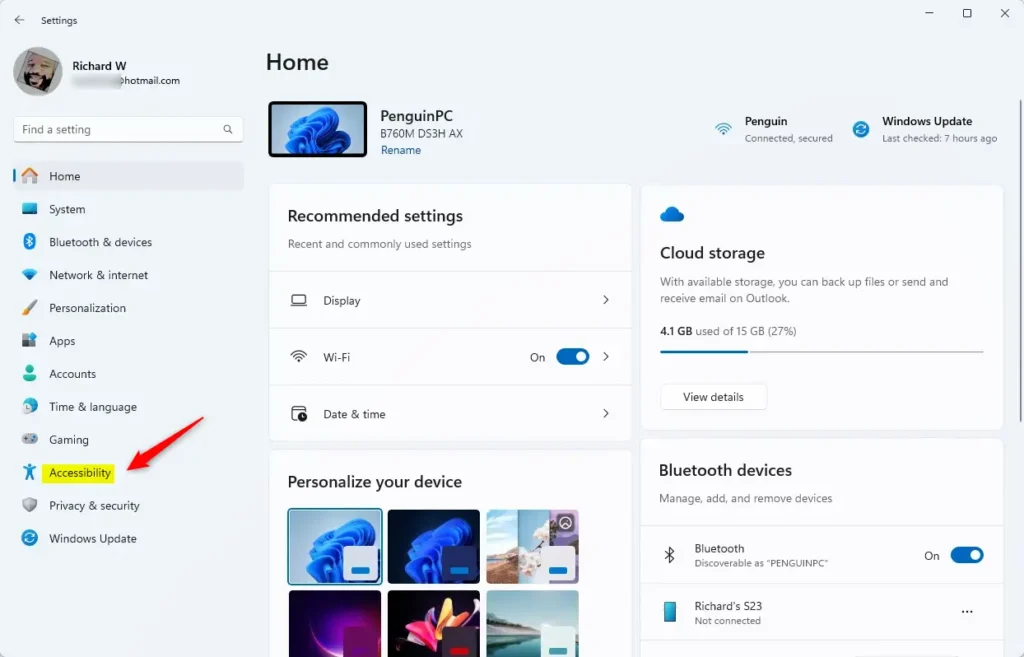
Accessibility button in the Settings app - Click on Text cursor on the right side. The text cursor page opens with the indicator and thickness options.
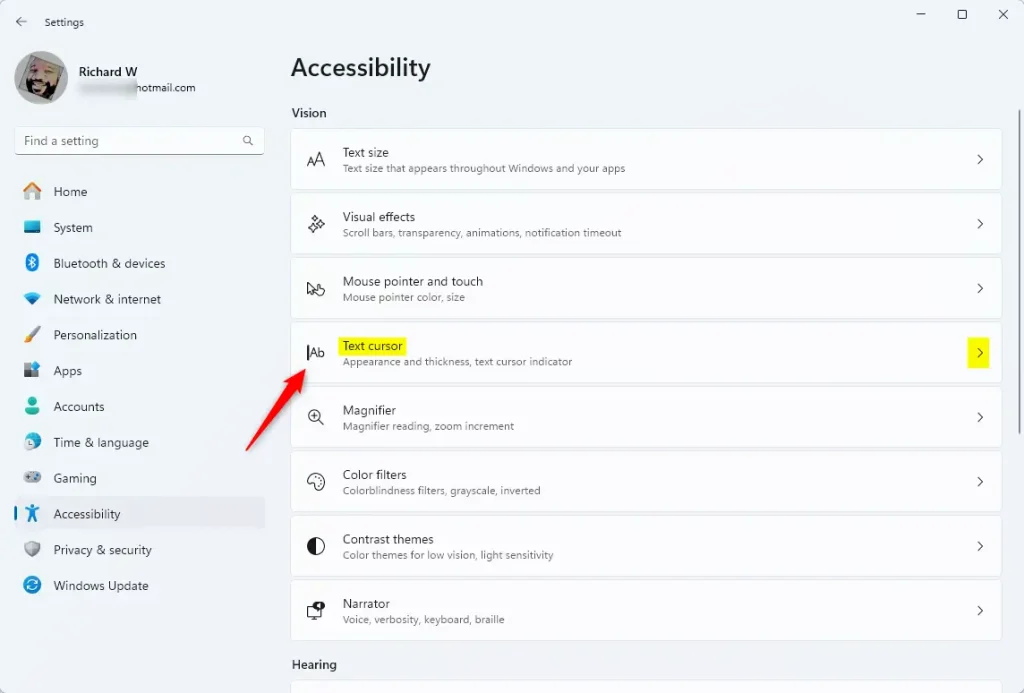
Windows 11 settings for changing text cursor color - Under Text cursor indicator, make sure the toggle is On. The color options only appear, or become usable, once this is on.
- Pick a color from the Recommended colors list. Click into any text box, such as Notepad, to see the new color on the cursor. If a color is hard to see on your background, just pick another one. The change applies immediately.
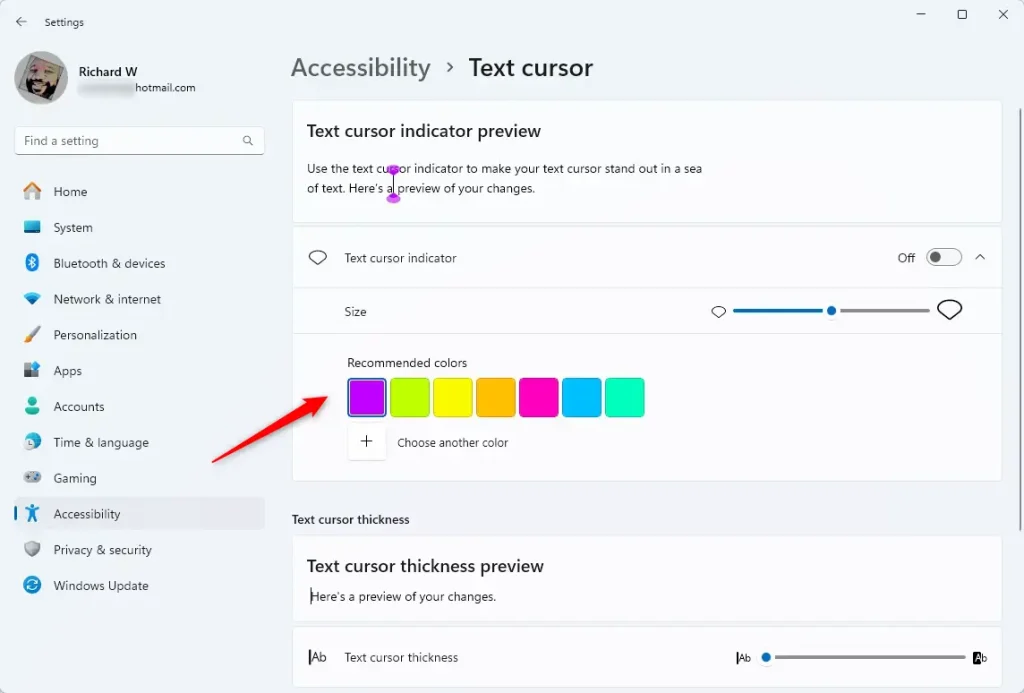
Windows 11 Text cursor colors
Customizing Your Cursor
You can change the text cursor color in Windows 11 by opening the Accessibility settings and picking a bright shade that stands out against your screen. This replaces the default white blinking line with a high-contrast color, making it much easier to spot while you are typing in documents, web browsers, or note apps.
To undo the change, go back to Accessibility Text cursor and either pick a different color or turn the Text cursor indicator toggle to Off. Nothing else on the system is affected, so there is no risk in trying several colors.
Troubleshooting Missing Settings
Open Settings Windows Update and install anything pending, then check the Text cursor page again. Newer cursor options are not present on older builds.
If you are using an older version like Windows 10, the menu is found under Ease of Access instead of Accessibility. The page layout and some labels differ there.
If the settings are greyed out, you may need to check your system policies. This is common on work or school PCs, where an administrator can lock accessibility settings. On a managed device, ask your IT team. On a personal PC, check that you are signed in with the account you expect and that no third-party tweaking tool is enforcing settings.
Advanced Registry Method (Admin Required)
Modifying the registry incorrectly can cause system issues. Before you change anything, back up the key: in Registry Editor, right-click the key, choose Export, and save the file somewhere safe. Double-clicking that file later restores the original values.
- Press
Windows key + R, typeregedit, and press Enter. Click Yes if User Account Control asks for permission. Registry Editor opens. - Navigate to:
HKEY_CURRENT_USER\Software\Microsoft\Accessibility - Look for the
CursorColorvalue. You can change the RGB values here to force a specific color. If the change does not show up right away, sign out and back in, or restart the PC, and then test the cursor in a text box.
Summary
Changing your text cursor color in Windows 11 is a simple tweak that can really help your typing. For most people the Settings method is all you need. Use the registry only if you want a specific color that the presets and picker do not give you, and keep the backup handy in case you want to go back.
Have a question about this guide?
Answered by AI from this guide. Good questions may be added to this page — please don't include personal details.
Did this guide fix your problem?

About the Author
Richard
Tech Writer, IT Professional
Richard is a writer at Geek Rewind who turns complex IT tasks into clear, step-by-step guides. He draws on years of hands-on experience in system administration and enterprise IT operations, focusing on Windows, Linux and WordPress: the problems people actually run into, and the fixes that work. His server and WordPress guides come from systems he runs himself. Richard builds and maintains the platform behind Geek Rewind, from its Ubuntu servers and Nginx configuration to its custom WordPress plugins. Many new tutorials start with readers' questions, and he's always glad to answer them in the comments.
No comments yet — be the first to share your thoughts!