Change How Mouse Pointer and Text Cursor Work with Magnifier in Windows 11

Magnifier in Windows 11 is a built-in zoom tool that enlarges parts of your screen so you can read text and see images clearly. Its settings also control how the mouse pointer and the blinking text cursor behave while you are zoomed in. That matters on a busy display, where a small pointer is easy to lose.
The pointer color and text cursor thickness are separate from Magnifier. You can turn the mouse pointer bright yellow or red, or make the text cursor much thicker, so you never lose track of where you are typing across several windows. Those options are in the Accessibility section of Settings. This tutorial covers the Magnifier options: where the pointer and cursor stay on screen while the view is zoomed.
To change how the mouse pointer and text cursor behave in Magnifier on Windows 11, open Settings , go to Accessibility Magnifier, expand the View section, then under Keep the mouse pointer choose Within the edges of the screen or Centered on the screen, and under Keep the text cursor choose the same options.
What is Magnifier?
Before changing any settings, it helps to know what Magnifier does. It zooms in on part of the display, so tiny text and small pictures become legible. It works like a magnifying glass held over the screen, and you choose how far it zooms in.
Why Use Magnifier?
Magnifier helps anyone who struggles with small interface elements, such as people with low vision, or anyone using a high-resolution laptop screen at a small scale. It scales up whatever needs attention, and the rest of the desktop keeps working as normal.
Magnifier is part of Windows 11, so Home and Pro editions have the same options. You do not need to install anything.
What Happens When You Change These Settings?
Set well, they cut down on lost cursors. Set badly, the view can feel like it is jumping around under your hand.
There are two ways each can behave. They can move freely across the screen and push the zoomed view along only when they reach an edge. Or they can stay fixed in the center while the view moves around them.
The right choice depends on what you do. Reading long documents often suits a centered cursor. Clicking small targets across a wide screen often suits a pointer that moves freely inside the screen edges.
How to Change Mouse Pointer and Text Cursor Behavior
- Press
Win + Ion your keyboard to open the Settings app. The Settings window opens with a list of categories on the left. - On the left menu, click Accessibility. The accessibility options appear on the right.
- On the right side, scroll down and click Magnifier. It is in the Vision group. The Magnifier settings page opens.
- You can also click this link to open Magnifier settings directly: Open Magnifier Settings. Use it if you prefer to skip the menus.
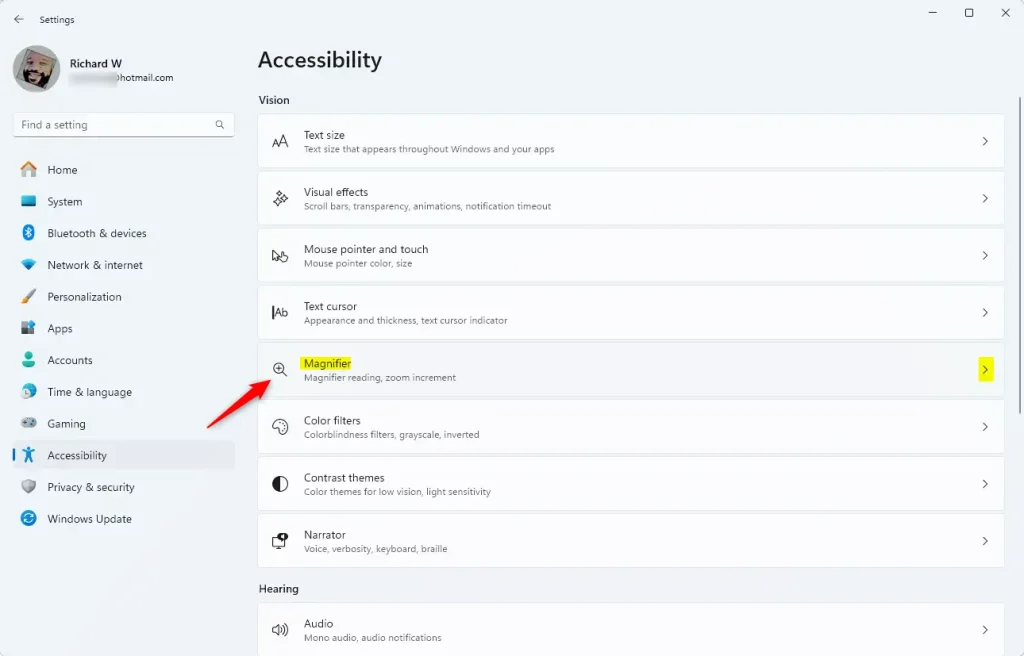
With the Magnifier page open, the next job is to find the options that control the pointer. The path is Settings Accessibility Magnifier. These options decide whether the pointer stays centered on your screen or moves freely around the magnified area.
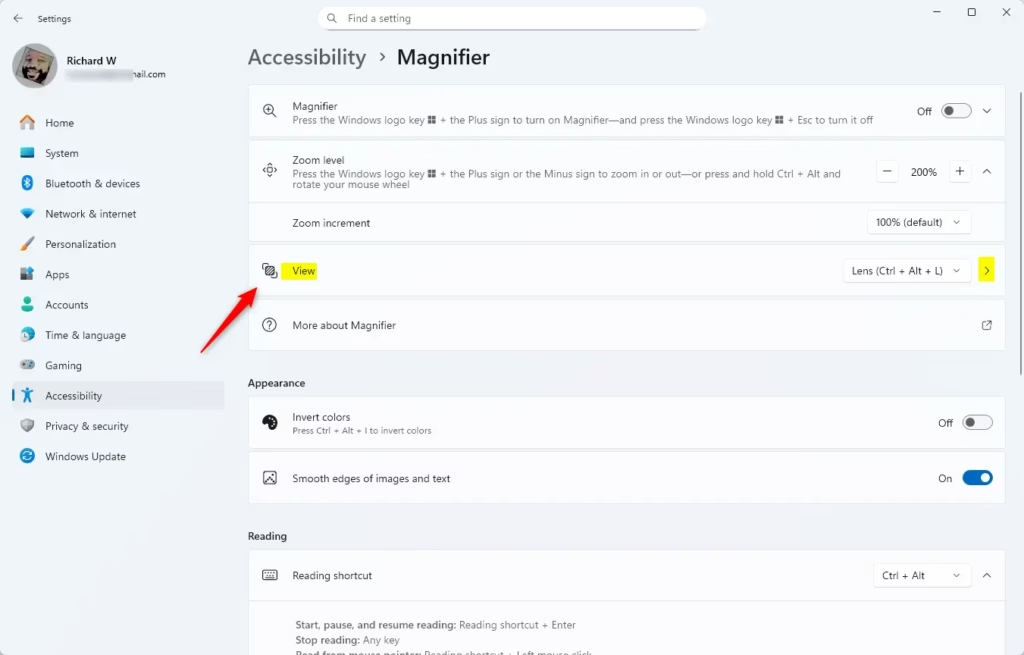
The options sit in the View section of the page. Depending on your Windows 11 version and window size, you may have to scroll down a little to reach it.
- Click on the View section in Magnifier settings. It expands to show the tracking options for the mouse pointer and the text cursor.
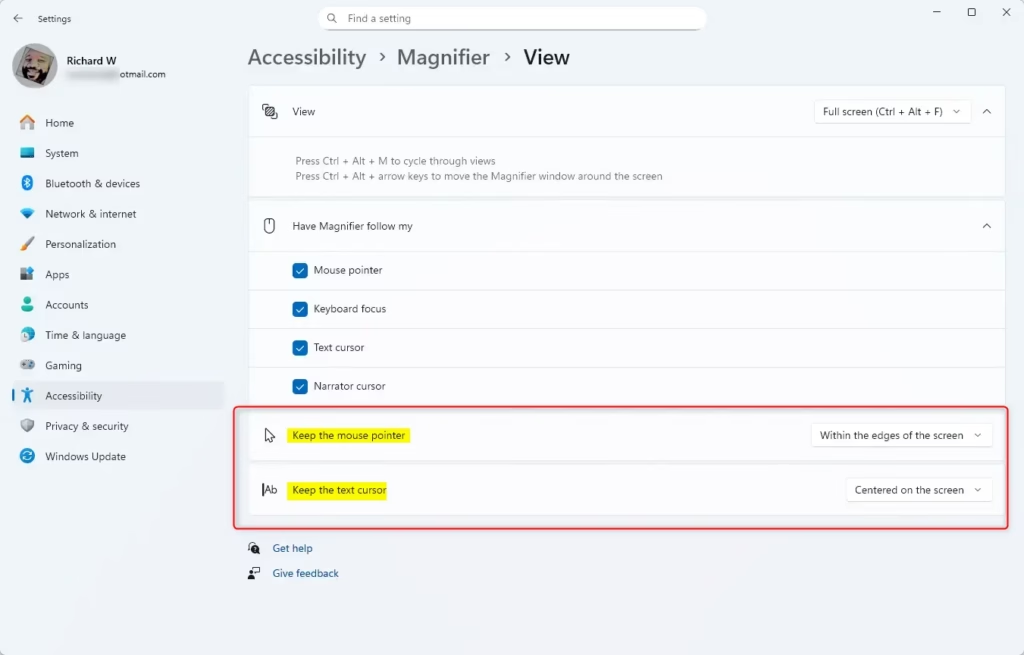
In the expanded View section you can set the pointer and the text cursor independently. They do not have to match. For example, you can let the pointer move freely and keep the text cursor centered, which is the default combination.
If you cannot see these options, check that you are on the Magnifier page and not the general Accessibility page. If Magnifier is not running, you can still change the settings. They apply the next time you start it.
- Under Keep the mouse pointer, choose either:
- Within the edges of the screen (default). The pointer moves freely, and the zoomed view only shifts when the pointer reaches the edge. Or
- Centered on the screen. The pointer stays in the middle, and the view moves under it as you move the mouse.
- Under Keep the text cursor, choose either:
- Within the edges of the screen. The text cursor moves across the screen as you type, and the view follows only at the edges. Or
- Centered on the screen (default). The text cursor stays in the middle while the text scrolls past it.
- Once you select your choices, you can close the Settings window. There is no Save button and no restart is needed. To test, press the Windows key and the Plus sign to start Magnifier, then move the mouse and type in a document. Press the Windows key and Esc to turn Magnifier off. To undo a change, come back to this page and pick the other option.
The same path, Settings Accessibility Magnifier, is where you come back to fine-tune things later. If the zoomed view feels like it is fighting you, switch the pointer or the text cursor to the other tracking style and try again. Each setting is independent, so you can change one and leave the other alone.
Summary
The Magnifier mouse settings in Windows 11 control how the pointer and text cursor behave while you use the zoom tool. Adjusting them stops the view from jumping around and makes high magnification levels easier to work with. A minute spent on these settings makes a real difference when you need to read small text or click exact spots on your screen.
- Magnifier helps you see your screen better by zooming in on text and pictures.
- You can choose how the mouse pointer and text cursor move when using Magnifier. The two settings are separate.
- Options include keeping them inside the screen edges or always centered. By default the pointer stays within the edges and the text cursor is centered.
- Try different settings to find what feels easiest and most comfortable for you.
- Changing these settings is easy and done through the Windows 11 Settings app, with no restart needed.
- Using these simple steps, you can make your Windows 11 computer easier to use and enjoy a better viewing experience.
More Help from Microsoft
Learn more about using Magnifier on the official Microsoft support page: Use Magnifier to make things on the screen easier to see - Microsoft Support

Have a question about this guide?
Answered by AI from this guide. Good questions may be added to this page — please don't include personal details.
Did this guide fix your problem?

About the Author
Richard
Tech Writer, IT Professional
Richard is a writer at Geek Rewind who turns complex IT tasks into clear, step-by-step guides. He draws on years of hands-on experience in system administration and enterprise IT operations, focusing on Windows, Linux and WordPress: the problems people actually run into, and the fixes that work. His server and WordPress guides come from systems he runs himself. Richard builds and maintains the platform behind Geek Rewind, from its Ubuntu servers and Nginx configuration to its custom WordPress plugins. Many new tutorials start with readers' questions, and he's always glad to answer them in the comments.
No comments yet — be the first to share your thoughts!