How to Enable or Disable Smooth Edges for Images and Text When Using Magnifier in Windows 11


Magnifier is the zoom tool built into Windows 11. It enlarges text and images on the screen so they are easier to read. When you zoom in a long way, the content can look blocky because each pixel is stretched. The Smooth edges of images and text setting controls how Magnifier draws the edges of that enlarged content.
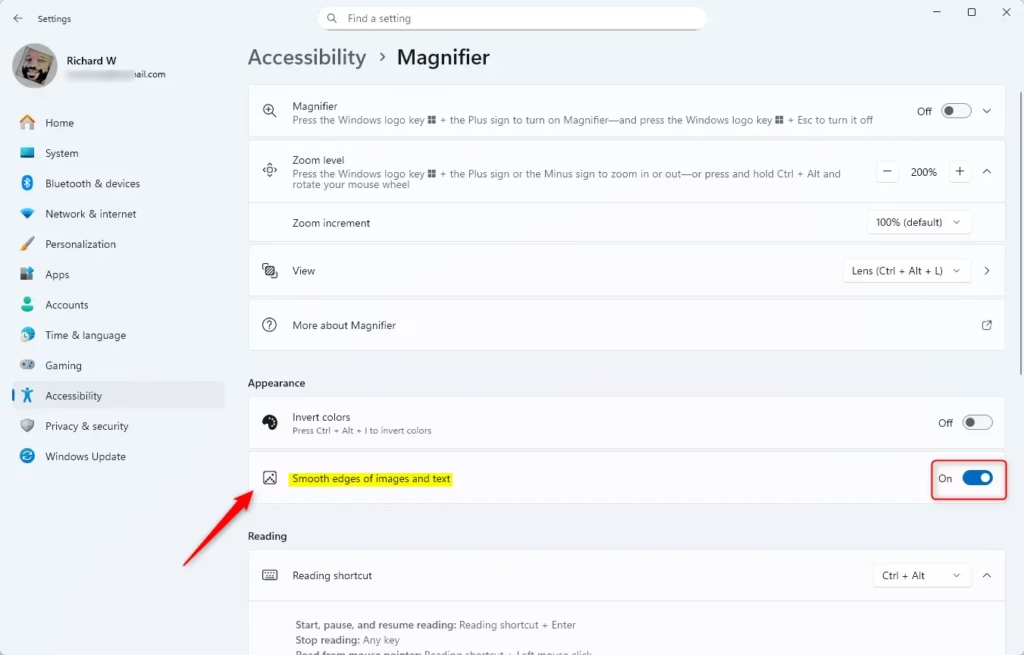
Open Settings with Win+I, go to Accessibility Magnifier, find the Smooth edges of images and text setting, and toggle it On for softer edges or Off for sharper edges. The change takes effect immediately without restarting.
What is Magnifier?
The setting has two modes, and you can switch between them at any time. Smooth edges softens text characters and image outlines so the blocky pixels are less noticeable. Sharp edges leaves the enlarged pixels as they are, which keeps outlines crisp and high-contrast. Neither mode is “correct”. It depends on what you are looking at and how your eyes cope with it.
At 125% or 150% you will barely notice it. At 400% or more it is obvious. The setting is available in both Windows 11 Home and Pro, and you don’t need to restart the PC after changing it.
Why Should You Use This Feature?
Smooth rendering is usually gentler for long reading sessions, because letters look like normal text rather than a grid of squares. Sharp rendering is better when you need exact detail, such as small icons, pixel-level graphics, spreadsheets or code, where blurred edges can make things harder to tell apart. Try both with the content you use every day, then keep the one that is more comfortable.
Where to Learn More
For more information, check out the official Microsoft page about Using Magnifier to Make Things Easier to See.

How to Turn On or Off Smooth Edges in Magnifier
- Open Settings. Press the Windows key + I. The Settings window opens.
- Go to the Magnifier page. Select Accessibility in the left menu, then select Magnifier on the right. You should now see the Magnifier options. You can also open this page directly with this link: Open Magnifier Settings
- Find the display options. If the Magnifier section is collapsed, click its heading or arrow to expand it. Scroll down until you see the Smooth edges of images and text setting. You do not need to have Magnifier turned on to change it.
- Turn smooth edges on or off. Depending on your Windows 11 build, the setting appears as a toggle or a checkbox.
- To make edges softer and less blocky, turn it On (or tick the box).
- To make edges sharper and clearer, turn it Off (or clear the box).
- Check the result. Start Magnifier with the Windows key + Plus (+), zoom in on some text, and see how it looks. Press Windows key + Esc to close Magnifier again. If you don't like the result, return to the same page and flip the setting back. Nothing is permanent.
- Close Settings. When you are happy with the look, close the Settings window. The choice is saved automatically.
Summary
- Magnifier makes text and images bigger on your screen.
- You can choose whether the edges of images and text are smooth or sharp.
- The effect is most visible at high zoom levels.
- The setting works on Home and Pro, and no restart is needed.
- Try both options and keep the one that is easier on your eyes.
- The official Microsoft page has more help with Magnifier.
If you share the PC with others, remember the setting applies to your own account's Magnifier. Switch it back whenever your needs change, whether that is a long reading session or detailed graphics work.
Have a question about this guide?
Answered by AI from this guide. Good questions may be added to this page — please don't include personal details.
Did this guide fix your problem?

About the Author
Richard
Tech Writer, IT Professional
Richard is a writer at Geek Rewind who turns complex IT tasks into clear, step-by-step guides. He draws on years of hands-on experience in system administration and enterprise IT operations, focusing on Windows, Linux and WordPress: the problems people actually run into, and the fixes that work. His server and WordPress guides come from systems he runs himself. Richard builds and maintains the platform behind Geek Rewind, from its Ubuntu servers and Nginx configuration to its custom WordPress plugins. Many new tutorials start with readers' questions, and he's always glad to answer them in the comments.
No comments yet — be the first to share your thoughts!