How to Change Magnifier Reading Keys in Windows 11

Magnifier reading keys in Windows 11 let you change the keyboard shortcuts for Magnifier, the built-in tool that zooms in on text and reads it out loud.
The default shortcut uses Ctrl + Alt combined with other keys to start, stop, or pause reading. You can swap these keys in your settings to pick a shortcut that feels easier to press on your keyboard.
Open Settings , go to Accessibility, then select Magnifier. Under “Reading shortcut,” choose a new modifier key from the dropdown menu.
Change the Magnifier Reading Keys Using the Settings App
The Magnifier reading keys can be changed using the Windows 11 Settings app . Open settings to customize how Magnifier reads text aloud. This customization helps you better control the audio feedback while using the screen magnifier.
Step 1Open Settings
Open the Windows Settings app. Click the Start menu and select Settings, or use the keyboard shortcut Win+I.
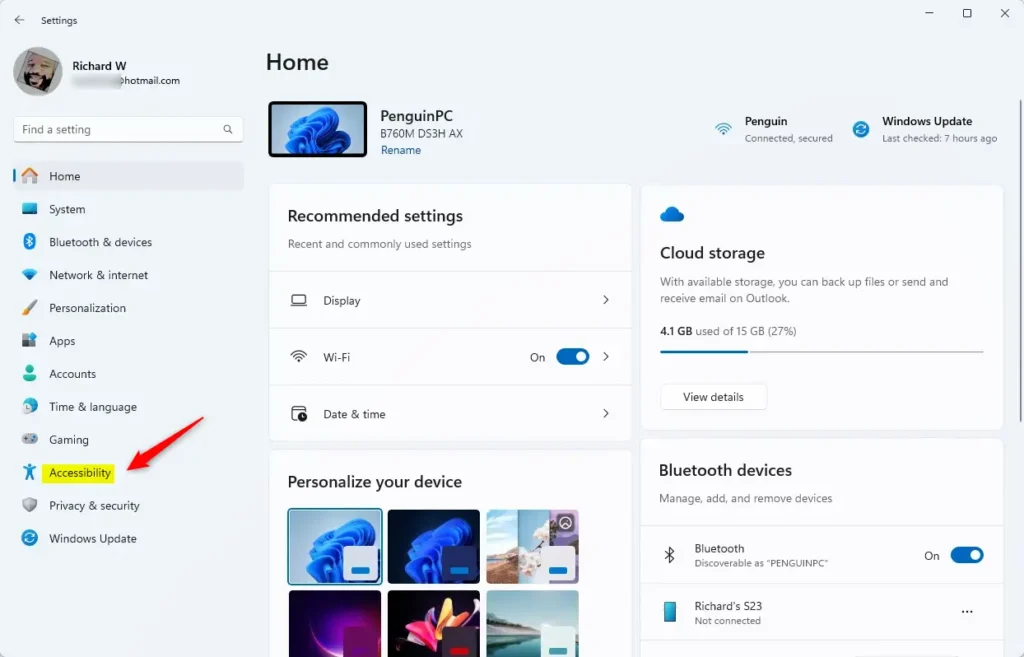
Step 2Go to Accessibility
Once the Settings app opens, click the Accessibility button on the left.
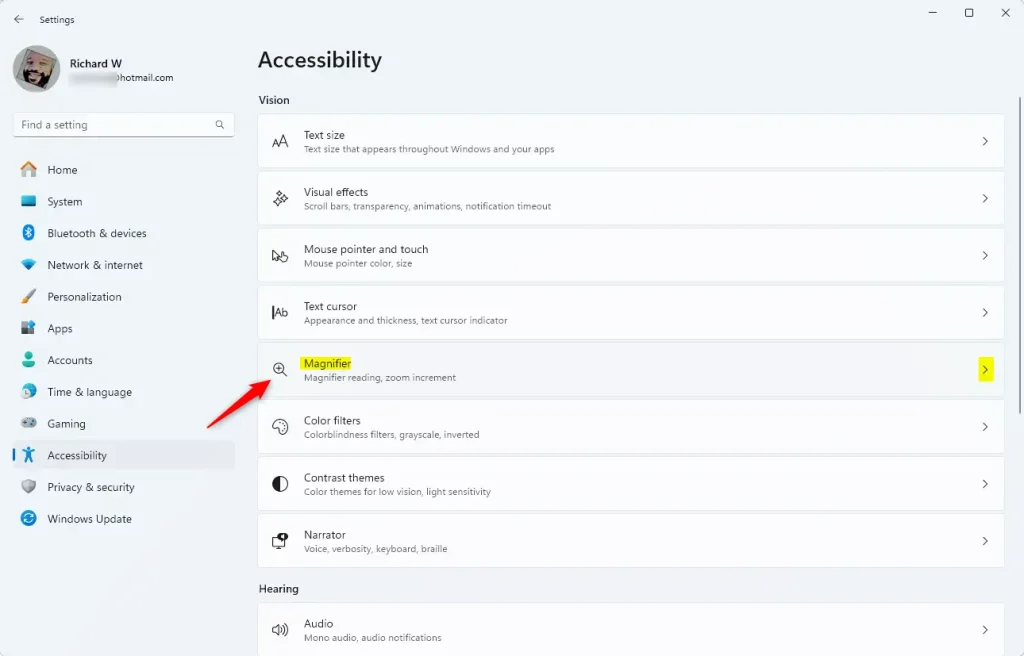
Step 3Select Magnifier
On the right, select the Magnifier tile to expand it.
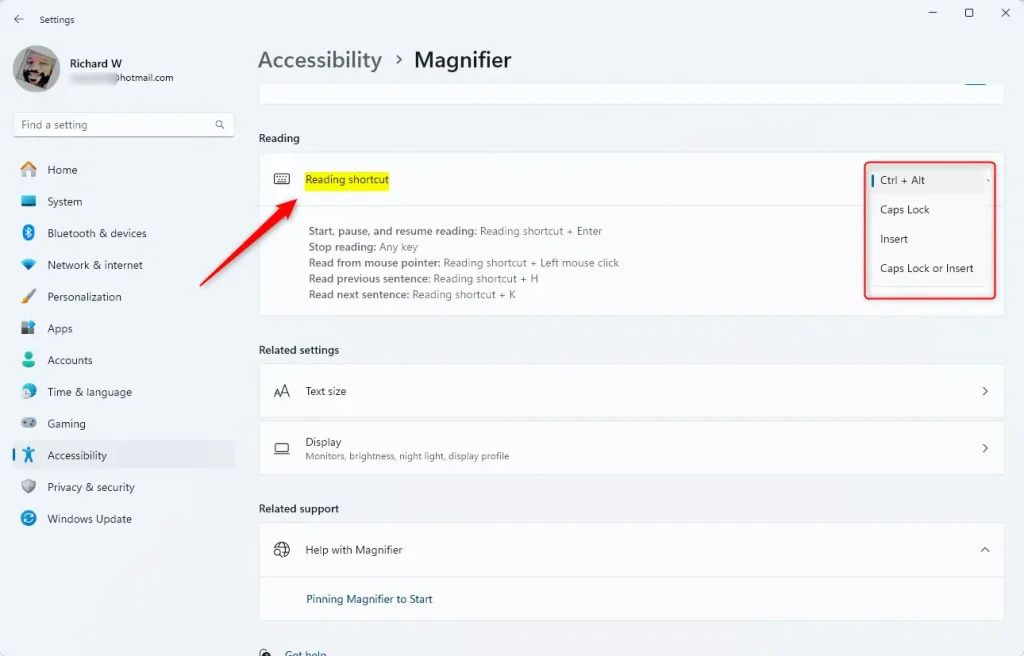
Step 4Choose Your New Modifier Key
In the Magnifier settings, locate the "Reading shortcut" section. Click the drop-down menu to choose your new modifier key.
Step 5Close Settings
Close the Settings app when you're finished.
Change Magnifier Shortcut Keys Using the Registry
You can also change the shortcut keys using the Windows Registry Editor. Back up your registry or create a System Restore point first, as changes can cause system instability if entered incorrectly.
Step 1Open Registry Editor
⚠️ Admin privileges required
Open the Windows Registry and navigate to this folder key path:
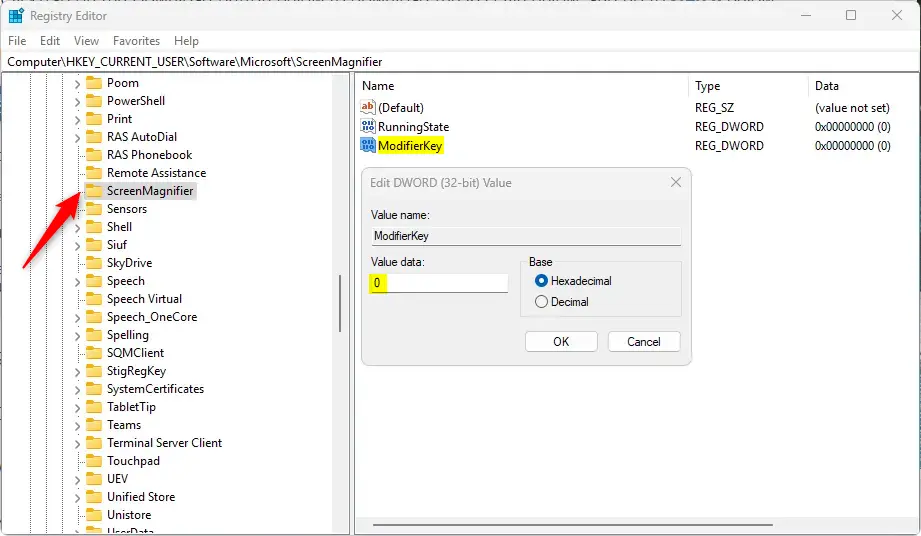
HKEY_CURRENT_USER\Software\Microsoft\ScreenMagnifier
Step 2Create a New DWORD Value
Right-click on 'ScreenMagnifier,' then choose 'New,' and finally select 'DWORD (32-bit) Value.' Give this new value the name 'ModifierKey' (a 32-bit value).
Step 3Set the Value
Double-click the newly created 'ModifierKey' value to change it. Here's what the numbers mean:
- Enter 1 to use the default Ctrl + Alt.
- Enter 2 to use Caps Lock.
- Enter 4 to use Insert.
- Enter 6 to use Caps Lock or Insert.
Step 4Reboot Your Computer
Rebooting your computer may be necessary for the changes to take effect.
That completes the process.
Reference
Summary
You can change Magnifier keys in Windows 11 to make reading the screen easier and more comfortable. The Magnifier tool enlarges parts of your display, and you can switch the default reading shortcuts to keys like Caps Lock. Adjusting these settings helps you control screen reading much faster without straining your hands.
- The Magnifier app is a helpful tool for improving screen readability.
- You can easily change the reading shortcuts through the Settings app or the Windows Registry.
- The default modifier key for Magnifier shortcuts is Ctrl + Alt. You can change it to options like Caps Lock or Insert.
- Always back up your registry or create a System Restore point before changing the Registry Editor.
- Adapting the Magnifier settings can lead to a more personalized experience for users with vision difficulties.
Was this guide helpful?

About the Author
Richard
Tech Writer, IT Professional
Richard is a writer at Geek Rewind who turns complex IT tasks into clear, step-by-step guides. He draws on years of hands-on experience in system administration and enterprise IT operations, focusing on Windows, Linux and WordPress: the problems people actually run into, and the fixes that work. His server and WordPress guides come from systems he runs himself. Richard builds and maintains the platform behind Geek Rewind, from its Ubuntu servers and Nginx configuration to its custom WordPress plugins. Many new tutorials start with readers' questions, and he's always glad to answer them in the comments.




No comments yet — be the first to share your thoughts!