How to Open and Use the On-Screen Keyboard in Windows 11


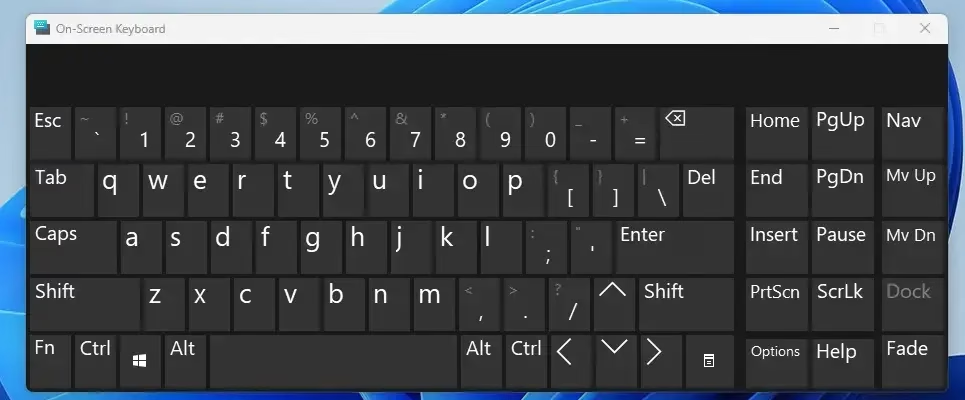
The on-screen keyboard in Windows 11 is a built-in virtual keyboard on screen. Press Win+Ctrl+O to open it, or turn it on in Settings Accessibility Keyboard You type by clicking keys with a mouse, using a trackpad, or tapping a touchscreen. It needs no setup, download or restart.
It is a handy backup when your physical keyboard breaks, a key sticks, or you just want to type without touching a regular keyboard. It works the same in Windows 11 Home and Pro, because it is part of the Windows accessibility features and not an extra app. This guide covers three ways to open it, how to close it, and how to use it once it is up.
Press Win+Ctrl+O to quickly open the On-Screen Keyboard. Alternatively, access it via the Accessibility icon on the sign-in screen or through Settings Accessibility Keyboard This virtual keyboard lets you type using your mouse.
Option 1Use a Keyboard Shortcut
The on-screen keyboard shortcut is the quickest way to get the keyboard open on your screen. It only works if the keys involved still work, so if your keyboard is dead, use one of the methods further down.
- Press and hold the Windows key and the Ctrl key together. Keep both held down for the next step.
- Press O while holding both keys. Tap it once.
- Release all three keys. A keyboard should now appear on your screen, and you can click its keys to type.
Here is the shortcut written out:
Win+Ctrl+O
If nothing appears, check that you held Windows and Ctrl before pressing O. Pressing the same shortcut again should close the keyboard. If the shortcut still does nothing, use the Settings method below.
Option 2Open from the Sign-In Screen
You can open the on-screen keyboard from the sign-in screen if your physical keyboard stops working before you log in. This lets you type your password with the mouse. The steps are below.
- Go to the sign-in screen. If you only see the lock screen picture, click it once to bring up the password or PIN box.
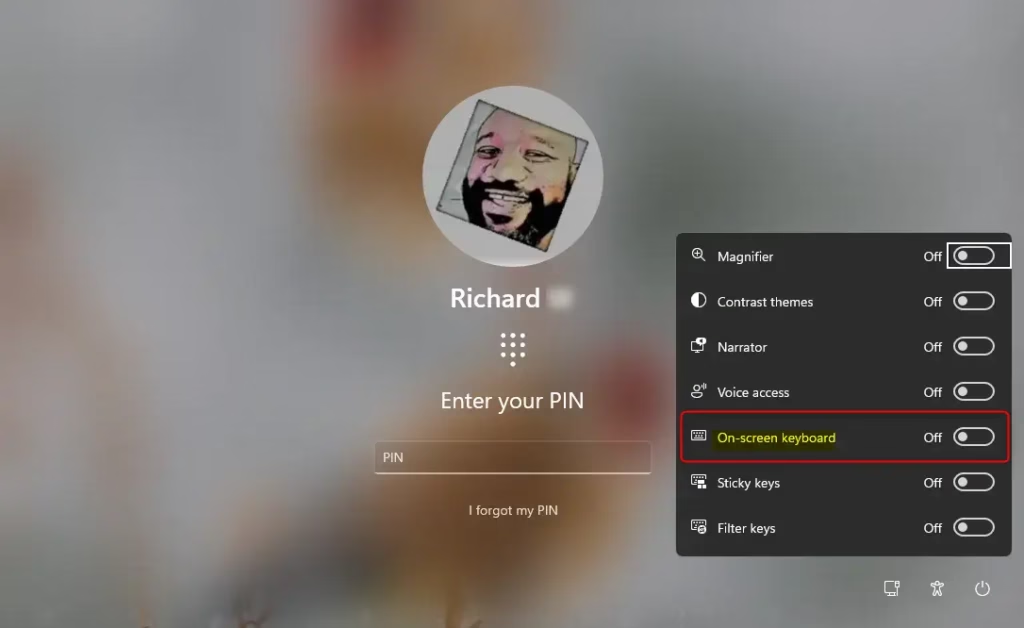
- Find the Accessibility icon in the bottom-right corner. It usually looks like a small circle with a silhouette inside.
- Click the Accessibility button. A menu of accessibility options appears.
- Select On-Screen Keyboard from the menu. The keyboard appears on the sign-in screen.
- Click your password or PIN one key at a time. Check the characters as you go, since you cannot see a typed password.
- Click the sign-in arrow, or press Enter on the on-screen keyboard. Windows signs you in.
To dismiss the tool, close its window with the X button. If you opened it from the sign-in screen, it can stay active after you log in. Close it yourself once you no longer need it.
Option 3Find and Open the On-Screen Keyboard in Settings
You can also turn on the on-screen keyboard in the Settings app. This is the way to go when the shortcut is not an option, or when you want to see where the setting lives. You will need a working mouse, trackpad, or touchscreen. The steps below open the virtual keyboard from Settings.
- Click the Windows icon in the bottom-left corner. This opens the Start menu.
- Click the Settings gear icon in the Start menu. The Settings window opens.
- Click Accessibility in the left sidebar. The accessibility options appear on the right.
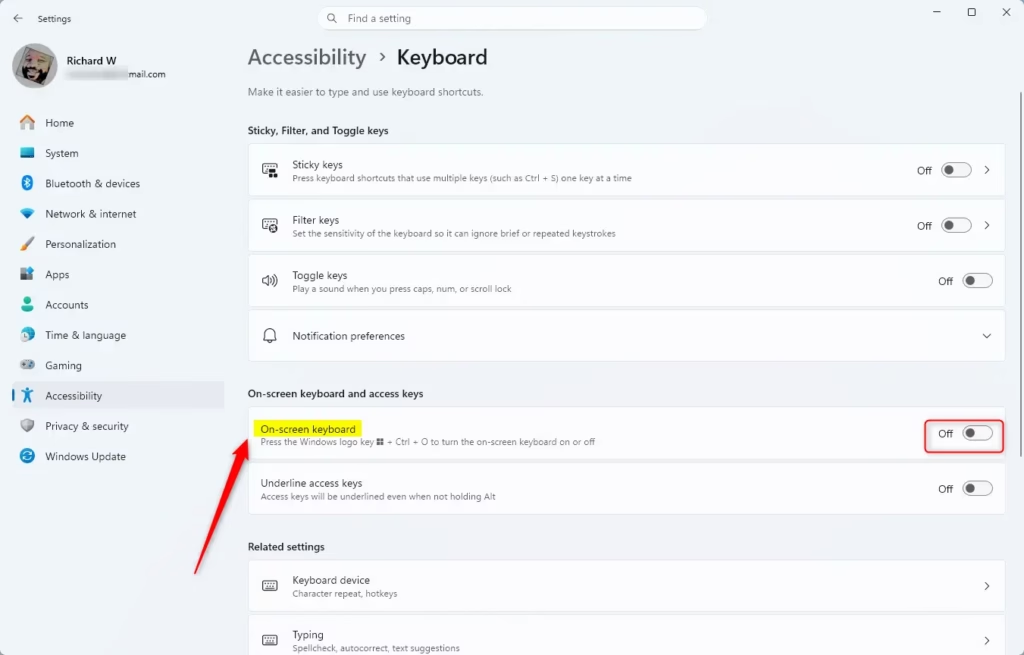
- Scroll down the right side and click Keyboard. This page holds the keyboard-related accessibility switches.
- Click the On-Screen Keyboard switch to turn it On. The keyboard should now appear on your screen.
Windows key + I keys to open Settings directly and skip the first two steps.To undo this, click the same switch again to turn it Off. The keyboard closes.
The keyboard stays on the display until you close it yourself. Clicking a key enters that character into whichever app or text box is active. Click into the text box first, so the keystrokes go where you want them. If you click a key and nothing happens, the focus is probably on the keyboard itself and not on your document.
The keyboard has an Options key. It opens extra settings, such as a numeric keypad, which helps if you type a lot of numbers.
Windows 11 also has a separate touch keyboard, aimed at tablets and touchscreens. It is not the same tool as the on-screen keyboard described here, which is the full-size virtual keyboard with all the keys of a regular layout.
Why Use the On-Screen Keyboard?
You need this virtual keyboard when hardware damage or a physical disability makes standard typing hard or impossible. It is part of the accessibility features in Windows, so you keep access to the computer even without a working keyboard. It is also useful for a quick fix: a broken key, a spilled drink, or a keyboard that will not connect.
Summary
Press Win + Ctrl + O to launch the tool quickly when hardware fails. If you cannot use the shortcut, open it from the Accessibility icon on the sign-in screen, or from Settings Accessibility Keyboard once you are logged in. Close it with the X button when you are done.
Have a question about this guide?
Answered by AI from this guide. Good questions may be added to this page — please don't include personal details.
Did this guide fix your problem?

About the Author
Richard
Tech Writer, IT Professional
Richard is a writer at Geek Rewind who turns complex IT tasks into clear, step-by-step guides. He draws on years of hands-on experience in system administration and enterprise IT operations, focusing on Windows, Linux and WordPress: the problems people actually run into, and the fixes that work. His server and WordPress guides come from systems he runs himself. Richard builds and maintains the platform behind Geek Rewind, from its Ubuntu servers and Nginx configuration to its custom WordPress plugins. Many new tutorials start with readers' questions, and he's always glad to answer them in the comments.
No comments yet — be the first to share your thoughts!