How to Mute Windows 11 On-Screen Keyboard Sounds

On-screen keyboard sounds in Windows 11 are the audio clicks you hear every time you tap a virtual key on your screen. The sound is meant as feedback, but it can be on by default, and in a quiet office or a late-night session it gets old fast.
You can turn the sounds off in under a minute from the Settings app. There are two keyboards to deal with: the modern touch keyboard and the classic On-Screen Keyboard. Each has its own sound setting, so this guide covers both, plus a registry method for when the menus don’t help. None of these changes need a restart, and you can undo any of them by reversing the step. The registry method is the one case where you may need to sign out and back in.
To mute Windows 11 on-screen keyboard sounds, open Settings Accessibility Keyboard, then uncheck “Play a sound when I turn Sticky, Filter, or Toggle keys on or off from the keyboard.” For the click when you tap a key on the touch keyboard, turn off Play key sounds as I type under Time & language Typing Touch keyboard
How to turn off Touch Keyboard sound
The modern touch keyboard is the one that pops up when you tap a text box on a touchscreen or tablet. Its settings live in the Settings app, so you don’t have to open the keyboard itself. These settings work the same on Windows 11 Home and Pro.
The short version: open Settings and go to the Accessibility page, then the Keyboard page. Windows also keeps a separate key-sound switch for the touch keyboard under Time & language Typing Touch keyboard, labeled Play key sounds as I type. If the clicks continue after the first five steps below, turn that switch off as well. Both are covered in the list.
Follow these steps to mute the screen keyboard sounds on the touch keyboard:
- Open Settings. Press Win+I on your keyboard, or click Start and select the Settings icon. The Settings window opens with a list of categories on the left.

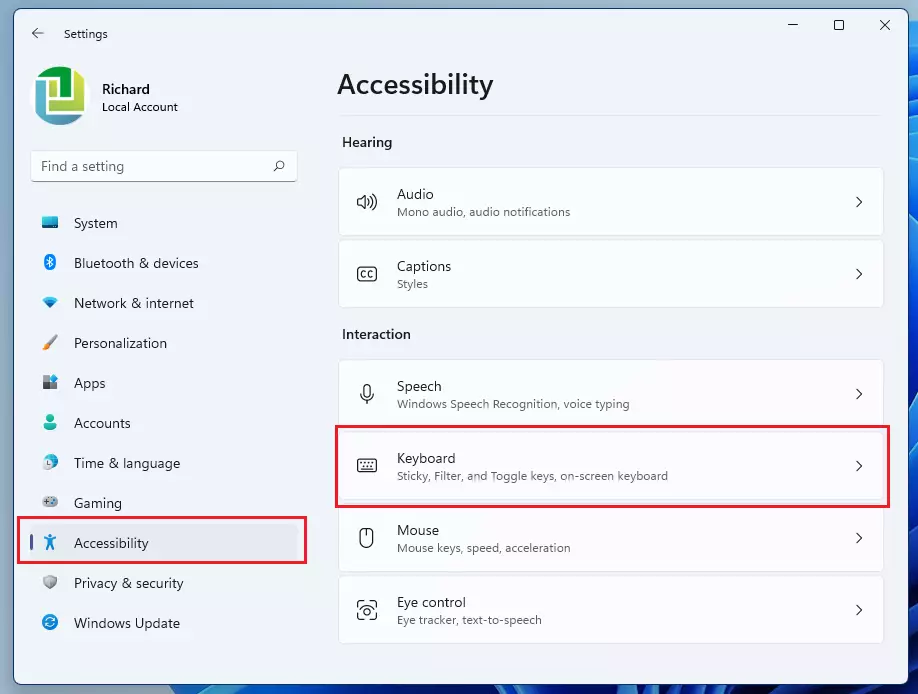
windows 11 start settings - Click Accessibility in the menu on the left. The Accessibility page opens on the right, with groups such as Vision, Hearing and Interaction.
- Select Keyboard from the list on the right. It sits under the Interaction group, so you may need to scroll down. The Keyboard page shows switches for Sticky keys, Filter keys, Toggle keys and the on-screen keyboard.
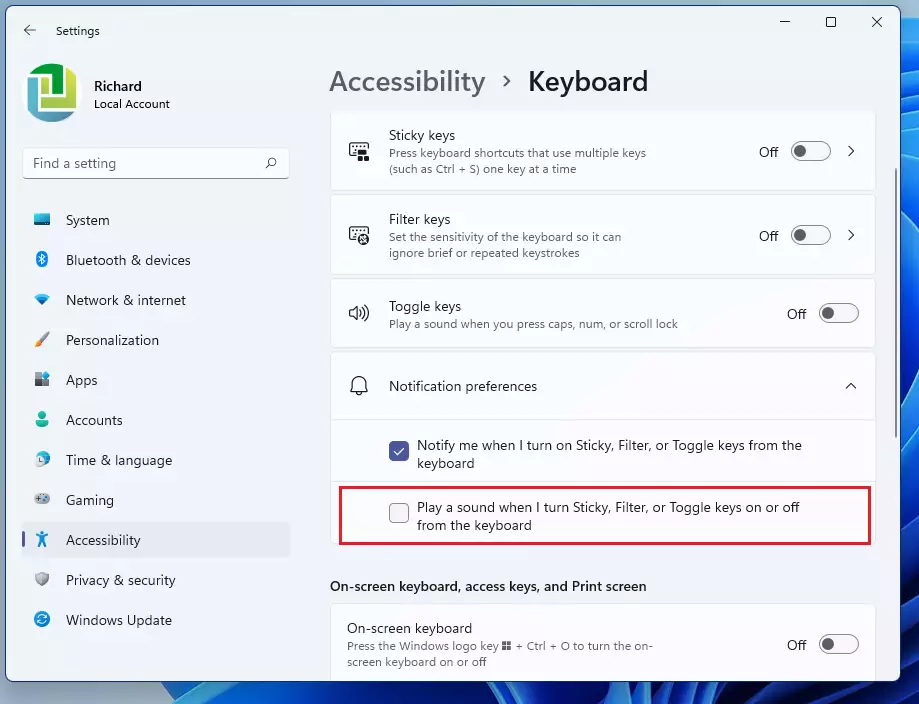
windows 11 accessibility keyboard - Find the section labeled Notification preferences. It is usually inside the Sticky keys, Filter keys or Toggle keys group. If you don’t see it, click the arrow beside each group to expand it.
- Uncheck the box that says: “Play a sound when I turn Sticky, Filter, or Toggle keys on or off from the keyboard.” The check mark disappears and the change applies at once. There is no Save button.
windows 11 onscreen keyboard disable sound 1 - Go to Settings Time & language Typing and open the Touch keyboard section. This is where the key-click setting for the touch keyboard lives.
- Turn off Play key sounds as I type. The switch moves to Off, and the touch keyboard stops clicking when you tap a key.
One thing to know: the checkbox in step 4 controls the beeps you hear when Sticky, Filter or Toggle keys are switched on or off. It does not control the click you hear when you tap a key on the touch keyboard. That is the job of the Play key sounds as I type switch. To undo either change, tick the box again or switch the toggle back on.
How to turn off On-Screen Keyboard sound
The classic On-Screen Keyboard is the older, resizable keyboard window that stays on top of your other apps. It has its own sound setting, separate from the touch keyboard. Changing it does not affect your main system sound settings.
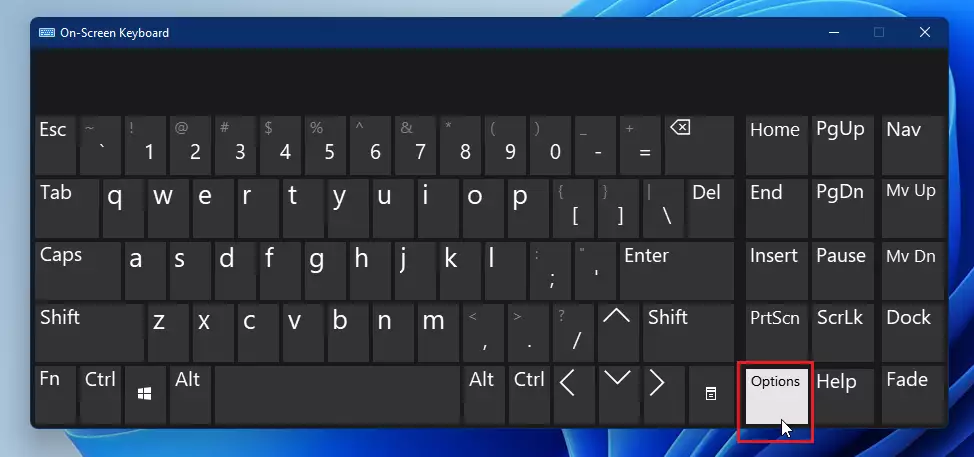
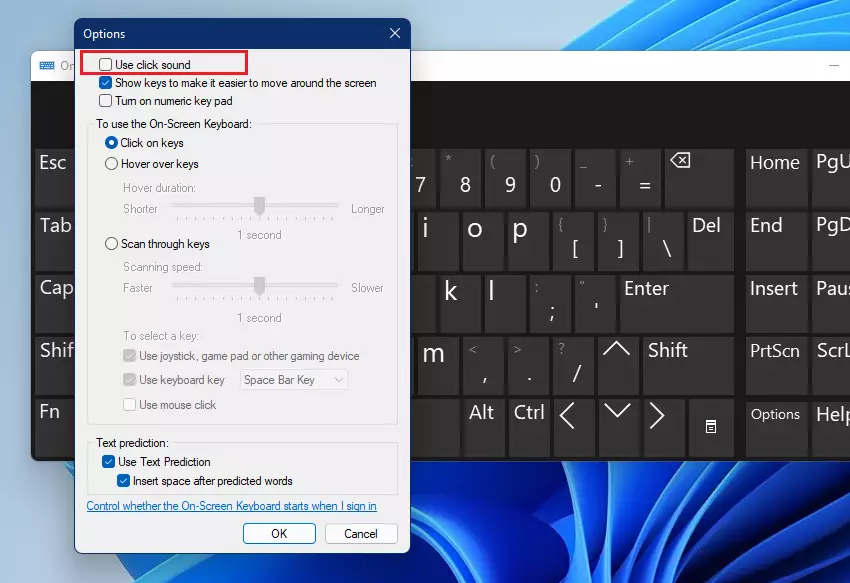
In short: click the Options key at the lower right of the keyboard window, uncheck Use click sound, and click OK. The steps below walk through it.
Follow these steps to turn off the click sound on the classic screen keyboard:
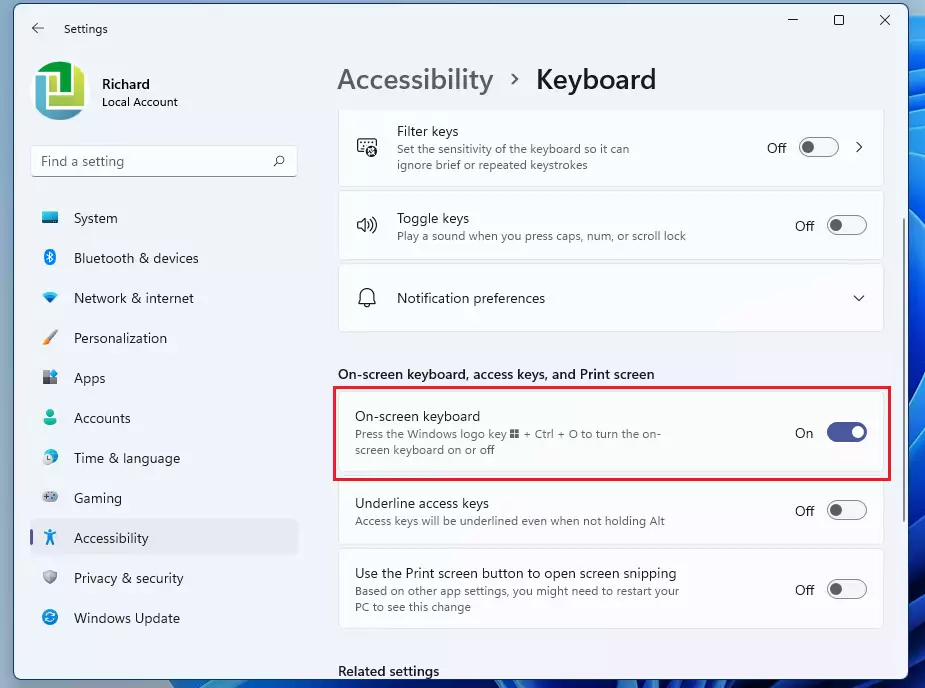
- Open the On-Screen Keyboard. If it is not already on screen, go to Start Settings Accessibility Keyboard and turn on the On-Screen Keyboard switch. The keyboard window appears on your screen. You can also press Windows key + Ctrl + O to switch it on or off.
windows 11 onscreen keyboard turn off sound - Click the Options key on the keyboard. It is in the lower right area of the keyboard window, near the other function keys.
windows 11 onscreen keyboard options - Uncheck "Use click sound." in the small window that appears. The same window also has options for how keys are pressed and for opening the Text Prediction settings, but leave those alone.
- Click OK to save your changes. The window closes and the keyboard stops clicking when you press a key. To bring the sound back, repeat the steps and tick the box again.
windows 11 disable use click sound
This works on every edition, Home included. Only use it when the menus fail, since a wrong edit in the registry can cause problems.
Advanced Configuration Methods
To mute Windows 11 keyboard sounds using the system registry when standard menus fail, open the Registry Editor and navigate to HKEY_CURRENT_USER\Software\Microsoft\TabletTip\1.7.7.0. Change the value of EnableKeyAudioFeedback from 1 to 0. This forces the typing sounds off at the system level. Because the key sits under HKEY_CURRENT_USER, it only affects your own account and you don't need to be an administrator to edit it.
Before you edit anything, back up the registry. The export step in the list below does this. If something goes wrong, double-click the exported file to restore it.
HKEY_CURRENT_USER\Software\Microsoft\TabletTip\1.7.7
Follow these steps to turn off the screen keyboard sounds in the registry:
- Open the Registry Editor. Search for it from Start and open the result. Click Yes if User Account Control asks for permission.
- Back up the registry first. Click File Export, choose a location and save the file.
- Go to HKEY_CURRENT_USER\Software\Microsoft\TabletTip\1.7.7.0 in the left pane. Expand each folder in turn by clicking the arrow beside it.
- Look for the value named EnableKeyAudioFeedback in the right pane.
- Double-click EnableKeyAudioFeedback. The Edit DWORD (32-bit) Value window opens.
- Type 0 in the Value data box and click OK. The value now shows 0 in the list.
- Sign out and back in, or restart the PC, if the clicks continue. The touch keyboard may only read the value when it starts.
To undo this, set the value back to 1. You can also use PowerShell to manage accessibility settings, though this is primarily for system administrators and isn't needed for a single PC.
A few quick checks if you still hear sounds:
- Check which keyboard you are using. The touch keyboard and the classic On-Screen Keyboard have separate sound settings, and muting one does not mute the other.
- Make sure you are not hearing the physical keyboard or an app. Some apps and games play their own typing sounds.
- Sign out and back in after a registry change, so the keyboard reloads its settings.
- If a work or school PC keeps turning the sound back on, your organization may manage these settings. Ask your IT department.
Summary
You can mute Windows 11 keyboard sounds by adjusting the Accessibility settings or the Options menu on the keyboard itself. For advanced users, the Registry Editor offers a deeper way to disable feedback. All three methods are reversible, so you can bring the clicks back whenever you want. These changes help you create a quieter, distraction-free environment while you work.
Have a question about this guide?
Answered by AI from this guide. Good questions may be added to this page — please don't include personal details.
Did this guide fix your problem?

About the Author
Richard
Tech Writer, IT Professional
Richard is a writer at Geek Rewind who turns complex IT tasks into clear, step-by-step guides. He draws on years of hands-on experience in system administration and enterprise IT operations, focusing on Windows, Linux and WordPress: the problems people actually run into, and the fixes that work. His server and WordPress guides come from systems he runs himself. Richard builds and maintains the platform behind Geek Rewind, from its Ubuntu servers and Nginx configuration to its custom WordPress plugins. Many new tutorials start with readers' questions, and he's always glad to answer them in the comments.
Your method for touch screen keyboard doesn’t work.
This doesn’t work. Keyboard clicks continue. Aargh! Extremely frustrating.