How to Turn On or off the Touch Keyboard Sound in Windows 11

The touch keyboard in Windows 11 plays a short click each time you tap a key on the on-screen keyboard. The click confirms that the PC registered your touch. In a quiet office, a meeting or a library, it gets loud and distracting fast.
You can turn the sound off or back on in a few seconds from the Settings app. Press Win+I to open Settings , go to Time & language, and select Typing. This tutorial covers that method first, then a registry method for advanced users.
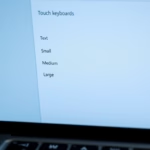
Open Settings , press Win+I, go to Time & language Typing, expand Touch keyboard, and check or uncheck Play key sounds as I type. The change saves immediately without restarting.
Why This Matters
The setting controls the audio feedback you get when typing on a tablet, a 2-in-1 or any touchscreen PC. Many tablet users like the click because it confirms each key press. If it bothers you or the people around you, you can switch it off and switch it back on whenever you want.
The change applies to the touch keyboard only. It does not affect the sound of a physical keyboard, system sounds or your volume settings. The same setting works on Windows 11 Home and Pro.
The Easy Way: Using Settings
The Settings app is the quickest and safest way to change this sound. You don’t need any advanced tools, and you can reverse the change at any time by repeating the same steps.
- Open the Settings app. Click the Start button and select Settings, or press
Win + Ion your keyboard. The Settings window should open. - On the left side, click Time & language. Then, on the right side, click Typing. The page now shows your typing options.
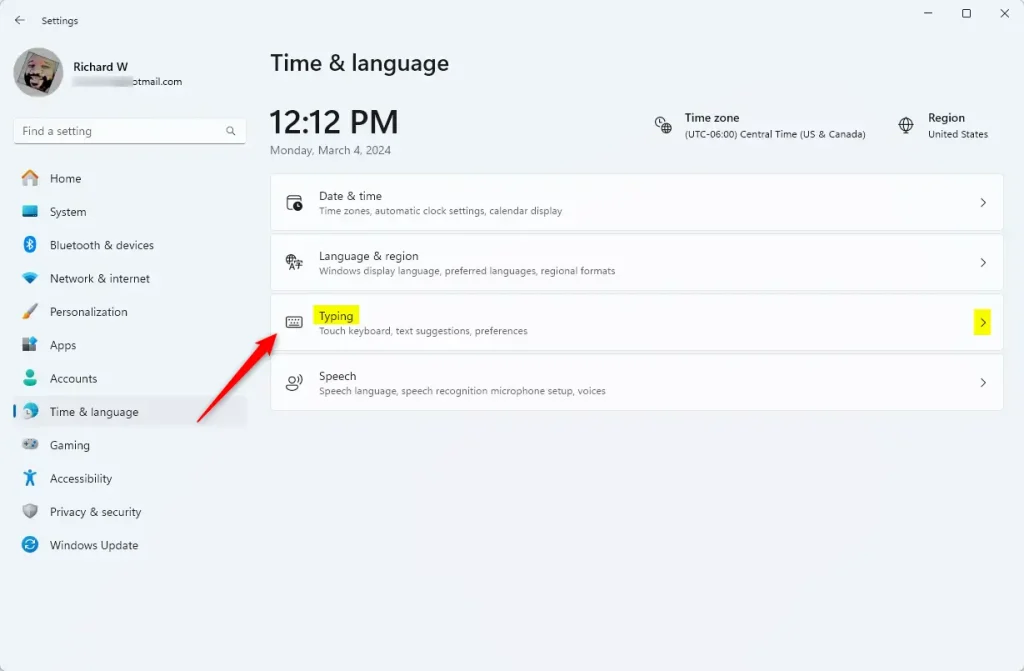
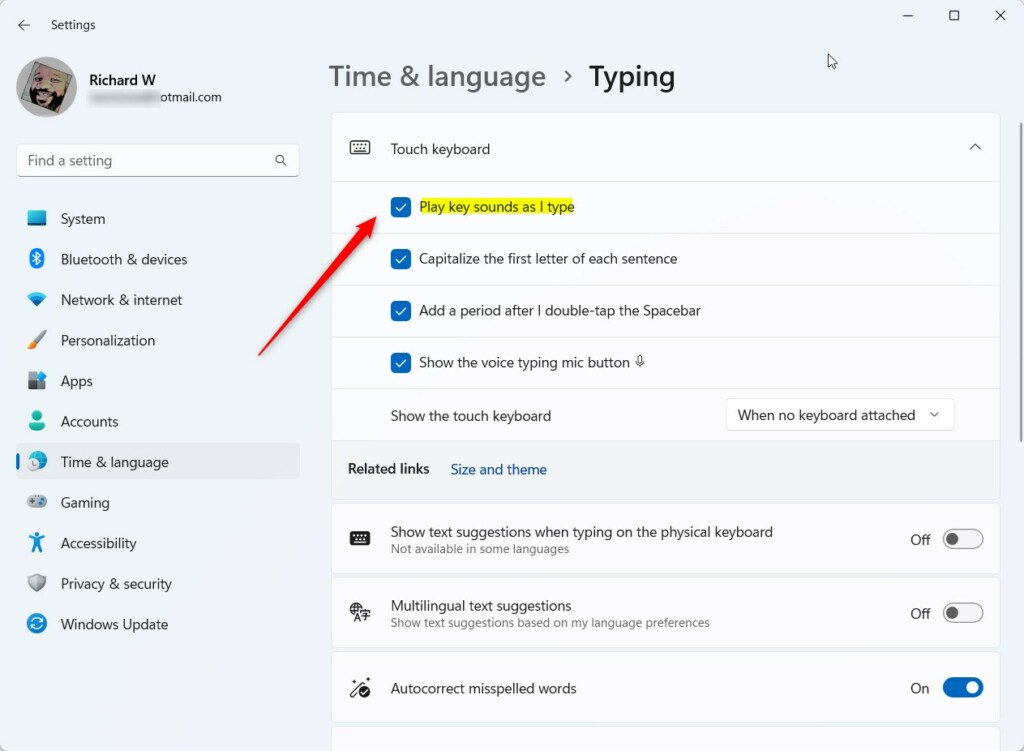
- Find the Touch keyboard entry in the list and click the arrow next to it. The entry expands and shows more controls for the touch keyboard, including its sound option.
- Locate the Play key sounds as I type option and change it:
- Check the box to turn the key sounds on.
- Uncheck the box to turn the key sounds off.
If you don't see the Touch keyboard entry, make sure you are on Time & language and then Typing, not another page. Some PCs without a touchscreen show fewer touch keyboard options. The wording can also vary slightly between Windows 11 versions.
- Close the Settings window. Windows saves your choice automatically, so there is no Apply or Save button. Open the touch keyboard and tap a key to check that the sound behaves the way you chose.
The Advanced Way: Using the Registry
Advanced users can change the touch keyboard sound there with a command, instead of going through the Settings menu. The command writes the value directly to the system. Back up the registry or create a restore point first if you are unsure, because a wrong registry change can cause problems.
To turn sounds on
- Open Command Prompt or PowerShell.
- Paste the following command to enable the audio feedback, then press Enter:
reg add "HKEY_CURRENT_USER\Software\Microsoft\TabletTip\1.7" /v EnableKeyAudioFeedback /t REG_DWORD /d 1 /fTo turn sounds off
- Open Command Prompt or PowerShell.
- Paste the following command to disable the audio feedback, then press Enter:
reg add "HKEY_CURRENT_USER\Software\Microsoft\TabletTip\1.7" /v EnableKeyAudioFeedback /t REG_DWORD /d 0 /fIf the change doesn't show up right away, close and reopen the touch keyboard. If it still doesn't, sign out and back in, or restart the PC. To undo the change, run the other command, or use the Settings method above.
Another option is to save the code to a file with a .reg extension. Double-clicking that file applies the change right away. Windows will ask you to confirm before it adds the data to the registry. Only run files you made yourself or fully trust.
Summary
Turning the touchscreen typing noise on or off takes only a few clicks. The Settings app is the simplest way, and the registry method is there if you prefer commands or want to script the change.
Was this guide helpful?

About the Author
Richard
Tech Writer, IT Professional
Richard is a writer at Geek Rewind who turns complex IT tasks into clear, step-by-step guides. He draws on years of hands-on experience in system administration and enterprise IT operations, focusing on Windows, Linux and WordPress: the problems people actually run into, and the fixes that work. His server and WordPress guides come from systems he runs himself. Richard builds and maintains the platform behind Geek Rewind, from its Ubuntu servers and Nginx configuration to its custom WordPress plugins. Many new tutorials start with readers' questions, and he's always glad to answer them in the comments.


No comments yet — be the first to share your thoughts!