Change Key Text Size on Touch Keyboard in Windows 11

- 6 steps
- Includes a restart or sign-out
Changing the key text size on the touch keyboard in Windows 11 lets you set the on-screen keys to Small, Medium, or Large so they are easier to read and tap. Small is the default. If you have trouble seeing the letters, or you keep hitting the wrong keys on your touchscreen, a larger size usually helps. The change applies to the touch keyboard only. It does not affect a physical keyboard or the text size in other parts of Windows.
To change the Windows 11 touch keyboard text size, press Win+I to open Settings, click Personalization, select Touch keyboard or Text input, find the Key text size dropdown under Keyboard theme, and choose Small, Medium, or Large.
How to Change Key Text Size Using Settings
- Press Win+I on your keyboard to open Settings. You should see the Settings window with a list of categories on the left.
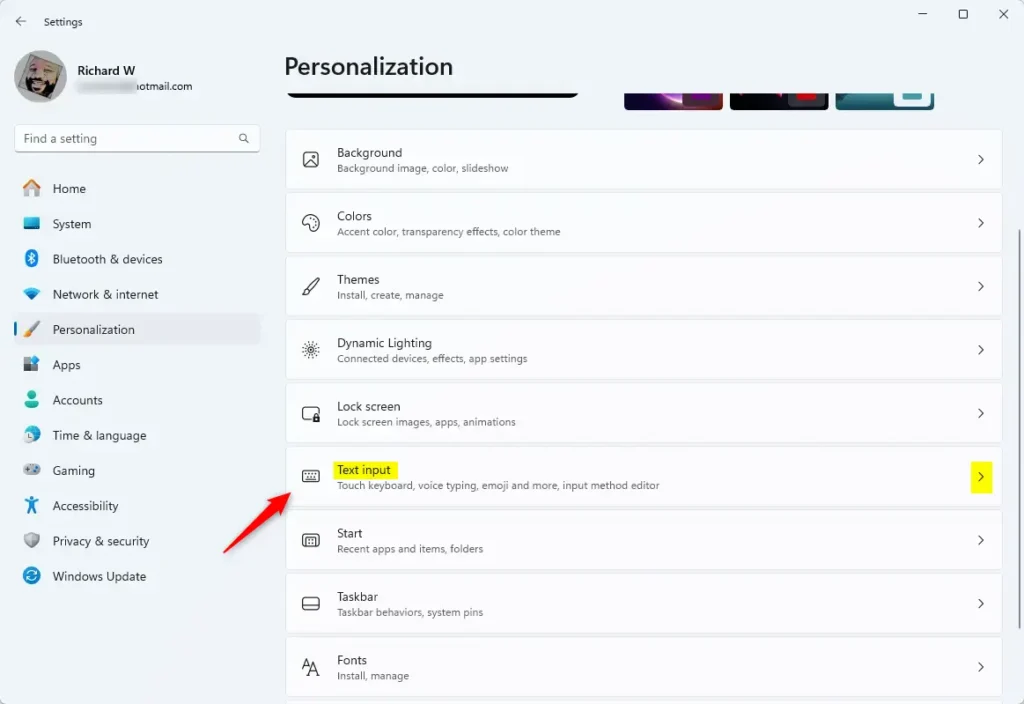
- On the left side, click Personalization. The personalization options now appear on the right.
- Click Touch keyboard or Text input on the right side. Which name you see depends on your Windows 11 build. Either one opens the keyboard options.
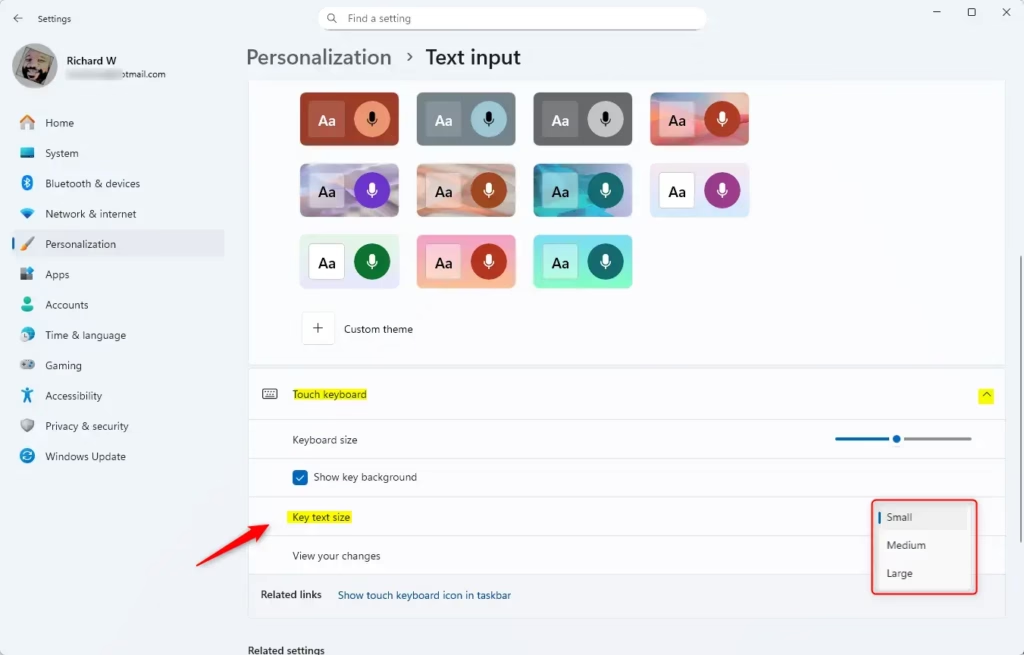
- Find the Key text size dropdown menu under Keyboard theme. Click the dropdown to open the list.
- Choose Small, Medium, or Large for the size you want.
- Close Settings when you’re done. You don’t need to restart. Open the touch keyboard and the new text size should be on the keys.
The change only takes a few clicks in the Settings app. You open the personalization menu, find the keyboard theme settings, and pick a text size. To undo it, go back to the same dropdown and choose Small, which is the default.
If you can’t find these options, check that you’re on Windows 11 and that Windows is up to date. Touch keyboard settings can be missing or limited on some builds and devices. If the keyboard doesn’t appear when you tap a text box, you may also need to turn on the touch keyboard icon in the taskbar corner settings.
How to Change Key Text Size Using the Registry (For Advanced Users)
This is optional, and the Settings method above is safer for most people. Before you change anything in the Registry, make a backup or create a restore point so you can roll back if something goes wrong. Follow these steps:
Small (default size)
reg add "HKEY_CURRENT_USER\Software\Microsoft\TabletTip\1.7" /v KeyLabelSize /t REG_DWORD /d 0 /fMedium
reg add "HKEY_CURRENT_USER\Software\Microsoft\TabletTip\1.7" /v KeyLabelSize /t REG_DWORD /d 1 /f
Large
reg add "HKEY_CURRENT_USER\Software\Microsoft\TabletTip\1.7" /v KeyLabelSize /t REG_DWORD /d 2 /f
Important: Registry modifications often require closing and reopening the touch keyboard or restarting the computer for updates to take effect. If the keyboard looks the same after you reopen it, restart the PC before assuming the change failed. To undo the change, restore your backup or set the value back to what it was before.
Summary
Adjusting the Windows 11 touch keyboard text size helps you read the letters on your screen more clearly while typing. You can quickly switch between small, medium, and large text options using the main Settings app, ensuring your touchscreen is comfortable to use no matter what size device you have.- It’s easy to change the size of the letters on the touch keyboard in Windows 11.
- The easiest way is to use the Settings app, where you can pick Small, Medium, or Large key text size.
- Advanced users can edit the Registry to change the text size directly.
- Picking the right key text size makes typing on touchscreens easier and more comfortable.
- Don’t forget to restart the touch keyboard if you use the Registry method for changes to take effect.
Frequently asked questions
How can I increase the font size in Windows?
Open Settings, go to Accessibility, then click Text size. Move the slider to the right for larger text, and click Apply. Windows scales text in most apps and menus. Some older programs may not change, so you might need to adjust their own font settings too.
How do I change the touchscreen settings in 🪟 Windows 10?
In Windows 10, open Settings and click Devices, then choose Pen & Windows Ink for touch-related options. To recalibrate a touchscreen that taps in the wrong spot, open Control Panel, search for Calibrate the screen for pen or touch input, and follow the prompts.
How do I make everything bigger on 🪟 Windows 11?
Open Settings, click System, then Display. Under Scale, pick a larger percentage such as 125% or 150%. Sign out if some apps look blurry or cut off. This makes apps, icons, and text bigger across Windows 11 without changing the screen's resolution.
How do I adjust the screen size from my keyboard?
Press Windows + Plus (+) to turn on Magnifier and zoom in. Press Win+Esc to turn it off. Windows has no keyboard shortcut for changing screen resolution. To do that, open Settings, click System, then Display, and choose a value under Display resolution.
Still have a question?
Answered by AI from this guide. Good questions may be added to this page — please don't include personal details.
Did this guide fix your problem?

About the Author
Richard
Tech Writer, IT Professional
Richard is a writer at Geek Rewind who turns complex IT tasks into clear, step-by-step guides. He draws on years of hands-on experience in system administration and enterprise IT operations, focusing on Windows, Linux and WordPress: the problems people actually run into, and the fixes that work. His server and WordPress guides come from systems he runs himself. Richard builds and maintains the platform behind Geek Rewind, from its Ubuntu servers and Nginx configuration to its custom WordPress plugins. Many new tutorials start with readers' questions, and he's always glad to answer them in the comments.
No comments yet — be the first to share your thoughts!