How to Scale Text and Icons Larger or Smaller in Windows 11 Display Settings

The Scale setting in Windows 11 Display Settings resizes text, icons, and apps all together across your whole display. You can pick a recommended percentage (like 125% or 150%) or choose a custom number between 100% and 500%.
Windows 11 has two separate controls that do different things, and mixing them up is the most common reason a display ends up looking wrong. The Scale setting changes everything together. The Text size slider in Accessibility settings changes only text and leaves icons and app windows at their normal size.
This guide covers how to use the Scale dropdown in Display Settings, when to use the Text size slider instead, how to resize desktop icons on their own, and what to try if the scale option won’t let you change it. It also covers a few quicker options for people who only need to enlarge the screen now and then.
To change text, icons, and apps together, open Settings with Win+I, go to System Display, and pick a percentage from the Scale dropdown under Scale & layout. The screen updates immediately. To enlarge only the text, use the Text size slider in Accessibility Text size instead.
Where 🪟 Windows 11 Keeps the Scaling Setting
Everything in this guide starts from the same place. You can get there in either of two ways:
- Right-click an empty area of your desktop and choose Display settings.
- Open Settings from the Start menu and go to System Display
On this page you’ll see a preview of your monitor layout at the top. Below it is a Scale & layout section with the Scale dropdown. This single setting controls the size of text, icons, and apps everywhere in Windows: the taskbar , File Explorer , the Start menu , and most third-party apps that follow Windows’ scaling rules.
There are two other ways to reach the same page. Press Win+S (or click the search box on the taskbar ), type Scale, and pick the matching Display result. Or press Win+R, type ms-settings:display, and press Enter to open the Display page directly. The Run command is optional, but handy if you adjust scaling often, for example when you connect to a projector.
Change the Overall Scale (Text, Apps, and Icons Together)
Use this when everything on screen looks too small or too large. It's a common problem on high-resolution laptop screens and 4K monitors, where Windows' default scale sometimes doesn't suit your eyesight or your distance from the screen.
- Open Settings by pressing Windows key + I. The Settings window opens.

Windows 11 Start menu with Settings gear icon highlighted. - Click System in the left sidebar, then click Display on the right. You'll see your monitor's resolution and a preview image at the top of the page.
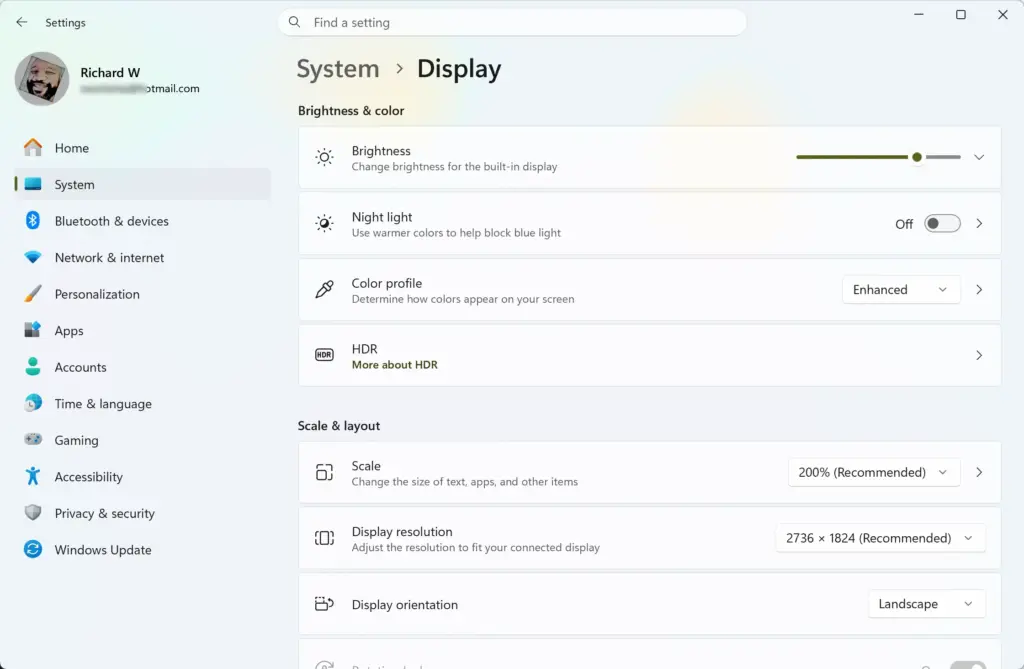
Settings › System › Display - Find the Scale dropdown under Scale & layout. It shows your current percentage. The value Windows picked automatically, based on your screen's resolution and size, is marked (Recommended).
Settings › System › Display › Scale - Click the dropdown and choose a different percentage, such as 125%, 150%, or 175%. The screen updates immediately. Text, icons, and app windows all resize together, and open windows may jump or redraw for a moment.
Move in one step at a time and look at the result before you go further. A jump from 100% to 200% is rarely what you want. Some apps that are already open may not redraw properly until you close and reopen them, or sign out and back in. If the available percentages don't give you what you need, move to the custom option below.
Set a Custom Scaling Percentage
Custom scaling lets you type an exact number instead of picking from the preset list. That helps if 125% feels too small but 150% feels too big.
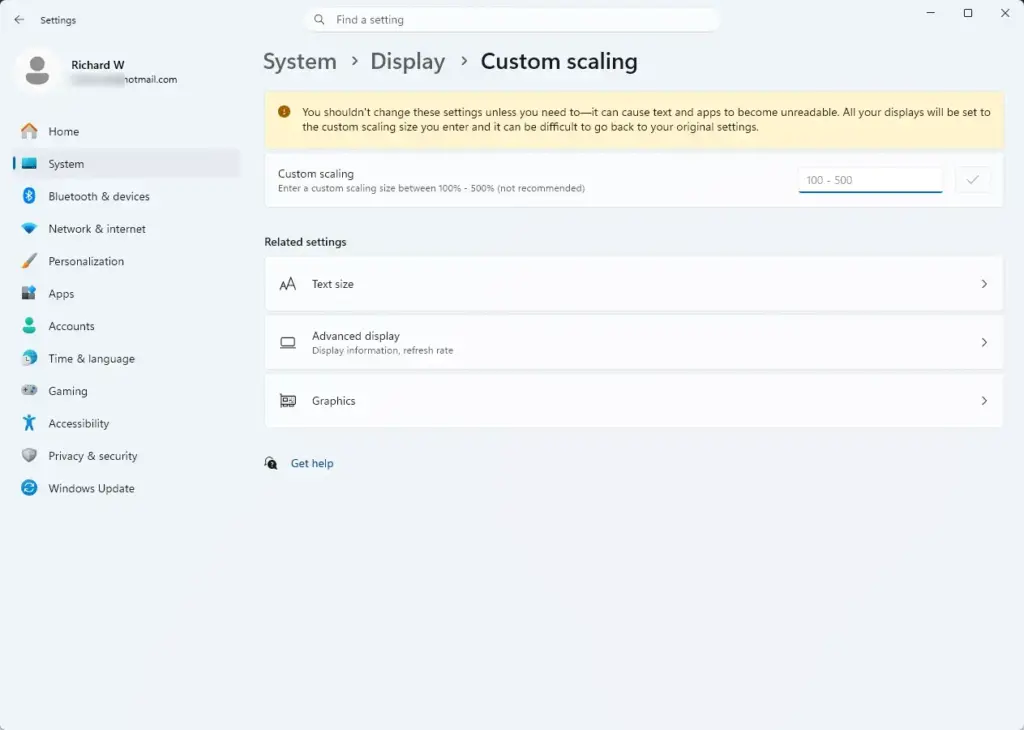
- Open the Scale dropdown on the Display settings page and select Custom scaling at the bottom of the list. If you don't see it there, click the Scale row itself to open its custom scaling page instead.
- Type a percentage between 100 and 500 in the box that appears.
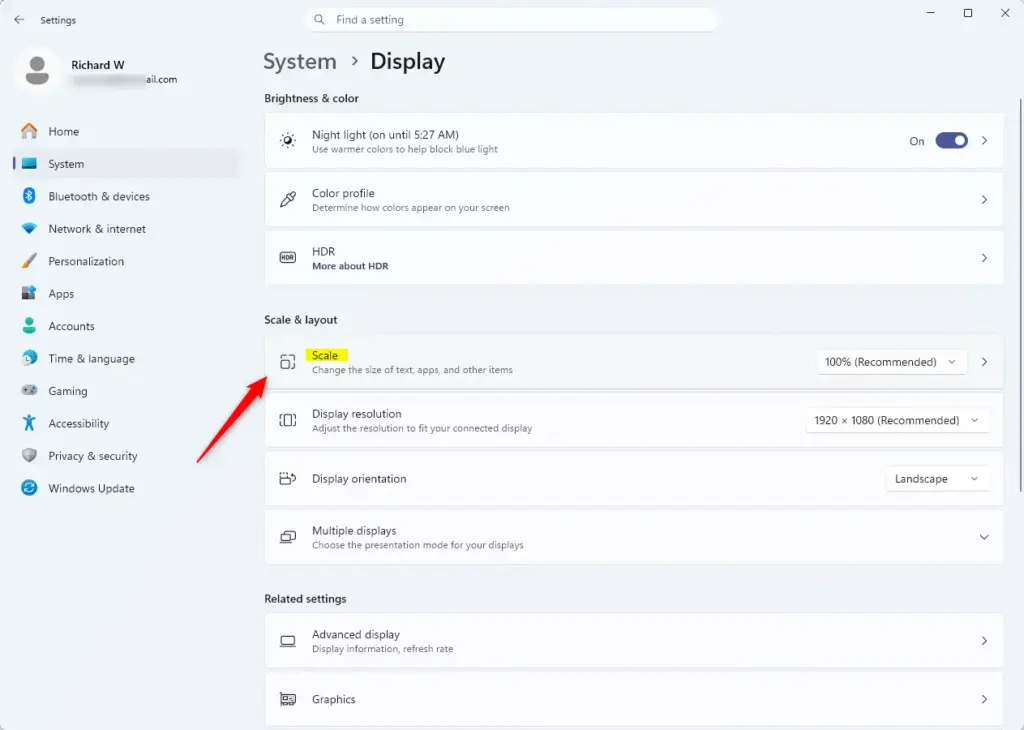
Windows 11 Display settings showing Scale option to make everything bigger. - Click away from the box or press Enter, then click Sign out now when the prompt appears. Save your work first, because signing out closes your open apps. Custom scaling doesn't apply until you sign out and back in, unlike the preset percentages, which apply instantly.
- Sign back in. Text, icons, and apps should now use the percentage you typed.
Values far outside the recommended range can make text look blurry or cause apps to render strangely. If that happens, go back and either pick a value closer to the recommended one or select one of the preset percentages instead.
Change Only the Text Size (Without Resizing Icons or Apps)
If icons and app windows are already the right size but the text itself is hard to read, don't touch the Scale setting. Use the dedicated text size slider instead. This changes font size in supported areas like File Explorer, Settings, and right-click menus, without shrinking or enlarging anything else.
- Open Settings and click Accessibility in the left sidebar. The list of accessibility options appears.
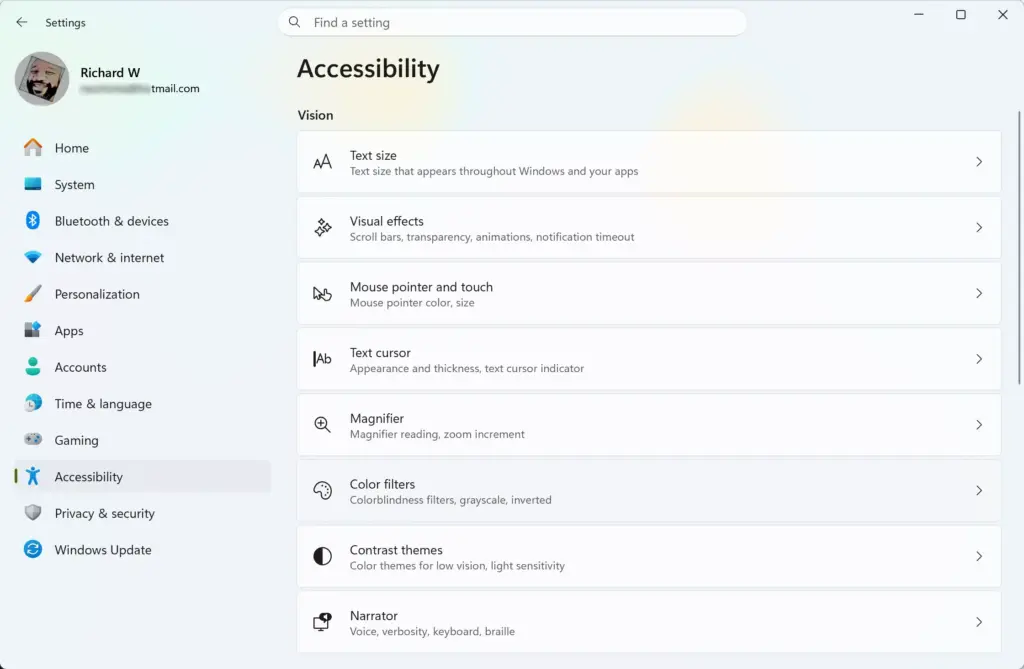
Settings › Accessibility - Click Text size under the Vision section.
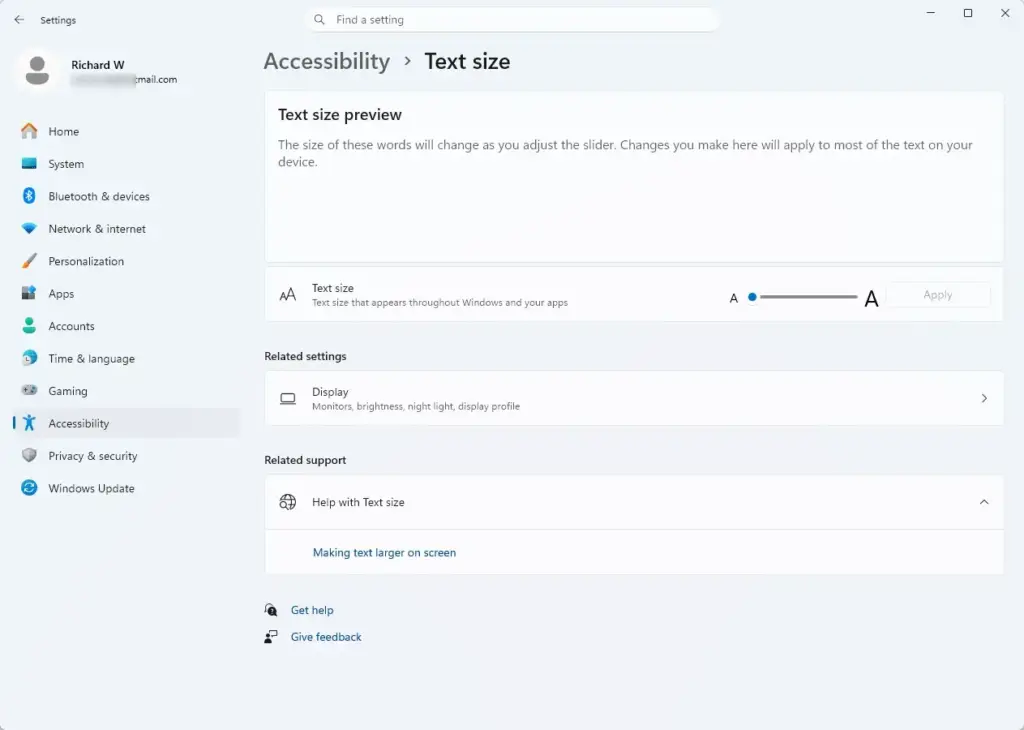
Settings › Accessibility › Text size - Drag the slider labeled Text size to the right to increase it, or left to decrease it. A preview box above the slider shows sample text ("The quick brown fox...") so you can judge the size before committing.
- Click Apply. The change takes effect immediately in supported areas, with no sign-out or restart needed. A short "Please wait" message may appear while Windows applies it.
This slider doesn't affect every app. Many third-party programs and some parts of the Windows interface still follow the Scale setting rather than this text-only slider. If an app's text doesn't change, that app isn't one of the ones this feature covers.
The same Accessibility area has a few other size controls that people often need alongside this one:
- Mouse pointer size: go to Settings Accessibility Mouse pointer and touch to make the pointer bigger or change its color.
- Text cursor size: go to Settings Accessibility Text cursor to add a text cursor indicator and change its size and color, which makes the typing position easier to find.
- Visual effects: Settings Accessibility Visual effects holds options such as transparency effects and animations. These are display options, not size controls, but turning them off can make the screen easier to read.
If you only need to enlarge the screen occasionally, you don't have to change any permanent setting. Press Windows key + Plus (+) to start Magnifier, a quick temporary zoom. Keep pressing Windows key + Plus to zoom in further, and Windows key + Minus (-) to zoom back out. Press Windows key + Esc to close Magnifier when you're done. Your Scale and Text size settings stay exactly as they were.
Change Desktop Icon Size
That's a separate setting tied to the desktop itself, not to display scaling.
- Right-click an empty area of your desktop. A context menu opens. On Windows 11 it's the short menu, and it still includes View.
- Point to View in the context menu. A submenu opens.
- Choose Large icons, Medium icons, or Small icons. The desktop icons resize immediately.
This only affects icons sitting on the desktop. It has no effect on icon sizes inside File Explorer windows, which you adjust separately from the View menu in each Explorer window.
Fix Blurry Text After Changing the Scale
Older apps sometimes look blurry or have oversized borders after you change the scale percentage. This happens most often when you switch between a high-scale laptop display and a lower-scale external monitor. The app renders itself at one scale and Windows stretches it to fit, rather than the app drawing itself correctly at the new size. You can change this for one app without touching the system-wide setting.
- Right-click the shortcut or executable of the affected app.
- Select Properties. On Windows 11 you may need to choose Show more options first.
- Click the Compatibility tab.
- Click Change high DPI settings. A new dialog opens.
- Check the box next to Override high DPI scaling behavior, then choose System or System (Enhanced) from the dropdown below it. If one looks worse, come back and try the other.
- Click OK, then OK again to close Properties, and restart the app for the change to take effect.
To undo this, open the same dialog and clear the checkbox. If the app still looks wrong after trying this, check whether the publisher has a newer version. Many apps that used to need this workaround have since added proper high-DPI support and no longer need it.
Scaling Across Multiple Monitors
If you have more than one monitor connected, Windows 11 lets each one carry its own scale percentage. This is useful when you're pairing a high-resolution laptop screen with an older external monitor at a lower resolution.
- Open Settings System Display
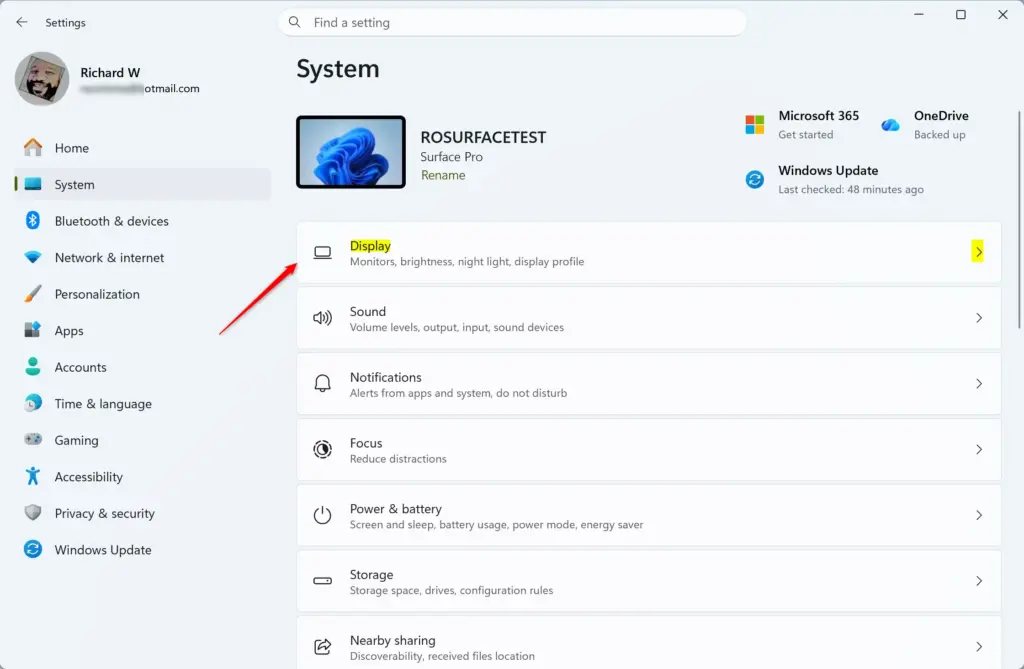
- Click the numbered monitor box in the preview at the top of the page that represents the screen you want to change. If you're not sure which is which, click Identify and a number appears on each screen.
- Scroll down to Scale & layout and set the Scale dropdown for that monitor only.
Settings › System › Display › Scale - Repeat for your other monitor by clicking its number in the preview and setting its scale separately.
When you drag a window between monitors with different scale settings, it may briefly flicker or resize as Windows adjusts. This is normal and not a problem.
Why the Scale Option Might Be Greyed Out or Limited
A few situations prevent normal scaling changes, and most guides skip over them:
- Outdated or generic display driver — if Windows is using a generic driver instead of one from your GPU manufacturer, the Scale dropdown may only offer 100% and the recommended value, with no custom option. Updating the graphics driver through Device Manager or the manufacturer's own app usually restores the full range. Restart the PC after the driver install.
- Remote Desktop sessions — scale is controlled by the session settings on the computer you're connecting from, not the one you're connecting to, so changes you make inside a remote session may not stick.
- Managed devices — on a work or school PC, an administrator can lock display settings through policy. If the dropdown is greyed out entirely and you see a note about some settings being managed by your organization, you'll need to contact IT rather than troubleshoot it yourself.
Undo a Scaling Change
To go back to how things were, open Settings System Display and reopen the Scale dropdown. The value marked (Recommended) is what Windows originally calculated for your screen, so selecting it returns you to the default. If you changed the Text size slider in Accessibility instead, drag it back to the far left, which is its default minimum position, and click Apply. If you used Magnifier, press Windows key + Esc to close it.
Neither change is destructive or hard to reverse. Undoing a preset scale change needs no restart. Custom scaling values need a sign-out, same as when you applied them.
What to Do Next
If text still looks wrong after adjusting scale, check whether your monitor is running at its native resolution first. A non-native resolution can make scaling look inconsistent no matter what percentage you pick. From here, you might also want to look at Night light settings if eye strain rather than text size is the real issue. Or check Task Manager if a specific app is ignoring your scaling changes and you suspect it's using excess resources while rendering incorrectly.
Frequently asked questions
How do I change the text size on display?
Open Settings, go to System Display, and look for the Scale & layout section. Use the Scale dropdown to pick a larger percentage like 125% or 150%, which resizes text, icons, and apps together. Or use the Text size slider in Accessibility settings if you want only text bigger.
How do I put text size back to normal?
Open Settings, go to System Display, find the Scale & layout section, and set the Scale dropdown back to the value marked (Recommended). If you only changed text size in Accessibility settings, go to Accessibility Text size and move the Text size slider back to the left.
How do I display large text on my phone?
This question is about phone display settings, which are different from Windows 11. On most phones, go to Settings Display or Accessibility and look for text size or display zoom options. The steps vary by phone model and operating system.
How to change display settings in mobile?
This question is about phone display settings, not Windows. On most phones, open Settings and look for Display, Screen, or Accessibility. The exact location depends on whether you use Android or iOS and which phone model you have.
Still have a question?
Answered by AI from this guide. Good questions may be added to this page — please don't include personal details.
Did this guide fix your problem?

About the Author
Richard
Tech Writer, IT Professional
Richard is a writer at Geek Rewind who turns complex IT tasks into clear, step-by-step guides. He draws on years of hands-on experience in system administration and enterprise IT operations, focusing on Windows, Linux and WordPress: the problems people actually run into, and the fixes that work. His server and WordPress guides come from systems he runs himself. Richard builds and maintains the platform behind Geek Rewind, from its Ubuntu servers and Nginx configuration to its custom WordPress plugins. Many new tutorials start with readers' questions, and he's always glad to answer them in the comments.
No comments yet — be the first to share your thoughts!