Turn Off Account-Based Insights in File Explorer Home in Windows 11

- 9 steps
- Needs administrator rights
To turn off account-based insights, clear one checkbox in File Explorer Options. First, here is what those insights are: file suggestions tied to your sign-in, such as recent and recommended files from your Microsoft account or work account. In Windows 11, open File Explorer Options, go to the General tab, and clear the checkbox in the Privacy section.
The change applies only to your user account, takes effect without a restart, and does not need administrator rights. Home is the page File Explorer opens to by default. The Recommended section sits near the top of it.
This guide uses File Explorer Options, not the Registry Editor, because one checkbox covers the task. You don’t need to edit any registry values. It also explains why the option can be missing or greyed out, and how to undo the change.
To turn off account-based insights in File Explorer Home in Windows 11, open File Explorer, select See more (the three dots) on the command bar, then select Options. On the General tab, clear the account-based insights checkbox in the Privacy section, select Apply, then OK. The change applies to your user account only and takes effect without a restart.
What Are Account-Based Insights in File Explorer Home?
File Explorer Home is the landing page in Windows 11 (version 22H2 and later), with sections for Quick access, Favorites and Recent. Account-based insights are the part of that page driven by the account you are signed in with, not only by files on the PC. Typical examples are files you opened recently on another device or documents saved in OneDrive (Microsoft’s cloud storage).
Work and school accounts use Entra ID, which is Microsoft’s cloud sign-in service for organizations. You may also see it called Azure Active Directory. On those accounts, Home can also surface files from your organization’s cloud storage.
Microsoft has added more account-linked features to Home in recent updates. A 2026 optional preview update (KB5095093, for Windows 11 24H2 and 25H2) added quick actions that appear when you hover over a file. Examples are Open file location and Ask Copilot, and they appear on files in File Explorer Home for Entra ID accounts. That feature is not available in the European Economic Area.
The checkbox in this guide controls the account-based suggestions. Microsoft’s documentation does not say whether the checkbox also turns off these hover actions. Check Home after you make the change to see.
Before You Start
A few details decide whether you see the option and what it affects.
- Windows versionThe steps below match Windows 11 24H2 and 25H2. Older builds of Windows 11 may label the checkbox differently. One older label mentions Office.com.
- Account typeThe suggestions depend on being signed in with a Microsoft account or a work or school account. A local account has no account to draw from, so there may be nothing to turn off.
- EditionsHome and Pro use the same File Explorer Options dialog. On PCs managed by an organization, the checkbox can be locked.
- ScopeThe setting belongs to your user profile. Other people who sign in to the same PC keep their own choice.
How to Turn Off Account-Based Insights in File Explorer Home
These steps turn off account-based insights in File Explorer Home by clearing one checkbox in File Explorer Options. Nothing here needs administrator privileges.
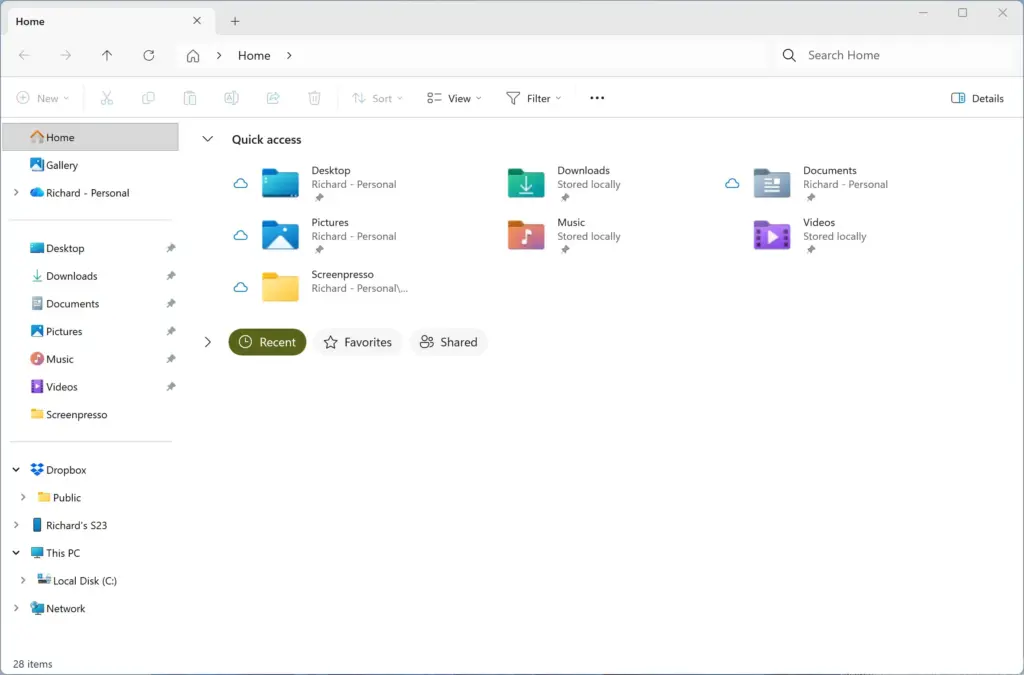
- Open File Explorer. Press Win+E, or select the folder icon on the taskbar. The window opens on Home, where you can see the suggestions you want to remove.
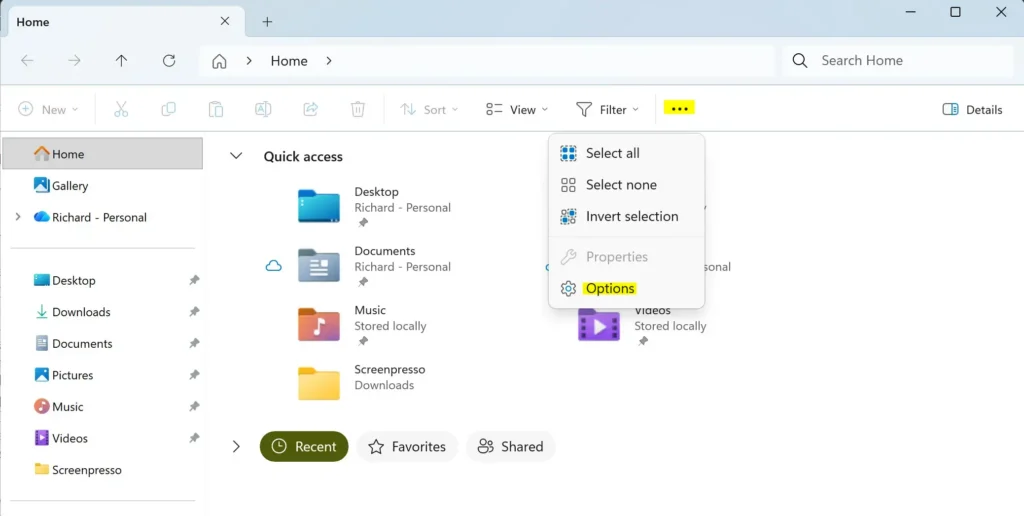
File Explorer - Select the three-dot icon in the toolbar. It is called See more, and it sits at the right end of the command bar. A menu opens.
- Select Options. The Folder Options dialog opens. Some builds title it File Explorer Options. It opens on the General tab.
- Select the General tab if it is not already showing. It is the first tab on the left.
File Explorer - Find the Privacy section at the bottom of the tab. It holds the checkboxes about Home and recent items.
- Clear the checkbox that mentions account-based insights. On current builds the label reads along the lines of Show account-based insights, recent, favorite, and recommended files. The exact wording varies by version, so pick the one that names account-based insights.
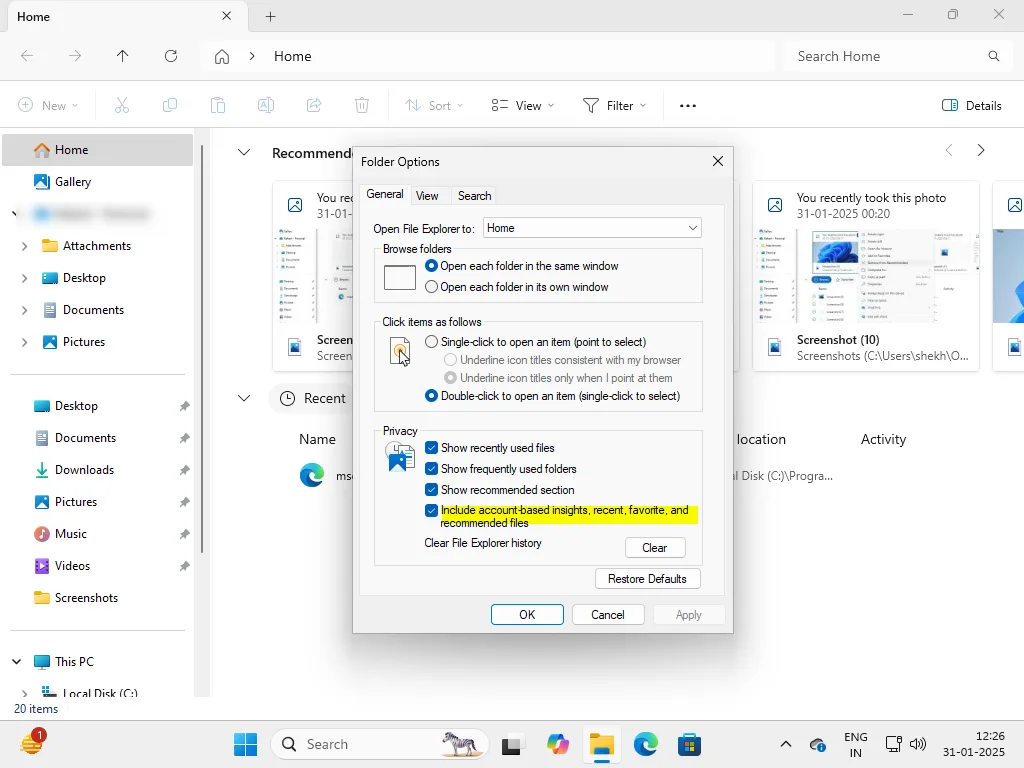
- Select Apply. The change takes effect for your account straight away.
- Select OK. The dialog closes and you return to File Explorer.
- Press F5 in the File Explorer window. This refreshes Home. If the suggestions are still there, close the window and open a new one.
Look at Home once after the change. If you only wanted to remove the suggestions, managing Favorites and the Recommended section are separate controls. The correct Favorites guide is How to Use Favorites in Windows 11 File Explorer.
What You Should See After the Change
Home stops pulling in suggestions from your account. Items that come from the PC itself, such as pinned folders in Quick access, stay where they are.
Your files are not deleted or moved. The setting changes only what Home displays, so everything remains in OneDrive, SharePoint or your local folders.
If the Recommended section is still on screen after you clear the checkbox, that is a separate display setting. The next section covers it.
Hide the Recommended Section Instead
Some readers want the whole Recommended block gone, not only the account-linked items. That has its own toggle, covered in How to Enable or Disable Show Recommended Section in File Explorer Home in Windows 11. Use it when the suggestions remain visible after the steps above, or when you prefer a cleaner Home page.
Some builds of Windows 11 remember whether you expanded or collapsed sections the last time you used File Explorer Home. Microsoft began rolling this out in November 2026. On a build that includes it, collapse the Recommended section once and it stays collapsed the next time you open Home.
If you never use Home at all, you can remove it from the navigation pane and skip the page entirely. For that, see How to Remove the Home Folder from Windows 11 File Explorer or How to Remove Home Folder from Windows 11 File Explorer; either one covers the task.
If the Option Is Missing or Greyed Out
The checkbox does not always look the same. Check these causes in order.
You Use a Local Account
A local account exists only on the PC and has no cloud sign-in. Without one, Home has no account to build insights from, and the checkbox may be absent or have nothing to do. To check your account type, open Settings Accounts Your info. If it shows your name and a local account label, this guide has little to change.
The Checkbox Has a Different Label
Microsoft has reworded this option across Windows 11 releases. If you do not see the checkbox text described in step 6, scan the whole Privacy section and the General tab. Look for any line that mentions account-based insights, Office.com files or recommended files. On an older build, a Windows Update to the current release may bring the newer wording.
Your Organization Manages the PC
On a work or school PC, an administrator can lock File Explorer settings. A greyed-out checkbox, or one that switches back after you clear it, points to a managed device. No policy name is given here, so ask your IT team which setting controls this checkbox on your PC.
The Change Did Not Appear
Home can keep showing old content until it refreshes. Press F5, close every File Explorer window and open a new one. If items still appear, sign out of Windows and sign back in.
Window preloading, which keeps a File Explorer window ready in the background, can also keep an old view alive. If you suspect that, see How to Enable or Disable Window Preloading in File Explorer on Windows 11.
How to Turn Account-Based Insights Back On
This change is reversible, and you lose nothing by trying it. Repeat the steps above, and in step 6 select the checkbox so it shows a tick. Select Apply, then OK, and press F5 on Home.
The suggestions may take a short time to return, because Home has to fetch them from your account again. They need an internet connection and a signed-in account.
Related Privacy Notes
Turning this off hides suggestions on your screen. It does not sign you out of your account, delete OneDrive files, or stop other Microsoft apps from using your account. Your recent files list in other apps, such as Word, is a separate setting inside each app.
If your goal is fewer pop-ups and prompts in File Explorer generally, two related guides help. One is How to Enable or Disable Sync Provider Notifications in File Explorer in Windows 11. The other is How to Enable or Disable Pop-up Tips Description in File Explorer on Windows 11.
What to do next
Open Home once more and check which sections remain. If the Recommended block is still there, use the separate toggle in the guide linked above, or collapse it. For other File Explorer adjustments, How to Customize Windows 11 File Explorer for Your Needs is the closest next read. If a build update restores the checkbox or the suggestions later, repeat the steps in this guide.
Have a question about this guide?
Answered by AI from this guide. Good questions may be added to this page — please don't include personal details.
Did this guide fix your problem?

About the Author
Richard
Tech Writer, IT Professional
Richard is a writer at Geek Rewind who turns complex IT tasks into clear, step-by-step guides. He draws on years of hands-on experience in system administration and enterprise IT operations, focusing on Windows, Linux and WordPress: the problems people actually run into, and the fixes that work. His server and WordPress guides come from systems he runs himself. Richard builds and maintains the platform behind Geek Rewind, from its Ubuntu servers and Nginx configuration to its custom WordPress plugins. Many new tutorials start with readers' questions, and he's always glad to answer them in the comments.
No comments yet — be the first to share your thoughts!