How to Remove the Home Folder from Windows 11 File Explorer

Removing the Home folder from Windows 11 File Explorer hides recent files and Quick Access-style directories from the left sidebar. Home is a built-in view that shows your recent files and frequent folders every time you open a window. It first appeared in Windows 11 version 22H2, so on older builds you will see Quick Access instead.
Clearing this clutter takes a short edit in the Registry Editor, the central database where Windows stores system settings. You add a HubMode value set to 1 and delete one key. Both changes are shown below, along with how to reverse them. The steps are the same on Windows 11 Home and Pro.
Open Registry Editor (Win+R, type regedit, press Enter), navigate to 🗝️HKEY_LOCAL_MACHINE\
What is File Explorer?
File Explorer is the built-in file manager in Windows 11. You use it to browse, open and organize documents, pictures and other files. It is also where you will check your work. Once the registry edits are done and you have restarted, open File Explorer and look at the left sidebar to confirm the Home entry is gone.
Any user with administrator rights can customize the File Explorer view. This guide explains how to hide or remove the "Home" folder, which lists your frequently used files and folders for quick access. Nothing is deleted from your drive. Only the shortcut to the Home view is removed from the sidebar.
How to Hide the Home Folder in File Explorer
This guide uses the Windows Registry Editor, and a wrong edit can cause problems. Follow the instructions exactly and change only the entries named here. You need an administrator account, or the administrator password if you are signed in as a standard user.
Before you start, make a backup. In Registry Editor, click File Export, choose All as the export range, and save the .reg file somewhere safe. Double-clicking that file later puts the settings back.
Step 1Open the Registry Editor
First, open the Registry Editor:
- Press Windows key + R on your keyboard. The Run box opens in the bottom-left corner of the screen.
- Type
regeditand press Enter. - If a User Account Control prompt appears, click Yes. This step requires admin privileges. If you are on a standard account, enter an administrator's password when asked. The Registry Editor window then opens.
The Registry Editor window has a tree of keys (folders) in the left pane and the values of the selected key in the right pane. You will work in both panes. If the window does not open, the account you are using is not an administrator. Sign in with one and try again.
Step 2Find the Explorer Folder
In Registry Editor, use the left pane to go to the folder path shown below. Click the small arrow beside each key to expand it. You can also paste the path into the address bar at the top of the window and press Enter.
Computer\HKEY_LOCAL_MACHINE\SOFTWARE\Microsoft\Windows\CurrentVersion\ExplorerStep 3Create a New Value
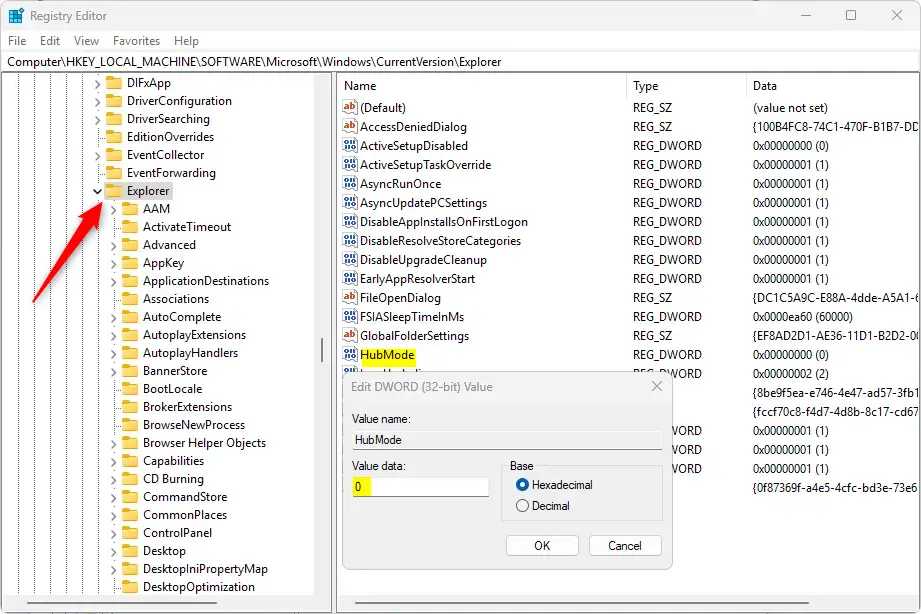
- Right-click the Explorer key in the left pane.
- Choose New DWORD (32-bit) Value. A new entry called "New Value #1" appears in the right pane with its name selected for editing.
- Type the name HubMode and press Enter. Capitalization matters for readability, so type it exactly as shown.
Step 4Change the Value
- Double-click HubMode in the right pane. The Edit DWORD (32-bit) Value window opens.
- Change the Value data to 1. Leave the Base option on its default.
- Click OK. The right pane now shows HubMode with the data 0x00000001 (1).
Step 5Delete the Home Folder Key
Next, navigate to the folder path below. It is the second location you need.
Before you delete anything here, you can save a copy of the key you are about to remove. Right-click it, choose Export, and save the file. That makes the undo steps later much easier.
Computer\HKEY_LOCAL_MACHINE\SOFTWARE\Microsoft\Windows\CurrentVersion\Explorer\Desktop\NameSpace
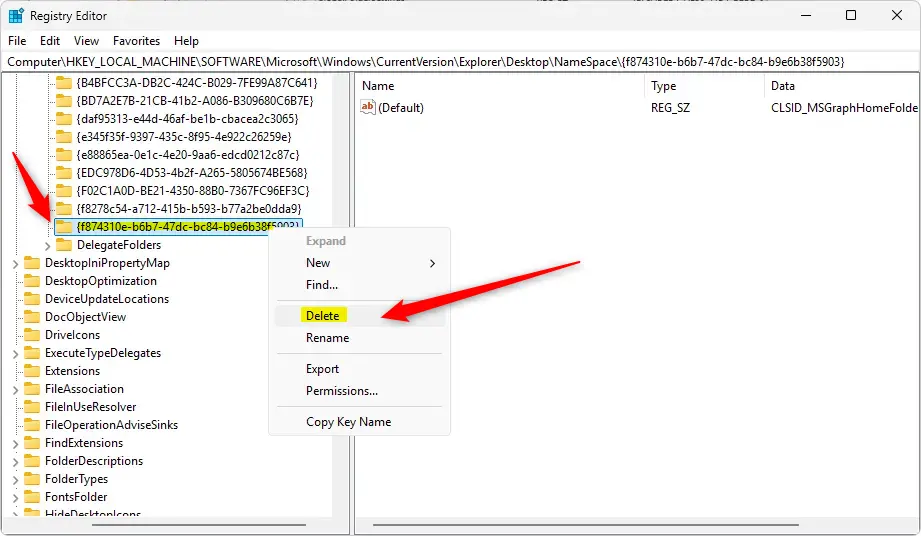
- Find the key named
{f874310e-b6b7-47dc-bc84-b9e6b38f5903}in the left pane. - Right-click it and select Delete. A confirmation dialog asks whether you want to delete the key.
- Click Yes to confirm the deletion. The key disappears from the list. If Windows reports that it cannot delete the key, check that Registry Editor was opened with administrator rights.
Step 6Restart Your Computer
A restart is needed. Opening a new File Explorer window is not enough.
After restarting, open File Explorer. The Home folder no longer appears in the sidebar. Explorer opens to This PC or to whichever folder is set as the default. To check or change that default, click the See more (three dots) button in the toolbar, choose Options, and look at the Open File Explorer to setting on the General tab.
How to Bring Back the Home Folder
You can undo the changes at any time to bring the Home folder back. This means removing the HubMode value and re-creating the key you deleted. It also needs administrator rights and a restart.
Step 1Open Registry Editor Again
Press Windows key + R, type regedit, and press Enter. Click Yes on the User Account Control prompt. This step requires administrator privileges.
Step 2Delete the HubMode Value
- Go to
Computer\HKEY_LOCAL_MACHINE\SOFTWARE\Microsoft\Windows\CurrentVersion\Explorerin the left pane. - Right-click HubMode in the right pane and select Delete.
- Click Yes to confirm the deletion. HubMode disappears from the right pane.
Step 3Create the Home Folder Key
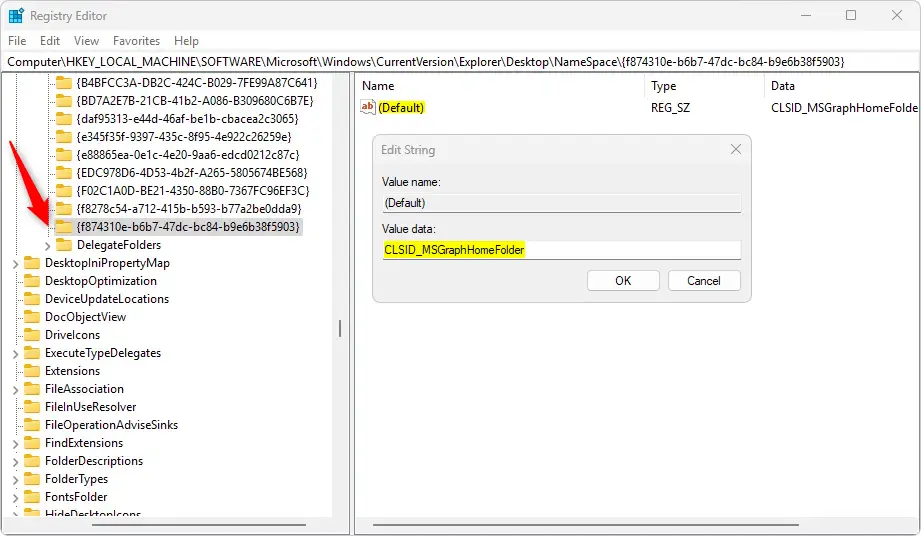
Next, bring back the key you deleted earlier. Open Registry Editor (a tool for changing advanced system settings), go to the NameSpace key from the earlier step, and add a new subkey inside it using the same name you deleted. Use the exact names and data shown below. A typo can leave the entry broken. If you exported the key before deleting it, you can instead double-click that .reg file and click Yes when asked to merge it.
Step 4Restart Your Computer
Restart your PC again. After it starts, open File Explorer and the Home folder is back in the sidebar.
Summary
- Hide Home Folder: Add the HubMode value and set it to 1, then delete one key. This requires admin privileges.
- Restore Home Folder: Remove the HubMode value, then add the deleted key back with the right name and data. This requires admin privileges.
- Restart Needed: Always restart your computer after making these changes, in both directions.
- Be Careful: Editing the Registry can cause problems if done incorrectly. Follow the instructions carefully and back up your Registry first, using File Export in Registry Editor.
To hide the Home folder in Windows 11, edit the registry to add the HubMode value and remove the Home key, then restart your computer. You can restore the default view later by reversing those edits and restarting again. Back up your registry before you make any changes so you can recover quickly if something goes wrong.
Have a question about this guide?
Answered by AI from this guide. Good questions may be added to this page — please don't include personal details.
Did this guide fix your problem?

About the Author
Richard
Tech Writer, IT Professional
Richard is a writer at Geek Rewind who turns complex IT tasks into clear, step-by-step guides. He draws on years of hands-on experience in system administration and enterprise IT operations, focusing on Windows, Linux and WordPress: the problems people actually run into, and the fixes that work. His server and WordPress guides come from systems he runs himself. Richard builds and maintains the platform behind Geek Rewind, from its Ubuntu servers and Nginx configuration to its custom WordPress plugins. Many new tutorials start with readers' questions, and he's always glad to answer them in the comments.
No comments yet — be the first to share your thoughts!