How to Fix Windows 11 File Explorer Crashing or Freezing


File Explorer crashes and freezes in Windows 11 stop you from opening folders, managing documents, or browsing pictures. File Explorer is the built-in app you use to find and open every file and folder stored on your computer.
When it breaks, you usually see one of three things: a blank white window, a spinning loading circle that never finishes, or a taskbar that blinks and restarts on its own. The usual causes are damaged system files, background apps that conflict with Explorer, and broken plugins in the right-click menu . Outdated graphics drivers and missing updates can also be to blame.
Work through the fixes below in order. They go from the quickest and least invasive to the more involved ones, so you can stop as soon as the problem goes away.
Press Ctrl+Shift+Esc to open Task Manager , click the Processes tab, find Windows Explorer , right-click it, and select Restart. The taskbar and File Explorer windows will close briefly, then reopen. If freezing persists, clear File Explorer history in File Explorer Options under Privacy, or run sfc /scannow in Command Prompt as administrator to repair damaged system files.
Step 1Restart Windows Explorer via Task Manager
Restarting Windows Explorer from Task Manager is the quickest fix for a freezing or crashing file browser, and it saves you a full reboot. The process draws the desktop, the taskbar , and every File Explorer window. Restarting it clears out temporary glitches that make those windows lock up. It takes a few seconds.
- Press Ctrl+Shift+Esc to open Task Manager . This shortcut works even when File Explorer is frozen. If Task Manager opens in a small window with no tabs, click More details at the bottom.
- Click the Processes tab. In current Windows 11 builds it is the first item in the left-hand menu.
- Scroll down until you find Windows Explorer . It is listed under Windows processes, or under Apps if a File Explorer window is open.
- Right-click it and select Restart.
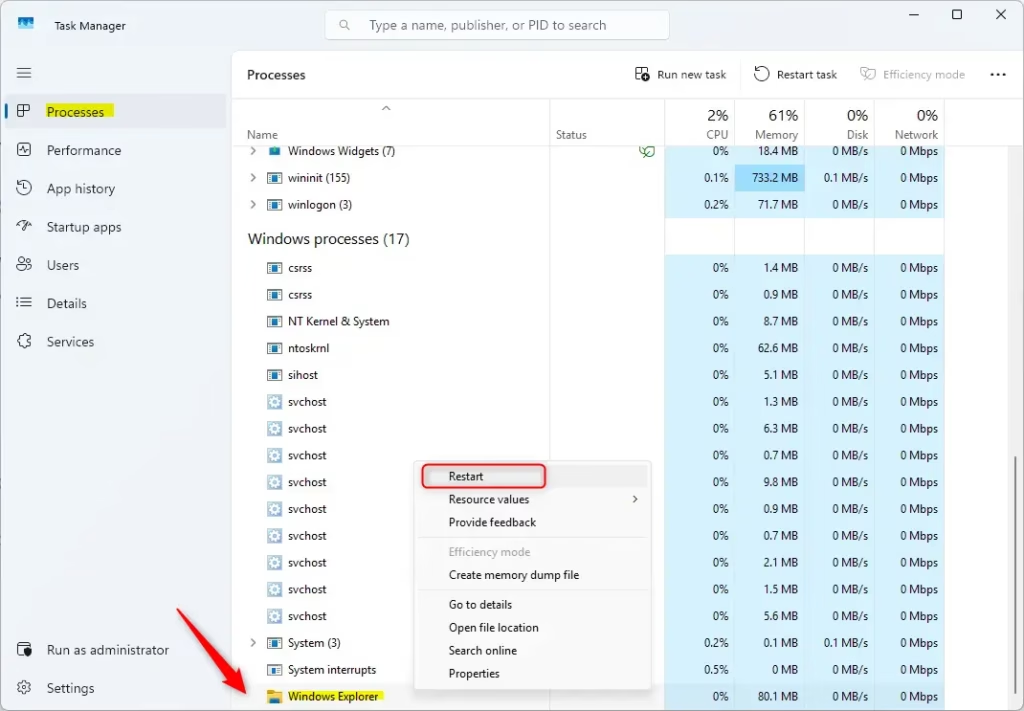
The screen flicker is normal, not an error. Anything you had open in File Explorer may close, so save your work first if you can.
If Windows Explorer is missing from the list, File Explorer may not be running at all. In that case, sign out and back in, or restart the PC.
Step 2Clear File Explorer History
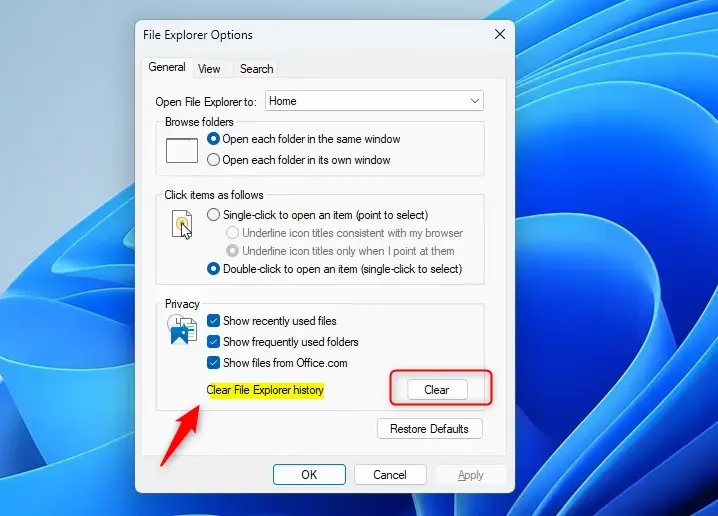
Explorer keeps a list of recent files, frequently used folders, and Quick access entries. If that data gets corrupted, directory listings can hang while Explorer tries to read it. Clearing it removes the bad data, and Windows rebuilds the list as you work. Nothing is deleted from your drive, because only the history entries go.
- Press the Windows Key, type File Explorer Options, and press Enter. The File Explorer Options window opens.
- On the General tab, find the Privacy section.
- Click the Clear button next to "Clear File Explorer history." There is no confirmation message, so the click may seem to do nothing. That is normal.
- Click Apply and then OK.
Open File Explorer again and check whether the freezing has stopped. Your Quick access list will be empty or reset at first. You can pin your important folders again with right-click and Pin to Quick access.
Step 3Run System File Checker (SFC)
The System File Checker (SFC) repairs damaged operating system files, which are a common cause of constant Explorer crashes. It scans the protected Windows files, compares them with known-good copies, and replaces any that are broken or changed. It works on Home and Pro alike.
- Click the Start button and type CMD.
- Right-click Command Prompt and select Run as administrator. If the User Account Control prompt appears, click Yes. SFC will not work properly without administrator rights.
- In the black window, type
sfc /scannowand press Enter. - Wait for the scan to reach 100%. It can take 10 to 20 minutes on a slow drive, so leave the window open. It fixes any errors it finds automatically.
When it finishes, you will see a message saying whether it found no problems, repaired files, or found damage it could not fix. Restart the computer afterward, even if it reports nothing wrong, then test File Explorer again. If SFC reports damage it could not repair, the fixes later in this guide may still help, but a deeper repair of Windows may be needed.
Step 4Disable Context Menu Extensions
Right-clicking any file opens a context menu, and third-party programs add their own entries to it. Cloud storage apps and antivirus software are the usual culprits. These additions are called shell extensions, and they load inside File Explorer itself. A faulty one can crash Explorer every time you right-click, or freeze it when you open a certain folder.
If the crashes began after you installed something, remove that software:
- Press Windows + I to open Settings.
- Click Apps, then Installed apps.
- Click the Installed on column heading to sort by date, or use the sort option, so the newest programs appear first.
- Click the three dots next to a recently added program, such as a cloud storage client, file archiver, or security tool, and select Uninstall.
- Restart the computer and test File Explorer.
Remove one program at a time. That way you can tell which one caused the problem. You can reinstall it later, ideally the latest version from the vendor's site, which may have fixed the bug. If you remove antivirus software, make sure Microsoft Defender or another protection is active afterward.
Step 5Configure Advanced Startup Settings
Security features can sometimes interfere with file operations. BitLocker encrypts your drives, and TPM is a security chip on the motherboard that stores the encryption keys. Both are worth checking if nothing else has worked. Treat this as a last-resort test rather than a routine fix, because turning off encryption lowers your protection.
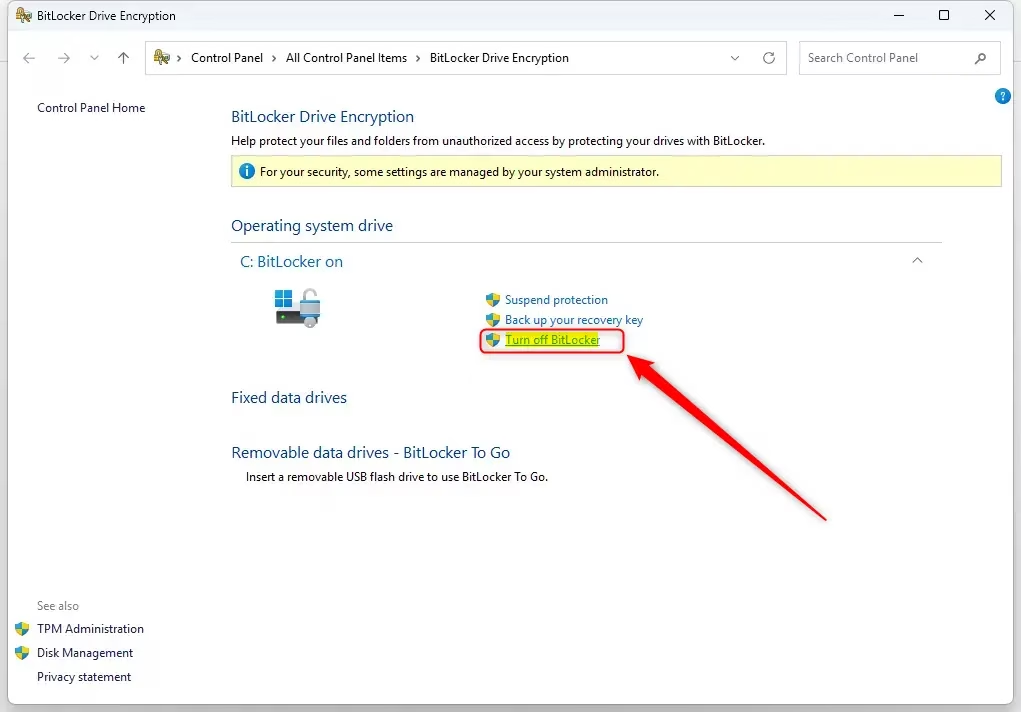
- Click Start and type Manage BitLocker. Open the result.
- Select the option to Turn off BitLocker if you think it is blocking your files. Windows then decrypts the drive in the background. That can take a while on a large drive, but you can keep using the PC meanwhile. Windows 11 Home does not include full BitLocker management, so you may see a "device encryption" setting instead, or nothing at all. In that case, skip this step.
- To check your security hardware, press Windows + R, type
tpm.msc, and press Enter. - In the window that opens, check the status of your security hardware. It should show that the TPM is ready for use. If it says a compatible TPM cannot be found, it may be disabled in your computer's firmware (BIOS/UEFI) settings.
If turning off BitLocker makes no difference, turn it back on. Return to Manage BitLocker and select Turn on BitLocker for that drive. Before changing anything here, make sure you have your BitLocker recovery key saved somewhere safe.
Step 6Update Your Graphics Drivers
File Explorer uses the graphics processor (GPU) for hardware acceleration when drawing windows. Outdated or faulty display drivers can freeze the interface during heavy drawing, such as opening a folder with thousands of image thumbnails. Updating the driver prevents these stalls.
- Right-click the Start button and select Device Manager.
- Expand Display adapters to see which graphics hardware you have. A laptop may list two, such as Intel and NVIDIA.
- Go to the manufacturer's site (NVIDIA, AMD, or Intel) and download the latest driver for your exact model. Getting it directly from the maker is better than relying on a third-party driver tool.
- Run the installer and follow its prompts. The screen may go black for a moment while it installs.
- Restart the computer when it finishes.
If the problem started right after a driver update, go back to Device Manager, double-click the adapter, open the Driver tab, and click Roll Back Driver if the button is available. If it is greyed out, Windows has no earlier version saved.
Step 7Check for Windows Updates
Microsoft regularly patches interface bugs, including File Explorer ones, through cumulative updates. Installing pending updates is one of the best things you can do for long-term stability.
- Press Windows + I to open Settings.
- Select Windows Update from the left menu.
- Click Check for updates. Windows will search and start downloading anything it finds.
- When the downloads finish, click Restart now if it appears. Updates are not fully applied until the restart.
If an update is stuck or fails, restart the PC and try again. If File Explorer began crashing right after an update, open Windows Update, then Update history, and use Uninstall updates to remove the most recent one as a test.
Bonus Tips
Advanced troubleshooting methods help fix deeper issues when standard steps fail to stop your file browser from crashing. Running a disk check scans your drive for physical errors, while free utilities like ShellExView let you isolate faulty context menu add-ons that cause background conflicts and slow down your system.- Shell Extensions: These are small background programs that add icons to your folders. You can use a free tool called ShellExView to disable them one by one to find the one causing the crash.
- Check Disk Health: If your hard drive is having trouble, File Explorer will often freeze. Open Command Prompt as an administrator and run
chkdsk C: /f /rto check your drive for physical errors.
Summary
Summary: Resolving an unstable File Explorer in Windows 11 starts with restarting the background process in Task Manager and clearing access history. Proceeding with System File Checker scans and disk health audits resolves deeper file corruption.
```Have a question about this guide?
Answered by AI from this guide. Good questions may be added to this page — please don't include personal details.
Did this guide fix your problem?

About the Author
Richard
Tech Writer, IT Professional
Richard is a writer at Geek Rewind who turns complex IT tasks into clear, step-by-step guides. He draws on years of hands-on experience in system administration and enterprise IT operations, focusing on Windows, Linux and WordPress: the problems people actually run into, and the fixes that work. His server and WordPress guides come from systems he runs himself. Richard builds and maintains the platform behind Geek Rewind, from its Ubuntu servers and Nginx configuration to its custom WordPress plugins. Many new tutorials start with readers' questions, and he's always glad to answer them in the comments.
No comments yet — be the first to share your thoughts!